

編輯:關於 Android 程式設計
動畫是面試高頻考點,也是提升產品質感的關鍵。Android 動畫分三大類,先建立整體認知:
可以在 res/anim/ 下用 <translate>、<scale>、<rotate>、<alpha> 四個標簽配置,多個動畫用 <set> 組合。啟動方式一行搞定:
view.startAnimation(AnimationUtils.loadAnimation(this, R.anim.myanimation));
同樣的邏輯也能用 Java 寫:
splash = (RelativeLayout) findViewById(R.id.splash);

// 旋轉
RotateAnimation rotateAnimation = new RotateAnimation(0, 360,
        Animation.RELATIVE_TO_SELF, 0.5f, Animation.RELATIVE_TO_SELF, 0.5f);
rotateAnimation.setDuration(2000);
rotateAnimation.setFillAfter(true);

// 縮放
ScaleAnimation scaleAnimation = new ScaleAnimation(0, 1, 0, 1,
        Animation.RELATIVE_TO_SELF, 0.5f, Animation.RELATIVE_TO_SELF, 0.5f);
scaleAnimation.setDuration(2000);
scaleAnimation.setFillAfter(true);

// 透明度
AlphaAnimation alphaAnimation = new AlphaAnimation(0.2f, 1.0f);
alphaAnimation.setDuration(2000);
alphaAnimation.setFillAfter(true);

// 平移
TranslateAnimation translateAnimation = new TranslateAnimation(0, 0, 100, 100);
translateAnimation.setDuration(2000);
translateAnimation.setFillAfter(true);

// 組合
AnimationSet animationSet = new AnimationSet(true);
animationSet.addAnimation(rotateAnimation);
animationSet.addAnimation(scaleAnimation);
animationSet.addAnimation(alphaAnimation);
animationSet.addAnimation(translateAnimation);

splash.startAnimation(animationSet);
實際項目中較少見。做法:繼承 Animation,重寫 initialize()(初始化)與 applyTransformation()(矩陣變換)。
使用 android:layoutAnimation 即可讓容器內的子元素依次進場:
// res/anim/layout_anim.xml
<layoutAnimation xmlns:android="https://schemas.android.com/apk/res/android"
    android:delay="0.1"                 // 每個子元素延遲 0.1*T
    android:animationOrder="normal"     // normal / reverse / random
    android:animation="@anim/layout_anim_item"/>

// res/anim/layout_anim_item.xml
<?xml version="1.0" encoding="utf-8"?>
<set xmlns:android="https://schemas.android.com/apk/res/android"
    android:duration="200"                                   // 單個子元素週期 T
    android:interpolator="@android:anim/accelerate_interpolator"
    android:shareInterpolator="true">                       // 共享插值器
    <alpha android:fromAlpha="0.2" android:toAlpha="1.0"/>
    <translate android:fromXDelta="100" android:toXDelta="0"/>
</set>
在 startActivity() 之後調用:
overridePendingTransition(R.anim.tran_in, R.anim.tran_out);
// res/anim/tran_in.xml
<?xml version="1.0" encoding="utf-8"?>
<translate xmlns:android="https://schemas.android.com/apk/res/android"
    android:duration="500"
    android:fromXDelta="100%p"
    android:fromYDelta="0"
    android:toXDelta="0"
    android:toYDelta="0" >
</translate>
對應的 tran_out 只需把 toXDelta 改成 -100%p。
本質是逐幀切換 Drawable,實現簡單,但最容易 OOM,使用時務必控制單幀圖片尺寸。
// res/drawable/myanimation.xml
<?xml version="1.0" encoding="utf-8"?>
<animation-list xmlns:android="https://schemas.android.com/apk/res/android"
    android:oneshot="false" >      // false 循環播放
    <item android:drawable="@drawable/drawable1" android:duration="200"/>
    <item android:drawable="@drawable/drawable2" android:duration="200"/>
</animation-list>

// 代碼中加載並啟動
view.setBackgroundResource(R.drawable.myanimation);
((AnimationDrawable) view.getBackground()).start();
View 動畫有個致命缺陷:它並沒有真正改變 View 的 left/top/right/bottom,只是系統臨時繪製的結果,因此點擊區域仍停留在原位。從 Android 3.0 開始,屬性動畫填補了這個空白。
屬性動畫的做法是改變新增屬性(translationX/Y、scaleX/Y、rotationX/Y 等)並刷新畫面,點擊位置會實時跟著變。但它同樣不改變原始的上下左右四個值。此外,屬性動畫的作用對象不限於 View,任何對象都可以。
view.setTranslationX(x);                              // 3.0 之後
ViewHelper.setTranslationX(view, x);                  // 3.0 之前,依賴 NineOldAndroid
只負責定義和驅動動畫流程,不直接操作屬性,需要自己加更新監聽:
ValueAnimator animator = ValueAnimator.ofInt(1, 100);
animator.addUpdateListener(new AnimatorUpdateListener() {
    @Override
    public void onAnimationUpdate(ValueAnimator animation) {
        float fraction = animation.getAnimatedFraction();   // 動畫進度 0~1
        // IntEvaluator 幫我們算出 start + (end - start) * fraction
        view.getLayoutParams().width = (Integer) new IntEvaluator().evaluate(fraction, start, end);
        view.requestLayout();
    }
});
animator.setDuration(1000).start();
繼承自 ValueAnimator,可以直接改目標屬性:
// x 軸方向放大到 2 倍
ObjectAnimator animator = ObjectAnimator.ofFloat(view, "scaleX", 2.0f);
animator.setDuration(1000);
animator.setStartDelay(1000);
animator.start();
大多數場景用它就夠了。但它有前提:目標屬性必須提供 get/set 方法,因為它的原理就是反覆調用 setter 更新值;若沒傳初始值,還會自動去調 getter。遇到沒有對應方法的屬性時,官方建議包一層中間對象:
ViewWrapper wrapper = new ViewWrapper(view);
ObjectAnimator.ofInt(wrapper, "width", 200).setDuration(1000).start();

private static class ViewWrapper {
    private View myView;
    public ViewWrapper(View view) { myView = view; }
    public int getWidth() { return myView.getLayoutParams().width; }
    public int setWidth(int width) {
        myView.getLayoutParams().width = width;
        myView.requestLayout();
    }
}
來自 NineOldAndroid 庫,寫法更鏈式簡潔,同時兼容 3.0 以下版本:
ViewPropertyAnimator.animate(view).scaleX(2.0f)
        .setDuration(1000)
        .setInterpolator(new OvershootInterpolator())
        .setStartDelay(1000)
        .start();
把多個動畫組合起來,並可控制時序關係:
ObjectAnimator anim1 = ObjectAnimator.ofFloat(view, "alpha", 1.0f, 0f);
ObjectAnimator anim2 = ObjectAnimator.ofFloat(view, "translationY", 0f, 30f);
ObjectAnimator anim3 = ObjectAnimator.ofFloat(view, "translationX", 0f, 30f);

AnimatorSet animatorSet = new AnimatorSet();
animatorSet.setDuration(5000);
animatorSet.setInterpolator(new LinearInterpolator());
// 三個同時播放
// animatorSet.playTogether(anim1, anim2, anim3);
// 1、2 同時,3 排在 2 之後
animatorSet.play(anim1).with(anim2);
animatorSet.play(anim3).after(anim2);
animatorSet.start();
系統已內置一批插值器,都實現了 Interpolator 接口。
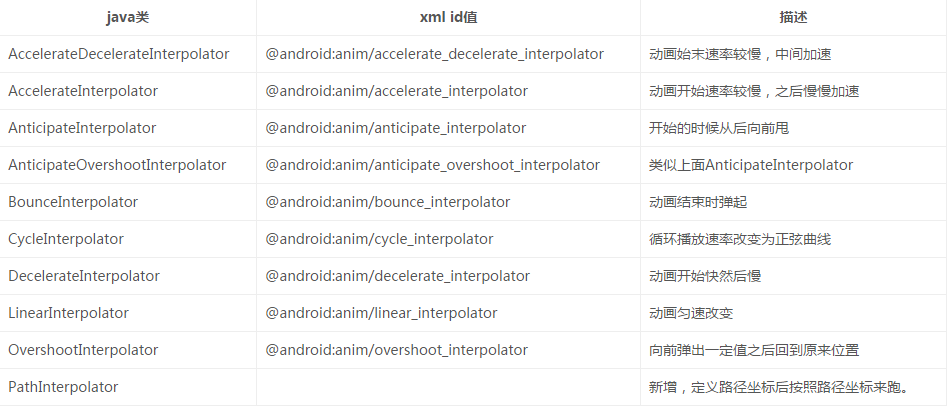
自定義很簡單:Interpolator 繼承自 TimeInterpolator,後者定義了 getInterpolation(float input),參數是 0~1 的完成進度。覆寫它即可改變速度曲線。以下是一個「兩頭慢、中間快」的實現:
public class AccelerateDecelerateInterpolator extends BaseInterpolator
        implements NativeInterpolatorFactory {
    @Override
    public float getInterpolation(float input) {
        return (float) (Math.cos((input + 1) * Math.PI) / 2.0f) + 0.5f;
    }
}
需要接續業務邏輯時,給動畫設置 Animation.AnimationListener,可監聽開始、結束、重複、取消四個時機:
animationSet.setAnimationListener(new Animation.AnimationListener() {
    @Override public void onAnimationStart(Animation animation) {}
    @Override public void onAnimationEnd(Animation animation) {}
    @Override public void onAnimationRepeat(Animation animation) {}
    @Override public void onAnimationCancel(Animation animation) {}
});
若關心每一幀的回調,則使用 AnimatorUpdateListener 並重寫 onAnimationUpdate()。
選型上的一般結論:簡單的進場退場用 View 動畫或 ViewPropertyAnimator;序列圖用幀動畫但要控體積;需要真正改動交互屬性、或作用於非 View 對象時,用屬性動畫。
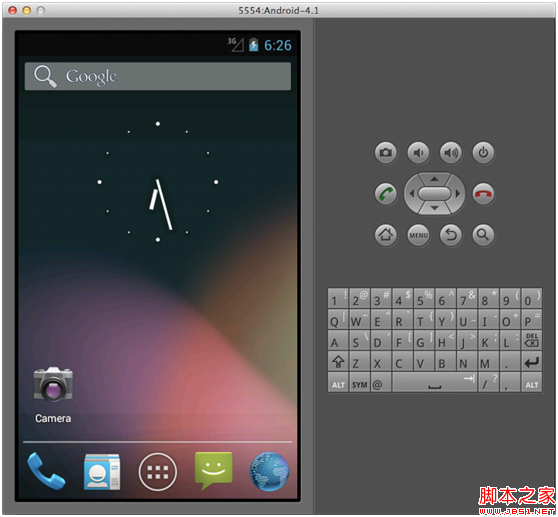 打造順手好用的 Android 模擬器:完整設定指南
預設的模擬器有多難用 預設狀態下的 Android 模擬器,最顯眼的問題是界面醜:視窗佔掉整個螢幕的龐大空間,還莫名其妙地擺著一個實體螢幕鍵盤。 但如果你真的用過,還有
 Android 學習筆記(四):Activity 生命週期、啟動模式與最佳實踐
要把 Activity 用好,就必須理解它的生命週期。靈活掌握這些回呼時機,才能寫出資源用得剛好、狀態不丟的程式。 Android 是以任務(Task)來管理 Activ
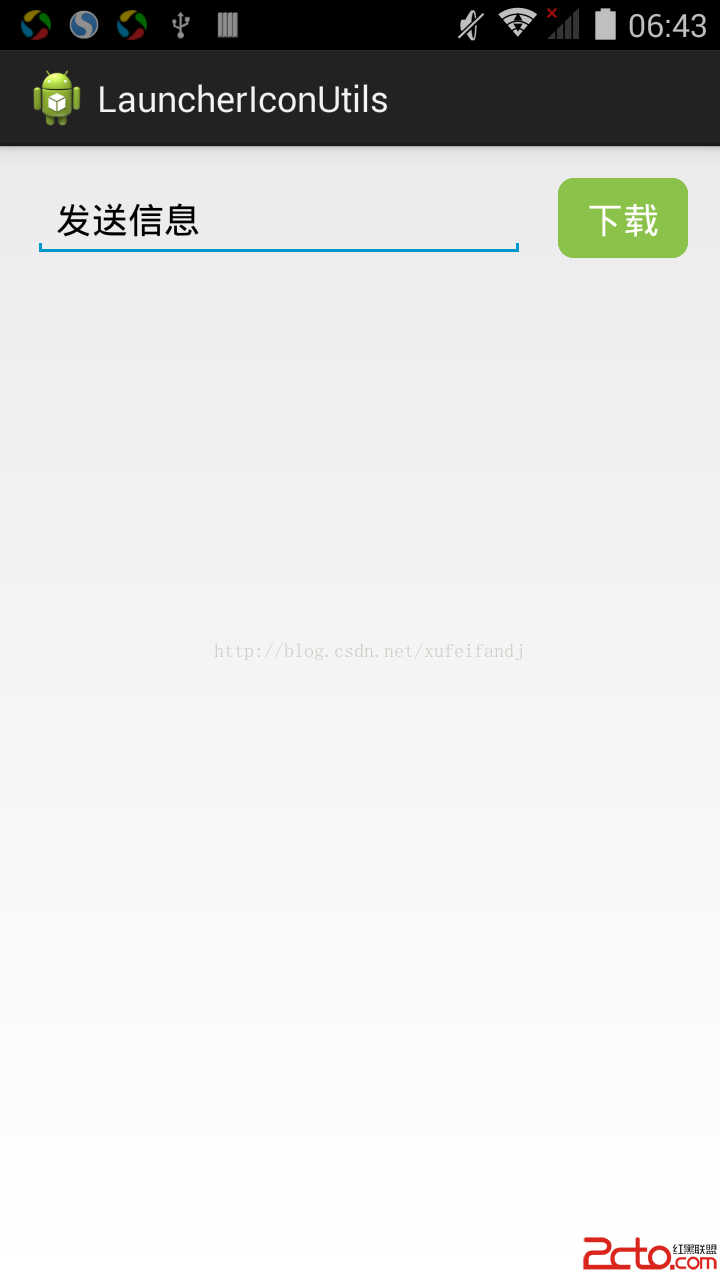 仿騰訊應用寶:自訂帶下載進度的按鈕控件
近來在開發應用市場時,需要一個能顯示下載進度的按鈕。我在其他先進的基礎上做了改良,並刪減掉大量用不到的程式碼,這裡分享改良後的成果。 改良重點在於:當下載有進度時,按鈕會
 美團 Android 資源混淆保護實踐全解析
前言 Android 應用的 APK 安全性一直為人詬病。市面上充斥著各種被破解或漢化的應用,破解者只需借助工具就能輕易對 APK 進行反編譯、破解、漢化,進而篡改原有代