

編輯:關於 Android 程式設計
iOS 的動畫水準一直是它相對 Android 的優勢之一。相機裡切換拍攝模式時,那個帶 3D 透視感的橫向滑動就頗有講究——文字有縱深感,但相鄰兩組之間的間距在滑動過程中保持穩定,看著很自然。
Android 也不是沒有 3D 能力,android.graphics.Camera 就能做透視變換。但筆者最初用它實現時效果並不理想:滑動之後各組文字之間的距離變了。從純立體空間的角度看這是合理的(近大遠小,距離本該變化),可視覺上就是別扭。
後來的調整思路是:給 TextView 的 X 方向加一個 scale 讓文字看著緊湊些,同時通過計算補償位移,使滑動過程中組間距保持一致。最終效果和 iOS 仍有差距,但已經可接受。先看成品:
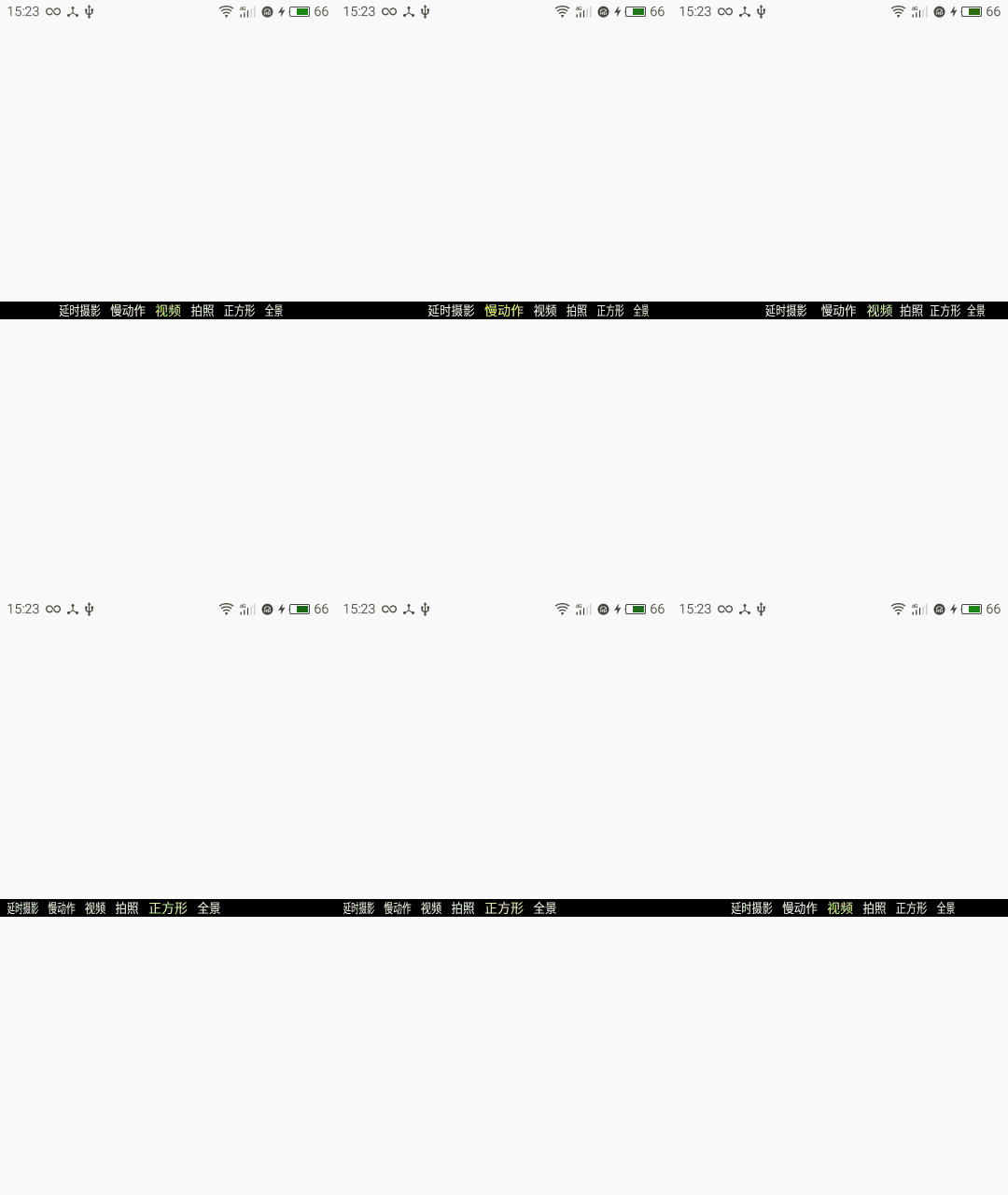
往自定義控件裡放了 6 個 TextView 對應各拍攝模式,同時掛了一個手勢監聽來識別滑動。這裡給動畫加了两道閾值:滑動角度小於 30 度、位移大於 15 像素才觸發,避免用戶的輕微晃動被誤判成切換。
package com.example.androidcustomnview; import android.app.Activity; import android.graphics.Color; import android.os.Bundle; import android.util.Log; import android.view.GestureDetector; import android.view.GestureDetector.OnGestureListener; import android.view.View; import android.view.View.OnTouchListener; import android.view.MotionEvent; import android.view.TextureView; import android.view.ViewGroup; import android.view.animation.Animation; import android.view.animation.Animation.AnimationListener; import android.view.animation.AnimationSet; import android.view.animation.TranslateAnimation; import android.widget.FrameLayout; import android.widget.LinearLayout; import android.widget.RelativeLayout; import android.widget.TextView; public class MainActivity extends Activity implements OnTouchListener{ private static final String TAG = "MainActivity.TAG"; CustomViewL mCustomViewL; String[] name = new String[] {"延時攝影","慢動作","視頻","拍照","正方形","全景"}; GestureDetector mGestureDetector; RelativeLayout rootView; @Override protected void onCreate(Bundle savedInstanceState) { super.onCreate(savedInstanceState); setContentView(R.layout.activity_main); mCustomViewL = (CustomViewL) findViewById(R.id.mCustomView); rootView = (RelativeLayout) findViewById(R.id.ViewRoot); rootView.setOnTouchListener(this); mCustomViewL.getParent(); mCustomViewL.addIndicator(name); mGestureDetector = new GestureDetector(this, new myGestureDetectorLis()); } class myGestureDetectorLis implements GestureDetector.OnGestureListener { private static final int degreeLimit = 30; private static final int distanceLimit = 15; private boolean isScroll = false; @Override public boolean onDown(MotionEvent e) { // TODO Auto-generated method stub Log.d(TAG, "myGestureDetectorLis onDown"); isScroll = false; return true; } @Override public void onShowPress(MotionEvent e) { // TODO Auto-generated method stub } @Override public boolean onSingleTapUp(MotionEvent e) { // TODO Auto-generated method stub return false; } @Override public boolean onScroll(MotionEvent e1, MotionEvent e2, float distanceX, float distanceY) { // TODO Auto-generated method stub if (isScroll) return false; double degree = Math.atan(Math.abs(e2.getY() - e1.getY()) / Math.abs(e2.getX() - e1.getX())) * 180 /Math.PI; float delta = e2.getX() - e1.getX(); if (delta > distanceLimit && degree < degreeLimit) { Log.d(TAG, "向右滑"); isScroll = true; mCustomViewL.scrollRight(); } else if (delta < -distanceLimit && degree < degreeLimit) { Log.d(TAG, "向左滑"); isScroll = true; mCustomViewL.scrollLeft(); } return false; } @Override public void onLongPress(MotionEvent e) { // TODO Auto-generated method stub } @Override public boolean onFling(MotionEvent e1, MotionEvent e2, float velocityX, float velocityY) { // TODO Auto-generated method stub return false; } } @Override public boolean onTouch(View v, MotionEvent event) { // TODO Auto-generated method stub return mGestureDetector.onTouchEvent(event); } }
角度判斷用 Math.atan 把位移比值換算成夾角,配合 isScroll 標志位確保一次手勢只觸發一次切換,避免滑動過程中被連續調用。
自定義控件繼承自 LinearLayout,承擔三件事:
onLayout 中重算子控件位置。由於每組文字的 scale 不同,必須重新布局,讓文字的顯示區域與點擊區域保持一致,否則各子控件掛的 onClick 會失效。
dispatchDraw 中重繪。根據每個子控件到中心控件的距離,動態設置其 X 方向的 scale,營造縱深感。
滑動動畫與隊列。滑動後啟動動畫,動畫結束再 requestLayout 重新計算位置。支持連續滑動:若當前動畫仍在執行,會把目標位置存下,等動畫結束後接著跑下一個。
package com.example.androidcustomnview; import android.content.Context; import android.graphics.Camera; import android.graphics.Canvas; import android.graphics.Color; import android.graphics.LinearGradient; import android.graphics.Matrix; import android.graphics.Paint; import android.graphics.Shader; import android.os.Handler; import android.os.Message; import android.util.AttributeSet; import android.util.Log; import android.view.MotionEvent; import android.view.View; import android.view.WindowManager; import android.view.animation.Animation; import android.view.animation.Animation.AnimationListener; import android.view.animation.TranslateAnimation; import android.widget.LinearLayout; import android.widget.TextView; public class CustomViewL extends LinearLayout { private static final String TAG = "CustomViewL.TAG"; private Matrix mMatrix; Camera mCamera; private int mCurrentItem = 2; private int screenWidth; private Paint mPaint; public static final float ItemScale = 0.1f; public CustomViewL(Context context) { super(context); // TODO Auto-generated constructor stub initView(context); } public CustomViewL(Context context, AttributeSet attrs, int defStyleAttr, int defStyleRes) { super(context, attrs, defStyleAttr, defStyleRes); initView(context); } public CustomViewL(Context context, AttributeSet attrs, int defStyleAttr) { super(context, attrs, defStyleAttr); initView(context); } public CustomViewL(Context context, AttributeSet attrs) { super(context, attrs); initView(context); } private void initView(Context context) { screenWidth = ((WindowManager)getContext().getSystemService(Context.WINDOW_SERVICE)) .getDefaultDisplay().getWidth(); } @Override protected void onLayout(boolean changed, int l, int t, int r, int b) { Log.d(TAG, "onLayout "); super.onLayout(changed, l , t, r, b); View v = getChildAt(mCurrentItem); int delta = getWidth() / 2 - v.getLeft() - v.getWidth()/2; for (int i = 0; i < getChildCount(); i++) { View v1 = getChildAt(i); if (i == mCurrentItem) { v1.layout(v1.getLeft() + delta, v1.getTop(), v1.getRight() + delta, v1.getBottom()); continue; } float mScale = Math.abs(i - mCurrentItem) * ItemScale; int move = (int)(v1.getWidth() * mScale / 2); if (i < mCurrentItem) { for (int j = i + 1; j < mCurrentItem; j++) { View v2 = getChildAt(j); move += (int) (v2.getWidth() * Math.abs(j - mCurrentItem) * ItemScale); } } else { for (int j = i - 1; j > mCurrentItem; j--) { View v2 = getChildAt(j); move += (int)(v2.getWidth() * Math.abs(j - mCurrentItem) * ItemScale); } move = -move; } v1.layout(v1.getLeft() + delta + move, v1.getTop(), v1.getRight() + delta + move, v1.getBottom()); } mRequstLayout = false; } @Override protected void dispatchDraw(Canvas canvas) { int count = getChildCount(); for (int i = 0; i < count; i++) { updateChildItem(canvas,i); } } public void updateChildItem(Canvas canvas,int item) { // Log.d(TAG, "updateChildItem"); View v = getChildAt(item); float desi = 1- Math.abs(item - mCurrentItem) * ItemScale; ((TextView)v).setScaleX(desi); drawChild(canvas, v, getDrawingTime()); updateTextColor(); } private void updateTextColor() { for (int i =0 ; i < getChildCount(); i++) { if (i == mCurrentItem) { ((TextView)getChildAt(i)).setTextColor(Color.YELLOW); } else { ((TextView)getChildAt(i)).setTextColor(Color.WHITE); } } } boolean scroolToRight = false; public void scrollRight() { if (mRequstLayout) return; if (mCurrentItem > 0) { if (mAnimationRunning) { if (AnimationRunningCount < 1) { currentItemCopy = mCurrentItem - 1; AnimationRunningCount++; scroolToRight = true; } return; } mCurrentItem--; startTraAnimation(mCurrentItem,mCurrentItem + 1); updateTextColor(); } } private int currentItemCopy; public void scrollLeft() { if (mRequstLayout) return; if (mCurrentItem < getChildCount() - 1) { if (mAnimationRunning) { if (AnimationRunningCount < 1) { currentItemCopy = mCurrentItem + 1; AnimationRunningCount++; scroolToRight = false; } return; } mCurrentItem++; startTraAnimation(mCurrentItem,mCurrentItem-1); updateTextColor(); } } public void addIndicator(String[] name) { for (int i=0; i< name.length; i++) { TextView mTextView = new TextView(getContext()); mTextView.setText(name[i]); mTextView.setTextColor(Color.WHITE); mTextView.setLines(1); LinearLayout.LayoutParams ll = new LinearLayout.LayoutParams( LinearLayout.LayoutParams.WRAP_CONTENT, LinearLayout.LayoutParams.WRAP_CONTENT); ll.setMargins(20, 0, 20, 0); addView(mTextView,ll); } } class myAnimationListener implements android.view.animation.Animation.AnimationListener { @Override public void onAnimationStart(Animation animation) { Log.d(TAG, "onAnimationStart "); mAnimationRunning = true; } @Override public void onAnimationEnd(Animation animation) { // TODO Auto-generated method stub Log.d(TAG, "onAnimationEnd "); for (int i= 0; i < getChildCount(); i++) { getChildAt(i).clearAnimation(); } mRequstLayout = true; requestLayout(); mAnimationRunning = false; if (AnimationRunningCount > 0) { CustomViewL.this.post(new Runnable() { @Override public void run() { // TODO Auto-generated method stub AnimationRunningCount--; mCurrentItem = currentItemCopy; int lastItem = scroolToRight ? currentItemCopy + 1 : currentItemCopy - 1; startTraAnimation(currentItemCopy,lastItem); updateTextColor(); } }); } } @Override public void onAnimationRepeat(Animation animation) { } } private int AnimitionDurationTime = 300; private int AnimationRunningCount = 0; private boolean mAnimationRunning = false; private boolean mRequstLayout = false; public void startTraAnimation(int item,int last) { Log.d(TAG, "startTraAnimation item = " + item); View v = getChildAt(item); final int width = v.getWidth(); final int childCount = getChildCount(); int traslate = getWidth()/2 - v.getLeft() - width/2; int currentItemWidthScale = (int) (width * ItemScale); for (int i = 0; i < childCount; i++) { int delta = currentItemWidthScale / 2; Log.d(TAG, " i = " + i + " delta before = " + delta); if (i < item) { delta = -delta; for (int j = i; j < item; j++) { int a; if (i == j) { a = (int)(getChildAt(j).getWidth() * ItemScale / 2); } else { a = (int)(getChildAt(j).getWidth() * ItemScale); } delta = item < last ? delta - a : delta + a; } } else if (i > item){ for (int j = item + 1; j <= i; j++) { int a; if (j == i) { a = (int)(getChildAt(j).getWidth() * ItemScale / 2); } else { a = (int)(getChildAt(j).getWidth() * ItemScale); } delta = item < last ? delta - a : delta + a; } } else { delta = 0; } Log.d(TAG, "delta = " + delta); delta += traslate; TranslateAnimation translateAni = new TranslateAnimation(0, delta, 0, 0); translateAni.setDuration(AnimitionDurationTime); translateAni.setFillAfter(true); if (i == item) translateAni.setAnimationListener(new myAnimationListener()); mAnimationRunning = true; getChildAt(i).startAnimation(translateAni); } } }
逐點說明實現要領:
scale 的計算。desi = 1 - |item - mCurrentItem| * ItemScale,距離中心越遠縮得越狠,ItemScale 取 0.1 表示每遠一組縮 10%。這個「按距離線性衰減」的思路,與 iOS 的視覺表現較為接近。
位移補償。onLayout 裡那兩個 for 循環累加的就是「因縮放而產生的視覺間隙」,把它補回去,組間距才能保持恆定。這部分純粹是平面幾何的推導,也是整個控件裡最容易出錯的地方。
動畫隊列。mAnimationRunning 標志動畫是否進行中,AnimationRunningCount 記錄排隊的次數。快速連續滑動時,後一次會被緩存下來,等前一次動畫結束再執行,避免動畫互相打架。
居中對齊。每次滑動的目標位置都要讓選中項落在屏幕正中,這是 startTraAnimation 裡 traslate 那行的作用。
兩側本想做成漸變陰影,為了省事改用了一張帶透明漸變的圖片蓋在上面:
<RelativeLayout xmlns:android="https://schemas.android.com/apk/res/android" xmlns:tools="https://schemas.android.com/tools" android:layout_width="match_parent" android:layout_height="match_parent" tools:context="com.example.androidcustomnview.MainActivity" > <RelativeLayout android:id="@+id/ViewRoot" android:gravity="center" android:layout_width="match_parent" android:layout_height="match_parent"> <com.example.androidcustomnview.CustomViewL android:orientation="horizontal" android:background="@android:color/background_dark" android:id="@+id/mCustomView" android:layout_width="match_parent" android:layout_height="wrap_content" > </com.example.androidcustomnview.CustomViewL> <ImageView android:layout_width="wrap_content" android:layout_height="wrap_content" android:layout_alignLeft="@id/mCustomView" android:layout_alignTop="@id/mCustomView" android:layout_alignRight="@id/mCustomView" android:layout_alignBottom="@id/mCustomView" android:background="@drawable/test"/> </RelativeLayout> </RelativeLayout>
整體邏輯並不算複雜,難點集中在位移補償那一段的幾何計算上。效果離 iOS 還有距離,如果對透視變換有更好思路的朋友,歡迎交流指正。
以上就是本文的全部內容,希望對大家的學習有所幫助。
 跟我學Android之八:ActionBar與菜單
本章內容 第1節 菜單概述第2節 選項菜單和子菜單第3節 上下文菜單第4節 使用XML定義菜單第5節 ActionBar的作用 本章目標 了解各版本菜單的特征;掌握創建選
 Android OnScrollListener 事件觸發順序與次數實測分析
關於 OnScrollListener,最常被搞混的就是兩個回呼方法到底誰先誰後、各觸發幾次。仔細實測之後,可以整理出下面這個結論。 事件觸發順序 new AbsLis
 Android 中那些令人無奈的設計總結
Trackball 軌跡球這有點類似於 PC 上的滑鼠,可以用於導航,為此便有了 Focus。但實際操作意義並不大,因為整個螢幕都是觸控的,還用導航幹什麼?先用 Focu
 Android 學習筆記:用 Data 與 Type 讓系統自動挑選合適的 App 開啟檔案
仔細想想,手機上開啟一個檔案其實只有兩條路: 一是從檔案出發——檔案管理器知道副檔名,於是去找能處理這個類型的 App;二是從 App 出發——你在 Gallery 裡