

編輯:關於 Android 程式設計
背景:過年期間各平台的紅包到處飛,但手速總是慢一拍。做一個小工具幫忙「第一時間知道並快速抵達現場」,是個很典型的 Android 系統能力練習題。
需求:收到紅包通知時發出提醒,並能一鍵跳到該通知對應的畫面。
思路:取得「讀取通知資訊」的授權 → 用一個常駐服務監聽系統通知 → 判斷是否為紅包訊息 → 播放提示音、可選亮屏解鎖 → 直接觸發該通知的 contentIntent。
界面:
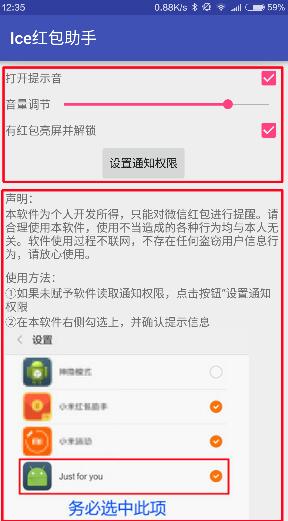
界面分兩塊:上方是設定區(提示音開關、音量、是否亮屏解鎖、權限設定按鈕),下方是可滾動的使用說明。布局如下:
<?xml version="1.0" encoding="utf-8"?>
<LinearLayout android:id="@+id/root"
    xmlns:android="https://schemas.android.com/apk/res/android"
    xmlns:tools="https://schemas.android.com/tools"
    android:layout_width="match_parent"
    android:layout_height="match_parent"
    android:layout_marginLeft="10dp"
    android:layout_marginRight="10dp"
    android:layout_marginTop="5dp"
    android:orientation="vertical"
    tools:context="com.fndroid.administrator.justforyou.MainActivity">

    <LinearLayout
        android:layout_width="match_parent"
        android:layout_height="wrap_content"
        android:orientation="horizontal">
        <TextView
            android:layout_width="wrap_content"
            android:layout_height="wrap_content"
            android:layout_weight="3"
            android:text="打開提示音" />
        <CheckBox
            android:id="@+id/isMusic"
            android:layout_width="wrap_content"
            android:layout_height="wrap_content" />
    </LinearLayout>

    <LinearLayout
        android:layout_width="match_parent"
        android:layout_height="wrap_content">
        <TextView
            android:layout_width="wrap_content"
            android:layout_height="wrap_content"
            android:layout_gravity="center"
            android:text="音量調節" />
        <SeekBar
            android:id="@+id/seekbar"
            android:layout_width="wrap_content"
            android:layout_height="wrap_content"
            android:layout_gravity="center"
            android:layout_weight="1" />
    </LinearLayout>

    <LinearLayout
        android:layout_width="match_parent"
        android:layout_height="wrap_content"
        android:orientation="horizontal">
        <TextView
            android:layout_width="0dp"
            android:layout_height="wrap_content"
            android:layout_weight="3"
            android:text="有紅包亮屏並解鎖" />
        <CheckBox
            android:id="@+id/isUnlock"
            android:layout_width="wrap_content"
            android:layout_height="wrap_content" />
    </LinearLayout>

    <Button
        android:id="@+id/setPermision"
        android:layout_width="wrap_content"
        android:layout_height="wrap_content"
        android:layout_gravity="center"
        android:text="設置通知權限" />

    <ScrollView
        android:layout_width="match_parent"
        android:layout_height="match_parent">
        <LinearLayout
            android:layout_width="match_parent"
            android:layout_height="match_parent"
            android:orientation="vertical">
            <TextView
                android:layout_width="wrap_content"
                android:layout_height="wrap_content"
                android:layout_marginTop="10dp"
                android:text="聲明:" />
            <TextView
                android:layout_width="wrap_content"
                android:layout_height="wrap_content"
                android:text="本軟件為個人開發所得,只能對微信紅包進行提醒。請合理使用本軟件,使用不當造成的各種行為均與本人無關。軟件使用過程不聯網,不存在任何盜竊用戶信息行為,請放心使用。" />
            <TextView
                android:layout_width="wrap_content"
                android:layout_height="wrap_content"
                android:layout_marginTop="10dp"
                android:text="使用方法:" />
            <TextView
                android:layout_width="wrap_content"
                android:layout_height="wrap_content"
                android:text="①如果未賦予軟件讀取通知權限,點擊按鈕「設置通知權限」" />
            <TextView
                android:layout_width="wrap_content"
                android:layout_height="wrap_content"
                android:text="②在本軟件右側勾選上,並確認提示信息" />
            <ImageView
                android:layout_width="wrap_content"
                android:layout_height="wrap_content"
                android:scaleType="fitCenter"
                android:src="@drawable/inf" />
            <TextView
                android:layout_width="wrap_content"
                android:layout_height="wrap_content"
                android:text="③關閉微信群的消息免打擾(取消圖中的綠色按鈕)" />
            <ImageView
                android:layout_width="wrap_content"
                android:layout_height="wrap_content"
                android:src="@drawable/inf2" />
        </LinearLayout>
    </ScrollView>
</LinearLayout>
App 啟動時開啟一個繼承 NotificationListenerService 的服務,重點在 onNotificationPosted()。判斷條件有兩個:通知的 tickerText 含關鍵字,且套件名稱是微信。命中後依設定决定是否亮屏、播放提示音,並直接送出該通知的 contentIntent——這一步就等於幫使用者「點開了通知」。
// 注意:onNotificationPosted 與 onNotificationRemoved 從 API 21 起才不是抽象方法,
// 為了相容 21 以下版本仍建議覆寫
public class NotificationService extends NotificationListenerService {

    private KeyguardManager.KeyguardLock kl;

    @Override
    public void onNotificationPosted(StatusBarNotification sbn) {
        // 主界面設定存在 SharedPreferences 中
        SharedPreferences sp = getSharedPreferences("userdata", MODE_PRIVATE);

        boolean isRedPacket = sbn.getNotification().tickerText != null
                && sbn.getNotification().tickerText.toString().contains("[微信紅包]")
                && "com.tencent.mm".equals(sbn.getPackageName());

        if (!isRedPacket) {
            return;
        }

        // 需要的話亮屏並暫時關閉鎖屏
        if (sp.getBoolean("isUnlock", true)) {
            KeyguardManager km = (KeyguardManager) getSystemService(KEYGUARD_SERVICE);
            kl = km.newKeyguardLock("unlock");
            kl.disableKeyguard();

            PowerManager pm = (PowerManager) getSystemService(POWER_SERVICE);
            PowerManager.WakeLock wl = pm.newWakeLock(
                    PowerManager.ACQUIRE_CAUSES_WAKEUP | PowerManager.SCREEN_DIM_WAKE_LOCK, "bright");
            wl.acquire();
            wl.release();
        }

        // 直接觸發通知對應的 PendingIntent
        try {
            sbn.getNotification().contentIntent.send();
        } catch (PendingIntent.CanceledException e) {
            e.printStackTrace();
        }

        // 播放提示音
        if (sp.getBoolean("isMusic", true)) {
            MediaPlayer mediaPlayer = MediaPlayer.create(this, R.raw.heihei);
            mediaPlayer.start();
            mediaPlayer.setOnCompletionListener(mp -> mp.release());
        }

        // 監聽螢幕熄滅廣播,把鎖屏還原
        IntentFilter filter = new IntentFilter(Intent.ACTION_SCREEN_OFF);
        registerReceiver(screenOffReceiver, filter);
    }

    private final BroadcastReceiver screenOffReceiver = new BroadcastReceiver() {
        @Override
        public void onReceive(Context context, Intent intent) {
            if (kl != null) {
                kl.reenableKeyguard();
            }
        }
    };

    @Override
    public void onNotificationRemoved(StatusBarNotification sbn) {
        super.onNotificationRemoved(sbn);
    }
}
主 Activity 示範幾個要點:把勾選狀態寫入 SharedPreferences、用 SeekBar 綁定 AudioManager 的媒體音量、監聽音量變更廣播同步 UI,以及用 Settings.ACTION_NOTIFICATION_LISTENER_SETTINGS 直接把使用者帶到授權頁。
public class MainActivity extends AppCompatActivity
        implements CompoundButton.OnCheckedChangeListener, View.OnClickListener,
        SeekBar.OnSeekBarChangeListener {

    private CheckBox isMusic, isUnlock;
    private SharedPreferences.Editor editor;
    private SharedPreferences sharedPreferences;
    private SeekBar seekBar;
    private AudioManager audioManager;

    @Override
    protected void onCreate(Bundle savedInstanceState) {
        super.onCreate(savedInstanceState);
        setContentView(R.layout.activity_main);

        isMusic = (CheckBox) findViewById(R.id.isMusic);
        isUnlock = (CheckBox) findViewById(R.id.isUnlock);
        seekBar = (SeekBar) findViewById(R.id.seekbar);

        isMusic.setOnCheckedChangeListener(this);
        isUnlock.setOnCheckedChangeListener(this);
        findViewById(R.id.setPermision).setOnClickListener(this);
        seekBar.setOnSeekBarChangeListener(this);

        sharedPreferences = getSharedPreferences("userdata", MODE_PRIVATE);
        editor = sharedPreferences.edit();
        isMusic.setChecked(sharedPreferences.getBoolean("isMusic", true));
        isUnlock.setChecked(sharedPreferences.getBoolean("isUnlock", true));

        // 音量控制
        audioManager = (AudioManager) getSystemService(AUDIO_SERVICE);
        seekBar.setMax(audioManager.getStreamMaxVolume(AudioManager.STREAM_MUSIC));
        seekBar.setProgress(audioManager.getStreamVolume(AudioManager.STREAM_MUSIC));
        registerReceiver(volumReceiver, new IntentFilter("android.media.VOLUME_CHANGED_ACTION"));

        // 啟動監聽服務
        startService(new Intent(this, NotificationService.class));
    }

    @Override
    public void onCheckedChanged(CompoundButton buttonView, boolean isChecked) {
        switch (buttonView.getId()) {
            case R.id.isMusic:
                editor.putBoolean("isMusic", isChecked).apply();
                break;
            case R.id.isUnlock:
                editor.putBoolean("isUnlock", isChecked).apply();
                break;
        }
    }

    @Override
    public void onClick(View v) {
        if (v.getId() == R.id.setPermision) {
            startActivity(new Intent(Settings.ACTION_NOTIFICATION_LISTENER_SETTINGS));
        }
    }

    @Override
    public void onStopTrackingTouch(SeekBar seekBar) {
        audioManager.setStreamVolume(AudioManager.STREAM_MUSIC, seekBar.getProgress(), 0);
    }

    // 讓界面上的进度条跟上系統音量變化
    private final BroadcastReceiver volumReceiver = new BroadcastReceiver() {
        @Override
        public void onReceive(Context context, Intent intent) {
            seekBar.setProgress(audioManager.getStreamVolume(AudioManager.STREAM_MUSIC));
        }
    };

    @Override
    protected void onDestroy() {
        super.onDestroy();
        unregisterReceiver(volumReceiver);
    }
}
<?xml version="1.0" encoding="utf-8"?>
<manifest package="com.fndroid.administrator.justforyou"
    xmlns:android="https://schemas.android.com/apk/res/android">

    <uses-permission android:name="android.permission.WAKE_LOCK" />
    <uses-permission android:name="android.permission.DISABLE_KEYGUARD" />

    <application
        android:allowBackup="true"
        android:icon="@mipmap/ic_launcher"
        android:label="@string/app_name"
        android:supportsRtl="true"
        android:theme="@style/AppTheme">

        <activity android:name=".MainActivity">
            <intent-filter>
                <action android:name="android.intent.action.MAIN" />
                <category android:name="android.intent.category.LAUNCHER" />
            </intent-filter>
        </activity>

        <service
            android:name=".NotificationService"
            android:permission="android.permission.BIND_NOTIFICATION_LISTENER_SERVICE">
            <intent-filter>
                <action android:name="android.service.notification.NotificationListenerService" />
            </intent-filter>
        </service>
    </application>
</manifest>
注意這裡的 BIND_NOTIFICATION_LISTENER_SERVICE 是放在 <service> 的 android:permission 屬性上,而不是 <uses-permission>——它是一個「綁定服務時由系統持有」的權限,寫在 uses 位置並不會生效,這是常見的誤解。
dependencies {
    compile fileTree(dir: 'libs', include: ['*.jar'])
    compile 'com.android.support:appcompat-v7:23.1.1'
    compile 'com.android.support:design:23.1.1'
}
這個範例的技術核心是 NotificationListenerService,學它沒問題,但要知道幾件事。首先,通知讀取權限屬於高敏感授權,使用者必須手動到系統設定中開啟,且隨時可撤銷;Google Play 對使用此權限的應用審查嚴格,非「通知類核心功能」的應用很容易被拒。其次,微信等應用已把通知文字改為不透明處理,tickerText 往往是空的,因此單靠關鍵字比對在真机上通常抓不到內容,這也是原範例必須要求使用者關閉「消息免打擾」的原因。最後,disableKeyguard() 與 WakeLock 都已不建議使用(前者在 5.0 後被 setShowWhenLocked()/setTurnScreenOn() 取代,後者建議改用 PowerManager.isInteractive() 搭配 WakeLock 的現代寫法或 FLAG_KEEP_SCREEN_ON),並且這類「自動搶」行為可能違反目標應用的服務條款,僅適合當作系統 API 的學習練習。
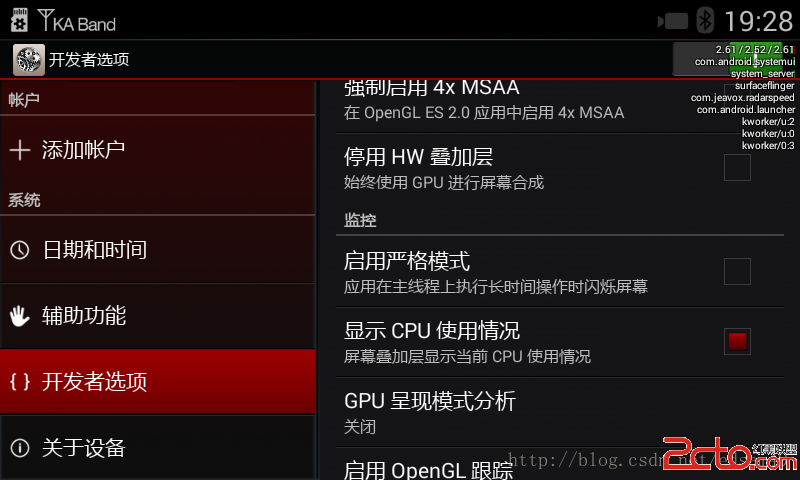 Android 系統 CPU 資源查詢與開發者選項解析
Android 基於 Linux 核心,因此在系統層面保留了許多熟悉的資源監控能力。例如命令列中的 top 可以查看 CPU 使用率、平均負載與行程資訊;在 Androi
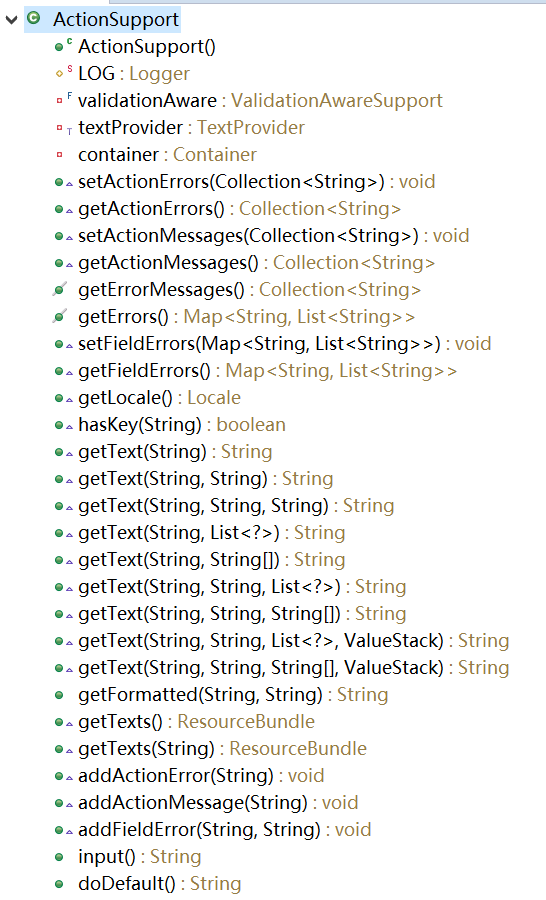 Struts2 Action 開發要點:POJO、ActionSupport 與動態方法調用
Action 是 Struts2 的核心 在 Struts2 中,Action 負責處理使用者請求,也可視為業務控制邏輯器。Struts2 採用低侵入式設計,Action
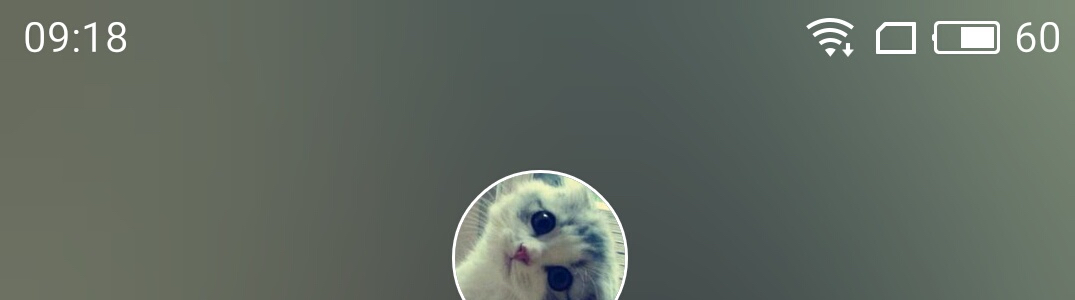 Android 實現透明狀態欄的詳解教程
現在越來越多 App 採用了透明狀態欄,效果確實很出彩。本文記錄一下實現過程,方便以後使用。先來看看要達到的效果: 其實原理很簡單:把 StatusBar 背景變成透
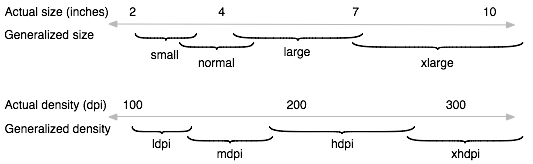 Android Training 學習筆記:如何適配不同語言、螢幕與系統版本
Android 是開源且開放的平台,任何人都能在其上做出適合自己的定製,這也讓 Android 裝置的碎片化格外嚴重。形形色色的螢幕尺寸、解析度與系統版本,給開發帶來不小