

編輯:關於 Android 程式設計
在很多應用中,原生控件無法直接滿足特定的視覺與交互需求,這時候就需要自定義 View。日曆控件就是一個很典型的例子:它需要根據月份動態計算行數、繪製日期格子、處理點擊事件,並可能顯示不同狀態的標記。
一個完整的自定義日曆控件通常包括以下幾個部分:
如果希望日曆支持不同模式,可以在 attrs.xml 中定義屬性。
<resources>
    <declare-styleable name="CalendarView">
        <attr name="mode" format="integer" />
    </declare-styleable>
</resources>
在構造方法中讀取屬性:
TypedArray typedArray = context.obtainStyledAttributes(attrs, R.styleable.CalendarView);
mode = typedArray.getInt(R.styleable.CalendarView_mode, Constant.MODE_SHOW_DATA_OF_THIS_MONTH);日曆中的一個核心問題是:如何知道某月第一天是星期幾,以及該月有多少天。可以借助 Calendar 類完成。
private void initial() {
    int dayOfWeek = calendar.get(Calendar.DAY_OF_WEEK);
    int monthStart = -1;

    if (dayOfWeek >= 2 && dayOfWeek <= 7) {
        monthStart = dayOfWeek - 2;
    } else if (dayOfWeek == 1) {
        monthStart = 6;
    }

    curStartIndex = monthStart;
    date[monthStart] = 1;

    int daysOfMonth = daysOfCurrentMonth();
    for (int i = 1; i < daysOfMonth; i++) {
        date[monthStart + i] = i + 1;
    }

    curEndIndex = monthStart + daysOfMonth;
}
這裡的 date 數組可以定義為長度 42,因為日曆最多需要 6 行,每行 7 列。
由於不同月份的行數不同,日曆控件的高度不能固定不變,需要在 onMeasure 中動態計算。
@Override
protected void onMeasure(int widthMeasureSpec, int heightMeasureSpec) {
    widthMeasureSpec = View.MeasureSpec.makeMeasureSpec(screenWidth, View.MeasureSpec.EXACTLY);
    heightMeasureSpec = View.MeasureSpec.makeMeasureSpec(measureHeight(), View.MeasureSpec.EXACTLY);
    setMeasuredDimension(widthMeasureSpec, heightMeasureSpec);
    super.onMeasure(widthMeasureSpec, heightMeasureSpec);
}onDraw 是日曆控件最重要的部分之一。通常需要繪製星期標題,再根據模式繪製日期或狀態圖形。
@Override
protected void onDraw(Canvas canvas) {
    super.onDraw(canvas);

    for (int i = 0; i < 7; i++) {
        float weekTextX = RenderUtil.getStartX(cellWidth * i + cellWidth * 0.5f, weekTextPaint, weekText[i]);
        canvas.drawText(weekText[i], weekTextX, baseline, weekTextPaint);
    }

    for (int i = curStartIndex; i < curEndIndex; i++) {
        drawText(canvas, i, textPaint, "" + date[i]);
    }
}
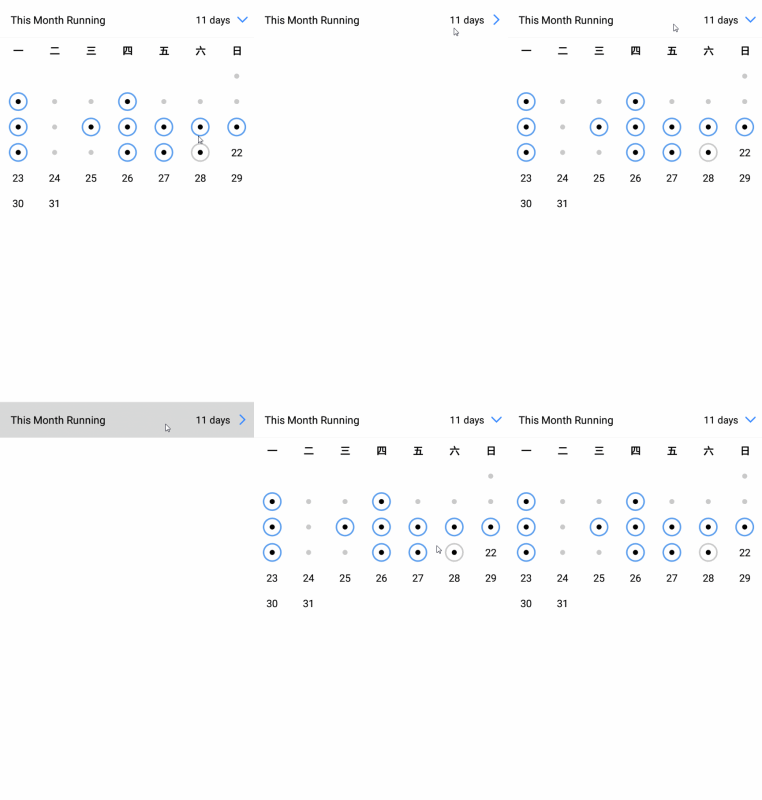
如果日曆需要標記某些日期,也可以使用 drawCircle 繪製圓形標記,並根據不同狀態使用不同畫筆。
為了判斷用戶是否點擊了某個日期,可以在 onTouch 中記錄 ACTION_DOWN 與 ACTION_UP 的位置,只有同一位置先按下再抬起,才認為是一次有效點擊。
@Override
public boolean onTouch(View v, MotionEvent event) {
    float x = event.getX();
    float y = event.getY();

    switch (event.getAction()) {
        case MotionEvent.ACTION_DOWN:
            if (coordIsCalendarCell(y)) {
                int index = getIndexByCoordinate(x, y);
                if (isLegalIndex(index)) {
                    actionDownIndex = index;
                }
            }
            break;
        case MotionEvent.ACTION_UP:
            if (coordIsCalendarCell(y)) {
                int actionUpIndex = getIndexByCoordinate(x, y);
                if (isLegalIndex(actionUpIndex) && actionDownIndex == actionUpIndex) {
                    int day = date[actionUpIndex];
                    if (onItemClickListener != null) {
                        onItemClickListener.onItemClick(day);
                    }
                }
            }
            break;
    }
    return true;
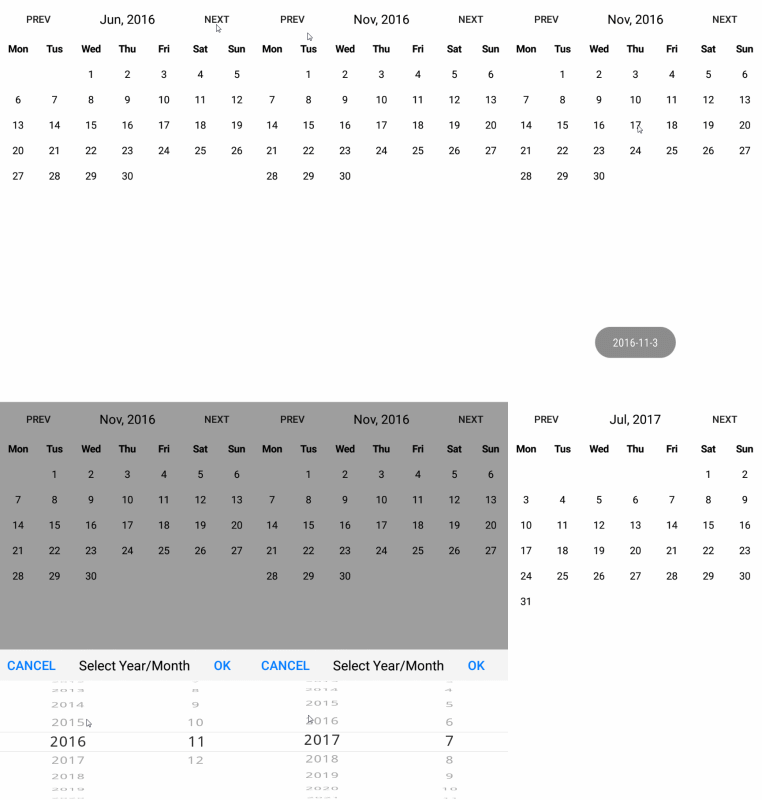
}下面兩張圖分別展示了普通日曆模式與本月計劃完成情況模式。
透過上述步驟,我們可以實現一個可自定義、可刷新、可響應點擊事件的日曆控件。實際項目中,還可以根據需求增加月份切換、日期選中、範圍選擇等功能。
 Android 來電顯示號碼歸屬地實作
來電顯示號碼歸屬地是手機安全類應用常見功能。實作上可透過 TelephonyManager 監聽通話狀態,當來電響起時查詢號碼資訊,並以 Toast 或浮動提示顯示。 監
 Android 開發之利用 Activity 實作 Dialog 對話框
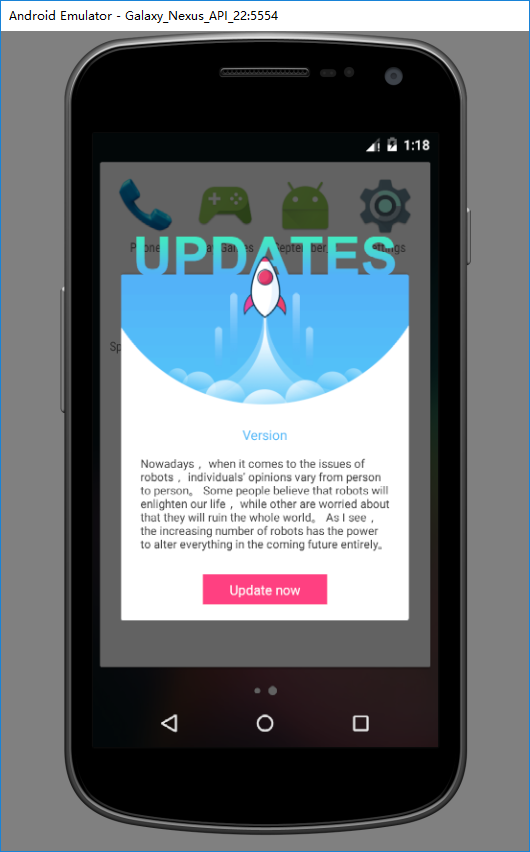
在 Android 中,Dialog 常用於提示訊息與特殊互動。不過,有些團隊會選擇用 Activity 模擬對話框,因為 Activity 的布局與生命週期更靈活,也能
 Android 線程通信核心:Handler 在主線程與子線程間雙向傳遞消息
Android 建立在 Java 之上,因此同樣區分主線程與子線程,兩者的職責劃分可以用一個比喻概括: 主線程——負責業務邏輯編排、UI 繪製與更新、協調各子線程,類似將
 Android 實戰:打造優酷風格的炫彩展開式菜單
這一篇的程式碼量會稍微多一些,大概要多花個五分鐘消化,但做完之後你會很有成就感。 本篇要動手做一個視覺比較有層次感的菜單,模仿優酷 App 那種一層層展開的選擇效果。若想