

編輯:關於 Android 程式設計
Toast 是 Android 中最常用的輕量提示手段。本文透過一個實例,說明如何讓 Toast 同時顯示圖片與文字,並自訂其顯示位置。
下面的程式碼在點擊按鈕後,會組裝一個包含 ImageView 與 TextView 的 LinearLayout,透過 setView() 設定為 Toast 的內容,並用 setGravity() 調整它在螢幕上的相對位置。
import android.app.Activity; import android.graphics.Color; import android.os.Bundle; import android.text.util.Linkify; import android.view.Gravity; import android.view.View; import android.view.View.OnClickListener; import android.widget.Button; import android.widget.ImageView; import android.widget.LinearLayout; import android.widget.TextView; import android.widget.Toast; public class A05Activity extends Activity { private Button b; /** Called when the activity is first created. */ @Override public void onCreate(Bundle savedInstanceState) { super.onCreate(savedInstanceState); setContentView(R.layout.main); b=(Button)findViewById(R.id.button); b.setText("顯示Toast"); b.setBackgroundColor(Color.GREEN); b.setOnClickListener(new OnClickListener(){ @Override public void onClick(View v) { // TODO Auto-generated method stub ImageView iv=new ImageView(A05Activity.this); iv.setImageResource(R.drawable.icon); TextView tv=new TextView(A05Activity.this); tv.setText(R.string.title); LinearLayout ll=new LinearLayout(A05Activity.this); //判斷TextView中的內容是什麼格式,並與系統連接 Linkify.addLinks(tv, Linkify.PHONE_NUMBERS|Linkify.EMAIL_ADDRESSES|Linkify.WEB_URLS); Toast t=Toast.makeText(A05Activity.this, tv.getText(), Toast.LENGTH_LONG); View v1=t.getView(); ll.setOrientation(LinearLayout.VERTICAL); ll.addView(iv); ll.addView(v1); t.setView(ll); //設置Toast對象在手機中的相對位置 t.setGravity(Gravity.CENTER, 50, 50); t.show(); } }); } }
這裡要特別注意:由於 Toast 屬於 Activity 中的 Context,其中的連結是無法點擊的。也就是說,即使 Toast 裡含有網址等內容,也無法在 Toast 上直接點擊開啟。掌握這一點,就能避免在使用時踩坑。
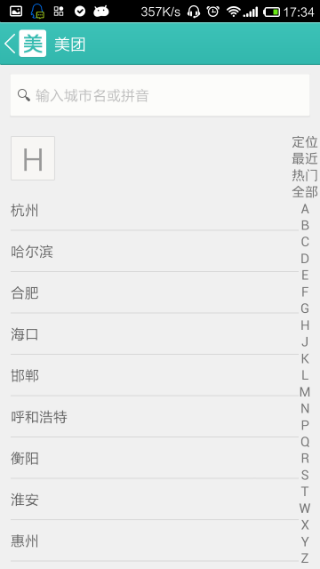 仿微信通訊錄字母索引:Android自定義View完整實踐
一、先看效果熟悉智能手機的朋友一定不會陌生:無論是微信、小米的聯繫人,還是 QQ、美團的城市選擇頁,列表右側往往懸著一列 A~Z 的字母。手指沿著它滑動,列表便精準地跳到
 微信朋友圈怎麼只發純文字?長按相機鍵就能做到
微信除了聊天,朋友圈也是很多人每天記錄生活的地方。不過有時候只想寫兩句心情,不想配圖,卻發現按下相機一定要選照片——其實這是介面的小陷阱,只要多按一會兒就好。 只發文字、
 Android 獲取狀態欄高度的方法
在實際開發中,我們偶爾需要用程式碼計算布局高度,這時往往需要扣除狀態欄(status bar)的高度。狀態欄高度其實定義在系統尺寸資源 status_bar_height
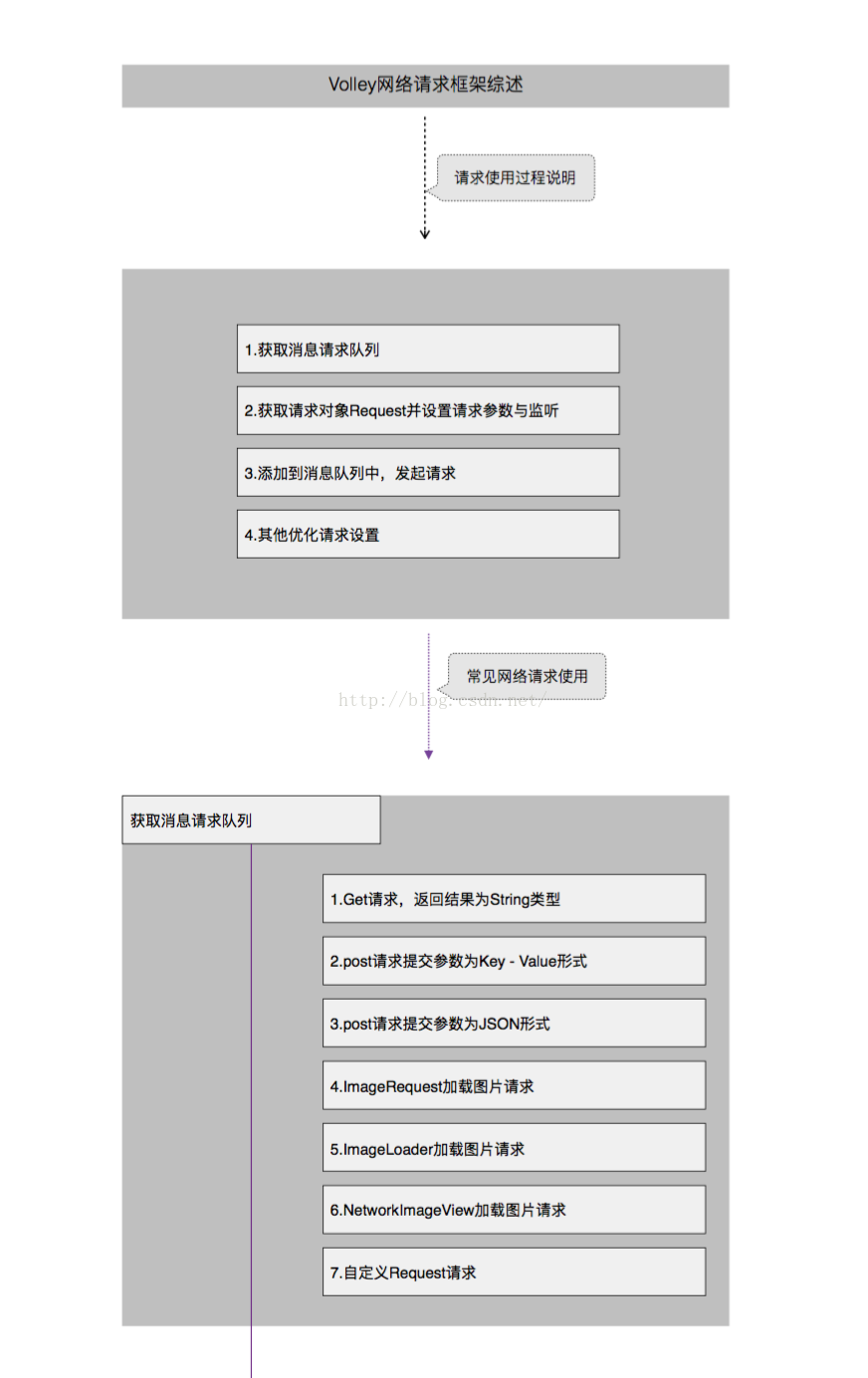 Volley 網絡請求框架詳解——Android 網絡請求實戰(三)
一、初始化請求隊列與網絡工具類 在正式發起網絡請求之前,我們需要一個統一的管理入口。這裡封裝了一個 VollyRequestUtils 工具類,負責創建並持有請求隊列