

編輯:關於 Android 程式設計
2048 的規則三句話說得完,寫起來卻得處理不少細節。真正需要花心思的只有一件事:4×4 格子的資料結構與滑動合併邏輯;其餘像計分、隨機生成、動畫都相對單純。整體思路是自訂一個 GridLayout 作為棋盤,掛上觸摸監聽判斷滑動方向,對每個格子做位移與合併運算,最後疊一層動畫。
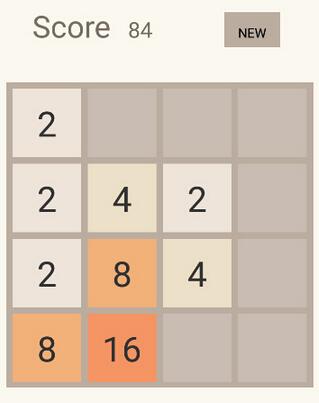
先繼承 GridLayout,補上兩個必要建構方法,並在初始化中把欄數設為四、掛上觸摸監聽。判斷方向的方式是比較 x 與 y 軸的位移量,誰的絕對值大就以誰為準。
public class GameView extends GridLayout {

    // 兩個必要的建構方法
    public GameView(Context context) {
        super(context);
        initView();
    }

    public GameView(Context context, AttributeSet attrs) {
        super(context, attrs);
        initView();
    }

    // 初始化
    public void initView() {
        // 固定四列
        setColumnCount(4);

        setOnTouchListener(new OnTouchListener() {
            @Override
            public boolean onTouch(View v, MotionEvent event) {
                switch (event.getAction()) {
                    case MotionEvent.ACTION_DOWN:
                        setX = event.getX();
                        setY = event.getY();
                        break;
                    case MotionEvent.ACTION_UP:
                        offsetX = event.getX() - setX;
                        offsetY = event.getY() - setY;
                        // 比較兩軸位移,決定滑動方向
                        if (Math.abs(offsetX) >= Math.abs(offsetY)) {
                            if (offsetX > 0) {
                                swipright();
                            } else if (offsetX < 0) {
                                swipleft();
                            }
                        } else {
                            if (offsetY > 0) {
                                swipdown();
                            } else if (offsetY < 0) {
                                swipup();
                            }
                        }
                        break;
                }
                return true;
            }
        });
    }
}
也可以改寫 onTouchEvent() 並回傳 true 達到同樣效果,兩種寫法取其一即可。
每個格子就是一個 FrameLayout 包著 TextView,預設數字為 0 代表空格。這裡做了一件重要的事:用 switch 對每個數值指定背景色,讓 2、4、8……各有不同色階,視覺上才認得出來。同時順手檢查是否有人合成了 2048。
public class Card extends FrameLayout {

    // 卡片上的數字
    private int num;
    private boolean is2048 = true;
    private TextView tvCard;

    public Card(Context context) {
        super(context);
        tvCard = new TextView(getContext());
        tvCard.setTextSize(40f);
        tvCard.setGravity(Gravity.CENTER);
        LayoutParams lp = new LayoutParams(-1, -1);
        lp.setMargins(15, 15, 0, 0);
        addView(tvCard, lp);
    }

    private void judgeIs2048(int num) {
        if (is2048) {
            if (2048 == num) {
                Toast.makeText(getContext(), "恭喜你達到 2048!", Toast.LENGTH_LONG).show();
                is2048 = false;
            }
        }
    }

    public int getNum() {
        return num;
    }

    public void setNum(int num) {
        this.num = num;
        if (num <= 0) {
            tvCard.setText("");
        } else {
            // 需轉為字串才能顯示
            tvCard.setText(num + "");
        }
        switch (num) {
            case 0:    tvCard.setBackgroundColor(0x33ffffff); break;
            case 2:    tvCard.setBackgroundColor(0xffeee4da); break;
            case 4:    tvCard.setBackgroundColor(0xffede0c8); break;
            case 8:    tvCard.setBackgroundColor(0xfff2b179); break;
            case 16:   tvCard.setBackgroundColor(0xfff59563); break;
            case 32:   tvCard.setBackgroundColor(0xfff67c5f); break;
            case 64:   tvCard.setBackgroundColor(0xfff65e3b); break;
            case 128:  tvCard.setBackgroundColor(0xffedcf72); break;
            case 256:  tvCard.setBackgroundColor(0xffedcc61); break;
            case 512:  tvCard.setBackgroundColor(0xffedc850); break;
            case 1024: tvCard.setBackgroundColor(0xffedc53f); break;
            case 2048: tvCard.setBackgroundColor(0xffedc22e); break;
            default:   tvCard.setBackgroundColor(0xff3c3a32); break;
        }
        judgeIs2048(num);
    }

    // 判斷兩張卡片數值是否相同,用於合併
    public boolean equals(Card o) {
        return getNum() == o.getNum();
    }

    public TextView getTvCard() {
        return tvCard;
    }
}
格子大小不能寫死,否則換螢幕就變形。onSizeChanged() 在程式啟動時會被呼叫一次,正好拿來算出單格寬度、建立 16 張卡片並開始遊戲。
@Override
protected void onSizeChanged(int w, int h, int oldw, int oldh) {
    super.onSizeChanged(w, w, oldw, oldh);
    Config.CARD_WIDTH = (Math.min(w, h) - 10) / 4;
    AddCard(Config.CARD_WIDTH);
    StartGame();
}
// 添加卡片,初始全部設為 0,也就是空卡片
private void AddCard(int CARD_WIDTH) {
    Card c;
    for (int x = 0; x < 4; x++) {
        for (int y = 0; y < 4; y++) {
            c = new Card(getContext());
            c.setNum(0);
            addView(c, CARD_WIDTH, CARD_WIDTH);
            cardMap[y][x] = c;
        }
    }
}
開局時清空棋盤,再隨機放兩張卡片。數值出現 2 與 4 的比率約為 9:1。
// 開始遊戲
public void StartGame() {
    for (int y = 0; y < 4; y++) {
        for (int x = 0; x < 4; x++) {
            cardMap[y][x].setNum(0);
        }
    }
    AddRandomCard();
    AddRandomCard();
}

// 添加隨機卡片
private void AddRandomCard() {
    CardPoint.clear();
    // 先收集所有空格座標
    for (int y = 0; y < 4; y++) {
        for (int x = 0; x < 4; x++) {
            if (cardMap[x][y].getNum() <= 0) {
                CardPoint.add(new Point(x, y));
            }
        }
    }
    // 隨機挑一格換成帶數字的卡片
    Point p = CardPoint.remove((int) (Math.random() * CardPoint.size()));
    cardMap[p.x][p.y].setNum(Math.random() > 0.1 ? 2 : 4);
    MainActivity.getMainActivity().getAnimLayer().createScaleTo1(cardMap[p.x][p.y]);
}
核心觀念是:對每一列,從左往右掃,遇到空格就把右側第一張有數字的卡片挪過來;若目標格已有數字且相同,就相加合併並清空來源格。每移動一次都要重複檢查,直到該列不能再壓縮為止——這正是程式碼中 x-- 的作用。
private void swipleft() {
    boolean status = false;
    for (int y = 0; y < 4; y++) {
        for (int x = 0; x < 4; x++) {
            for (int x1 = x + 1; x1 < 4; x1++) {
                if (cardMap[x1][y].getNum() > 0) {
                    if (cardMap[x][y].getNum() <= 0) {
                        // 目標為空,直接搬過去
                        MainActivity.getMainActivity().getAnimLayer()
                                .createMoveAnim(cardMap[x1][y], cardMap[x][y], x1, x, y, y);
                        cardMap[x][y].setNum(cardMap[x1][y].getNum());
                        cardMap[x1][y].setNum(0);
                        x--;   // 回頭再檢查一次,確保連續壓縮
                        status = true;
                    } else if (cardMap[x][y].equals(cardMap[x1][y])) {
                        // 數值相同,合併
                        MainActivity.getMainActivity().getAnimLayer()
                                .createMoveAnim(cardMap[x1][y], cardMap[x][y], x1, x, y, y);
                        cardMap[x][y].setNum(cardMap[x][y].getNum() * 2);
                        cardMap[x1][y].setNum(0);
                        MainActivity.getMainActivity().addScore(cardMap[x][y].getNum());
                        status = true;
                    }
                    break;
                }
            }
        }
    }
    // 只有棋盤真的變動才生成新卡片,並檢查是否結束
    if (status) {
        AddRandomCard();
        checkGame();
    }
}
用 status 旗標判斷「這一滑是否真的造成變動」是個關鍵細節。若無條件生成新卡片,使用者隨便滑一下棋盤就會被塞滿。
結束判斷的做法是掃過全盤:只要還有空格,或上下左右任一相鄰格數字相同(代表還能合併),遊戲就沒結束。
// 結束遊戲判斷
private void checkGame() {
    boolean complete = true;
    ALL:
    for (int y = 0; y < 4; y++) {
        for (int x = 0; x < 4; x++) {
            if (cardMap[x][y].getNum() == 0
                    || (x > 0 && cardMap[x][y].equals(cardMap[x - 1][y]))
                    || (x < 3 && cardMap[x][y].equals(cardMap[x + 1][y]))
                    || (y > 0 && cardMap[x][y].equals(cardMap[x][y - 1]))
                    || (y < 3 && cardMap[x][y].equals(cardMap[x][y + 1]))) {
                complete = false;
                break ALL;   // 只要找到一個可行操作就立刻跳出
            }
        }
    }
    if (complete) {
        Toast.makeText(getContext(), "遊戲結束,得分 " + MainActivity.getMainActivity().getScore(),
                Toast.LENGTH_LONG).show();
    }
}
動畫分三種:移動、合併、新卡片出現。做法是多疊一層 FrameLayout 蓋在棋盤上方,在這層畫「假的」卡片並播放位移動畫,動畫結束後回收該 View 供下次重複使用。這個「回收池」設計可以避免動畫過程中不斷 new View 造成卡頓。
public class AnimLayer extends FrameLayout {

    // 動畫用的卡片回收池
    private List<Card> cards = new ArrayList<Card>();

    public AnimLayer(Context context, AttributeSet attrs, int defStyle) {
        super(context, attrs, defStyle);
    }

    public AnimLayer(Context context, AttributeSet attrs) {
        super(context, attrs);
    }

    public AnimLayer(Context context) {
        super(context);
    }

    public void createMoveAnim(final Card from, final Card to,
                               int fromX, int toX, int fromY, int toY) {
        final Card c = getCard(from.getNum());
        LayoutParams lp = new LayoutParams(Config.CARD_WIDTH, Config.CARD_WIDTH);
        lp.leftMargin = fromX * Config.CARD_WIDTH;
        lp.topMargin = fromY * Config.CARD_WIDTH;
        c.setLayoutParams(lp);

        if (to.getNum() <= 0) {
            to.getTvCard().setVisibility(View.INVISIBLE);
        }

        TranslateAnimation ta = new TranslateAnimation(
                0, Config.CARD_WIDTH * (toX - fromX),
                0, Config.CARD_WIDTH * (toY - fromY));
        ta.setDuration(100);
        ta.setAnimationListener(new Animation.AnimationListener() {
            @Override public void onAnimationStart(Animation animation) { }
            @Override public void onAnimationRepeat(Animation animation) { }

            @Override
            public void onAnimationEnd(Animation animation) {
                to.getTvCard().setVisibility(View.VISIBLE);
                recycleCard(c);
            }
        });
        c.startAnimation(ta);
    }

    // 從回收池取卡,池空則新建
    private Card getCard(int num) {
        Card c;
        if (cards.size() > 0) {
            c = cards.remove(0);
        } else {
            c = new Card(getContext());
            addView(c);
        }
        c.setVisibility(View.VISIBLE);
        c.setNum(num);
        return c;
    }

    private void recycleCard(Card c) {
        c.setVisibility(View.INVISIBLE);
        c.setAnimation(null);
        cards.add(c);
    }

    // 新卡片出現的放大動畫
    public void createScaleTo1(Card target) {
        ScaleAnimation sa = new ScaleAnimation(0.1f, 1, 0.1f, 1,
                Animation.RELATIVE_TO_SELF, 0.5f,
                Animation.RELATIVE_TO_SELF, 0.5f);
        sa.setDuration(100);
        target.setAnimation(null);
        target.getTvCard().startAnimation(sa);
    }
}
<LinearLayout xmlns:android="https://schemas.android.com/apk/res/android"
    xmlns:tools="https://schemas.android.com/tools"
    android:layout_width="match_parent"
    android:layout_height="match_parent"
    android:background="#fffaf8ef"
    android:orientation="vertical"
    android:paddingBottom="@dimen/activity_vertical_margin"
    android:paddingLeft="@dimen/activity_horizontal_margin"
    android:paddingRight="@dimen/activity_horizontal_margin"
    android:paddingTop="@dimen/activity_vertical_margin"
    tools:context=".MainActivity">

    <LinearLayout
        android:layout_marginTop="15dp"
        android:orientation="horizontal"
        android:gravity="center"
        android:layout_width="match_parent"
        android:layout_height="wrap_content">

        <TextView
            android:layout_width="wrap_content"
            android:layout_height="wrap_content"
            android:textColor="#ff776e65"
            android:text="@string/title"
            android:textSize="50sp"/>
    </LinearLayout>

    <LinearLayout
        android:layout_width="match_parent"
        android:orientation="horizontal"
        android:layout_marginTop="10dp"
        android:layout_height="wrap_content">

        <TextView
            android:layout_width="wrap_content"
            android:layout_height="wrap_content"
            android:textColor="#ff776e65"
            android:layout_marginLeft="30dp"
            android:textSize="35sp"
            android:text="@string/Score"/>

        <TextView
            android:id="@+id/tvscore"
            android:layout_marginLeft="20dp"
            android:textSize="25sp"
            android:textColor="#ff776e65"
            android:layout_width="70dp"
            android:layout_height="37dp" />

        <Button
            android:layout_width="wrap_content"
            android:layout_height="wrap_content"
            android:id="@+id/startgame"
            android:layout_marginLeft="40dp"
            android:background="#ffbbada0"
            android:textSize="15sp"
            android:text="@string/start"/>
    </LinearLayout>

    <FrameLayout
        android:id="@+id/gameContainer"
        android:layout_width="fill_parent"
        android:layout_height="0dp"
        android:layout_weight="1">

        <develop.niuli.com.game.GameView
            android:layout_marginTop="40dp"
            android:id="@+id/Gridlayout"
            android:layout_width="match_parent"
            android:background="#ffbbada0"
            android:layout_height="350dp">
        </develop.niuli.com.game.GameView>

        <develop.niuli.com.game.AnimLayer
            android:id="@+id/animLayer"
            android:layout_width="match_parent"
            android:layout_height="match_parent">
        </develop.niuli.com.game.AnimLayer>
    </FrameLayout>
</LinearLayout>
動畫層與棋盤放在同一個 FrameLayout 中,前者在上、後者在下,這正是「假卡片蓋真卡片」能成立的原因。若再把上下左右四個方向的滑動邏輯抽成一個通用方法(傳入座標轉換函式),程式碼還能再精簡一半。
 解決 Android Studio 反覆提示重啟 ADB 的問題
用手機連上電腦除錯時,Android Studio 常常跳出提示要你重啟 ADB,但點了重啟之後,那個提示對話框又立刻跳出來。會這樣反覆出現,是因為 ADB 根本沒有重啟
 聊聊 Android 視圖滾動狀態監聽與嵌套滾動思路
在自定義控制項或互動效果中,判斷視圖是否還能繼續滑動,是很實用的能力。Android 的 ViewCompat 提供了 canScrollVertically 與 can
 微信公眾號怎麼申請?從註冊到送出審核的五個步驟
微信公眾號是公眾平台底下的一支,主要能力是把內容定時推送到追隨者的微信裡——文章、活動、通知,都能即時送達。這也是它成為品牌與個人經營窗口的原因。申請流程第一步:登入微信
 Android 感測器 API 解析:運動、位置與環境感測器
Android 感測器可分為運動、位置與環境三大類。運動感測器用於偵測裝置移動與旋轉,位置感測器用於判斷方向與距離,環境感測器則提供溫度、濕度、光照與氣壓等資訊。 運動感