

編輯:關於 Android 程式設計
閒來無事,做了一個簡單的抽獎轉盤 UI 實現,分享出來供大家參考。
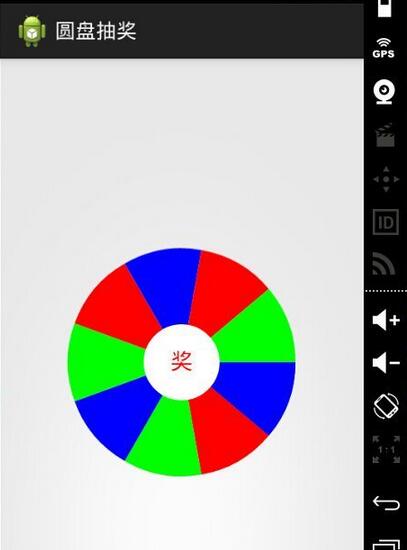
這個轉盤的核心是自定義一個 HalfCircle 視圖,通過 drawArc 繪製出一塊塊扇形,並用不同顏色交替填充,中心再畫一個白色圓圈和「獎」字。
package com.microchange.lucky;

import android.content.Context;
import android.graphics.Canvas;
import android.graphics.Color;
import android.graphics.Paint;
import android.graphics.RectF;
import android.util.AttributeSet;
import android.util.Log;
import android.view.MotionEvent;
import android.view.View;

public class HalfCircle extends View {
    private Paint paint;
    private RectF oval;
    private float startAngle;
    private float sweepSpeed;
    private float sweepAngle;
    boolean useCenter;
    int count; // 等份

    @Override
    protected void onDraw(Canvas canvas) {
        setSweepAngle(count);
        while (startAngle <= 360) {
            if (startAngle % (count * 3) == 0) {
                paint.setColor(Color.BLUE);
            } else if (startAngle % (count * 2) == 0) {
                paint.setColor(Color.GREEN);
            } else {
                paint.setColor(Color.RED);
            }
            Log.e("" + startAngle, paint.getColor() + "");
            canvas.drawArc(oval, startAngle, sweepAngle, useCenter, paint);
            startAngle += count;
        }
        float centerX = oval.centerX();
        float centerY = oval.centerY();
        paint.setColor(Color.WHITE);
        paint.setAntiAlias(true); // 消除鋸齒
        canvas.drawCircle(centerX, centerY, 50, paint);
        String text = "獎";
        paint.setTextSize(20 * getContext().getResources().getDisplayMetrics().density);
        float measureText = paint.measureText(text);
        float textY = paint.descent() - paint.ascent();
        paint.setColor(Color.RED);
        canvas.drawText(text, centerX - (measureText / 2), centerY + (textY / 4), paint);
    }

    private void init() {
        paint = new Paint();
        paint.setColor(Color.BLUE);
        paint.setAntiAlias(true);
        paint.setStrokeWidth(5);
    }

    @Override
    public boolean onTouchEvent(MotionEvent event) {
        return super.onTouchEvent(event);
    }

    public int getCount() { return count; }
    public void setCount(int count) { this.count = 360 / count; }
    public Paint getPaint() { return paint; }
    public void setPaint(Paint paint) { this.paint = paint; }
    public RectF getOval() { return oval; }
    public void setOval(RectF oval) { this.oval = oval; }
    public float getStartAngle() { return startAngle; }
    public void setStartAngle(float startAngle) { this.startAngle = startAngle; }
    public float getSweepSpeed() { return sweepSpeed; }
    public void setSweepSpeed(float sweepSpeed) { this.sweepSpeed = sweepSpeed; }
    public float getSweepAngle() { return sweepAngle; }
    public void setSweepAngle(float sweepAngle) { this.sweepAngle = sweepAngle; }
    public boolean isUseCenter() { return useCenter; }
    public void setUseCenter(boolean useCenter) { this.useCenter = useCenter; }

    public HalfCircle(Context context, AttributeSet attrs, int defStyle) {
        super(context, attrs, defStyle);
        init();
    }

    public HalfCircle(Context context, AttributeSet attrs) {
        this(context, attrs, 0);
    }

    public HalfCircle(Context context) {
        this(context, null, 0);
    }
}
在 MainActivity 中,我們創建 HalfCircle 實例並設置好扇形區域、等份數量,再通過 RotateAnimation 讓轉盤旋轉起來,配合 DecelerateInterpolator 模擬逐漸減速的抽獎效果。
package com.microchange.lucky;

import android.app.Activity;
import android.graphics.RectF;
import android.os.Bundle;
import android.view.animation.DecelerateInterpolator;
import android.view.animation.RotateAnimation;

public class MainActivity extends Activity {
    RectF rect;
    int radius = 300;

    @Override
    protected void onCreate(Bundle savedInstanceState) {
        super.onCreate(savedInstanceState);
        HalfCircle circle = new HalfCircle(getApplicationContext());
        circle.setOval(getRectF());
        circle.setUseCenter(true);
        circle.setCount(9);
        Animation animation = new RotateAnimation(0, 135 * 10, getRectF().centerX(), getRectF().centerY());
        animation.setDuration(5000);
        animation.setInterpolator(new DecelerateInterpolator());
        circle.setAnimation(animation);
        setContentView(circle);
    }

    public RectF getRectF() {
        if (rect == null) {
            int width = getResources().getDisplayMetrics().widthPixels;
            int height = getResources().getDisplayMetrics().heightPixels;
            int top = (height - radius) / 2;
            int left = (width - radius) / 2;
            rect = new RectF(left, top, left + radius, top + radius);
        }
        return rect;
    }
}
希望本文所述對大家學習 Android 程序設計有所幫助。
 自定義 View 實戰:仿一號店垂直滾動廣告條
效果預覽(GIF 略卡,原程序運行流暢) 實現步驟: 聲明變量 → 初始化畫筆、文本大小與坐標 → onMeasure() 適配 wrap_content 的寬高 →
 Android 電商實戰(二):仿淘寶商品屬性標籤頁的自動換行實現
先看效果 需求:屬性與標籤都不能寫死 電商商品詳情頁裡的「規格選擇」看起來簡單,實際上有兩個層次的不確定性: 屬性本身是不確定的。有的商品是「顏色 + 尺碼」,有的是「
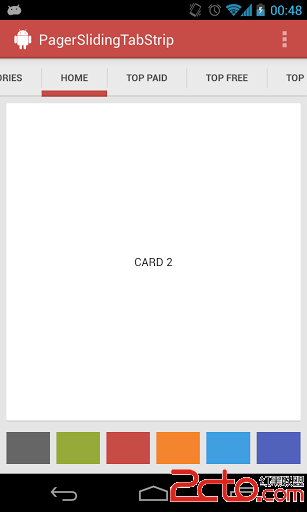 PagerSlidingTabStrip 極簡接入指南:三步搞定 ViewPager 頂部 Tab
Android 原生的 Tab 控件一直不太好使,所以社群裡 PagerSlidingTabStrip 這個開源方案被廣泛使用。它的官方 demo 代碼偏長,新手往往看得
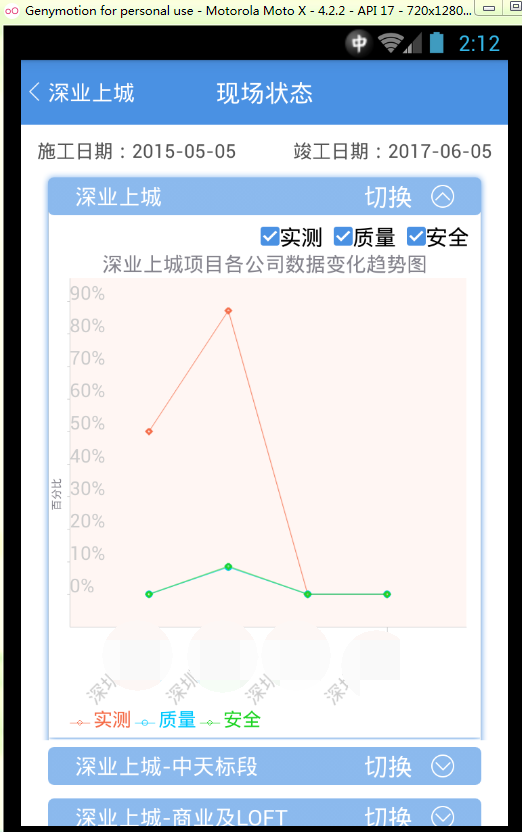 AChartEngine 圖表框架使用心得
前言 AChartEngine 是一個常見的 Android 圖表框架,可用來建立折線圖、長條圖、圓餅圖等多種圖表。本文以折線圖為例,整理使用時的核心概念與實作心得。