

編輯:關於 Android 程式設計
緣起:每當埋頭寫程式或打遊戲,總是很容易忘記時間,一抬頭常常已經連續盯著螢幕超過三個小時,對眼睛的傷害著實不小。於是我動手做了一個護眼定時提醒的小應用——每隔一段時間就跳出通知,提醒該讓眼睛休息一下了。
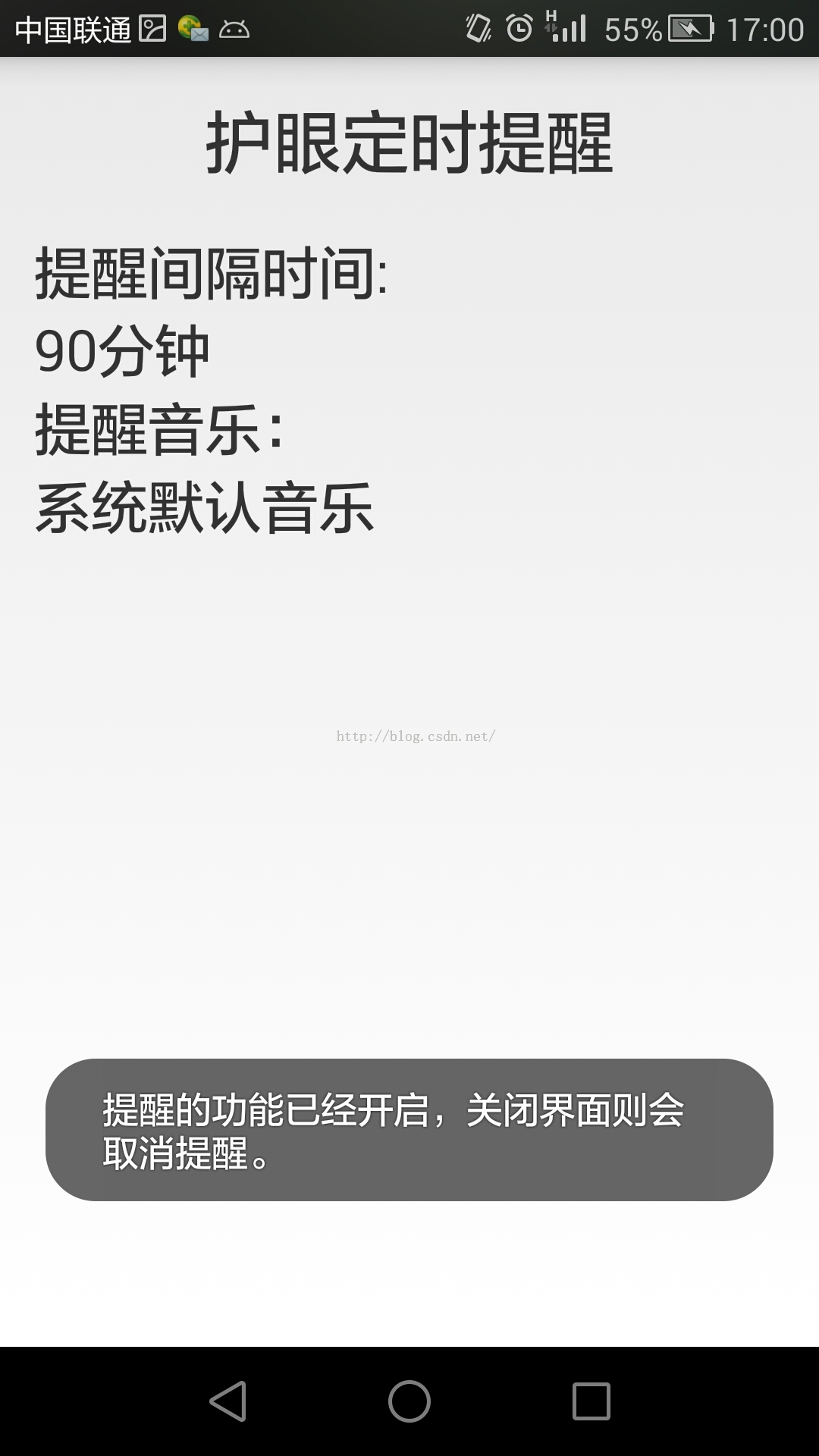
打開後的效果如下:
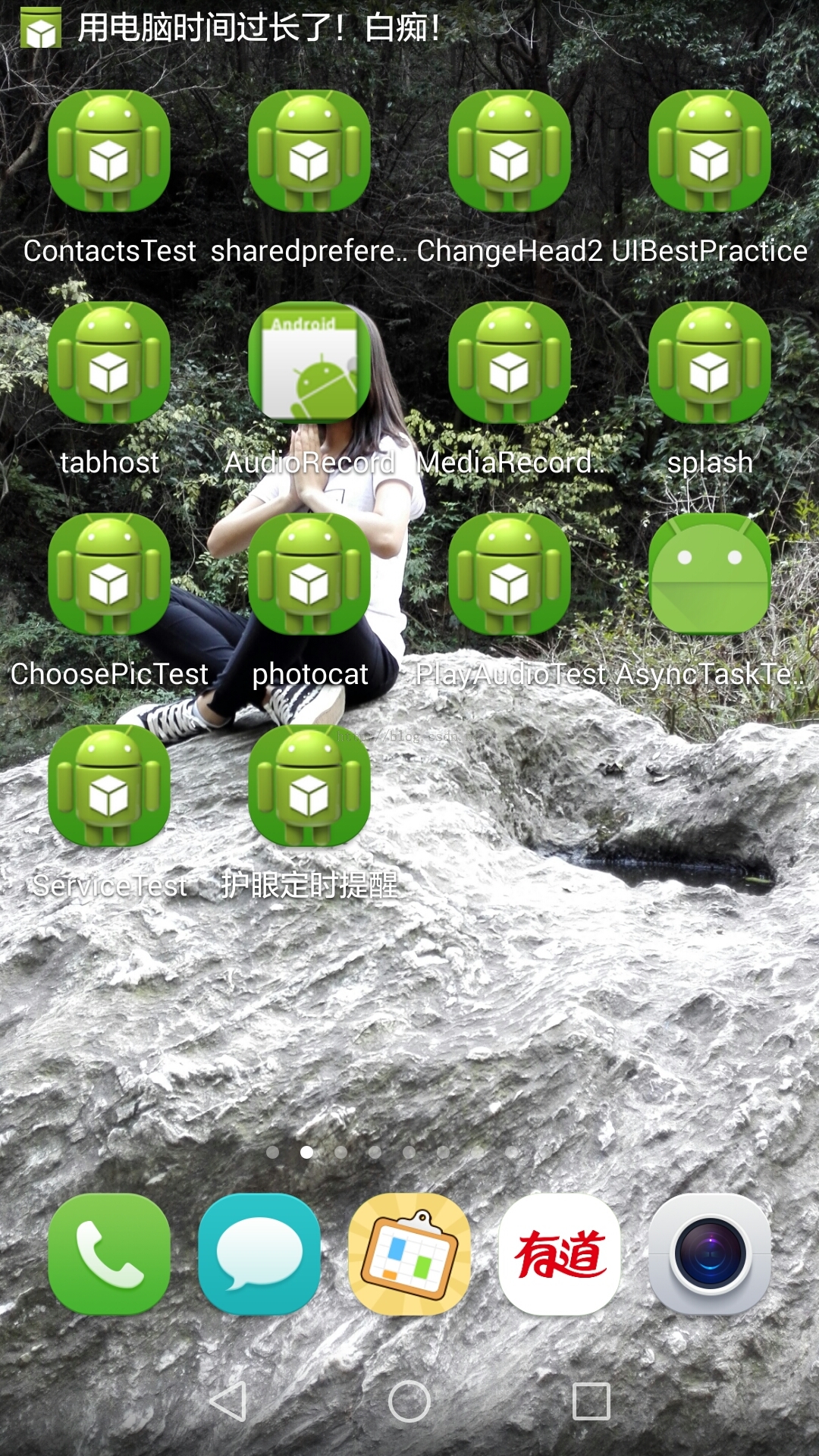
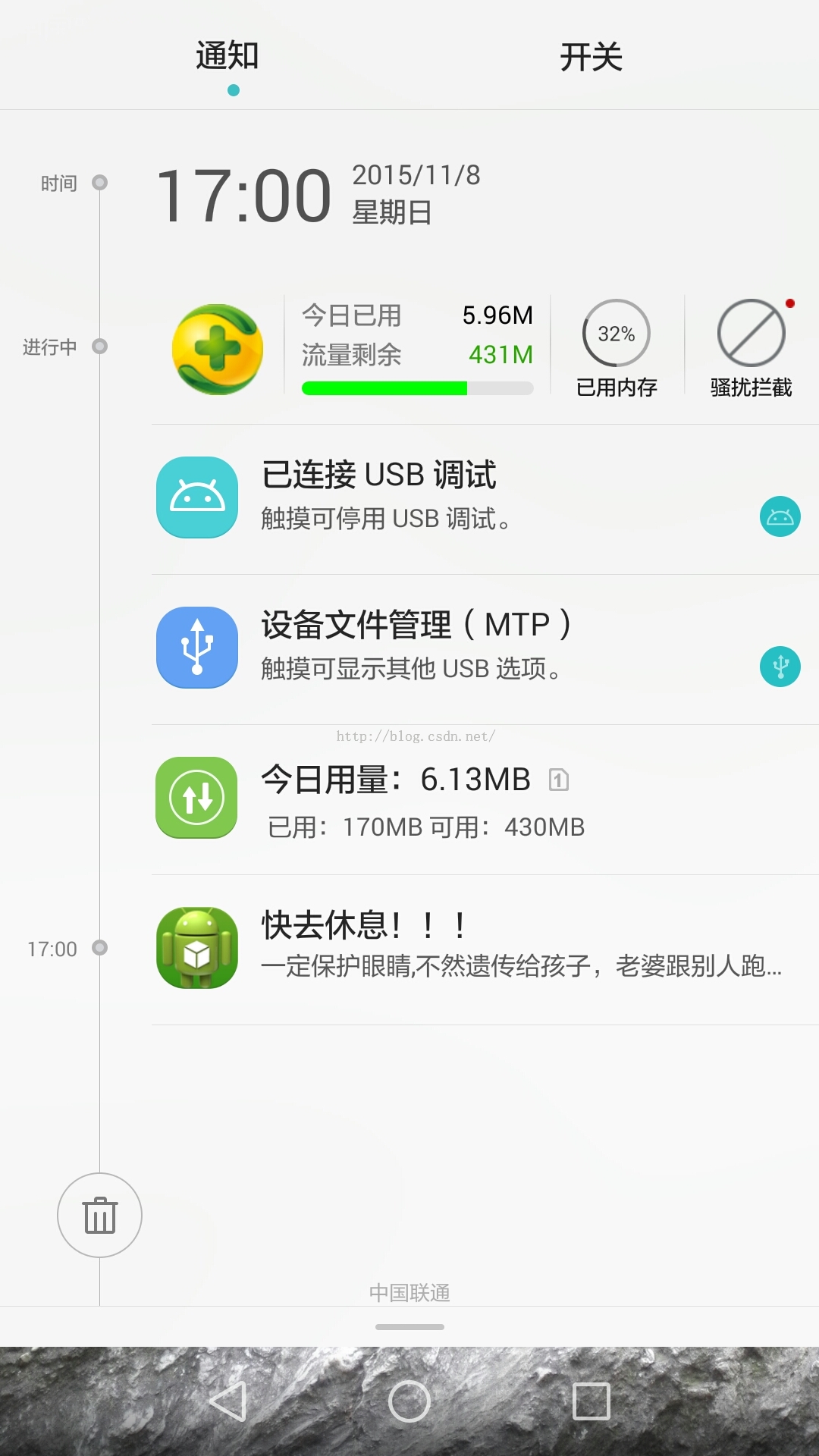
時間到之後,會跳出後台提醒通知:
接下來談談實作這樣一個 App 主要涉及的知識點:
Service:使用 Service 能讓程式即使退到後台,也依然可以發出提醒,且不影響手機執行其他工作。
AlarmManager:主要用於計時,詳細用法見程式碼註解。
Notification:負責通知的顯示。
MainActivity:
import android.app.Activity; import android.content.Intent; import android.os.Bundle; import android.view.Window; import android.widget.Toast; public class MainActivity extends Activity { private Intent intent; @Override protected void onCreate(Bundle savedInstanceState) { super.onCreate(savedInstanceState); //取消標題欄 requestWindowFeature(Window.FEATURE_NO_TITLE); //由於主要是用於測試,並且便於新手理解,所以activity_main布局寫的很簡單 setContentView(R.layout.activity_main); intent = new Intent(this, LongRunningService.class); //開啟關閉Service startService(intent); //設置一個Toast來提醒使用者提醒的功能已經開始 Toast.makeText(MainActivity.this,"提醒的功能已經開啟,關閉界面則會取消提醒。",Toast.LENGTH_LONG).show(); } @Override protected void onDestroy() { super.onDestroy(); //在Activity被關閉後,關閉Service stopService(intent); } }
LongRunningService:
import android.app.AlarmManager; import android.app.PendingIntent; import android.app.Service; import android.content.Intent; import android.os.IBinder; import android.os.SystemClock; public class LongRunningService extends Service { @Override public IBinder onBind(Intent intent) { return null; } @Override public int onStartCommand(Intent intent, int flags, int startId) { AlarmManager manager = (AlarmManager) getSystemService(ALARM_SERVICE); //讀者可以修改此處的Minutes從而改變提醒間隔時間 //此處是設置每隔90分鐘啟動一次 //這是90分鐘的毫秒數 int Minutes = 90*60*1000; //SystemClock.elapsedRealtime()表示1970年1月1日0點至今所經歷的時間 long triggerAtTime = SystemClock.elapsedRealtime() + Minutes; //此處設置開啟AlarmReceiver這個Service Intent i = new Intent(this, AlarmReceiver.class); PendingIntent pi = PendingIntent.getBroadcast(this, 0, i, 0); //ELAPSED_REALTIME_WAKEUP表示讓定時任務的出發時間從系統開機算起,並且會喚醒CPU。 manager.set(AlarmManager.ELAPSED_REALTIME_WAKEUP, triggerAtTime, pi); return super.onStartCommand(intent, flags, startId); } @Override public void onDestroy() { super.onDestroy(); //在Service結束後關閉AlarmManager AlarmManager manager = (AlarmManager) getSystemService(ALARM_SERVICE); Intent i = new Intent(this, AlarmReceiver.class); PendingIntent pi = PendingIntent.getBroadcast(this, 0, i, 0); manager.cancel(pi); } }
AlarmReceiver:
import android.app.Notification; import android.app.NotificationManager; import android.content.BroadcastReceiver; import android.content.Context; import android.content.Intent; public class AlarmReceiver extends BroadcastReceiver { @Override public void onReceive(Context context, Intent intent) { //設置通知內容並在onReceive()這個函數執行時開啟 NotificationManager manager = (NotificationManager) context.getSystemService(Context.NOTIFICATION_SERVICE); Notification notification=new Notification(R.drawable.ic_launcher,"用電腦時間過長了!白癡!" ,System.currentTimeMillis()); notification.setLatestEventInfo(context, "快去休息!!!", "一定保護眼睛,不然遺傳給孩子,老婆跟別人跑啊。", null); notification.defaults = Notification.DEFAULT_ALL; manager.notify(1, notification); //再次開啟LongRunningService這個服務,從而可以 Intent i = new Intent(context, LongRunningService.class); context.startService(i); } }
activity_main:
<LinearLayout xmlns:android="https://schemas.android.com/apk/res/android" android:layout_width="match_parent" android:layout_height="match_parent" android:padding="15dp" android:orientation="vertical" > <TextView android:layout_marginBottom="20dp" android:layout_width="match_parent" android:layout_height="wrap_content" android:text="護眼定時提醒" android:textSize="30sp" android:gravity="center_horizontal" /> <TextView android:layout_width="match_parent" android:layout_height="wrap_content" android:text="提醒間隔時間:" android:textSize="25sp" /> <TextView android:layout_width="match_parent" android:layout_height="wrap_content" android:text="90分鐘" android:textSize="25sp" /> <TextView android:layout_width="match_parent" android:layout_height="wrap_content" android:text="提醒音樂:" android:textSize="25sp" /> <TextView android:layout_width="match_parent" android:layout_height="wrap_content" android:text="系統默認音樂" android:textSize="25sp" /> </LinearLayout>
千萬不要忘記在 AndroidManifest 中註冊 Service 與 BroadcastReceiver!
AndroidManifest:
<?xml version="1.0" encoding="utf-8"?> <manifest xmlns:android="https://schemas.android.com/apk/res/android" package="com.example.servicebestpractice" android:versionCode="1" android:versionName="1.0" > <uses-sdk android:minSdkVersion="14" android:targetSdkVersion="17" /> <application android:allowBackup="true" android:icon="@drawable/ic_launcher" android:label="@string/app_name" android:theme="@style/AppTheme" > <activity android:name="com.example.servicebestpractice.MainActivity" android:label="@string/app_name" > <intent-filter> <action android:name="android.intent.action.MAIN" /> <category android:name="android.intent.category.LAUNCHER" /> </intent-filter> </activity> <service android:name=".LongRunningService" > </service> <receiver android:name=".AlarmReceiver" > </receiver> </application> </manifest>
這裡有一個不得不提的關鍵點。原本的寫法是:Activity 啟動時自動開啟 Service,Activity 銷毀時自動關閉 Service。乍看之下似乎能正常運作,短時間內的提醒也確實沒問題。
但是一旦是較長時間的提醒,就會出現「不再提醒」的問題!這是為什麼呢?
原因在於:Android 為了最佳化記憶體、降低耗電,會自動清理背景程序,把駐留在後台的 Service 一併回收掉。因此若要做長時間的定時提醒,就不能單純依賴隨 Activity 生命週期綁定的 Service,而應改用更可靠的手段(例如 AlarmManager 搭配廣播接收器,甚至 Foreground Service)來維持提醒的存活。
以上就是本文的全部內容,希望對你的學習有所幫助。
 使用 RatingBar 實現 Android 星級打分功能教學
RatingBar 簡單介紹 RatingBar 是基於 SeekBar(拖動條)和 ProgressBar(狀態條)的擴展,用星形來顯示等級評定。使用默認 Rating
 ZXing 掃描畫面被拉伸的解法:修正相機解析度計算
ZXing 是 Google 提供的二維碼掃描專案,開箱即用,但它的預設參數是為橫屏設計的。一旦把 Activity 轉成豎屏,預覽畫面就會出現明顯的橫向拉伸。問題根源在
 Android 消息機制的實際應用:Handler 雙向通信
本文透過一個完整示例來熟悉 Android 消息機制的使用。示例中主線程有一個 EditText、一個 ImageView 和一個 Button:使用者在 EditTex
 Android 翻頁效果實作:上下與左右 Flip 視圖
想要在 Android 中做出類似 Flipboard 的翻頁效果,可以借助開源元件 android-flip。它能讓頁面以立體翻轉的方式呈現,適合電子書、雜誌或圖片瀏覽