

編輯:關於 Android 程式設計
本文示範如何顯示與修改 TextView 的文字內容,並附上完整的屬性說明表,方便日常查閱。
在 layout 資料夾中新增 activity_main.xml(建立專案時通常會自動產生),內容如下:
<RelativeLayout xmlns:android="https://schemas.android.com/apk/res/android" xmlns:tools="https://schemas.android.com/tools" android:layout_width="match_parent" android:layout_height="match_parent" android:paddingBottom="@dimen/activity_vertical_margin" android:paddingLeft="@dimen/activity_horizontal_margin" android:paddingRight="@dimen/activity_horizontal_margin" android:paddingTop="@dimen/activity_vertical_margin" tools:context=".MainActivity" > <TextView android:id="@+id/lblTitle" android:layout_width="wrap_content" android:layout_height="wrap_content" android:layout_alignParentLeft="true" android:layout_alignParentTop="true" android:layout_marginLeft="88dp" android:layout_marginTop="51dp" android:text="TextView" /> </RelativeLayout>
MainActivity.java:
public class MainActivity extends Activity { @Override protected void onCreate(Bundle savedInstanceState) { super.onCreate(savedInstanceState); setContentView(R.layout.activity_main); TextView lblTitle=(TextView)findViewById(R.id.lblTitle); lblTitle.setText("這是顯示的內容"); } }
這樣就完成文字內容的替換了。
直接塞 HTML 字串進去:
@Override protected void onCreate(Bundle savedInstanceState) { super.onCreate(savedInstanceState); setContentView(R.layout.activity_main); TextView lblTitle=(TextView)findViewById(R.id.lblTitle); lblTitle.setText("<a href=\"https://www.baidu.com\">百度</>"); }
執行後會發現文字並沒有被當成 HTML 解析——也就是說 TextView 預設不支援 HTML 字串解析。
解法有兩種。第一種是在程式碼中加上自動連結:
@Override protected void onCreate(Bundle savedInstanceState) { super.onCreate(savedInstanceState); setContentView(R.layout.activity_main); TextView lblTitle=(TextView)findViewById(R.id.lblTitle); lblTitle.setAutoLinkMask(Linkify.ALL); lblTitle.setText("<a href=\"https://www.baidu.com\">百度</>"); }
第二種是直接寫在布局檔裡,用 android:autoLink:
<RelativeLayout xmlns:android="https://schemas.android.com/apk/res/android" xmlns:tools="https://schemas.android.com/tools" android:layout_width="match_parent" android:layout_height="match_parent" android:paddingBottom="@dimen/activity_vertical_margin" android:paddingLeft="@dimen/activity_horizontal_margin" android:paddingRight="@dimen/activity_horizontal_margin" android:paddingTop="@dimen/activity_vertical_margin" tools:context=".MainActivity" > <TextView android:id="@+id/lblTitle" android:layout_width="wrap_content" android:layout_height="wrap_content" android:layout_alignParentLeft="true" android:layout_alignParentTop="true" android:layout_marginLeft="88dp" android:layout_marginTop="51dp" android:autoLink="all" android:text="TextView" /> </RelativeLayout>
值得注意的是,autoLink 的運作方式是「掃描文字中是否含有網址、Email、電話號碼或地址格式並自動加上連結」,而不是解析 HTML 標籤。因此 <a> 標籤本身不會被處理,真正被辨識的是文字裡出現的網址。
android:autoLink 當文字為 URL/email/電話號碼/map 時,是否顯示為可點擊連結。可選值:none、web、email、phone、map、all。
android:autoText 自動執行拼字修正。在顯示輸入法並輸入時才會生效。
android:bufferType 指定 getText() 取回的文本類別。editable 類似 StringBuilder,可取回後 append;spannable 則可在指定字元區間套用樣式。
android:capitalize 英文字母大寫類型設定,需彈出輸入法才看得到效果。
android:cursorVisible 游標顯示或隱藏,預設顯示。
android:digits 限制可輸入的字元,例如「1234567890.+-*/%\n()」。
android:drawableBottom / Left / Right / Top 在文字的上/左/右/下方輸出一個 drawable。若指定為顏色,會把文字背景設為該色,並覆蓋 background。
android:drawablePadding 文字與 drawable 之間的間距,可設負值,需搭配上述四個屬性使用。
android:editable 是否可編輯,實際效果見 EditView。
android:ellipsize 文字過長時的呈現方式:start(省略號在開頭)、end(結尾)、middle(中間)、marquee(跑馬燈橫向捲動)。
android:freezesText 保留文字內容與游標位置。
android:gravity 文字對齊位置,例如 center。
android:hint 文字為空時的提示訊息,可用 textColorHint 設定顏色。
android:includeFontPadding 文字是否包含上下額外留白,預設 true。
android:imeOptions / imeActionId / imeActionLabel 設定 IME 右下角動作按鈕,例如 actionDone 會顯示「完成」而非換行符號,主要用於 EditView。
android:inputType 文字類型,用來讓輸入法顯示合適的鍵盤。
android:marqueeRepeatLimit 搭配 ellipsize="marquee" 時的捲動次數,設為 marquee_forever 表示無限次。
android:ems / maxEms / minEms 以字元寬度為單位設定文字區域的最短/最長/固定寬度(以一個漢字寬為基準),同時使用時 max、min 會覆蓋 ems。
android:maxLength 限制顯示的文字長度,超出部分不顯示。
android:lines / maxLines / minLines 設定顯示行數、最大與最小行數。maxLines 需搭配 width 或 layout_width 使用,超出部分自動換行、超出行數則不顯示。
android:linksClickable 即使設定了 autoLink,是否仍開放點擊跳轉。
android:lineSpacingExtra / lineSpacingMultiplier 行距與行距倍數,例如 1.2。
android:password 以小圓點「.」顯示文字。
android:phoneNumber 設為電話號碼輸入方式。
android:scrollHorizontally 文字超出寬度時是否出現橫向捲軸。
android:selectAllOnFocus 取得焦點時是否全選文字,而非把游標移到開頭或結尾。
android:shadowColor / shadowDx / shadowDy / shadowRadius 文字陰影的顏色、位移與模糊半徑。半徑設為 0.1 會讓字看起來變色,一般設 3.0 效果較自然。
android:singleLine 單行顯示。搭配 layout_width 時,內容過長會以「…」表示。
android:text 顯示的文字內容。
android:textAppearance 文字外觀,可引用系統樣式如 textAppearanceLarge、textAppearanceMedium、textAppearanceSmall 及其 Inverse、Button 版本。
android:textColor 文字顏色。textColorHighlight 選取文字的底色,預設藍色。textColorHint 提示文字顏色,預設灰色。textColorLink 連結文字顏色。
android:textScaleX 字元間距倍率,預設 1.0f。
android:textSize 文字大小,建議使用 sp 單位,例如 15sp。
android:textStyle 字形樣式:bold、italic、bolditalic,多個值以「|」分隔。
android:typeface 字型:normal(0)、sans(1)、serif(2)、monospace(3)。
android:height / maxHeight / minHeight 文字區域的高度與上下限,支援 px、dp、sp、in、mm。
android:width / maxWidth / minWidth 文字區域的寬度與上下限,同樣支援上述單位。
以上就是本文的全部內容,希望對大家 Android 程式設計有所幫助。
 Android 刮刮樂效果實作:用 Canvas 與 PorterDuff 模式做塗開式遮罩
刮刮樂的核心原理其實非常單純:在獎項上方蓋一層不透明的「銀漆」,使用者手指劃過的地方就把這層漆擦掉。換成 Android 的語言,就是「一張可繪圖的 Bitmap 當作遮
 XListView 下拉刷新與上拉加載更多的完整實作
市面上模擬 ListView 刷新資料的開源框架不少,例如 v4 包自帶的 SwipeRefreshLayout,以及同時涵蓋 ListView、GridView 甚至
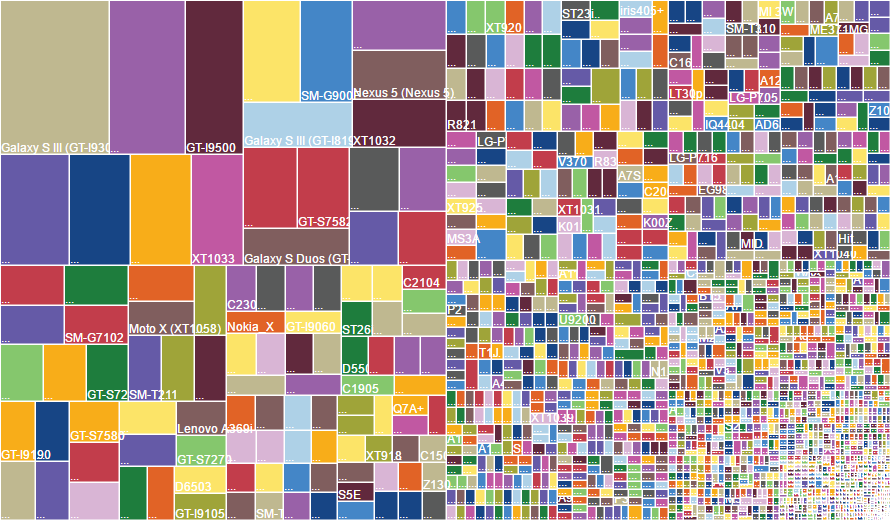 Android 分辨率與屏幕適配詳解
屏幕適配是每個 Android 開發者都繞不開的話題。本文從原理講到實踐,系統梳理了分辨率與屏幕適配的知識體系。 一、為什麼要做屏幕適配 最根本的原因是碎片化。由於 An
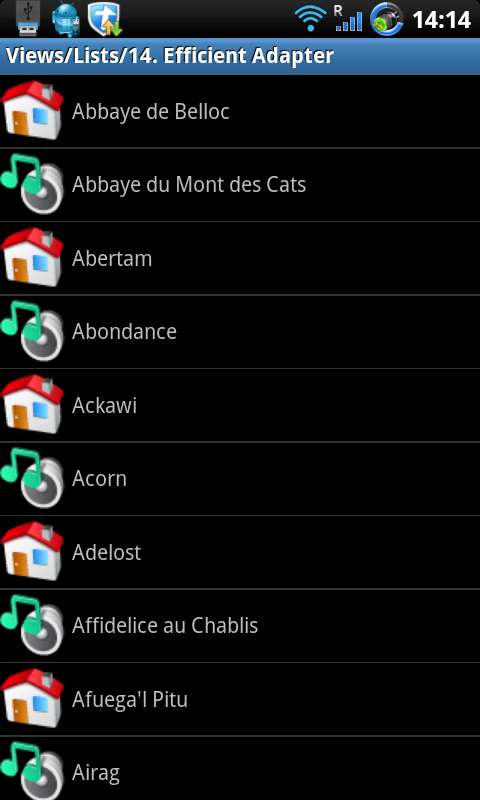 Android ListView 與 Adapter 關鍵要點:getView 複用機制與布局陷阱
一、Adapter.getView():整個列表性能的命門 方法簽名很簡單: public View getView(int position, View convert