

編輯:關於 Android 程式設計
振動回饋是行動介面中很重要的一環,無論是遊戲反饋、通知提醒還是操作確認,都能有效提升使用者的觸感體驗。Android 中負責這件事的是 Vibrator 服務。
本文示範兩種觸發模式:一是依自訂節奏陣列振動,二是持續振動固定時間。
<?xml version="1.0" encoding="utf-8"?>
<LinearLayout xmlns:android="https://schemas.android.com/apk/res/android"
    android:orientation="vertical"
    android:layout_width="fill_parent"
    android:layout_height="fill_parent">

    <LinearLayout
        android:orientation="horizontal"
        android:layout_width="fill_parent"
        android:layout_height="wrap_content">
        <ToggleButton
            android:id="@+id/tb1"
            android:textOn="關閉振動"
            android:textOff="啟動振動"
            android:checked="false"
            android:layout_width="wrap_content"
            android:layout_height="wrap_content" />
        <TextView
            android:id="@+id/tv1"
            android:text="振動已關閉"
            android:layout_width="wrap_content"
            android:layout_height="wrap_content" />
    </LinearLayout>

    <LinearLayout
        android:orientation="horizontal"
        android:layout_width="fill_parent"
        android:layout_height="wrap_content">
        <ToggleButton
            android:id="@+id/tb2"
            android:textOn="關閉振動"
            android:textOff="啟動振動"
            android:checked="false"
            android:layout_width="wrap_content"
            android:layout_height="wrap_content" />
        <TextView
            android:id="@+id/tv2"
            android:text="振動已關閉"
            android:layout_width="wrap_content"
            android:layout_height="wrap_content" />
    </LinearLayout>
</LinearLayout>
<?xml version="1.0" encoding="utf-8"?>
<manifest xmlns:android="https://schemas.android.com/apk/res/android"
    package="com.ljq.activity"
    android:versionCode="1"
    android:versionName="1.0">

    <application android:icon="@drawable/icon" android:label="@string/app_name">
        <activity android:name=".VibrateActivity" android:label="@string/app_name">
            <intent-filter>
                <action android:name="android.intent.action.MAIN" />
                <category android:name="android.intent.category.LAUNCHER" />
            </intent-filter>
        </activity>
    </application>

    <uses-sdk android:minSdkVersion="7" />

    <!-- 振動權限 -->
    <uses-permission android:name="android.permission.VIBRATE" />
</manifest>
package com.ljq.activity;

import android.app.Activity;
import android.app.Service;
import android.os.Bundle;
import android.os.Vibrator;
import android.widget.CompoundButton;
import android.widget.TextView;
import android.widget.ToggleButton;
import android.widget.CompoundButton.OnCheckedChangeListener;

public class VibrateActivity extends Activity {
    private Vibrator vibrator = null;
    private ToggleButton tb1 = null, tb2 = null;
    private TextView tv1 = null, tv2 = null;

    @Override
    public void onCreate(Bundle savedInstanceState) {
        super.onCreate(savedInstanceState);
        setContentView(R.layout.main);

        // 注意:模擬器無法模擬振動,必須以真機測試
        vibrator = (Vibrator) getSystemService(Service.VIBRATOR_SERVICE);

        tv1 = (TextView) findViewById(R.id.tv1);
        tv2 = (TextView) findViewById(R.id.tv2);
        tb1 = (ToggleButton) findViewById(R.id.tb1);
        tb2 = (ToggleButton) findViewById(R.id.tb2);
        tb1.setOnCheckedChangeListener(listener);
        tb2.setOnCheckedChangeListener(listener);
    }

    OnCheckedChangeListener listener = new OnCheckedChangeListener() {
        public void onCheckedChanged(CompoundButton buttonView, boolean isChecked) {
            ToggleButton toggleButton = (ToggleButton) buttonView;
            switch (toggleButton.getId()) {
                case R.id.tb1:
                    if (isChecked) {
                        // 模式一:依自訂節奏振動
                        // pattern 陣列:[0] 為啟動前的等待時間,
                        // 之後的值依序為「開啟」與「關閉」的持續時間,單位毫秒
                        // 第二個參數為重複時的起始索引,-1 表示不重複
                        vibrator.vibrate(new long[]{1000, 50, 50, 100, 50}, -1);
                        tv1.setText("振動已啟動");
                    } else {
                        vibrator.cancel();
                        tv1.setText("震動已關閉");
                    }
                    break;

                case R.id.tb2:
                    if (isChecked) {
                        // 模式二:持續振動指定毫秒數
                        vibrator.vibrate(3500);
                        tv2.setText("振動已啟動");
                    } else {
                        vibrator.cancel();
                        tv2.setText("震動已關閉");
                    }
                    break;
            }
        }
    };
}
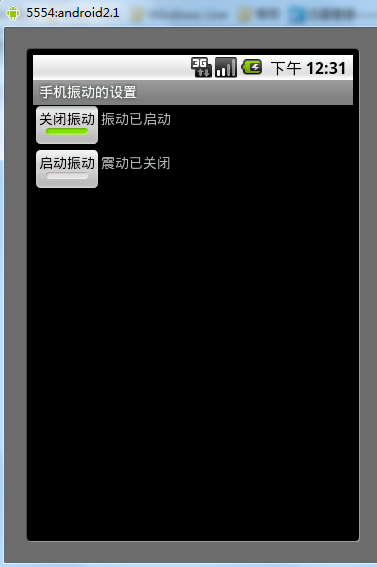
vibrate(long milliseconds) 是最單純的形式,防震動固定時間後自動停止。
vibrate(long[] pattern, int repeat) 則能建立節奏。以範例的 {1000, 50, 50, 100, 50} 為例,意思是「等 1 秒 → 震 50 毫秒 → 停 50 毫秒 → 震 100 毫秒 → 停 50 毫秒」。若把 repeat 設為 0,代表從索引 0 開始無限循環,直到呼叫 cancel() 為止。
實務上要注意兩件事:一是振動效果必須以真機驗證,模擬器不會有反應;二是過度或長時間的振動會明顯影響電池續航,也可能讓使用者反感,建議只在關鍵操作節點使用,並保持簡短。
另外,Vibrator.vibrate() 從 API 26 起已被標記為 deprecated。新專案建議改用 VibratorManager(API 31+)搭配 VibrationEffect.createOneShot() 或 createWaveform(),後者能更精細地描述振幅,做出深淺不一的觸感層次。
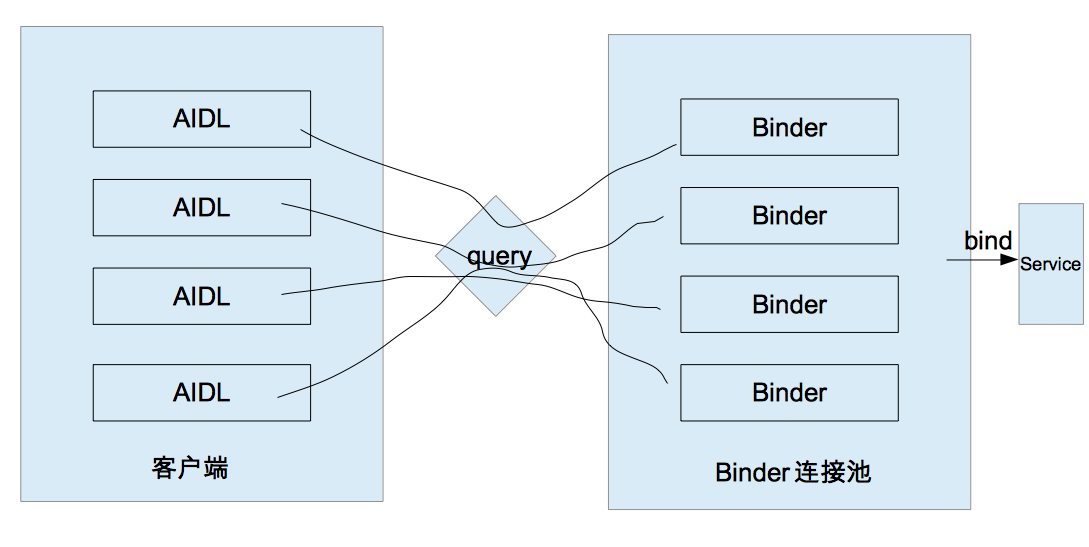 Android IPC 機制(下):ContentProvider、Socket 與 Binder 連接池
上一篇談完了 Binder、AIDL 與 Messenger,本篇接著把剩下的幾種跨進程通信方式補齊:ContentProvider、Socket,以及實務上非常值得一用
 Android Service 背景音樂播放:MediaPlayer 與生命週期實作
為什麼用 Service 播放背景音樂Service 適合執行沒有使用者介面、但需要持續存在的任務。當 App 切換頁面或退到背景時,使用 Service 播放音樂能避免
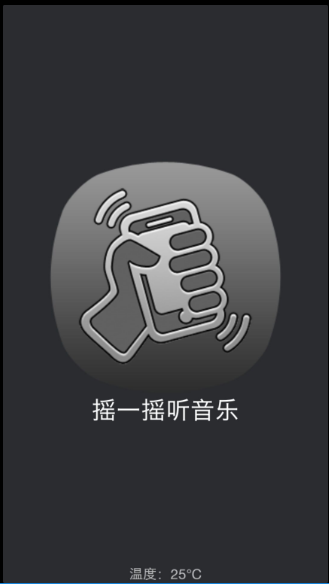 Android 傳感器實戰:用加速度計做一個「搖一搖聽音樂」
上一篇我們認識了 Android 的傳感器體系,這次直接動手做個小玩具——搖一搖播放音樂。原理很簡單:讀取加速度傳感器的三軸數值,當搖晃劇烈到一定程度時觸發播放。 先看
 Android 手機耗電太快?先從這幾個地方查起
Android 5.0 推出後,有相當多使用者反映設備的電量掉得特別快。原版 Lollipop 確實存在 Wi-Fi 造成異常耗電的問題,但這部分已在 Android 5