

編輯:關於 Android 程式設計
在不少 App 裡會看到那種一格格轉動、顏色由綠轉黃再轉紅的圓形進度條,視覺效果相當搶眼。本文就來把它做出來,順便示範分段落色的技巧。
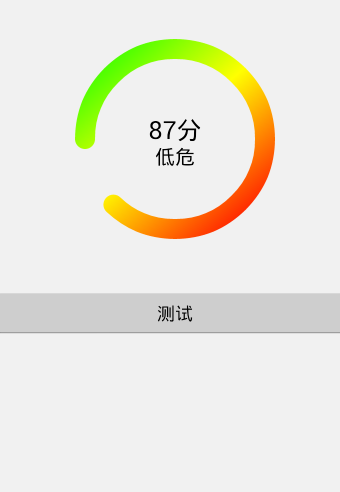
這種元件常用於掃描結果、評分儀表板等場景。實作只需要三個 API:
· canvas.drawArc(RectF oval, float startAngle, float sweepAngle, boolean useCenter, Paint paint) 畫圓弧;
· Paint 設定粗細、顏色、樣式;
· LinearGradient 做出線性漸層。
同一套原理稍作變化,也能畫出長條進度條或圓餅圖。
package com.liujing.progressviewdemo;

/**
 * 自訂圓弧進度條
 */
public class ProgressView extends View {

    // 分段顏色
    private static final int[] SECTION_COLORS = { Color.GREEN, Color.YELLOW, Color.RED };
    private static final String[] ALARM_LEVEL = { "安全", "低危", "中危", "高危" };

    private float maxCount;
    private float currentCount;
    private int score;
    private String crrentLevel;
    private Paint mPaint;
    private Paint mTextPaint;
    private int mWidth, mHeight;

    public ProgressView(Context context, AttributeSet attrs, int defStyleAttr) {
        super(context, attrs, defStyleAttr);
        init(context);
    }

    public ProgressView(Context context, AttributeSet attrs) {
        this(context, attrs, 0);
    }

    public ProgressView(Context context) {
        this(context, null);
    }

    private void init(Context context) {
        mPaint = new Paint();
        mTextPaint = new Paint();
    }

    @Override
    protected void onDraw(Canvas canvas) {
        super.onDraw(canvas);
        initPaint();

        RectF rectBlackBg = new RectF(20, 20, mWidth - 20, mHeight - 20);
        // 先畫一整圈底色軌道
        canvas.drawArc(rectBlackBg, 0, 360, false, mPaint);

        mPaint.setColor(Color.BLACK);
        mTextPaint.setTextSize(40);
        canvas.drawText(score + "分", mWidth / 2, mHeight / 2, mTextPaint);
        if (crrentLevel != null) {
            mTextPaint.setTextSize(40);
            canvas.drawText(crrentLevel, mWidth / 2, mHeight / 2 + 50, mTextPaint);
        }

        // 依比例決定要畫幾段顏色
        float section = currentCount / maxCount;
        if (section <= 1.0f / 3.0f) {
            if (section != 0.0f) {
                mPaint.setColor(SECTION_COLORS[0]);
            } else {
                mPaint.setColor(Color.TRANSPARENT);
            }
        } else {
            int count = (section <= 1.0f / 3.0f * 2) ? 2 : 3;
            int[] colors = new int[count];
            System.arraycopy(SECTION_COLORS, 0, colors, 0, count);

            float[] positions = new float[count];
            if (count == 2) {
                positions[0] = 0.0f;
                positions[1] = 1.0f - positions[0];
            } else {
                positions[0] = 0.0f;
                positions[1] = (maxCount / 3) / currentCount;
                positions[2] = 1.0f - positions[0] * 2;
            }
            positions[positions.length - 1] = 1.0f;

            // LinearGradient 做出線性漸層
            LinearGradient shader = new LinearGradient(3, 3, (mWidth - 3) * section, mHeight - 3,
                    colors, null, Shader.TileMode.MIRROR);
            mPaint.setShader(shader);
        }
        // 從 180 度開始,依比例畫出圓弧
        canvas.drawArc(rectBlackBg, 180, section * 360, false, mPaint);
    }

    private void initPaint() {
        mPaint.setAntiAlias(true);
        mPaint.setStrokeWidth((float) 40.0);
        mPaint.setStyle(Style.STROKE);
        mPaint.setStrokeCap(Cap.ROUND);   // 圓頭端點,視覺更柔和
        mPaint.setColor(Color.TRANSPARENT);

        mTextPaint.setAntiAlias(true);
        mTextPaint.setStrokeWidth((float) 3.0);
        mTextPaint.setTextAlign(Paint.Align.CENTER);
        mTextPaint.setTextSize(50);
        mTextPaint.setColor(Color.BLACK);
    }

    private int dipToPx(int dip) {
        float scale = getContext().getResources().getDisplayMetrics().density;
        return (int) (dip * scale + 0.5f * (dip >= 0 ? 1 : -1));
    }

    public int getScore() {
        return score;
    }

    /** 分數對應的等級 */
    public void setScore(int score) {
        this.score = score;
        if (score == 100) {
            this.crrentLevel = ALARM_LEVEL[0];
        } else if (score >= 70 && score < 100) {
            this.crrentLevel = ALARM_LEVEL[1];
        } else if (score >= 30 && score < 70) {
            this.crrentLevel = ALARM_LEVEL[2];
        } else {
            this.crrentLevel = ALARM_LEVEL[3];
        }
        invalidate();
    }

    public String getCrrentLevel() {
        return crrentLevel;
    }

    public void setCrrentLevel(String crrentLevel) {
        this.crrentLevel = crrentLevel;
    }

    public float getMaxCount() {
        return maxCount;
    }

    public void setMaxCount(float maxCount) {
        this.maxCount = maxCount;
    }

    public float getCurrentCount() {
        return currentCount;
    }

    /** 設定目前進度,超過上限時自動修正 */
    public void setCurrentCount(float currentCount) {
        this.currentCount = currentCount > maxCount ? maxCount : currentCount;
        invalidate();
    }

    @Override
    protected void onMeasure(int widthMeasureSpec, int heightMeasureSpec) {
        int widthSpecMode = MeasureSpec.getMode(widthMeasureSpec);
        int widthSpecSize = MeasureSpec.getSize(widthMeasureSpec);
        int heightSpecMode = MeasureSpec.getMode(heightMeasureSpec);
        int heightSpecSize = MeasureSpec.getSize(heightMeasureSpec);

        if (widthSpecMode == MeasureSpec.EXACTLY || widthSpecMode == MeasureSpec.AT_MOST) {
            mWidth = widthSpecSize;
        } else {
            mWidth = 0;
        }
        if (heightSpecMode == MeasureSpec.AT_MOST || heightSpecMode == MeasureSpec.UNSPECIFIED) {
            mHeight = dipToPx(15);
        } else {
            mHeight = heightSpecSize;
        }
        setMeasuredDimension(mWidth, mHeight);
    }
}
幾個可以再加強的地方:onDraw 裡的 RectF 每次繪製都重新 new,高頻刷新時會造成 GC 壓力,建議提前建立為成員變數並在 onSizeChanged() 中更新;setScore() 裡呼叫 setTextSize() 的順序也容易造成文字大小錯亂,最好統一在 initPaint() 設定。若要加入動畫,用 ValueAnimator 或 ObjectAnimator 驅動 currentCount 即可,別在 onDraw 裡寫迴圈。
 淺析 Android 的 visibility 屬性:visible、invisible 與 gone 的差別
Android 開發中,絕大多數控制項都帶有 visibility 屬性,用來控制顯示與隱藏。它有三個取值:visible、invisible、gone。三者看似只是「顯
 十大安卓(Android)手機安全使用技巧
自 3.15 曝光手機 APP 洩漏用戶隱私以來,手機隱私安全日益受到重視。其實用戶安全防範意識不強,也是導致隱私洩露的重要原因。以下介紹一些主動防範的小技巧,以免隱私被
 Android 重力感應實作示例:讀取加速度感測器三軸數值
本文以實例講解 Android 中重力感應效果的實現,供大家參考。 Android 上許多遊戲都運用了重力感應技術,於是便深入研究了一下。我們以螢幕的左下方為原點,箭頭指
 Android Service 全面總結:啟動模式、生命週期與四種通訊方式
一、Service 是什麼 Service 是 Android 四大元件之一(Activity、Service、BroadcastReceiver、ContentProv