

編輯:關於 Android 程式設計
在 Eclipse 中開發 Android 時,Alt+/ 的內容自動提示(Content Assist)堪稱提效神器,可一旦它突然「啞火」,敲代碼的效率立刻大打折扣。別著急,下面整理了五種常見成因與對應的修復方式,從完全沒提示到單個項目異常,逐一套路都能對症下藥。
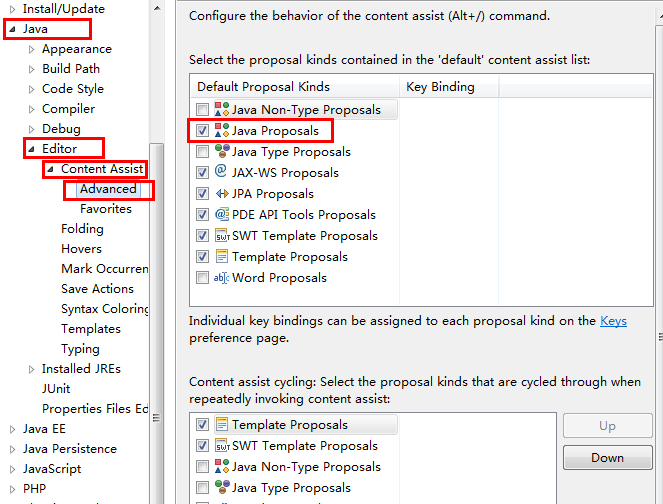
依序點開 Eclipse 的 Windows → Preferences → Java → Editor → Content Assist,在右上方找到「Select the proposal kinds contained in the 'default' content assist list」這一區塊,把 Java Proposals 這個核選框勾上,儲存後退出即可。
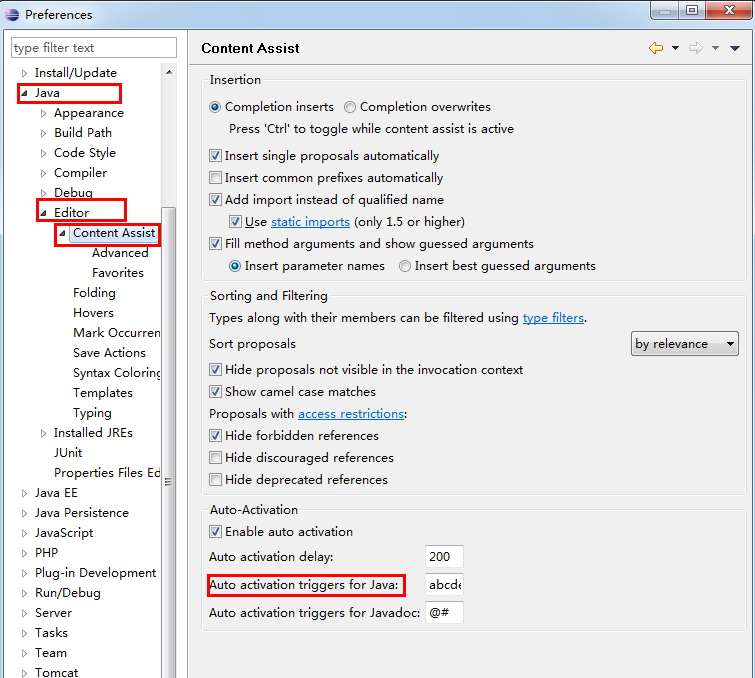
同樣進入 Windows → Preferences → Java → Editor → Content Assist,在右側偏下的位置找到「Auto activation triggers for java:」這一項,在其後方的文字框中填入字母 abcd,然後儲存退出。
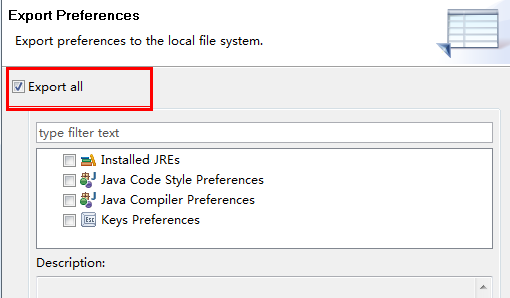
接著選擇 File → General → Export,勾選 Preferences 並複選 Export all(其餘選項無需理會),指定匯出檔案的名稱與路徑,注意此處只能匯出 .epf 格式的檔案。
匯出完成後,用記事本之類的文字編輯器打開這個 .epf 檔,搜尋剛才填入的 abcd(或 abc),在其後補上其餘 21 個英文字母,存檔。最後透過 Eclipse 的 Import 功能把這個檔案重新匯入,單詞聯想提示就能恢復正常了。
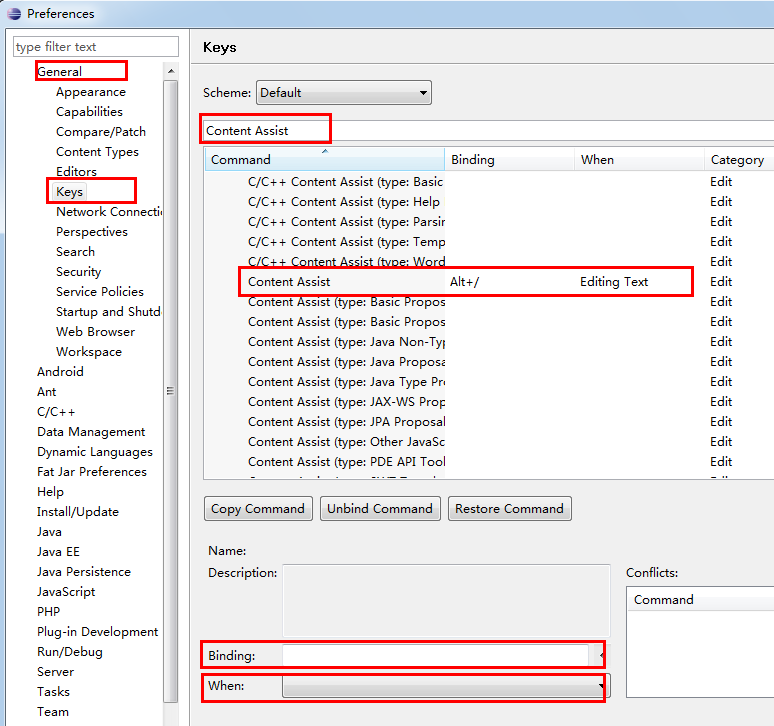
依序打開 Windows → Preferences → General → Keys,在 Scheme 下方的搜尋框中輸入「Content Assist」,選中「Content Assist」這一項後,把 Binding 改為 ALT+/,並將 When 設為 Editing Text 即可。
依序點開 Windows → Preferences → Java → Editor → Content Assist → Advanced,在右下方的核選框中把 Template Proposals 勾選起來。
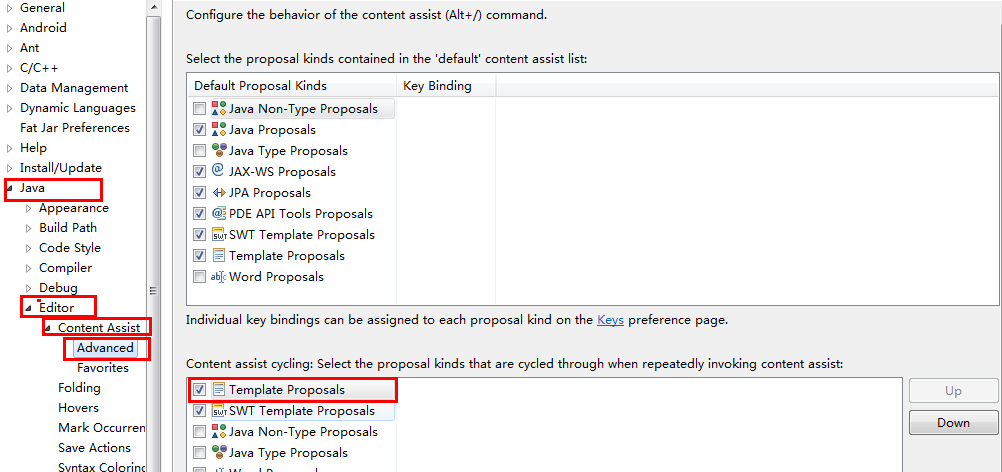
如果其他項目都能正常提示,偏偏你手上這個項目不行,可以試試這招:在檔名上按右鍵,選擇 Open With → Layout Edit 開啟,此後就能正常使用 Alt+/ 了。
以上方法整理自網路上的多方資料彙整,供大家遇到問題時對照排查。
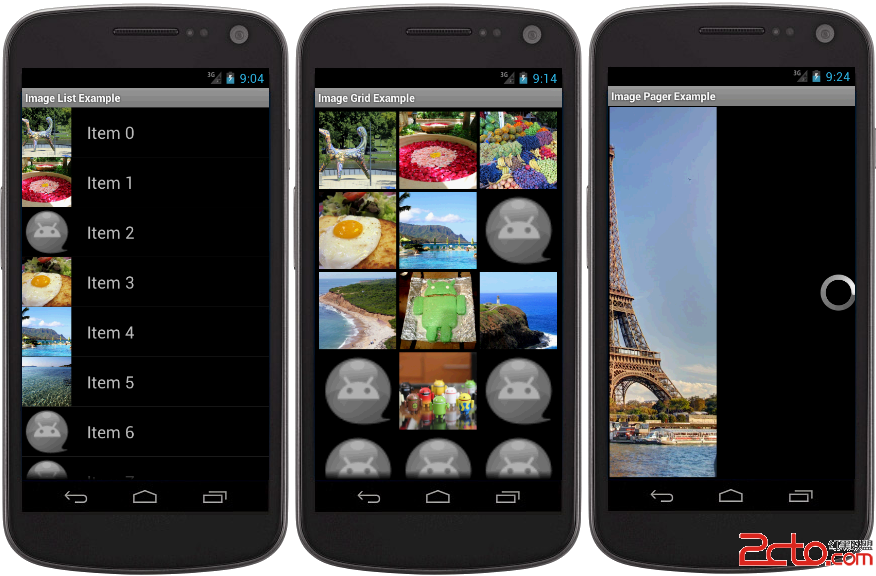 Android-Universal-Image-Loader 使用與配置詳解:圖片異步加載、緩存與優化
簡介 Android-Universal-Image-Loader 是常用的圖片異步加載與快取庫,可簡化網路圖片載入、記憶體快取與磁碟快取。 特點與流程 它支援多線程加
 實戰剖析 Android Fragment 生命週期與 hide、replace 切換差異
管理 Fragment 的生命週期,某種程度上和管理 Activity 的生命週期頗為相似。Fragment 可以處於三種狀態:Resumed(活躍):Fragment
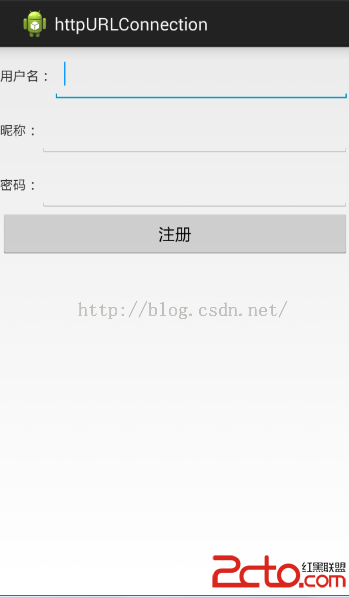 用 HttpURLConnection 在 Android 客戶端與伺服器之間傳遞物件
一般情況下,客戶端與伺服器的資料互動多使用 JSON 或 XML。相比 XML,JSON 更輕量、更省流量。但無論用哪一種,我們通常都得先把資料封裝成字串再傳輸。那麼,有
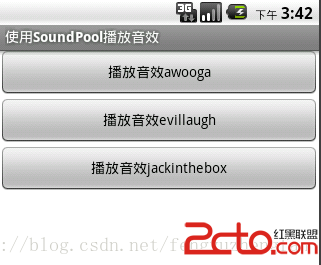 Android 音效播放利器:SoundPool 使用詳解
為什麼遊戲音效不用 MediaPlayer 如果你的應用需要頻繁播放密集、短促的音效——比如遊戲裡的子彈聲、按鈕聲——那麼 MediaPlayer 並不合適。它有兩個明顯