

編輯:關於 Android 程式設計
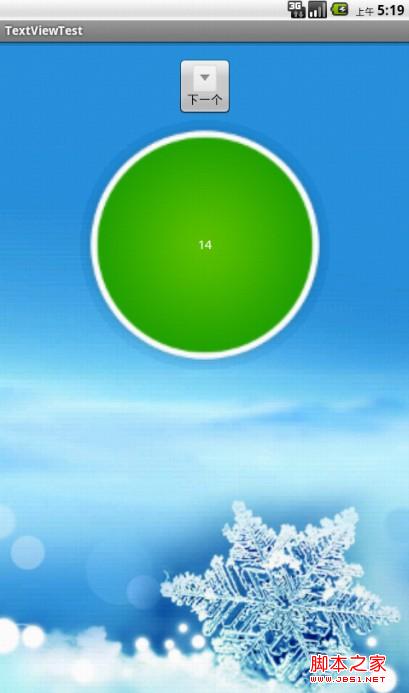
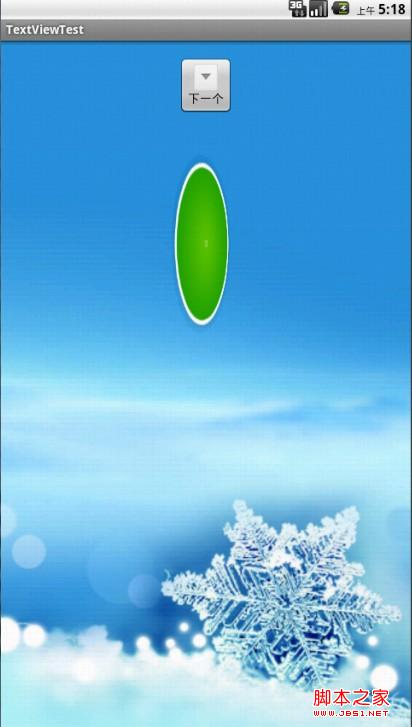
Android 並沒有直接提供 3D 翻轉動畫,因此必須自行實作。要理解實作原理,先來看 Animation 與 Transformation 兩個類別。
Animation 是動畫的主要接口,定義了開始時間、持續時間、是否重複播放等屬性;Transformation 則包含一個矩陣與 alpha 值,矩陣用於平移、旋轉、縮放,alpha 值用於透明度動畫。要實現 3D 旋轉,需繼承 Animation 類並重載 getTransformation 與 applyTransformation:前者依動畫屬性產生一系列差值點,後者再依這些點生成不同的 Transformation。
package com.example.textviewtest;
import android.graphics.Camera;
import android.graphics.Matrix;
import android.view.animation.Animation;
import android.view.animation.Transformation;
public class Rotate3dAnimation extends Animation {
// 開始角度
private final float mFromDegrees;
// 結束角度
private final float mToDegrees;
// 中心點
private final float mCenterX;
private final float mCenterY;
private final float mDepthZ;
// 是否需要扭曲
private final boolean mReverse;
// 攝像頭
private Camera mCamera;
public Rotate3dAnimation(float fromDegrees, float toDegrees, float centerX,
float centerY, float depthZ, boolean reverse) {
mFromDegrees = fromDegrees;
mToDegrees = toDegrees;
mCenterX = centerX;
mCenterY = centerY;
mDepthZ = depthZ;
mReverse = reverse;
}
@Override
public void initialize(int width, int height, int parentWidth, int parentHeight) {
super.initialize(width, height, parentWidth, parentHeight);
mCamera = new Camera();
}
// 生成Transformation
@Override
protected void applyTransformation(float interpolatedTime, Transformation t) {
final float fromDegrees = mFromDegrees;
// 生成中間角度
float degrees = fromDegrees + ((mToDegrees - fromDegrees) * interpolatedTime);
final float centerX = mCenterX;
final float centerY = mCenterY;
final Camera camera = mCamera;
final Matrix matrix = t.getMatrix();
camera.save();
if (mReverse) {
camera.translate(0.0f, 0.0f, mDepthZ * interpolatedTime);
} else {
camera.translate(0.0f, 0.0f, mDepthZ * (1.0f - interpolatedTime));
}
camera.rotateY(degrees);
// 取得變換後的矩陣
camera.getMatrix(matrix);
camera.restore();
matrix.preTranslate(-centerX, -centerY);
matrix.postTranslate(centerX, centerY);
}
}
重點在 applyTransformation:第一個參數是由 getTransformation 傳來的差值點,接著以線性插值算出中間角度 degrees。Camera 類用來實現繞 Y 軸旋轉後的透視投影,因此先透過 t.getMatrix() 取得當前矩陣,再用 camera.translate 做平移、camera.rotateY 做旋轉,即可輕鬆完成 3D 旋轉效果。
<LinearLayout xmlns:android="https://schemas.android.com/apk/res/android"
xmlns:tools="https://schemas.android.com/tools"
android:layout_width="match_parent"
android:layout_height="match_parent"
android:background="@drawable/main_screen_bg"
android:gravity="center_horizontal"
android:orientation="vertical"
tools:context=".MainActivity" >
<Button
android:id="@+id/next_btn"
android:layout_width="wrap_content"
android:layout_height="wrap_content"
android:layout_marginTop="20dip"
android:drawableTop="@drawable/qiangpiao_dropdown"
android:text="下一個" />
<TextView
android:id="@+id/tv"
android:layout_width="300dip"
android:layout_height="300dip"
android:layout_gravity="center"
android:background="@drawable/call_show_frame_safe"
android:gravity="center"
android:textColor="#ffffff"
android:textSize="15sp" />
</LinearLayout>
package com.example.textviewtest;
import android.app.Activity;
import android.os.Bundle;
import android.view.Menu;
import android.view.View;
import android.view.animation.AccelerateInterpolator;
import android.view.animation.Animation;
import android.view.animation.DecelerateInterpolator;
import android.widget.Button;
import android.widget.TextView;
public class MainActivity extends Activity {
private TextView tv;
private Button btn;
private int count = 1;
@Override
protected void onCreate(Bundle savedInstanceState) {
super.onCreate(savedInstanceState);
setContentView(R.layout.activity_main);
tv = (TextView) findViewById(R.id.tv);
tv.setText(String.valueOf(count));
btn = (Button) findViewById(R.id.next_btn);
applyRotation(0, 90);
btn.setOnClickListener(new View.OnClickListener() {
@Override
public void onClick(View v) {
applyRotation(0, 90);
}
});
}
private void applyRotation(float start, float end) {
// 計算中心點
final float centerX = tv.getWidth() / 2.0f;
final float centerY = tv.getHeight() / 2.0f;
final Rotate3dAnimation rotation = new Rotate3dAnimation(start, end,
centerX, centerY, 310.0f, true);
rotation.setDuration(500);
rotation.setFillAfter(true);
rotation.setInterpolator(new AccelerateInterpolator());
// 設置監聽
rotation.setAnimationListener(new DisplayNextView());
tv.startAnimation(rotation);
}
private final class DisplayNextView implements Animation.AnimationListener {
public void onAnimationStart(Animation animation) {
}
// 動畫結束
public void onAnimationEnd(Animation animation) {
tv.post(new SwapViews());
}
public void onAnimationRepeat(Animation animation) {
}
}
private final class SwapViews implements Runnable {
public void run() {
final float centerX = tv.getWidth() / 2.0f;
final float centerY = tv.getHeight() / 2.0f;
Rotate3dAnimation rotation = null;
tv.requestFocus();
rotation = new Rotate3dAnimation(90, 0, centerX, centerY, 310.0f, false);
rotation.setDuration(500);
rotation.setFillAfter(true);
rotation.setInterpolator(new DecelerateInterpolator());
// 開始動畫
tv.startAnimation(rotation);
tv.setText(String.valueOf(count++));
}
}
@Override
public boolean onCreateOptionsMenu(Menu menu) {
getMenuInflater().inflate(R.menu.activity_main, menu);
return true;
}
}
整體思路是:先播放 0→90 度的翻轉,動畫結束後在 SwapViews 中替換內容並播放 90→0 度的反向翻轉,藉此營造出類似翻牌的 3D 效果。
 自定義 View 實現彈幕:垂直固定與隨機兩種模式
這次要實現兩種彈幕效果:一種是彈幕在垂直方向位置固定,另一種是垂直方向隨機分佈。 效果一:垂直方向固定 效果二:垂直方向隨機 效果圖中的白色背景就是彈幕容器本身。這
 開源 Android 文件管理器:功能與專案結構
這是一個開源的 Android 文件管理器範例,重點在於展示如何組織檔案瀏覽、操作與 UI 元件。專案採用模組化方式,將介面、資料操作與工具類分開管理。 主要功能 新建
 Android WebView 錯誤碼處理方式
WebView 載入網頁時,可能遇到 404、401、403 或其他錯誤。若直接顯示預設錯誤頁,使用者體驗通常不佳,因此可攔截錯誤並顯示自訂內容。自訂錯誤頁一種做法是在
 GreenDao 在 Android Studio 中的配置與使用全流程
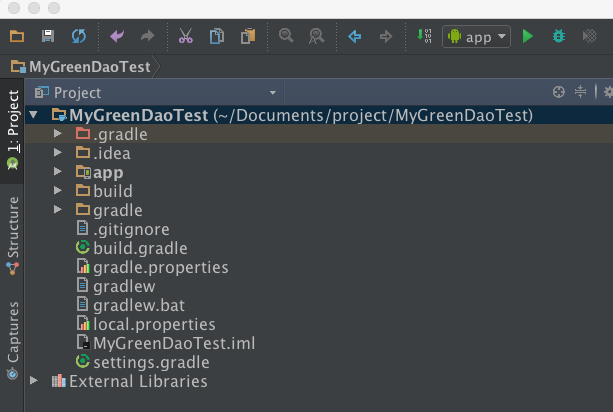
GreenDao 的 GitHub 位址: https://github.com/greenrobot/greenDAO 先建立一個 gradle 空白專案,專案結構如下