

編輯:關於 Android 程式設計
Android 的動畫體系可以分成三塊:幀動畫(Frame Animation)、補間動畫(Tween Animation)與屬性動畫(Property Animation),再加上用來修飾節奏的 Interpolator。這篇把三者的原理、常用屬性與程式碼寫法整理成一份可查閱的筆記。
本質上就是一個 Drawable,把一系列圖片依序播放,形成動畫。也因為如此,播放前必須把所有幀全部載入記憶體,所以幀動畫的圖片不宜過大,幀數也不宜過多。
先在 drawable 下建立 animation-list:
<animation-list xmlns:android="https://schemas.android.com/apk/res/android"
    android:oneshot="false">
    <item android:drawable="@mipmap/a_01" android:duration="200" />
    <item android:drawable="@mipmap/a_02" android:duration="200" />
    <item android:drawable="@mipmap/a_03" android:duration="200" />
    <item android:drawable="@mipmap/a_04" android:duration="200" />
</animation-list>
oneshot 控制是否只播一次,duration 是每一幀的停留時間(毫秒)。把它設為 ImageView 的背景:
<ImageView
    android:id="@+id/image"
    android:layout_width="wrap_content"
    android:layout_height="wrap_content"
    android:adjustViewBounds="true"
    android:background="@drawable/drawable_frame"
    android:clickable="true" />
播放時把背景轉型成 AnimationDrawable 再 start():
((AnimationDrawable) image.getBackground()).start();
針對 View 做一系列圖形變換(縮放、透明度、旋轉、平移)來產生動畫。做法是預先定義一組「指令」,指定變換類型、觸發時間與持續時間,然後沿著時間軸執行。指令可以寫在 XML,也可以用程式碼建立。
核心類別是 Animation 及其子類,配合 Interpolator 與 Transformation。每一幀都依 Interpolator 的規則對 View 內容做一次變換,因此補間動畫的重點就是 transformation。Animation 作為基類,記錄了持续时间、重複次數、Interpolator 等通用屬性。
duration:動畫時長(毫秒)
fillAfter:是否停留在最後一幀
repeatCount:重複次數,infinite 表示無限
repeatMode:重複模式,restart 重新開始,reverse 來回反覆
startOffset:延遲啟動時間
AlphaAnimation(透明度)、TranslateAnimation(平移)、RotateAnimation(旋轉)、ScaleAnimation(縮放)、AnimationSet(動畫集合)。
XML 定義要放在 res/anim/ 下,載入用 AnimationUtils.loadAnimation()。以下以程式碼建立為主示範。
AlphaAnimation alpha = new AlphaAnimation(0.1f, 0.8f);
alpha.setDuration(2000);
alpha.setStartOffset(100);
alpha.setFillAfter(true);
alpha.setRepeatCount(2);
alpha.setRepeatMode(Animation.REVERSE);
view.startAnimation(alpha);
四個參數分別是 fromXDelta、toXDelta、fromYDelta、toYDelta,代表位移的起點與終點。
TranslateAnimation translate = new TranslateAnimation(-10, 100, 0, 0);
translate.setInterpolator(new BounceInterpolator());
translate.setDuration(2000);
view.startAnimation(translate);
參數為 fromDegrees、toDegrees、pivotX、pivotY。中心點有三種寫法:絕對像素(如 100)、相對於自身(50%)、相對於父容器(50%p)。
<rotate xmlns:android="https://schemas.android.com/apk/res/android"
    android:duration="2000"
    android:fillAfter="true"
    android:fromDegrees="0"
    android:toDegrees="90"
    android:pivotX="50%"
    android:pivotY="50%" />
// 以自身中心為軸旋轉 45 度,並套用減速差值器
RotateAnimation rotate = new RotateAnimation(0, 45,
        Animation.RELATIVE_TO_SELF, 0.5f,
        Animation.RELATIVE_TO_SELF, 0.5f);
rotate.setInterpolator(new DecelerateInterpolator());
rotate.setDuration(2000);
rotate.setFillAfter(true);
view.startAnimation(rotate);
fromXScale、fromYScale、toXScale、toYScale 決定縮放倍數,pivot 決定縮放中心。
ScaleAnimation scale = new ScaleAnimation(0, 2, 0, 2,
        Animation.RELATIVE_TO_SELF, 0.5f,
        Animation.RELATIVE_TO_SELF, 0.5f);
scale.setDuration(2000);
view.startAnimation(scale);
AnimationSet set = new AnimationSet(true); // true 表示子動畫共用同一個差值器
set.addAnimation(new RotateAnimation(-180, 0));
set.addAnimation(new ScaleAnimation(0, 1, 0, 1,
        Animation.RELATIVE_TO_SELF, 0.5f,
        Animation.RELATIVE_TO_SELF, 0.5f));
set.setDuration(2000);
set.setFillAfter(true);
view.startAnimation(set);
Interpolator 用來修飾動畫的變化率,讓同一段動畫可以呈現加速、減速、反覆或彈跳的手感。常用的有:
- LinearInterpolator:等速
- AccelerateInterpolator:加速
- DecelerateInterpolator:減速
- CycleInterpolator:循環震盪
- BounceInterpolator:彈跳
補間動畫並沒有真正改變 View 的位置,只是「看起來」移動了,實際的可點擊區域還在原處。屬性動畫則會真正修改物件的屬性值,這兩者是本質差異。
屬性動畫的 XML 要放在 res/animator/ 目錄下。
它只負責產生數值序列,不直接操作 View,需要自己在監聽回撥中把值套用到目標屬性上。valueType 常見三種:intType、floatType、colorType。
ValueAnimator animator = ValueAnimator.ofFloat(1f, 0.5f, 0f);
animator.addUpdateListener(animation -> {
    float alpha = (float) animation.getAnimatedValue();
    image.setAlpha(alpha);
});
animator.setDuration(2000);
animator.start();
需要同時驅動多個屬性時,用 PropertyValuesHolder 組合:
PropertyValuesHolder alphaHolder = PropertyValuesHolder.ofFloat("alpha", 1f, 0.5f);
PropertyValuesHolder widthHolder = PropertyValuesHolder.ofInt("width", 1, 200);
PropertyValuesHolder rotateHolder = PropertyValuesHolder.ofFloat("rotate", 0, 180);

ValueAnimator animator = ValueAnimator.ofPropertyValuesHolder(alphaHolder, widthHolder, rotateHolder);
animator.addUpdateListener(animation -> {
    image.setAlpha((float) animation.getAnimatedValue("alpha"));
    image.setMaxWidth((int) animation.getAnimatedValue("width"));
    image.setRotation((float) animation.getAnimatedValue("rotate"));
});
animator.setDuration(2000);
animator.start();
ObjectAnimator 是 ValueAnimator 的超集,多了一個「目標物件」與「屬性名」的宣告,會直接呼叫該屬性的 setter。前提是這個屬性必須有對應的 getter / setter 方法,否則動畫不會有任何效果——這是新手最常遇到的問題。
ObjectAnimator animator = ObjectAnimator.ofInt(view, "backgroundColor",
        Color.RED, Color.YELLOW, Color.BLUE, Color.GREEN);
animator.setDuration(2000);
animator.setInterpolator(new BounceInterpolator());
animator.start();
也可以用 XML 定義後搭配 setTarget() 指定作用對象:
ObjectAnimator object = (ObjectAnimator) AnimatorInflater.loadAnimator(this, R.animator.animator_object);
object.setTarget(image);
object.start();
逐幀播放的序列圖用幀動畫最省事,但記得注意記憶體;單純的進場效果、透明度與位移變化,補間動畫寫起來最快;而只要涉及「動畫結束後狀態要真正改變」(例如移動後的可點擊區域、真實的寬高變化),就必須用屬性動畫。在 API 21 之後,補間動畫的內部實作也已經改由屬性動畫驅動,兩者的界線正在變得模糊,但屬性動畫始終是更可靠的方向。
 Android 修改應用程式捷徑圖示的實作步驟
更換 Android 應用程式啟動捷徑圖示,看似簡單,但常因為快取或既有安裝版本干擾,導致修改後沒有立即反映。以下整理一套可操作的流程。 準備新的圖示資源 先將新的 ic
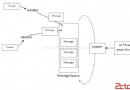 Android 多執行緒:Thread、Runnable、Handler、AsyncTask 的關係
Android 的多執行緒其實就是 Java 的多執行緒,而 Android 的 UI 執行緒又稱為主執行緒。以下釐清 Thread、Runnable、Handler、A
 透透徹徹搞懂 Android 主流框架的四大基石:ClassLoader、泛型、反射與注解
前言 經過多年的發展與沉澱,Android 生態系中湧現出許多優秀的框架,例如 Retrofit、Afinal、OkHttp、ButterKnife、AndFix 等等。
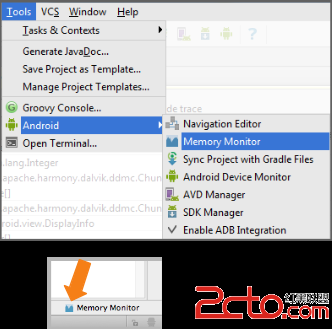 Android開發工具:Memory Monitor使用示範
這個示範介紹了在Android Studio中Memory Monitor工具的基本用法與流程。Memory Monitor能夠即時回報你的app配置了多少記憶體。 它的