

編輯:關於 Android 程式設計
補間動畫是 Android 最早提供的動畫方案,它的核心思路並不是去改動物件本身,而是對畫面做變換再逐幀重繪——物件真實的位置、大小、透明度都沒變,只是「看起來」變了。理解這一點,後面很多行為(例如動畫結束後控制項會跳回原位)就都好解釋了。
整套體系由五個類構成:
<alpha/> 標籤。<translate> 標籤。<scale> 標籤。<rotate> 標籤。<set> 標籤。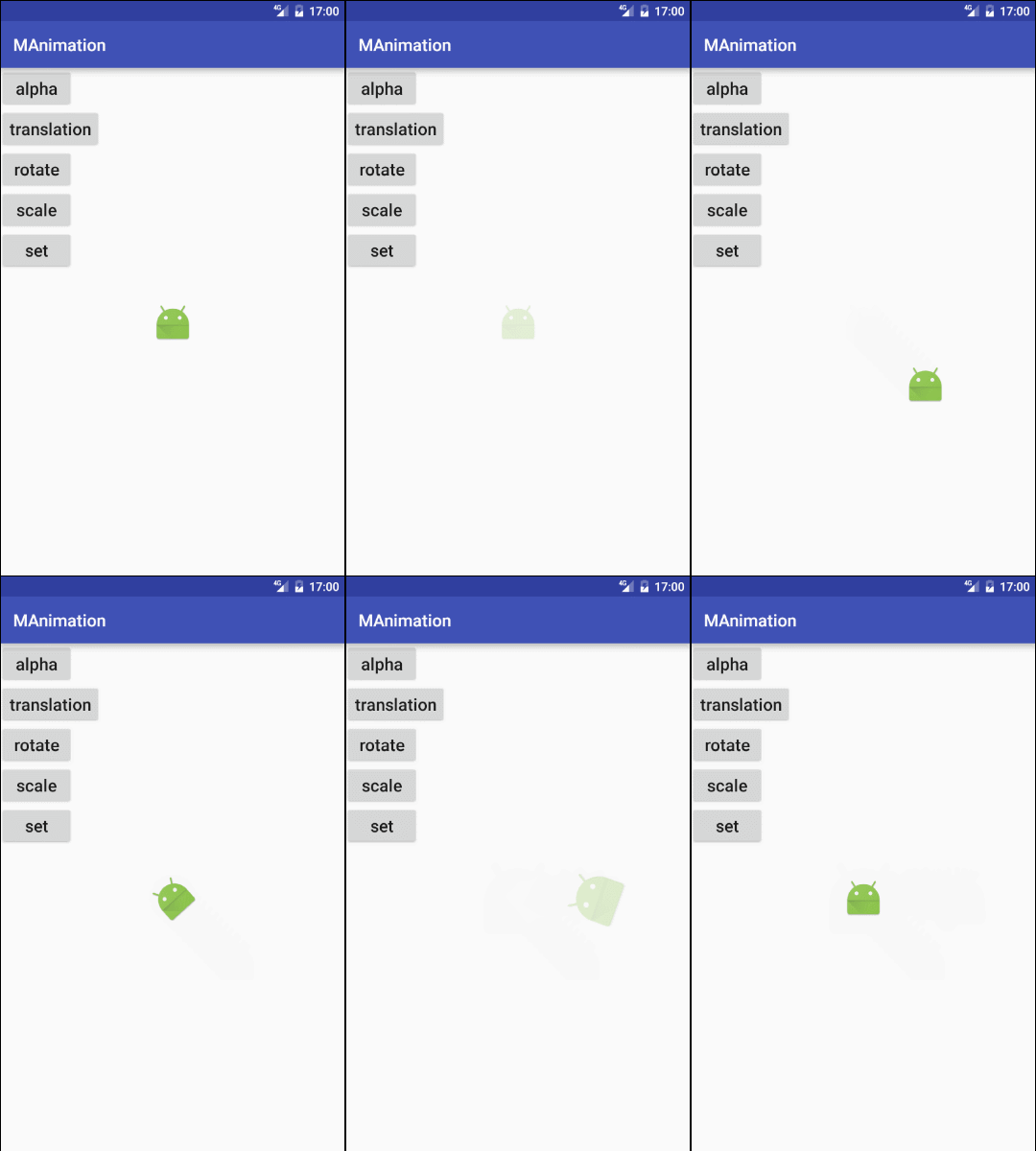
XML 形式的動畫統一放在 res/anim 目錄下,好處是動畫參數與業務邏輯分離,改效果不必重新編譯代碼。
<?xml version="1.0" encoding="utf-8"?>
<!-- fromAlpha 起始透明度;toAlpha 結束透明度
     0.0 代表完全透明,1.0 代表完全不透明 -->
<alpha xmlns:android="https://schemas.android.com/apk/res/android"
    android:duration="1000"
    android:fillAfter="true"
    android:fromAlpha="1.0"
    android:toAlpha="0.2" />
<?xml version="1.0" encoding="utf-8"?>
<!-- fromXDelta / toXDelta:X 軸上的起點與終點
     fromYDelta / toYDelta:Y 軸上的起點與終點
     若沒有指定 fromXType、toXType、fromYType、toYType,
     預設會以「自己」作為相對參照物 -->
<translate xmlns:android="https://schemas.android.com/apk/res/android"
    android:duration="1000"
    android:fromXDelta="0"
    android:fromYDelta="0"
    android:toXDelta="200"
    android:toYDelta="200" />
<?xml version="1.0" encoding="utf-8"?>
<rotate xmlns:android="https://schemas.android.com/apk/res/android"
    android:duration="3000"
    android:fillAfter="true"
    android:fromDegrees="0"
    android:toDegrees="+720"
    android:pivotX="50%"
    android:pivotY="50%"
    android:interpolator="@android:anim/accelerate_decelerate_interpolator" />
<!-- interpolator 決定速度曲線:
     accelerate_decelerate_interpolator 先加速再減速(預設)
     accelerate_interpolator 單純加速
     decelerate_interpolator 單純減速
     fromDegrees / toDegrees 為起始與結束角度,可以超過 360 度
     角度為負代表逆時針,為正代表順時針
     pivotX / pivotY 為旋轉中心,取值 0%~100%,50% 即為中心點 -->
<?xml version="1.0" encoding="utf-8"?>
<scale xmlns:android="https://schemas.android.com/apk/res/android"
    android:duration="1000"
    android:fillAfter="true"
    android:fromXScale="0.0"
    android:fromYScale="0.0"
    android:toXScale="2"
    android:toYScale="2"
    android:pivotX="50%"
    android:pivotY="50%"
    android:interpolator="@android:anim/accelerate_decelerate_interpolator" />
<!-- 比例值:0.0 收縮到看不見,1.0 為原始尺寸,
     小於 1.0 是縮小,大於 1.0 是放大
     fillAfter 設為 true 時,動畫結束後仍套用最後的變換結果 -->
<?xml version="1.0" encoding="utf-8"?>
<set xmlns:android="https://schemas.android.com/apk/res/android"
    android:interpolator="@android:anim/decelerate_interpolator"
    android:shareInterpolator="true">
    <scale
        android:duration="2000"
        android:fromXScale="1"
        android:fromYScale="1"
        android:toXScale="1.5"
        android:toYScale="1.5"
        android:pivotX="50%"
        android:pivotY="50%"
        android:repeatCount="1"
        android:repeatMode="reverse" />
    <rotate
        android:duration="2000"
        android:fromDegrees="0"
        android:toDegrees="360"
        android:pivotX="50%"
        android:pivotY="50%"
        android:repeatCount="1"
        android:repeatMode="reverse" />
</set>
XML 寫好之後,只需要用 AnimationUtils.loadAnimation() 載入,再交給 startAnimation() 執行即可。
Animation animation = AnimationUtils.loadAnimation(this, R.anim.anim_alpha);
mImage.startAnimation(animation);
實際專案裡通常會用一個切換方法集中管理,按鈕決定播放哪一種:
public class TweenAnimXMLActivity extends AppCompatActivity {
    private ImageView mImage;

    @Override
    protected void onCreate(Bundle savedInstanceState) {
        super.onCreate(savedInstanceState);
        setContentView(R.layout.activity_tween_anim_xml);
        mImage = (ImageView) findViewById(R.id.image);
    }

    public void onClick(View view) {
        Animation animation;
        switch (view.getId()) {
            case R.id.btn_alpha:
                animation = AnimationUtils.loadAnimation(this, R.anim.anim_alpha); break;
            case R.id.btn_translation:
                animation = AnimationUtils.loadAnimation(this, R.anim.anim_translation); break;
            case R.id.btn_rotate:
                animation = AnimationUtils.loadAnimation(this, R.anim.anim_rotate); break;
            case R.id.btn_scale:
                animation = AnimationUtils.loadAnimation(this, R.anim.anim_scale); break;
            case R.id.btn_set:
                animation = AnimationUtils.loadAnimation(this, R.anim.anim_set); break;
            default:
                return;
        }
        mImage.startAnimation(animation);
    }
}
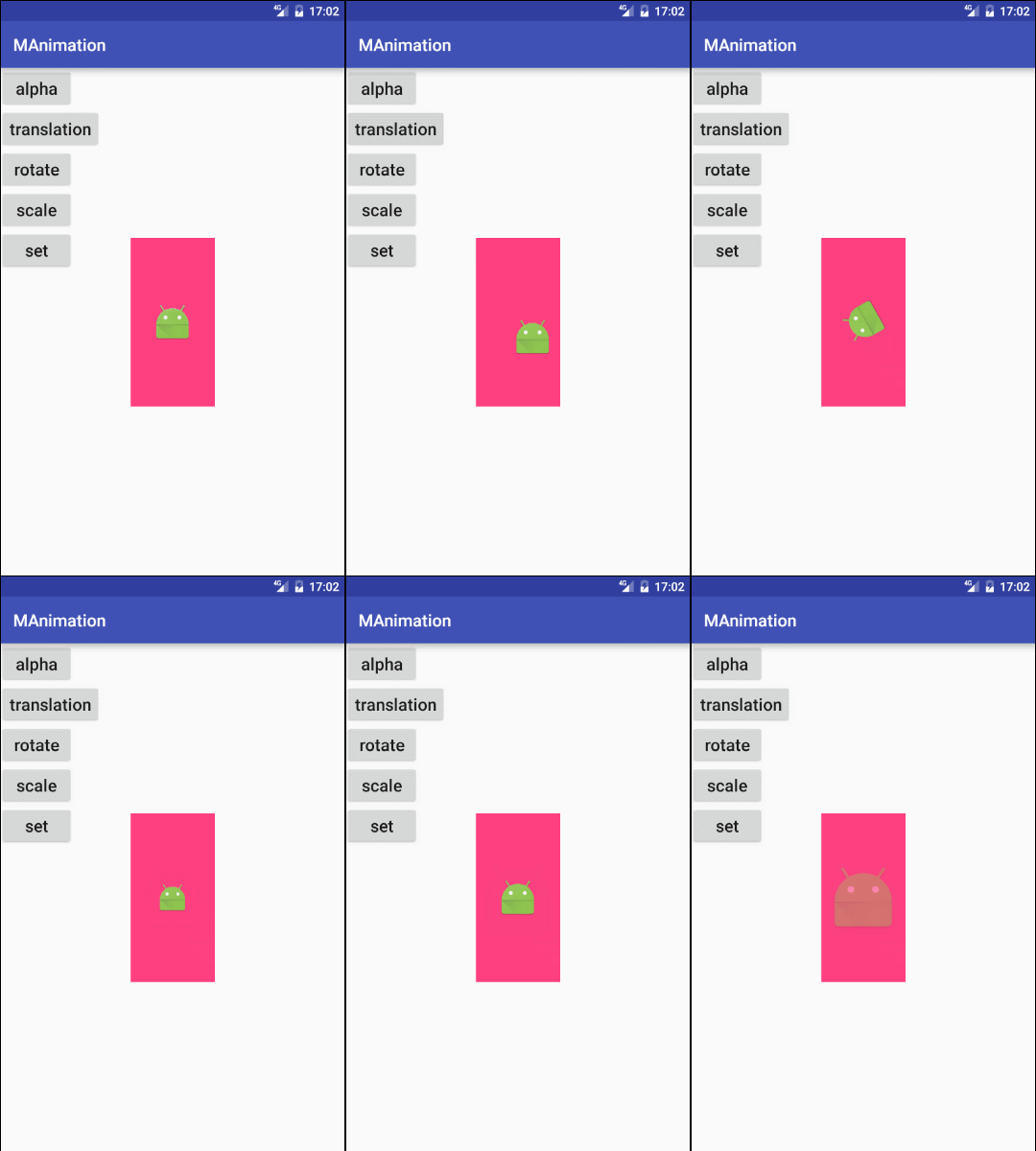
代碼方式的好處是參數可以動態計算,適合需要根據執行期資料決定動畫行為的場景。
public class TweenAnimCodeActivity extends AppCompatActivity {
    private ImageView mImage;

    @Override
    protected void onCreate(Bundle savedInstanceState) {
        super.onCreate(savedInstanceState);
        setContentView(R.layout.activity_tween_anim_code);
        mImage = (ImageView) findViewById(R.id.image);
    }

    public void onClick(View view) {
        Animation animation;
        switch (view.getId()) {
            case R.id.btn_alpha:
                animation = new AlphaAnimation(1.0f, 0.2f);
                break;
            case R.id.btn_translation:
                // 每個參數都要成對出現:fromXType, fromXValue, toXType, toYType...
                animation = new TranslateAnimation(
                        Animation.ABSOLUTE, 0, Animation.ABSOLUTE, 200,
                        Animation.ABSOLUTE, 0, Animation.ABSOLUTE, 200);
                break;
            case R.id.btn_rotate:
                // Animation.ABSOLUTE 絕對值(預設)
                // Animation.RELATIVE_TO_SELF 相對自己
                // Animation.RELATIVE_TO_PARENT 相對父容器
                animation = new RotateAnimation(0, 720,
                        Animation.RELATIVE_TO_SELF, 0.5f,
                        Animation.RELATIVE_TO_SELF, 0.5f);
                animation.setInterpolator(new AccelerateDecelerateInterpolator());
                break;
            case R.id.btn_scale:
                animation = new ScaleAnimation(0.2f, 2, 0.2f, 2,
                        Animation.RELATIVE_TO_SELF, 0.5f,
                        Animation.RELATIVE_TO_SELF, 0.5f);
                break;
            case R.id.btn_set:
                ScaleAnimation scale = new ScaleAnimation(1, 2, 1, 2,
                        Animation.RELATIVE_TO_SELF, 0.5f,
                        Animation.RELATIVE_TO_SELF, 0.5f);
                scale.setDuration(1000);
                scale.setRepeatCount(Animation.INFINITE);
                scale.setRepeatMode(Animation.REVERSE);

                AlphaAnimation alpha = new AlphaAnimation(1.0f, 0.2f);
                alpha.setDuration(1000);
                alpha.setRepeatCount(Animation.INFINITE);
                alpha.setRepeatMode(Animation.REVERSE);

                // 參數 false 代表各子動畫使用各自的插值器
                AnimationSet set = new AnimationSet(false);
                set.addAnimation(scale);
                set.addAnimation(alpha);
                // set.setStartOffset(2000); 延遲多久開始
                // set.setFillAfter(true);   結束後保持目標狀態
                // set.setFillBefore(false); 結束後回到起始狀態
                mImage.startAnimation(set);
                set.cancel(); // 取消動畫
                set.reset();  // 釋放資源
                return;
            default:
                return;
        }
        animation.setDuration(1000);
        animation.setFillAfter(true);
        animation.setRepeatCount(3);
        animation.setRepeatMode(Animation.REVERSE);
        animation.setAnimationListener(new Animation.AnimationListener() {
            @Override public void onAnimationStart(Animation animation) { }
            @Override public void onAnimationEnd(Animation animation) { }
            @Override public void onAnimationRepeat(Animation animation) { }
        });
        mImage.startAnimation(animation);
    }
}
插值器(Interpolator)決定節奏。Android 內建了幾種常用實現:LinearInterpolator(勻速)、AccelerateInterpolator(先慢後快)、DecelerateInterpolator(先快後慢)、AccelerateDecelerateInterpolator(慢—快—慢)、CycleInterpolator(按正弦曲線循環)、AnticipateInterpolator(先往反方向拉一下再前進)、OvershootInterpolator(衝過頭再拉回)、BounceInterpolator(回彈)。同一段動畫換個插值器,手感就是完全不同的產品。
座標系的三種取值要分清。以旋轉為例,若父容器是 100dp × 200dp,用 RELATIVE_TO_PARENT 搭配 0.5f,旋轉中心會落在父容器的 (50, 100) 位置;用 RELATIVE_TO_SELF 則是相對於控件自身。寫錯了效果不會報錯,但位置會整個跑掉。
補間動畫不改變真實屬性。一個按鈕動畫位移之後,它的點擊熱區仍在原位。若需要真正改動位置,應該改用屬性動畫,或直接操作 LayoutParams。
 Android 動態加載與插件化深度解析(DynamicLoadApk 原理剖析)
本文系統性地探討 Android 的動態加載與插件化技術,並以經典開源框架 DynamicLoadApk 為例,深入剖析其設計思想與核心實現。 一、什麼是動態加載與插件
 用物理模擬做動畫:Android 左右擺動的球體效果實作
先看看成品: 或許你在其他地方見過類似的東西。我是在微信某篇文章的結尾看到這個小玩意,覺得有趣,就動手用程式碼還原一次。這篇文章主要想呈現寫這段動畫的思路。看到
 手機藍牙怎麼用?配對與傳輸檔案的設定步驟
藍牙雖然不像過去那樣是主要的傳輸方式,但在連接耳機、喇叭、車機或臨時傳幾張照片時仍然方便,而且不需要網路。以下以兩支手機互傳為例說明完整流程。第一步:完成配對1. 開啟手
 ReactiveCocoa 實踐:UI 組件的 RAC 信號操作圖鑑
本篇用五個小 demo 把常見 UI 控件的 RAC 綁定方式走一遍:調色板、登入按鈕啟用條件、時鐘、其他控件事件,以及 Cell 重用時的生命週期處理。 一、用三顆 U