

編輯:關於 Android 程式設計
自 Android Support Library 23.2 版本推出後,我們可以看到一些新特性,例如 AppCompat DayNight 主題、BottomSheet 等。其中 BottomSheet 控件用於從屏幕底部向上滑動以展示更多內容。本文總結我在學習 BottomSheet 過程中的一些筆記與注意事項。
先看效果圖:
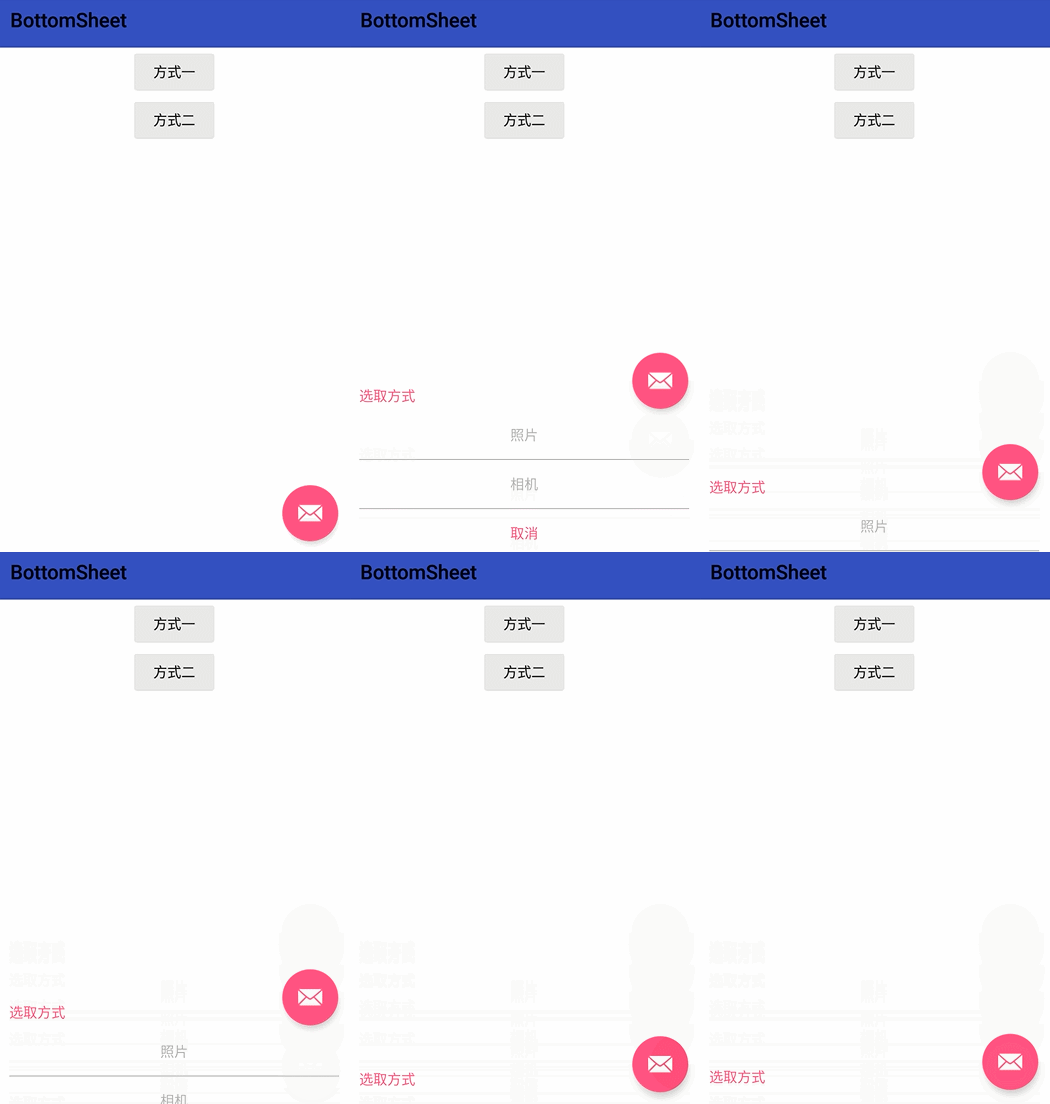
這個效果的實現非常簡單,甚至基本不需要 Java 代碼——只需給可滑動的 view 添加 BottomSheetBehavior 表現行為即可。關鍵是把 app:layout_behavior="@string/bottom_sheet_behavior" 設置到那個 LinearLayout 上,其他地方沒有任何特殊:
<LinearLayout xmlns:android="https://schemas.android.com/apk/res/android"
 xmlns:app="https://schemas.android.com/apk/res-auto"
 android:layout_width="match_parent" android:layout_height="wrap_content"
 android:orientation="vertical" android:gravity="center_horizontal">
 <Button android:layout_width="wrap_content" android:layout_height="wrap_content"
 android:onClick="onClick1" android:text="方式一"/>
 <Button android:layout_width="wrap_content" android:layout_height="wrap_content"
 android:onClick="onClick2" android:text="方式二"/>
 <LinearLayout android:id="@+id/layout"
 android:layout_width="match_parent" android:layout_height="wrap_content"
 android:orientation="vertical" android:background="#EFEFEF"
 android:paddingLeft="15dp" android:paddingRight="15dp"
 app:layout_behavior="@string/bottom_sheet_behavior">
 <TextView android:layout_width="wrap_content" android:layout_height="wrap_content"
 android:minHeight="30dp" android:gravity="center"
 android:text="選取方式" android:textColor="?attr/colorAccent"/>
 <Button android:id="@+id/photo" ... android:text="照片"/>
 <Button android:id="@+id/camera" ... android:text="相機"/>
 <Button android:id="@+id/tv_dialog_cancel" ... android:text="取消"/>
 </LinearLayout>
</LinearLayout>
看到 LinearLayout 的 behavior 了吧,這裡添加 BottomSheetBehavior 表現行為即可,內部布局如何定義取決於你的需求。雖說可以不用任何 Java 代碼實現,但我們仍希望能通過按鈕控制它的顯示:
public void fab(View view) {
 BottomSheetBehavior behavior = BottomSheetBehavior.from(findViewById(R.id.layout));
 if (behavior.getState() == BottomSheetBehavior.STATE_EXPANDED) {
 behavior.setState(BottomSheetBehavior.STATE_COLLAPSED);
 } else {
 behavior.setState(BottomSheetBehavior.STATE_EXPANDED);
 }
}
代碼很簡單:先通過 BottomSheetBehavior.from() 獲取它的 Behavior,再用 getState 判斷當前狀態,展開則收縮,反之則展開。BottomSheet 有以下幾種狀態:
STATE_COLLAPSED:折疊狀態;STATE_SETTING:沉降,即視圖從脫離手指自由滑動到最終停下的過渡狀態;STATE_EXPANDED:完全展開狀態;STATE_HIDDEN:隱藏狀態(默認 false,可通過 app:behavior_hideable 設置);STATE_DRAGGING:被拖拽狀態。
Support Library 23.2 還提供了 BottomSheetDialog 與 BottomSheetDialogFragment。BottomSheetDialog 用法與普通 dialog 差不多,顯示內容可以是列表或簡單對話,當內容滑入屏幕時,其餘部分會變暗以襯托重點。簡單使用如下:
BottomSheetDialog dialog = new BottomSheetDialog(this);
dialog.setContentView(R.layout.dialog_layout);
dialog.show();
下面用 BottomSheetDialog 結合 RecyclerView 展示一個含列表的 dialog:
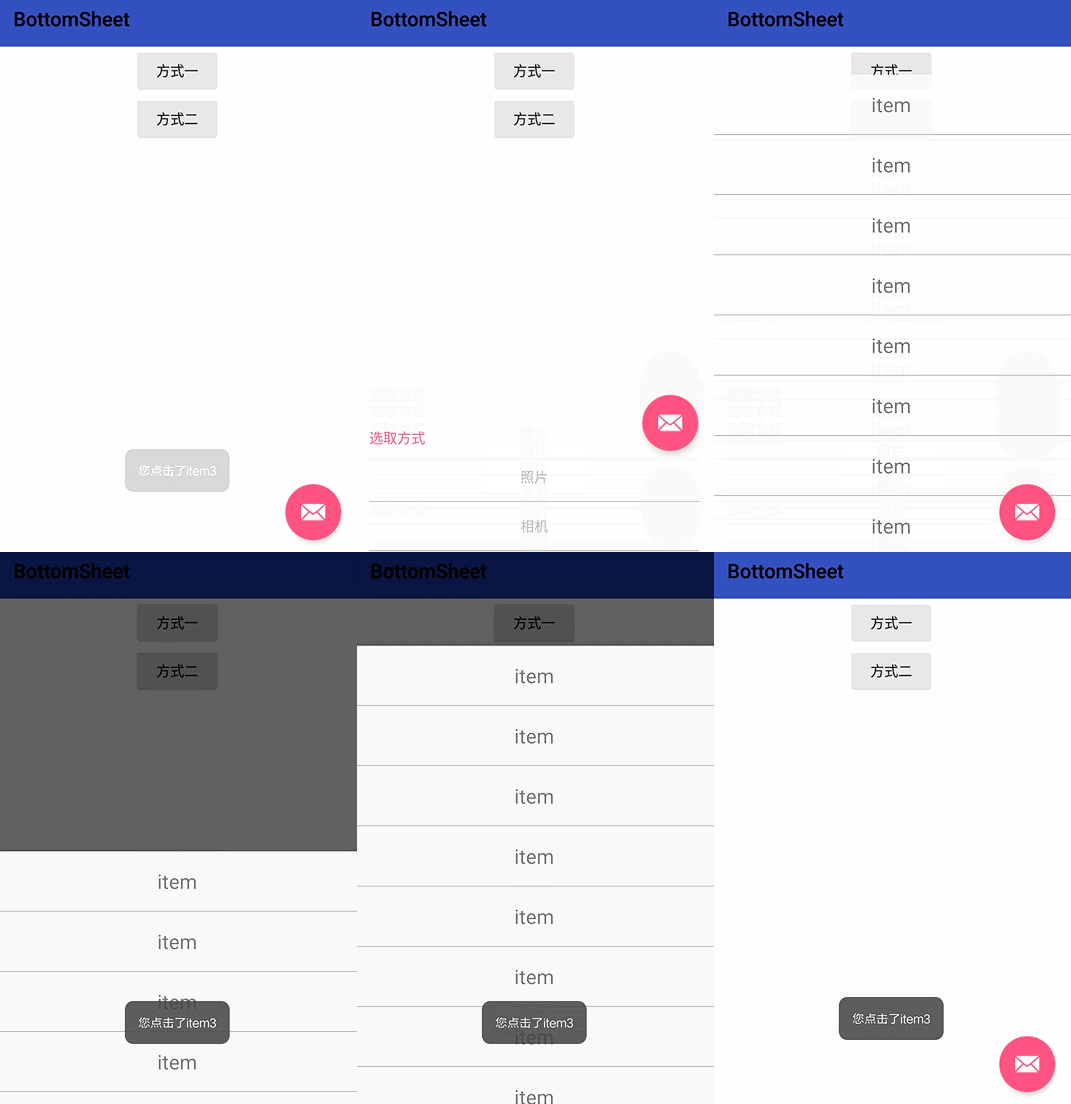
使用 BottomSheetDialog 時,點擊按鈕顯示時它只會先出現一部分,拖動時會占滿屏幕。核心代碼要點:通過 BottomSheetBehavior.from(recyclerView) 獲取 behavior,並設置 BottomSheetCallback,在 onStateChanged 中當狀態為 COLLAPSED 或 HIDDEN 時隱藏 RecyclerView,在 onSlide 中根據 slideOffset 設置透明度以實現滑動漸變效果;點擊 item 時根據不同索引收起 behavior 或關閉 dialog。MyAdapter 是一個標準的 RecyclerView 適配器,為 item 綁定點擊監聽並通過接口回調位置。
好了,本文就寫到這裡,總結不到位之處還望指正,感謝^_^。
 Android 電池管理系統解析:從 sysfs、BatteryService 到驅動層
電池續航是行動裝置的重要體驗之一。Android 的電池管理系統負責監控電量、充電狀態、電池溫度與健康狀態,並把結果提供給上層應用。本文從系統架構、BatteryServ
 Android 登入頁實作:自訂可清空輸入框與抖動提示
先看成果 自訂 ClearEditText 這個控件在 EditText 上疊了一個「清除」圖示:有內容且取得焦點時才顯示,點它就清空。因為 EditText 本身無法
 Android Launcher 實作:把自製程式變成開機預設啟動器
第一次做這樣的設備,沒想到竟然這麼簡單,趕緊記錄一下。這次是為一家醫院製作公告設備,步驟如下:給一台 50 吋顯示器嵌入 Android 系統 > 修改開機畫面 &
 Android 在 Eclipse 中進行單元測試:Activity 與 Class 測試
在 Android 專案中,單元測試可以幫助開發者快速驗證局部功能,而不必每次都重新執行整個應用。尤其是在 Eclipse 時代,透過 Instrumentation T