

編輯:關於 Android 程式設計
這是我第一次寫部落格,純粹想替自己累積一些以後能快速複用的解法。
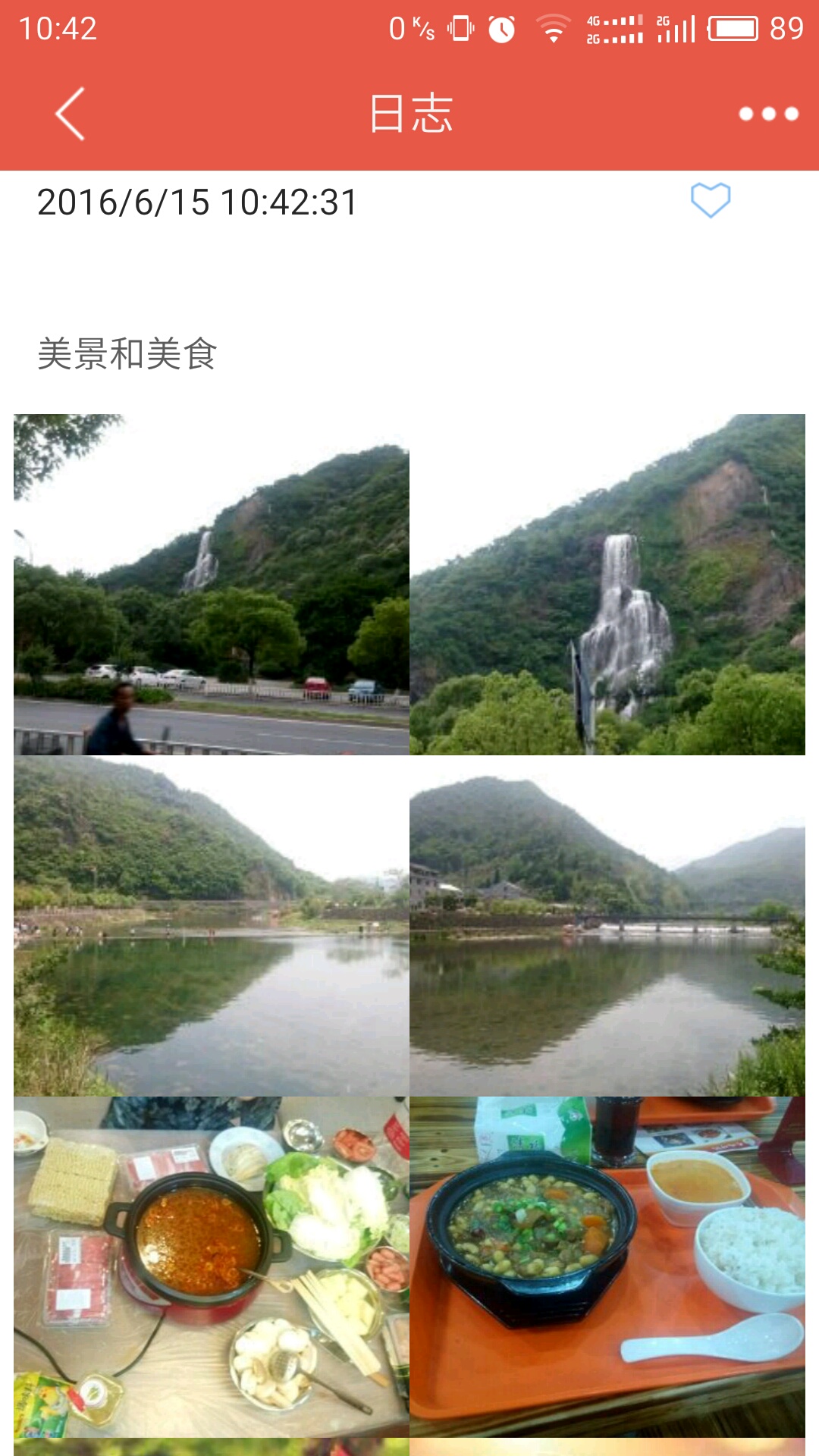
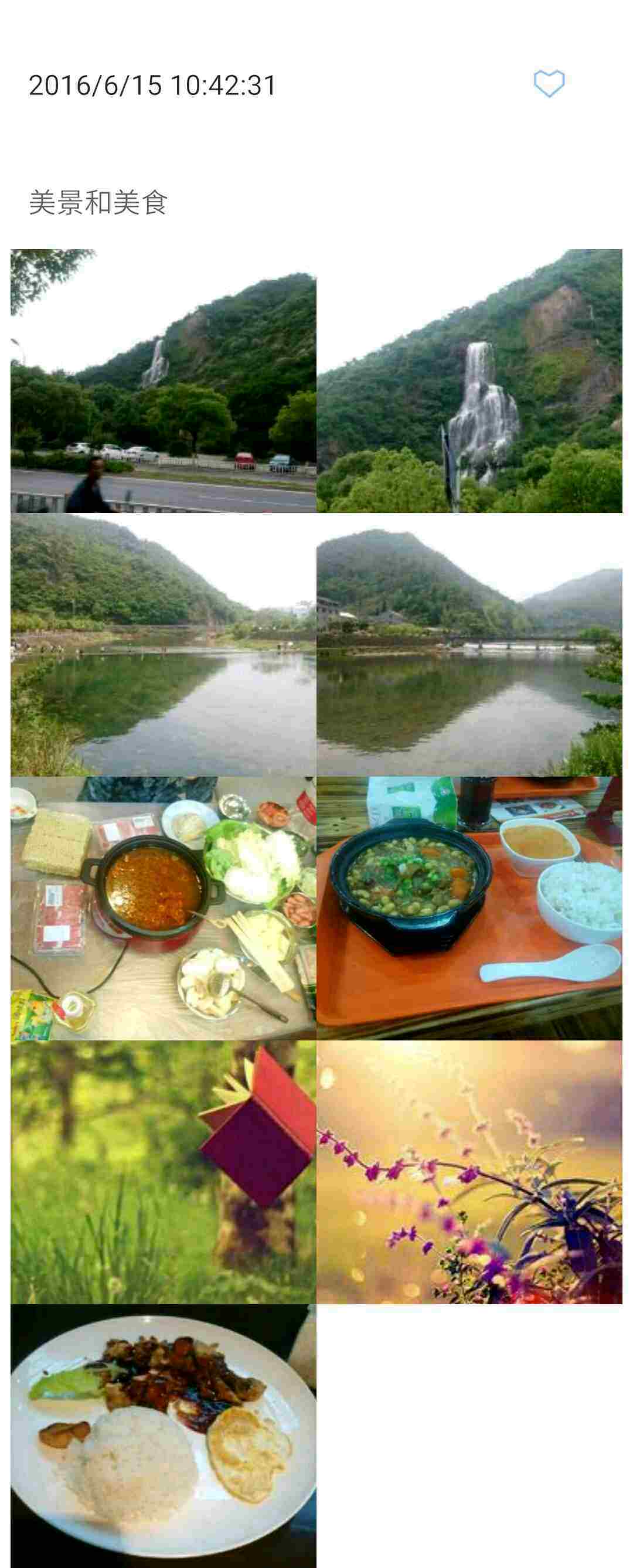
先說背景:一個頁面以 RecyclerView 承載,包含文字與大量圖片,可上下滑動。分享時需要把整個界面——文字加圖片——都分享出去。螢幕內的內容可以直接截圖,但超出螢幕的部分該怎麼辦?整理了一些網路上的做法,先上效果圖。
分享前的畫面:
分享出去的長圖:
這裡不贅述三方分享的集成細節,我用的是友盟整合的 QQ、微信與微博分享,配置可參考友盟官方文檔。點擊右上角會彈出一個自訂的底部對話框:
private void showPopup() { final String[] stringItems = {"分享", "刪除"}; final CustomActionSheetDialog dialog = new CustomActionSheetDialog(this, stringItems, null); dialog.isTitleShow(false).isCancelShow(false) .itemTextColor(getResources().getColor(R.color.ese_white)) .itemPressColor(getResources().getColor(R.color.ese_orange)) .lvBgColor(getResources().getColor(R.color.baby_orange)) .show(); dialog.setOnOperItemClickL(new OnOperItemClickL() { @Override public void onOperItemClick(AdapterView parent, View view, int position, long id) { dialog.dismiss(); switch (position) { case 0: if (mNewsDetail == null) { showToast("沒有內容可供分享"); return; } showSharePopup(); break; case 1: photoDetailPresenter.deletePic(mNewsDetail.getPk_image_news_id()); break; default: break; } } }); }
本專案採用 MVP 架構,網路請求都在 presenter,UI 更新在 MvpView。彈出的對話框是自訂的底部彈出樣式,可直接複用,效果相當不錯。
彈出對話框後,為每一項設定點擊事件,重點在於把整个控件生成一張 bitmap 再分享出去:
void share(int i) { UMImage image = null; if (mNewsDetail.getImages() != null && mNewsDetail.getImages().size() > 0) { Bitmap bmp = ContentToPictureUtils.getBitmapByView(mscrollview); ByteArrayOutputStream output = new ByteArrayOutputStream(); bmp.compress(Bitmap.CompressFormat.JPEG, 100, output); int options2 = 100; while (output.toByteArray().length > IMAGE_SIZE && options2 != 10) { output.reset(); bmp.compress(Bitmap.CompressFormat.JPEG, options2, output); options2 -= 10; } bmp = BitmapFactory.decodeByteArray(output.toByteArray(), 0, output.toByteArray().length); image = new UMImage(this, bmp); } switch (i) { case 0: dialog.shareWeixin(NewsActivity.this, "HelloBaby", mNewsDetail.getContent(), image, umShareListener, false); break; case 1: dialog.shareWeixinCircle(NewsActivity.this, "HelloBaby", mNewsDetail.getContent(), image, umShareListener, true); break; case 2: dialog.shareQQ(NewsActivity.this, "HelloBaby", mNewsDetail.getContent(), image, umShareListener); break; case 3: dialog.shareWeibo(NewsActivity.this, "HelloBaby", mNewsDetail.getContent(), image, umShareListener); break; default: break; } }
這裡會先把圖片以 JPEG 逐步加壓(每次遞減壓縮品質)直到小於目標大小,再建立 UMImage 分享出去。核心是把 ScrollView 內含的所有內容渲染成一張 bitmap,工具類如下:
public class ContentToPictureUtils { public static String DCIMCamera_PATH = Environment.getExternalStorageDirectory() + "/DCIM/Camera/"; private static Bitmap captureWebView(WebView webView) { Picture snapShot = webView.capturePicture(); Bitmap bmp = Bitmap.createBitmap(snapShot.getWidth(), snapShot.getHeight(), Bitmap.Config.ARGB_8888); Canvas canvas = new Canvas(bmp); snapShot.draw(canvas); return bmp; } public static Boolean saveBitmapToCamera(Context context, Bitmap bm, String name) { File file; if (name == null || name.equals("")) { name = new SimpleDateFormat("yyyyMMddHHmmss").format(new Date()) + ".jpg"; } file = new File(DCIMCamera_PATH); if (!file.exists()) { file.mkdirs(); } file = new File(DCIMCamera_PATH, name); if (file.exists()) { file.delete(); } try { FileOutputStream out = new FileOutputStream(file); bm.compress(Bitmap.CompressFormat.PNG, 100, out); out.flush(); out.close(); } catch (Exception e) { e.printStackTrace(); return false; } Intent intent = new Intent(Intent.ACTION_MEDIA_SCANNER_SCAN_FILE); intent.setData(Uri.fromFile(file)); context.sendBroadcast(intent); return true; } public static Bitmap getBitmapByView(ScrollView scrollView) { int h = 0; Bitmap bitmap = null; for (int i = 0; i < scrollView.getChildCount(); i++) { h += scrollView.getChildAt(i).getHeight(); scrollView.getChildAt(i).setBackgroundColor(Color.parseColor("#ffffff")); } bitmap = Bitmap.createBitmap(scrollView.getWidth(), h, Bitmap.Config.RGB_565); final Canvas canvas = new Canvas(bitmap); scrollView.draw(canvas); return bitmap; } }
關鍵在 getBitmapByView:先累加 ScrollView 各子 view 的高度算出總高,建立一張與內容等高的 bitmap,再讓 scrollView 把自身繪製到這張 canvas 上——如此一來,即使內容超出螢幕,也能完整截成一張長圖。生成後建立 UMImage 分享即可,具體分享程式碼參考友盟配置文檔。
 用 NotificationListenerService 打造紅包提醒助手
背景:過年期間各平台的紅包到處飛,但手速總是慢一拍。做一個小工具幫忙「第一時間知道並快速抵達現場」,是個很典型的 Android 系統能力練習題。 需求:收到紅包通知時發
 Android 滑動機制全解析:從座標系到七種位移實作
重點導覽 本文重新整理 Android 滑動效果的核心概念,從座標系、觸控事件到七種常見位移方式,幫助讀者建立完整的實作脈絡。 一、滑動效果如何產生 所謂滑動,本質上是根
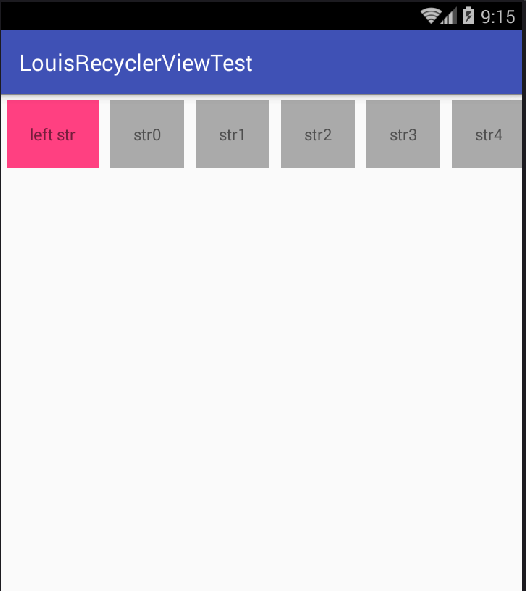 RecyclerView 添加 Header 與 Footer,並適配水平布局的左右結構
折騰了整整一個下午,踩過不少坑:最麻煩的是當 LayoutManager 設為水平方向時,頭尾佈局必須改成「左右結構」,否則寬高約束完全錯位;另外還遇到某個 item 需
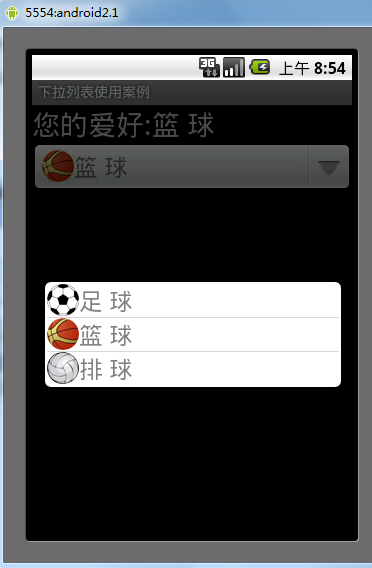 Android Spinner 用法解析
Spinner 基本概念 Spinner 是下拉式清單控制項,常用來讓使用者從一組選項中做選擇。 版面配置 <Spinner android:id=@+id/Spi