

編輯:關於 Android 程式設計
好的動畫能讓介面「活」起來:一次淡入、一段旋轉、一個位移,都能把生硬的狀態切換變成自然的視覺過渡。Android 內建的 Animation 體系雖然年代久遠,但勝在簡單直觀、學習曲線平緩,至今仍是理解動畫觀念的最佳起點。本文把這套體系拆成「類型、模式、定義方式、屬性、範例」五個層次,一次講清楚。
不論你用 XML 還是 Java 撰寫,Android 的補間動畫其實只有四種:
<alpha>,對應類別 AlphaAnimation。<scale>,對應類別 ScaleAnimation。<translate>,對應類別 TranslateAnimation。<rotate>,對應類別 RotateAnimation。Android 的動畫可以分成涇渭分明的兩派:
1. 補間動畫(Tweened Animation)
只做「變化」的運算——起點與終點之間由系統補上中間影格。上述四種(alpha、scale、translate、rotate)都屬於這類,不需要準備任何圖片素材,成本最低、最常用。
2. 逐幀動畫(Frame by Frame Animation)
把一連串圖片依序播放,本質上就是播放動畫 GIF 的效果。實作方式是 animation-list,適合載入中、進度條這類必須靠畫面內容呈現的場景,代價是要準備一組尺寸一致的連續圖。
步驟很簡單:
res 目錄下新增名為 anim 的資料夾(注意是 anim,不是 animation)。anim 中新增 my_anim.xml,檔名請用小寫。<set> 容器,內部再放四種動畫標籤。<set xmlns:android="https://schemas.android.com/apk/res/android">
<scale ... />
<rotate ... />
</set><set xmlns:android="https://schemas.android.com/apk/res/android">
<alpha
android:fromAlpha="0.1"
android:toAlpha="1.0"
android:duration="3000" />
</set>fromAlpha:動畫起始透明度;toAlpha:結束時透明度。0.0 代表全透明,1.0 代表完全不透明,取值範圍 0.0~1.0。duration:持續時間,單位為毫秒。<scale
android:duration="1000"
android:fillAfter="false"
android:fromXScale="0.0"
android:fromYScale="0.0"
android:toXScale="1.4"
android:toYScale="1.4"
android:pivotX="50%"
android:pivotY="50%"
android:interpolator="@android:anim/accelerate_decelerate_interpolator" />fromXScale / toXScale / fromYScale / toYScale:X、Y 軸的起始與結束縮放比例。0.0 表示縮到看不見,1.0 表示原始大小,小於 1.0 為縮小,大於 1.0 為放大。pivotX / pivotY:以「物件本身」為基準的縮放中心,0%~100% 取值,50% 即為物件中心點。interpolator:插入器,控制速度曲線。系統內建常用的有三種——accelerate_decelerate_interpolator(先加速後減速)、accelerate_interpolator(加速)、decelerate_interpolator(減速)。fillAfter:設為 true 時,動畫結束後仍套用最後一幀的轉換效果。<translate
android:fromXDelta="0"
android:toXDelta="200"
android:fromYDelta="0"
android:toYDelta="300"
android:duration="2000" />fromXDelta / toXDelta / fromYDelta / toYDelta:起點與終點的位移量。fromXType、toXType、fromYType、toYType,預設以「自身」為相對參考物。<rotate
android:fromDegrees="0"
android:toDegrees="+350"
android:pivotX="50%"
android:pivotY="50%"
android:duration="3000"
android:interpolator="@android:anim/accelerate_decelerate_interpolator" />fromDegrees / toDegrees:起始角與結束角,數值可以超過 360 度。pivotX / pivotY:旋轉中心,同樣以 0%~100% 表示,50% 為物件中心。透過 AnimationUtils 的靜態方法載入動畫資源,第一個參數是 Context,第二個是動畫 XML 的資源 ID:
Animation myAnimation = AnimationUtils.loadAnimation(this, R.anim.my_anim);
imageView.startAnimation(myAnimation);private Animation myAnimation_Alpha;
private Animation myAnimation_Scale;
private Animation myAnimation_Translate;
private Animation myAnimation_Rotate;
myAnimation_Alpha = new AlphaAnimation(0.1f, 1.0f);
myAnimation_Scale = new ScaleAnimation(0.0f, 1.4f, 0.0f, 1.4f,
Animation.RELATIVE_TO_SELF, 0.5f, Animation.RELATIVE_TO_SELF, 0.5f);
myAnimation_Translate = new TranslateAnimation(30.0f, -80.0f, 30.0f, 300.0f);
myAnimation_Rotate = new RotateAnimation(0.0f, +350.0f,
Animation.RELATIVE_TO_SELF, 0.5f, Animation.RELATIVE_TO_SELF, 0.5f);四個建構式的參數順序如下:
AlphaAnimation(fromAlpha, toAlpha)ScaleAnimation(fromX, toX, fromY, toY, pivotXType, pivotXValue, pivotYType, pivotYValue);後四個參數決定縮放中心,「型別」通常填 Animation.RELATIVE_TO_SELF,再搭配 0.5f 代表中心點。TranslateAnimation(fromXDelta, toXDelta, fromYDelta, toYDelta)RotateAnimation(fromDegrees, toDegrees, pivotXType, pivotXValue, pivotYType, pivotYValue)建立完成後,用 setDuration() 指定時間即可,例如 myAnimation_Rotate.setDuration(3000);。
所有 View 都繼承了 startAnimation(),直接把動畫物件交給它就能播放:
public void startAnimation(Animation animation)public class AnimationActivity extends Activity implements OnClickListener {
private ImageView imgPic;
private Button btnAlpha, btnScale, btnTranslate, btnRotate;
private Animation myAnimation;
protected void onCreate(Bundle savedInstanceState) {
super.onCreate(savedInstanceState);
setContentView(R.layout.activity_animation);
imgPic = (ImageView) findViewById(R.id.imgPic);
btnAlpha = (Button) findViewById(R.id.btnAlpha);
btnScale = (Button) findViewById(R.id.btnScale);
btnTranslate = (Button) findViewById(R.id.btnTranslate);
btnRotate = (Button) findViewById(R.id.btnRotate);
btnAlpha.setOnClickListener(this);
btnScale.setOnClickListener(this);
btnTranslate.setOnClickListener(this);
btnRotate.setOnClickListener(this);
}
public void onClick(View v) {
switch (v.getId()) {
case R.id.btnAlpha:
myAnimation = AnimationUtils.loadAnimation(this, R.anim.alpha_anim);
imgPic.startAnimation(myAnimation);
break;
case R.id.btnScale:
myAnimation = AnimationUtils.loadAnimation(this, R.anim.scale_anim);
imgPic.startAnimation(myAnimation);
break;
case R.id.btnTranslate:
myAnimation = AnimationUtils.loadAnimation(this, R.anim.translate_anim);
imgPic.startAnimation(myAnimation);
break;
case R.id.btnRotate:
myAnimation = AnimationUtils.loadAnimation(this, R.anim.rotate_anim);
imgPic.startAnimation(myAnimation);
break;
}
}
}Animation translateAnimation = new TranslateAnimation(0.1f, 100.0f, 0.1f, 100.0f);
translateAnimation.setDuration(1000);
this.startAnimation(translateAnimation);用 AnimationSet 把動畫打包,設定的時間會套用到集合中的每一個動畫:
TranslateAnimation translateAnimation = new TranslateAnimation(0.1f, 100.0f, 0.1f, 100.0f);
AlphaAnimation alphaAnimation = new AlphaAnimation(0.1f, 1.0f);

AnimationSet set = new AnimationSet(true);
set.addAnimation(translateAnimation);
set.addAnimation(alphaAnimation);
set.setDuration(1000);
this.startAnimation(set);
在 XML 裡的等價寫法,就是把多個動畫標籤一起放進 <set> 的根節點中。
① 把連續的圖片素材放進 res/drawable。
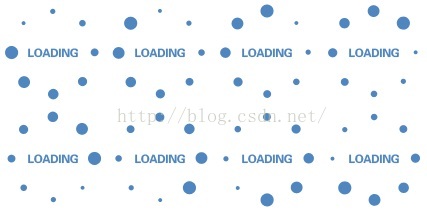
② 在 drawable 下新增動畫描述檔,根標籤為 animation-list,oneshot 設為 false 會無限循環,每個 item 以 android:duration 指定該影格停留的毫秒數。
<animation-list xmlns:android="https://schemas.android.com/apk/res/android"
    android:oneshot="false">
    <item android:drawable="@drawable/cmmusic_progress_1" android:duration="150" />
    <item android:drawable="@drawable/cmmusic_progress_2" android:duration="150" />
    <item android:drawable="@drawable/cmmusic_progress_3" android:duration="150" />
    <item android:drawable="@drawable/cmmusic_progress_4" android:duration="150" />
    <item android:drawable="@drawable/cmmusic_progress_5" android:duration="150" />
    <item android:drawable="@drawable/cmmusic_progress_6" android:duration="150" />
    <item android:drawable="@drawable/cmmusic_progress_7" android:duration="150" />
    <item android:drawable="@drawable/cmmusic_progress_8" android:duration="150" />
</animation-list>
③ 在程式碼中把資源設給 ImageView,再轉型成 AnimationDrawable 控制播放與停止:
public class AnimationActivity extends Activity implements OnClickListener {
    private ImageView imgPic;
    private Button btnStart, btnStop;
    private AnimationDrawable animationDrawable;

    protected void onCreate(Bundle savedInstanceState) {
        super.onCreate(savedInstanceState);
        setContentView(R.layout.activity_animation);
        imgPic = (ImageView) findViewById(R.id.imgPic);
        btnStart = (Button) findViewById(R.id.btnStart);
        btnStop = (Button) findViewById(R.id.btnStop);
        btnStart.setOnClickListener(this);
        btnStop.setOnClickListener(this);

        imgPic.setImageResource(R.drawable.loading_anim);
        animationDrawable = (AnimationDrawable) imgPic.getDrawable();
    }

    public void onClick(View v) {
        switch (v.getId()) {
            case R.id.btnStart:
                animationDrawable.start();
                break;
            case R.id.btnStop:
                animationDrawable.stop();
                break;
        }
    }
}XML 適合把動畫當成可重複使用的資源來管理,Java 則適合需要動態計算參數的場合,兩者可以混用。真正需要留意的是細節:pivot 決定 transform 的支點、interpolator 決定節奏、fillAfter 決定動畫結束後的樣子。把這三件事想清楚,動畫就不會出現「怪怪的」那種說不上來的錯覺。
 手寫一個支持縮放與拖動的 ImageView
網上講圖片縮放拖動的文章不少,但很多都是直接引入現成的庫。這裡不依賴任何第三方,純手寫一個 BaseDragZoomImageView,把原理攤開來看。 思路 要在手機
 Google 官方教程實踐:用 Volley 載入網路資源
前言 最近要開始和後端對接,昨天在網上翻了半天 Volley 的資料,越翻越開心。原本以為網路這一塊是個龐大複雜的流程,沒想到 Google 早就封裝出了這麼順手的工具—
 Android 仿 QQ、微信聊天界面長按提示框效果
先來看看效果圖 如何使用 示例代碼 PromptViewHelper pvHelper = new PromptViewHelper(mActivity); pvHe
 Activity 物件傳遞:Parcelable 與 Serializable 的差異
Parcelable 與 Serializable 在 Activity 之間傳遞物件時,除了 Java 的 Serializable,Android 也提供 Parce