

編輯:關於 Android 程式設計
設計應用時,我們應該崇尚極簡主義——簡單就是美,對多數使用者而言,複雜的東西並不受歡迎。我要實作的是依不同情況顯示不同載入效果,隨用隨調。效果靈感來自某個專案,我認為有必要提取出來重新封裝,方便日後使用。大致分為:載入中、無網路、無資料、載入失敗等狀態。
預覽效果: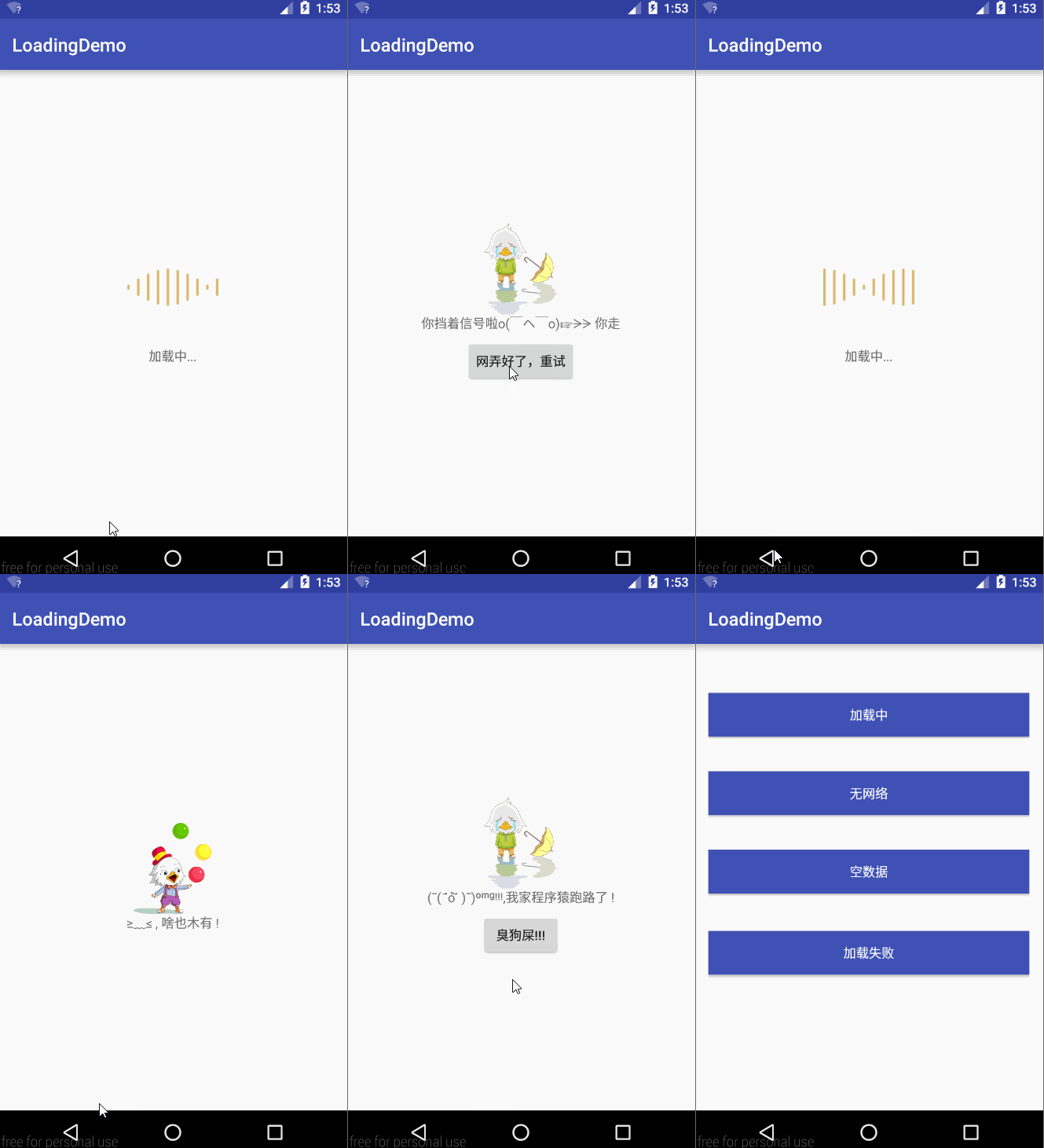
如何實作這種效果
view_loading.xml 的布局如下:
<?xml version="1.0" encoding="utf-8"?>
<FrameLayout xmlns:android="https://schemas.android.com/apk/res/android"
    android:layout_width="match_parent"
    android:layout_height="match_parent">

    <LinearLayout
        android:id="@+id/lin_loading"
        android:layout_gravity="center"
        android:layout_width="wrap_content"
        android:layout_height="wrap_content"
        android:orientation="vertical"
        android:visibility="gone">
        <ImageView
            android:id="@+id/img_loading"
            android:layout_width="100dp"
            android:layout_height="100dp"
            android:src="@drawable/loading_animation" />
        <TextView
            android:id="@+id/tv_loading"
            android:layout_gravity="center_horizontal"
            android:layout_width="wrap_content"
            android:layout_height="wrap_content"
            android:layout_marginTop="16dp"
            android:textSize="14sp" />
    </LinearLayout>

    <LinearLayout
        android:id="@+id/lin_load"
        android:layout_gravity="center"
        android:gravity="center"
        android:layout_width="wrap_content"
        android:layout_height="wrap_content"
        android:orientation="vertical"
        android:visibility="visible">
        <ImageView
            android:id="@+id/iv_load"
            android:layout_width="100dp"
            android:layout_height="100dp"
            android:src="@mipmap/ic_launcher" />
        <TextView
            android:id="@+id/tv_load"
            android:layout_gravity="center_horizontal"
            android:layout_width="wrap_content"
            android:layout_height="wrap_content" />
        <Button
            android:id="@+id/btn_load"
            android:layout_gravity="center_horizontal"
            android:layout_width="wrap_content"
            android:layout_height="wrap_content"
            android:layout_marginTop="8dp"
            android:textSize="14sp" />
    </LinearLayout>
</FrameLayout>
從布局可以看到我分成兩部分:一個是「載入中」,另一個是含 ImageView、文字與按鈕的布局。看到這裡你可能會說,這不是很簡單嗎?依不同情況去設定 Visibility 就好——沒錯,原理正是如此。
XHLoadingView.java 的程式碼如下:
package com.woyou.loadingdemo.widget;

import android.content.Context;
import android.graphics.drawable.AnimationDrawable;
import android.util.AttributeSet;
import android.view.LayoutInflater;
import android.view.View;
import android.widget.Button;
import android.widget.FrameLayout;
import android.widget.ImageView;
import android.widget.LinearLayout;
import android.widget.TextView;
import com.woyou.loadingdemo.LoadingState;
import com.woyou.loadingdemo.R;

public class XHLoadingView extends FrameLayout {
    private Context mContext;
    private LinearLayout mLinearLoad;     // 載入中的布局
    private LinearLayout mLinearLoading;  // 其他狀態的布局
    private TextView mTvLoading;
    private TextView mTvLoad;
    private ImageView mIvLoading;
    private ImageView mIvLoad;
    private Button mBtnLoad;
    private LoadingState mState;
    private AnimationDrawable animation;

    public XHLoadingView(Context context) { super(context); mContext = context; }
    public XHLoadingView(Context context, AttributeSet attrs) { super(context, attrs); mContext = context; }
    public XHLoadingView(Context context, AttributeSet attrs, int defStyleAttr) {
        super(context, attrs, defStyleAttr); mContext = context;
    }
    public XHLoadingView(Context context, AttributeSet attrs, int defStyleAttr, int defStyleRes) {
        super(context, attrs, defStyleAttr, defStyleRes); mContext = context;
    }

    public void build() {
        LayoutInflater.from(mContext).inflate(R.layout.view_loading, this, true);
        mLinearLoading = (LinearLayout) findViewById(R.id.lin_loading);
        mLinearLoad = (LinearLayout) findViewById(R.id.lin_load);
        mIvLoading = (ImageView) findViewById(R.id.img_loading);
        mIvLoad = (ImageView) findViewById(R.id.iv_load);
        mTvLoading = (TextView) findViewById(R.id.tv_loading);
        mTvLoad = (TextView) findViewById(R.id.tv_load);
        mBtnLoad = (Button) findViewById(R.id.btn_load);
        mBtnLoad.setOnClickListener(new OnClickListener() {
            @Override public void onClick(View v) {
                setState(LoadingState.STATE_LOADING);
                if (mOnRetryListener != null) mOnRetryListener.onRetry();
            }
        });
    }

    @Override public void setVisibility(int visibility) {
        super.setVisibility(visibility);
        if (View.GONE == visibility && mState == LoadingState.STATE_LOADING
                && animation != null && animation.isRunning()) {
            animation.stop();
        }
    }

    private String mLoadingText;
    private int mLoadingIcon;
    public XHLoadingView withLoadingIcon(int resId) { mLoadingIcon = resId; return this; }

    private String mLoadEmptyText;
    private int mLoadEmptyIcon;
    public XHLoadingView withEmptyIcon(int resId) { mLoadEmptyIcon = resId; return this; }

    private String mLoadNoNetworkText;
    private int mNoNetworkIcon;
    public XHLoadingView withNoNetIcon(int resId) { mNoNetworkIcon = resId; return this; }

    private OnRetryListener mOnRetryListener;
    public interface OnRetryListener { void onRetry(); }
    public XHLoadingView withOnRetryListener(OnRetryListener l) { this.mOnRetryListener = l; return this; }

    /** 設定載入狀態 */
    public void setState(LoadingState state) {
        if (mState == state) { return; }
        if (state == LoadingState.STATE_LOADING) {
            mLinearLoading.setVisibility(VISIBLE);
            mLinearLoad.setVisibility(GONE);
        } else {
            mLinearLoading.setVisibility(GONE);
            mLinearLoad.setVisibility(VISIBLE);
            if (animation != null && mState == LoadingState.STATE_LOADING) animation.stop();
        }
        changeState(state);
    }

    public boolean btnEmptyEnable = true;
    public boolean btnErrorEnable = true;
    public boolean btnNoNetworkEnable = true;
    public XHLoadingView withBtnNoNetEnnable(boolean e) { btnNoNetworkEnable = e; return this; }
    public XHLoadingView withBtnErrorEnnable(boolean e) { btnErrorEnable = e; return this; }
    public XHLoadingView withBtnEmptyEnnable(boolean e) { btnEmptyEnable = e; return this; }

    /** 依狀態切換顯示內容 */
    private void changeState(LoadingState state) {
        switch (state) {
            case STATE_LOADING:
                mState = LoadingState.STATE_LOADING;
                mIvLoading.setImageResource(mLoadingIcon);
                mTvLoading.setText(mLoadingText);
                if (animation == null) animation = (AnimationDrawable) mIvLoading.getDrawable();
                if (animation != null) animation.start();
                break;
            case STATE_EMPTY:
                mState = LoadingState.STATE_EMPTY;
                mIvLoad.setImageResource(mLoadEmptyIcon);
                mTvLoad.setText(mLoadEmptyText);
                mBtnLoad.setVisibility(btnEmptyEnable ? VISIBLE : GONE);
                if (btnEmptyEnable) mBtnLoad.setText(btn_empty_text);
                break;
            case STATE_ERROR:
                mState = LoadingState.STATE_ERROR;
                mIvLoad.setImageResource(mErrorIco);
                mTvLoad.setText(mLoadErrorText);
                mBtnLoad.setVisibility(btnErrorEnable ? VISIBLE : GONE);
                if (btnErrorEnable) mBtnLoad.setText(btn_error_text);
                break;
            case STATE_NO_NET:
                mState = LoadingState.STATE_NO_NET;
                mIvLoad.setImageResource(mNoNetworkIcon);
                mTvLoad.setText(mLoadNoNetworkText);
                mBtnLoad.setVisibility(btnNoNetworkEnable ? VISIBLE : GONE);
                if (btnNoNetworkEnable) mBtnLoad.setText(btn_nonet_text);
                break;
        }
    }

    private String mLoadErrorText;
    private int mErrorIco;
    public XHLoadingView withErrorIco(int resId) { mErrorIco = resId; return this; }

    public XHLoadingView withLoadEmptyText(int resId) {
        mLoadEmptyText = getResources().getString(resId); return this;
    }
    public XHLoadingView withLoadEmptyText(String t) { this.mLoadEmptyText = t; return this; }

    public XHLoadingView withLoadNoNetworkText(int resId) {
        mLoadNoNetworkText = getResources().getString(resId); return this;
    }
    public String btn_empty_text = "重試";
    public String btn_error_text = "重試";
    public String btn_nonet_text = "重試";

    public XHLoadingView withBtnEmptyText(String t) { this.btn_empty_text = t; return this; }
    public XHLoadingView withBtnErrorText(String t) { this.btn_error_text = t; return this; }
    public XHLoadingView withLoadErrorText(int resId) {
        this.mLoadErrorText = getResources().getString(resId); return this;
    }
    public XHLoadingView withLoadErrorText(String t) { this.mLoadErrorText = t; return this; }
    public XHLoadingView withBtnNoNetText(String t) { this.btn_nonet_text = t; return this; }
    public XHLoadingView withLoadNoNetworkText(String t) { this.mLoadNoNetworkText = t; return this; }
    public XHLoadingView withLoadingText(int resId) {
        this.mLoadingText = getResources().getString(resId); return this;
    }
    public XHLoadingView withLoadingText(String t) { this.mLoadingText = t; return this; }
}
針對不同情況分別處理,接著在需要的 Activity 中呼叫即可:
private XHLoadingView mLoadingView;

@Override protected void onCreate(Bundle savedInstanceState) {
    super.onCreate(savedInstanceState);
    setContentView(R.layout.activity_display);
    mLoadingView = (XHLoadingView) findViewById(R.id.lv_loading);
    mLoadingView
        .withLoadEmptyText("啥也沒有 !").withEmptyIcon(R.drawable.disk_file_no_data).withBtnEmptyEnnable(false)
        .withErrorIco(R.drawable.ic_chat_empty).withLoadErrorText("加載失敗,程式猿跑路了 !").withBtnErrorText("重試!!!")
        .withLoadNoNetworkText("你擋著訊號啦,請走開").withNoNetIcon(R.drawable.ic_chat_empty).withBtnNoNetText("網路弄好了,重試")
        .withLoadingIcon(R.drawable.loading_animation).withLoadingText("載入中...")
        .withOnRetryListener(new XHLoadingView.OnRetryListener() {
            @Override public void onRetry() {
                SnackbarUtil.show(mLoadingView, "已經在努力重試了", 0);
            }
        }).build();

    // 載入中
    mLoadingView.setVisibility(View.VISIBLE);
    mLoadingView.setState(LoadingState.STATE_LOADING);
    // 空資料
    mLoadingView.setVisibility(View.VISIBLE);
    mLoadingView.setState(LoadingState.STATE_EMPTY);
    // 無網路
    mLoadingView.setVisibility(View.VISIBLE);
    mLoadingView.setState(LoadingState.STATE_NO_NET);
    // 載入失敗
    mLoadingView.setVisibility(View.VISIBLE);
    mLoadingView.setState(LoadingState.STATE_ERROR);
}
上面為了展示不同效果寫了幾個情境,實務上並非如此:初始化之後,在需要的地方呼叫 setState 即可。原始碼中已附上詳細註解,就不再贅述。
 解析 Android 如何取得已安裝應用程式的實際佔用大小
做過「應用管理」類工具的人大概都遇過同一個問題:在程式碼層面,到底該怎麼拿到一個已安裝 App 的實際佔用空間?網路上流傳的兩種老做法都有明顯缺陷,本文先說明問題出在哪,
 Android 微信支付接入實戰:從下單、預支付到回呼的完整流程
這陣子專案要加支付功能,最後定案用微信支付。網路上資料零散,很多地方講得不完整,折騰了一輪再加上前同事指點,總算跑通了。趁記憶還新,把整個流程記錄下來。 一、前置準備
 Android UI 組件之 ImageSwitcher 圖像切換器
ImageSwitcher 是 Android 中常用的圖像切換組件。它繼承自 ViewSwitcher,因此支持在切換子視圖時加入動畫效果。相比普通 ImageView
 OkHttp 入門與封裝:圖片加載、裁剪與表單提交
OkHttp 是 Android 開發中常見的網路請求框架,具備輕量、易用與可擴充等特點。本文從實際開發角度出發,介紹如何建立專案、載入圖片、使用 Picasso 進行裁