

編輯:關於 Android 程式設計
layout_weight 只在 LinearLayout 中生效,這是第一個要記住的前提。
Google 的明確建議是:一旦設定了 layout_weight,對應的 layout_width(水平布局)或 layout_height(垂直布局)就應該寫成 0dp。
如果既設了 weight、又給了具體尺寸,就會衍生出大量組合情形:可能部分元件設了 weight 部分沒設,設了的那些尺寸值可能相同也可能不同……把這些排列組合一一試出來簡直是自找麻煩。編程是為了省事,Google 都不推薦的寫法,沒必要去鑽。本文最後會簡單說明幾種非推薦情形,但正式代碼裡請遵循 0dp 原則。
下面所有示例中,凡設定了 layout_weight 的元件,其對應尺寸一律為 0dp。
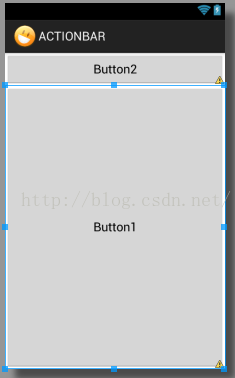
情形一:上面的按鈕不設 weight,下面的設 weight=1
<LinearLayout xmlns:android="https://schemas.android.com/apk/res/android"
    android:layout_width="match_parent"
    android:layout_height="match_parent"
    android:orientation="vertical">

    <Button
        android:text="Button2"
        android:layout_width="match_parent"
        android:layout_height="wrap_content" />

    <Button
        android:text="Button1"
        android:layout_weight="1"
        android:layout_width="match_parent"
        android:layout_height="0dp" />
</LinearLayout>
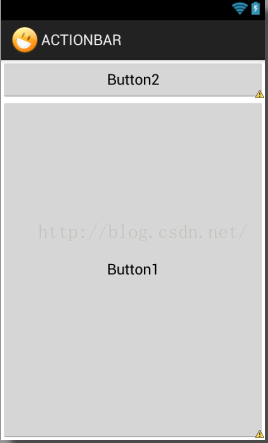
情形二:把下面的 weight 改成 0
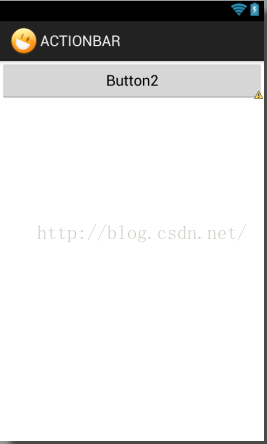
情形三:上面的按鈕 height 改為 match_parent,下面的 weight=1
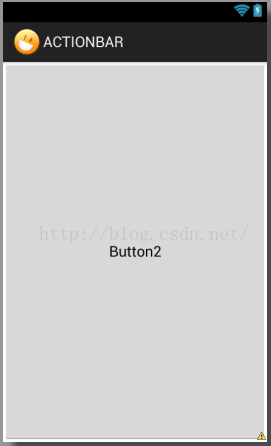
情形四:上面的按鈕 height 為 match_parent,下面的 weight=0
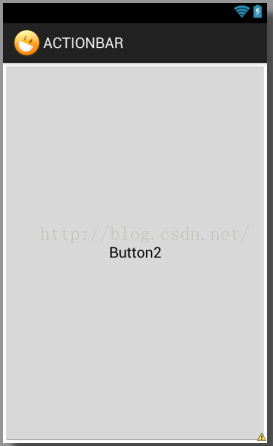
情形五:上面的按鈕 height 固定 100dp,下面的 weight=1
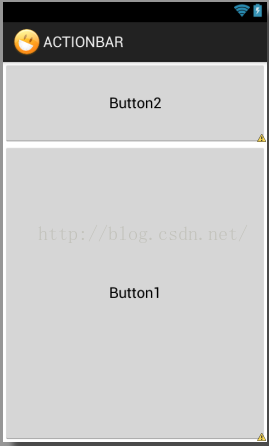
情形六:上面的按鈕 height 固定 100dp,下面的 weight=0
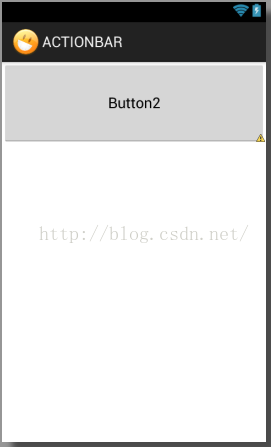
情形七:兩個按鈕都設 weight=1
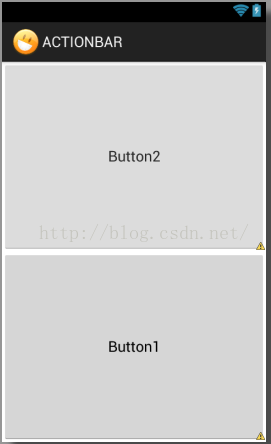
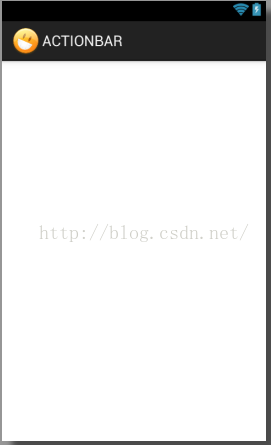
情形八:兩個按鈕都設 weight=0
1. 所有元件都設了 layout_weight 時,按 weight 大小比例分配空間。值越大佔得越多,值越小佔得越少。
2. 部分元件設了 weight、部分沒設時,沒設的元件優先佔用空間。它們先按自身尺寸把位置佔掉,如果螢幕還有剩餘,剩餘部分再按 weight 比例分給其餘元件。也就是說,沒設 weight 的元件擁有空間優先分配權。
3. weight 設為 0 且尺寸為 0dp 的元件,實際上不會出現在螢幕上。
以下情形僅用於說明「為什麼不該這樣寫」。
情形一:前兩個 height 為 match_parent 且 weight=0,第三個為 wrap_content
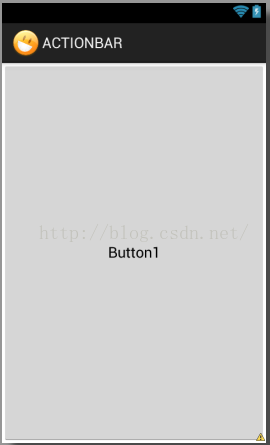
情形二:第一個 wrap_content、第二個 match_parent(weight=0)、第三個 wrap_content
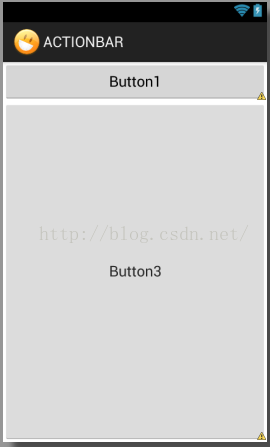
情形三:第二個 wrap_content(weight=0)、其餘兩個 match_parent(weight=0)
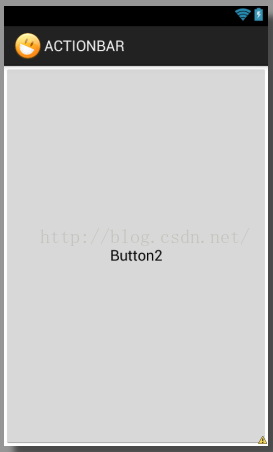
情形四(注意 Button3 已經溢出螢幕)
<LinearLayout xmlns:android="https://schemas.android.com/apk/res/android"
    android:layout_width="match_parent"
    android:layout_height="match_parent"
    android:orientation="vertical">

    <Button android:layout_width="match_parent" android:layout_height="wrap_content" android:text="Button2" />
    <Button android:layout_width="match_parent" android:layout_height="wrap_content"
            android:layout_weight="1" android:text="Button1" />
    <Button android:layout_width="match_parent" android:layout_height="match_parent"
            android:layout_weight="0" android:text="Button3" />
</LinearLayout>
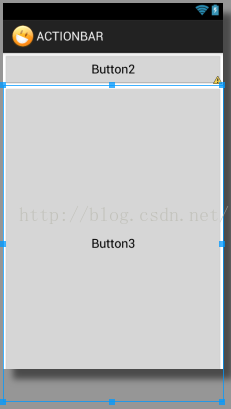
情形五:與情形四元件完全相同,只是 Button3 與 Button1 的書寫順序對調
1. 優先顯示沒有設定 layout_height 或值為 0 的元件;若兩種同時存在,則按在布局文件中的先後順序依次顯示(前提是螢幕仍有剩餘空間)。
2. 元件的書寫順序會影響最終結果。對比情形四與情形五:兩者的元件屬性完全一致,顯示順序也一樣,但情形四中的 Button3 卻超出了螢幕可視範圍。可見在混用 weight 與具體尺寸時,順序本身就是一個變量。
3. 更複雜的組合不再逐一列舉。
4. 最終建議只有一句:只要用了 layout_weight,就把對應的 layout_width 或 layout_height 設為 0dp(0px),嚴格遵循 Google 的建議。這樣的行為可預測、跨版本一致,也不會在改動其中一個元件時牽一髮動全身。
 Android 搜索框隨列表滑動漸變透明效果實作
效果原理許多 App 在滑動列表時,會讓頂部搜索框或標題欄逐漸改變透明度。當內容向上滑動時,搜索框背景從透明慢慢變為不透明;當內容回到頂部時,又恢復透明。這種效果能讓背景
 Android 設備連接 Unity Profiler 性能分析器
Unity 提供了兩種方式,讓開發者的 Android 設備連接到 Profiler 進行性能分析: 1. 通過 WiFi,讓 Android 設備和計算機處於同一個 W
 Android 自訂 View 控制項
自訂 View 概念自訂 View 可避免在 XML 中重複撰寫相同版面。以下以左右兩個 TextView 的列表項目為例。準備版面配置建立 item_list_cus_
 Picasso 源碼深度解析:從入隊到顯示的完整鏈路
Android 的圖片加載庫我用過不少:UIL、Volley、Picasso、Glide、Fresco,都是不錯的選擇。其中 Picasso 研究得稍多一些。網上關於它的