

編輯:關於 Android 程式設計
Android 的動畫體系主要分為視圖動畫(View Animation)、屬性動畫(Property Animation)與 Drawable 動畫三大類。本文聚焦最古老也最直覺的一類:視圖動畫。
視圖動畫的核心抽象類是 android.view.animation.Animation,它有五個直接子類:
動畫既可以用程式碼建立,也可以用 XML 定義。本文的範例都針對一個 TextView 操作,版面大致如下:
<RelativeLayout xmlns:android="https://schemas.android.com/apk/res/android"
    android:layout_width="match_parent"
    android:layout_height="match_parent">

    <Button
        android:layout_width="match_parent"
        android:layout_height="wrap_content"
        android:layout_alignParentBottom="true"
        android:onClick="onClick"
        android:text="開始" />

</RelativeLayout>
以下提到的各種座標系,一律以 X 軸正方向水平向右、Y 軸正方向垂直向下為前提。
// 1.0 代表完全不透明,0.0 代表完全透明
float fromAlpha = 1.0f;
float toAlpha = 0.0f;

Animation animation = new AlphaAnimation(fromAlpha, toAlpha);
animation.setDuration(3000);
textView.startAnimation(animation);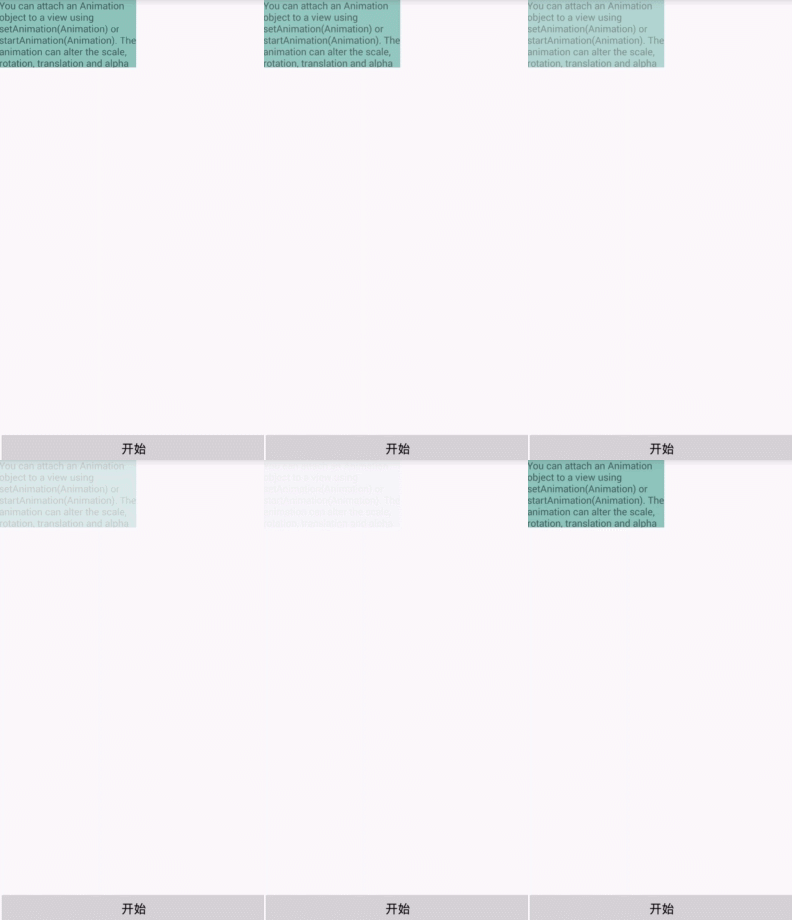
建構子只有兩個參數:fromAlpha 是動畫起始的透明度,toAlpha 是結束時的透明度。上例讓 TextView 從完全可見漸變為完全不可見,歷時三秒。
由此可歸納出視圖動畫的通用三步驟:
setDuration() 設定持續時間(毫秒)。startAnimation() 啟動。其他三種動畫流程完全相同,只有建構子參數不同。
視圖動畫的 XML 檔放在 res/anim/ 目錄下,例如 res/anim/alpha.xml:
<!-- res/anim/alpha.xml -->
<alpha xmlns:android="https://schemas.android.com/apk/res/android"
    android:duration="3000"
    android:fromAlpha="1.0"
    android:toAlpha="0.0" />
載入方式:
Animation animation = AnimationUtils.loadAnimation(this, R.anim.alpha);
textView.startAnimation(animation);
用 XML 的好處很明顯:要調參數只改資源檔、不動程式碼,可維護性更好。但如果動畫參數必須在執行期才決定,就只能回到程式碼建立。後文每個動畫都附上對應的 XML 寫法。
它有兩個常用建構子:
public TranslateAnimation(float fromXDelta, float toXDelta,
                           float fromYDelta, float toYDelta)

public TranslateAnimation(int fromXType, float fromXValue, int toXType, float toXValue,
int fromYType, float fromYValue, int toYType, float toYValue)int fromXDelta = 0;
int toXDelta = getResources().getDisplayMetrics().widthPixels / 2;
int fromYDelta = 0;
int toYDelta = 0;
Animation animation = new TranslateAnimation(fromXDelta, toXDelta, fromYDelta, toYDelta);
animation.setDuration(3000);
textView.startAnimation(animation);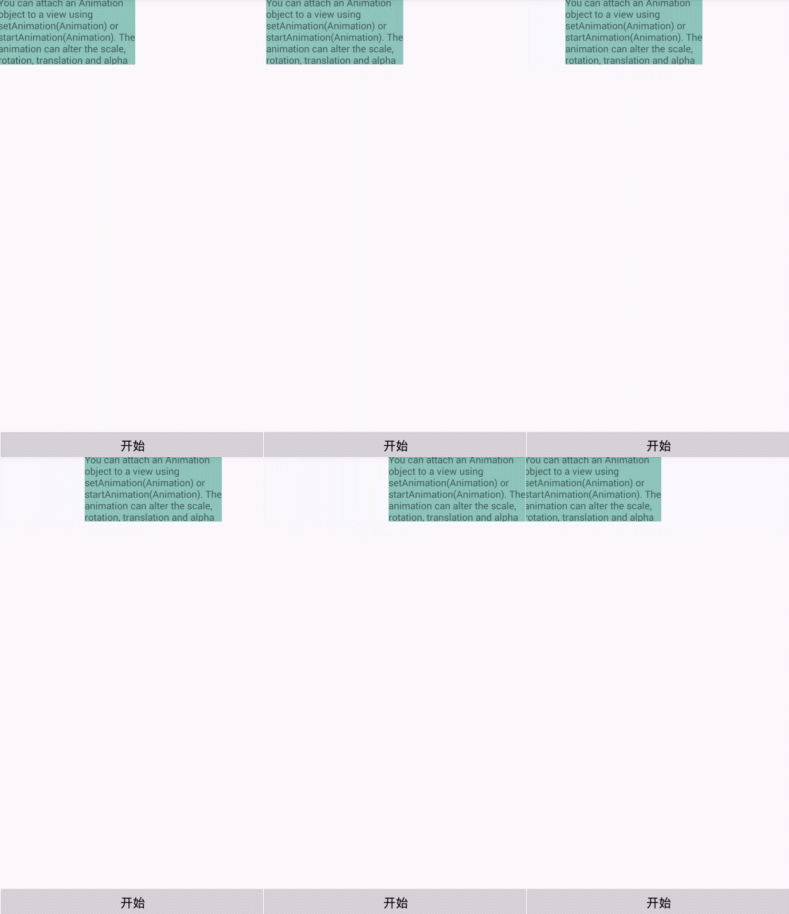
八參數版本把起始與結束的座標拆成四組(fromX / toX / fromY / toY),每組都由「類型 + 數值」構成。類型有三種:
ABSOLUTE:數值代表相對於父容器的絕對像素值。RELATIVE_TO_PARENT:數值是相對於父容器尺寸的百分比。0 代表貼齊父容器左側,0.5 代表父容器水平中線,1 代表與父容器右側重疊。RELATIVE_TO_SELF:數值是相對於自身尺寸的百分比。0 代表原位,0.5 代表向右偏移自身寬度的一半,1 代表剛好偏移自身一整個寬度。int fromXType = Animation.ABSOLUTE;
float fromXValue = textView.getX(); // 起始 X 與初始位置相同
int toXType = Animation.RELATIVE_TO_PARENT;
float toXValue = 0.5f; // 結束 X 落在父容器水平中線
int fromYType = Animation.ABSOLUTE;
float fromYValue = textView.getY(); // 起始 Y 與初始位置相同
int toYType = Animation.RELATIVE_TO_SELF;
float toYValue = 3.0f; // 結束 Y 為自身高度的三倍
Animation animation = new TranslateAnimation(
fromXType, fromXValue, toXType, toXValue,
fromYType, fromYValue, toYType, toYValue);
animation.setDuration(3000);
textView.startAnimation(animation);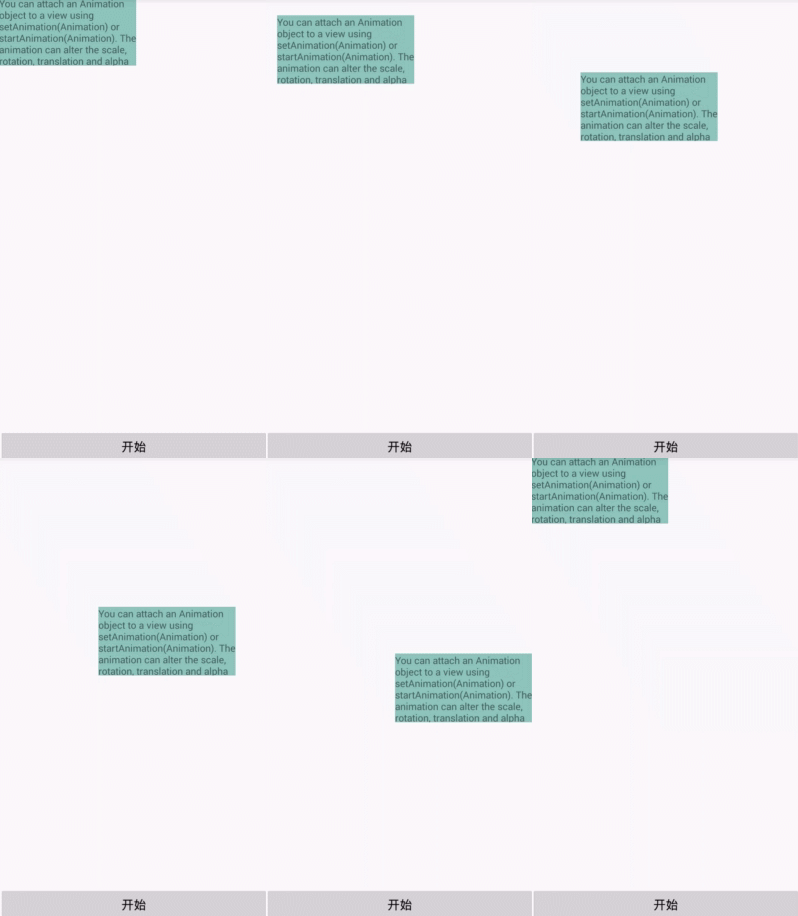
這組參數會讓 TextView 同時向右、向下滑動。
XML 中 fromXDelta 等四個屬性的寫尾決定其類型:
android:fromXDelta="0")→ 等同 ABSOLUTE。android:toXDelta="50%p")→ 等同 RELATIVE_TO_PARENT,p 是 Parent 的縮寫。android:toYDelta="300%")→ 等同 RELATIVE_TO_SELF。三個常用建構子:
public RotateAnimation(float fromDegrees, float toDegrees)

public RotateAnimation(float fromDegrees, float toDegrees,
                        float pivotX, float pivotY)

public RotateAnimation(float fromDegrees, float toDegrees,
                        int pivotXType, float pivotXValue,
int pivotYType, float pivotYValue)// 順時針旋轉 60 度,預設以 View 左上角為軸
Animation animation = new RotateAnimation(0, 60);
animation.setDuration(3000);
textView.startAnimation(animation);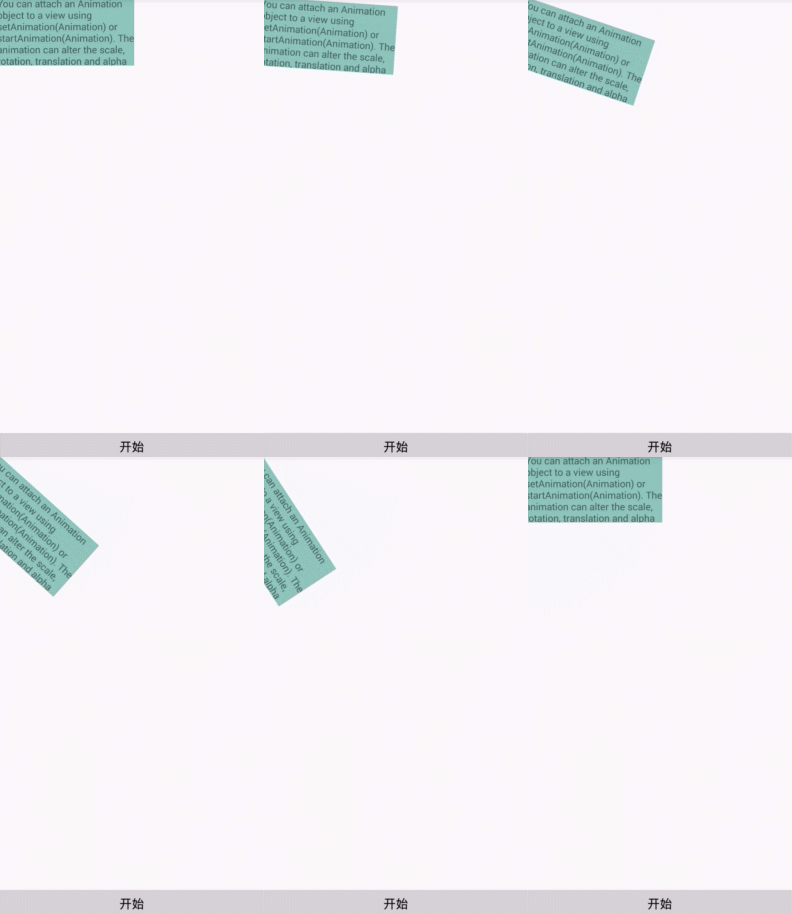
pivotX / pivotY 使用的是 View 自身的局部座標系(原點為 View 左上角):
float pivotX = textView.getWidth() / 2;
float pivotY = textView.getHeight() / 2;

Animation animation = new RotateAnimation(0, 90, pivotX, pivotY);
animation.setDuration(3000);
textView.startAnimation(animation);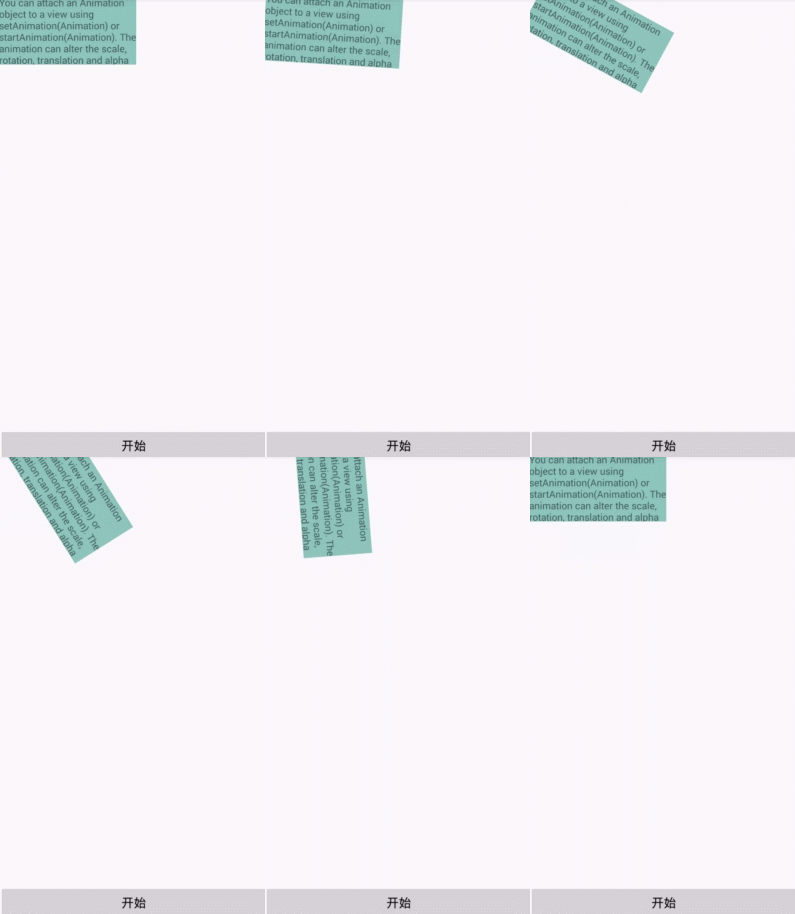
若 TextView 為 200 × 100 像素,對應 XML:
<rotate xmlns:android="https://schemas.android.com/apk/res/android"
    android:duration="3000"
    android:fromDegrees="0"
    android:toDegrees="90"
    android:pivotX="100"
android:pivotY="50" />int pivotXType = Animation.RELATIVE_TO_PARENT;
float pivotXValue = 0.5f;
int pivotYType = Animation.RELATIVE_TO_PARENT;
float pivotYValue = 0.5f;
Animation animation = new RotateAnimation(0, 360,
pivotXType, pivotXValue, pivotYType, pivotYValue);
animation.setDuration(3000);
textView.startAnimation(animation);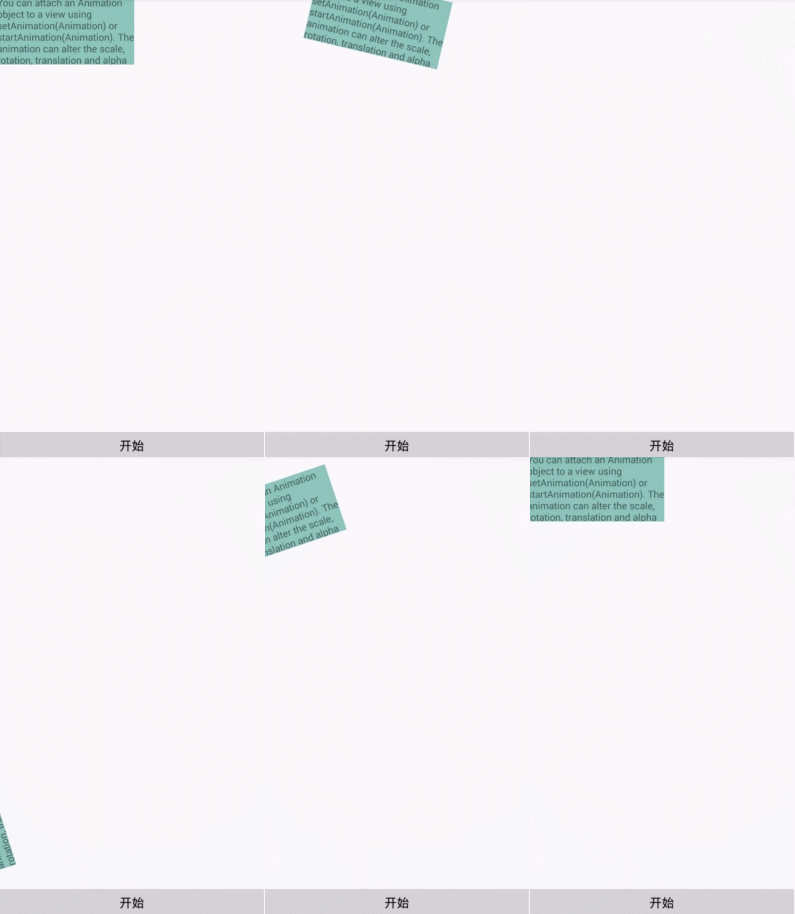
這裡以父容器 RelativeLayout 的中心作為旋轉軸,轉滿一圈。XML 寫法:
<rotate xmlns:android="https://schemas.android.com/apk/res/android"
    android:duration="3000"
    android:fromDegrees="0"
    android:toDegrees="360"
    android:pivotX="50%p"
android:pivotY="50%p" />三個常用建構子:
public ScaleAnimation(float fromXScale, float toScaleX,
                       float fromYScale, float toScaleY)

public ScaleAnimation(float fromXScale, float toScaleX,
                       float fromYScale, float toScaleY,
                       float pivotX, float pivotY)

public ScaleAnimation(float fromXScale, float toScaleX,
                       float fromYScale, float toScaleY,
                       int pivotXType, float pivotXValue,
int pivotYType, float pivotYValue)float fromXScale = 1.0f;
float toScaleX = 2.0f; // 水平方向放大一倍
float fromYScale = 1.0f;
float toScaleY = 0.5f; // 垂直方向縮為一半
Animation animation = new ScaleAnimation(fromXScale, toScaleX, fromYScale, toScaleY);
animation.setDuration(3000);
textView.startAnimation(animation);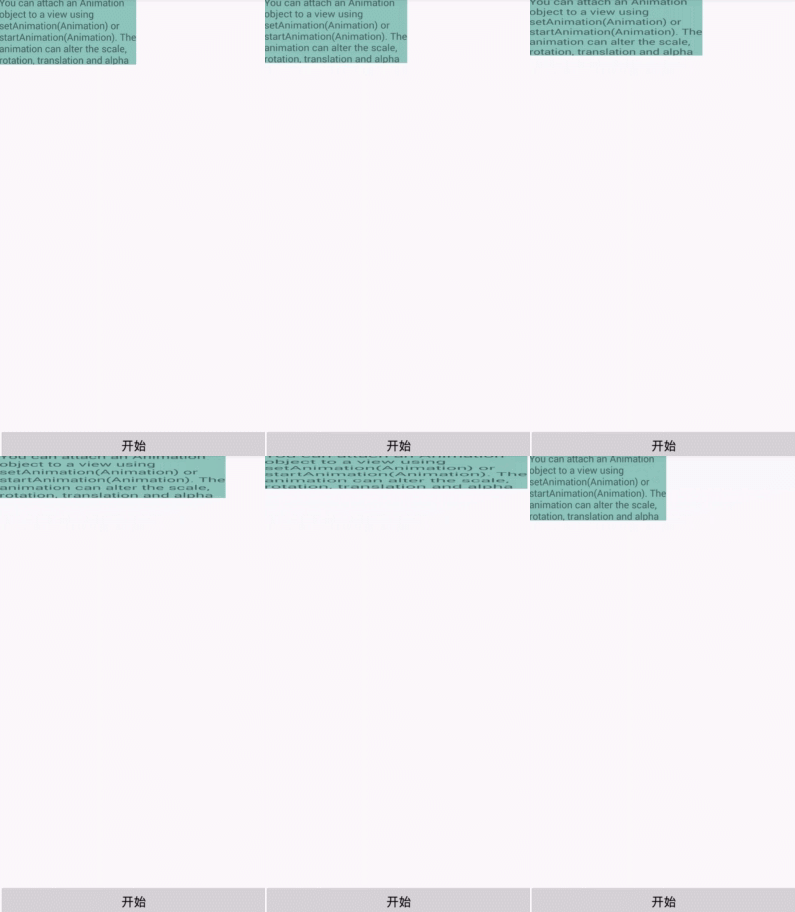
float fromXScale = 1.0f;
float toScaleX = 0.5f;
float fromYScale = 1.0f;
float toScaleY = 0.5f;
float pivotX = textView.getWidth() / 2;
float pivotY = textView.getHeight() / 2;

Animation animation = new ScaleAnimation(
        fromXScale, toScaleX, fromYScale, toScaleY, pivotX, pivotY);
animation.setDuration(3000);
textView.startAnimation(animation);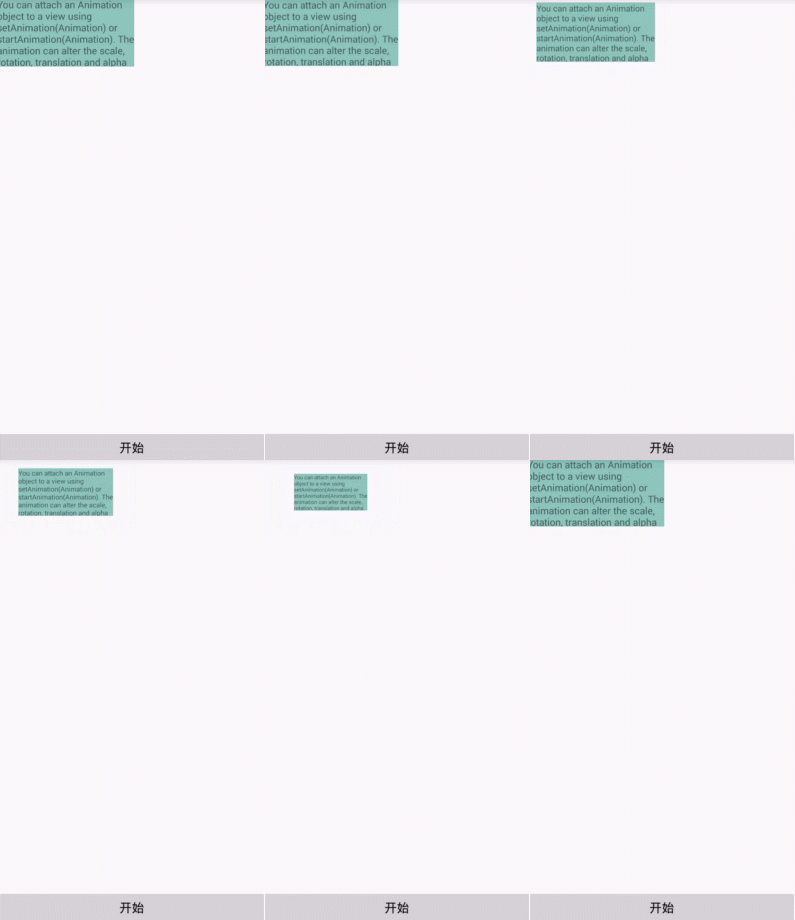
等價的 XML(假設 View 為 200 × 100):
<scale xmlns:android="https://schemas.android.com/apk/res/android"
    android:duration="3000"
    android:fromXScale="1"
    android:toXScale="0.5"
    android:fromYScale="1"
    android:toYScale="0.5"
    android:pivotX="100"
    android:pivotY="50" />
也可以用比例寫法,效果完全一樣:
int pivotXType = Animation.RELATIVE_TO_SELF;
float pivotXValue = 0.5f;
int pivotYType = Animation.RELATIVE_TO_SELF;
float pivotYValue = 0.5f;
<scale xmlns:android="https://schemas.android.com/apk/res/android"
android:duration="3000"
android:fromXScale="1"
android:toXScale="0.5"
android:fromYScale="1"
android:toYScale="0.5"
android:pivotX="50%"
android:pivotY="50%" />視圖動畫有一個很多人踩過的坑:它只改變「繪製時的視覺呈現」,並不改變 View 真正的位置、大小與點擊區域。一個按鈕位移之後,你仍然要點擊它原本的位置才會觸發事件。
如果需要真正改變屬性、或需要讓點擊區域跟著移動,請改用屬性動畫(ObjectAnimator / ValueAnimator)。此外 AnimationSet 組合多個動畫時,建議加上 setFillAfter(true),否則動畫結束後 View 會瞬間跳回原位。
 Android Scroller 與下拉刷新控制項原理解析
Android 事件攔截機制 在 Android 中,事件的傳遞與攔截和 View 樹結構密切相關。在 View 樹中,節點分為葉子節點與普通節點,普通節點只能是有子節點
 Android 源碼中的命令模式:定義、結構與 PackageManagerService 解析
寫在前面 這個系列此前已經聊過:從裝飾者模式到 Context 類族、當觀察者模式和回調機制遇上 Android 源碼、Android 源碼中的靜態工廠方法、Androi
 Android AlertDialog 多種常見用法詳解
普通對話框AlertDialog.Builder 可設定 title、message、positiveButton、negativeButton。setCancelabl
 帶你看原始碼學屬性動畫(一):相關類總覽
從 Android 3.0(API level 11)開始,Google 為平台加入了屬性動畫(Property Animation)。這是一套強大的框架,讓開發者幾乎可