

編輯:關於 Android 程式設計
在開發中,我們常常透過打印 log 來調試應用。Java 中常用 System.out.println() 在控制台輸出日誌,而 Android 則提供了專門的 Log 類,能更方便地定位程序問題。
然而 Android 官方提供的 Log 類在實際項目中並不夠好用。當程序出錯時,我們最希望日誌能直接告訴我們是哪個類的哪個方法、甚至哪一行出了問題。同時,出於安全考慮,在 app 正式上線前應該關閉日誌打印,以防他人透過 Log 破解應用。要做到日誌的靈活開關,就需要對原生 Log 類進行封裝。
此外,當程序崩潰時,我們希望能收集異常原因進行分析,因此可以把 Log 保存到文件的 SD 卡目錄中,甚至在用戶聯網時後台上傳到服務端,方便程序員排查 bug。
今天就分享一個項目中非常實用的日誌工具類 LogUtils(改自 xUtils),它能自動定位類名、方法名和行號,還支持日誌持久化。
示例:我們在 MainActivity 中調用 LogUtils 的方法,注意看行數。
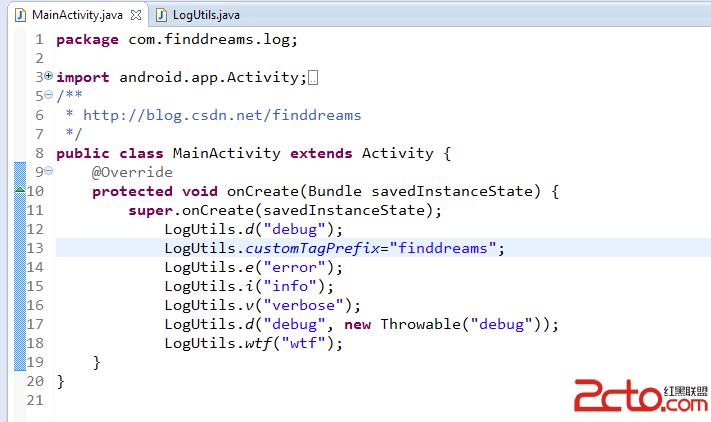
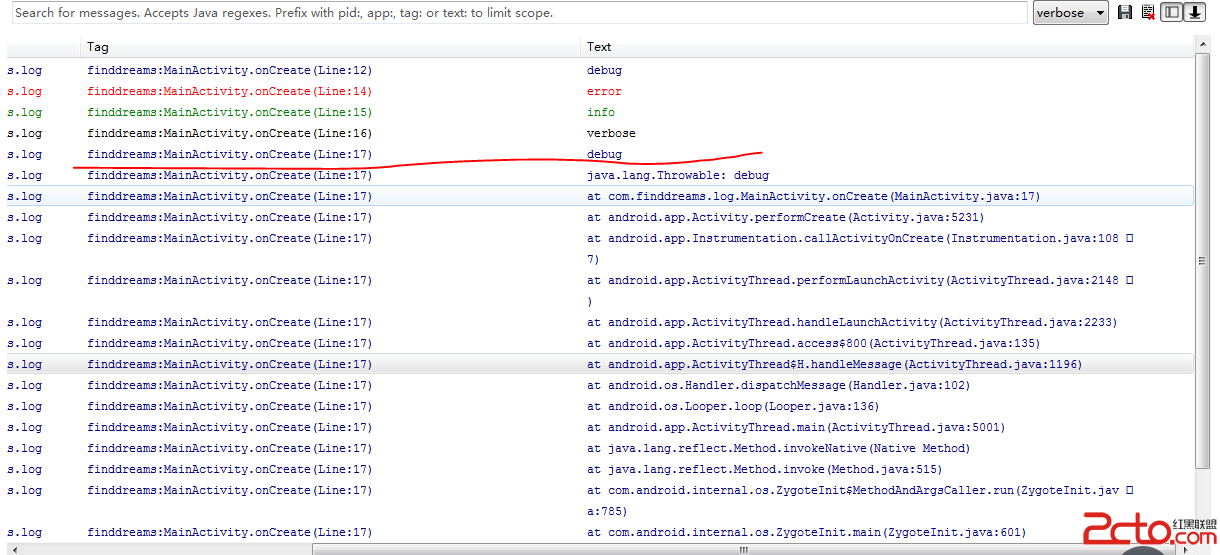
接著看看控制台打印的日誌,是否精準呈現了類名、onCreate 方法名以及當前行數:
可以透過 allowD、allowE 等開關,靈活控制各種類型日誌是否打印:
 // 容許打印的日誌類型,設為 false 則不打印
public static boolean allowD = true;
public static boolean allowE = true;
public static boolean allowI = true;
public static boolean allowV = true;
public static boolean allowW = true;
public static boolean allowWtf = true;
核心代碼如下:
 public class LogUtils {
    public static String customTagPrefix = "finddreams"; // 自定義 Tag 前綴
    private static final boolean isSaveLog = false; // 是否保存日誌到 SD 卡
    public static final String ROOT = Environment.getExternalStorageDirectory()
            .getPath() + "/finddreams/";
    private static final String PATH_LOG_INFO = ROOT + "info/";

    // 透過堆棧信息自動生成包含類名、方法名、行號的 tag
    private static String generateTag(StackTraceElement caller) {
        String tag = "%s.%s(Line:%d)";
        String callerClazzName = caller.getClassName();
        callerClazzName = callerClazzName.substring(
                callerClazzName.lastIndexOf(".") + 1);
        tag = String.format(tag, callerClazzName,
                caller.getMethodName(), caller.getLineNumber());
        tag = TextUtils.isEmpty(customTagPrefix)
                ? tag : customTagPrefix + ":" + tag;
        return tag;
    }

    // 取得調用方的堆棧元素(索引 4 對應實際調用位置)
    private static StackTraceElement getCallerStackTraceElement() {
        return Thread.currentThread().getStackTrace()[4];
    }

    public static void d(String content) {
        if (!allowD) return;
        StackTraceElement caller = getCallerStackTraceElement();
        String tag = generateTag(caller);
        Log.d(tag, content);
    }

    public static void e(String content) {
        if (!allowE) return;
        StackTraceElement caller = getCallerStackTraceElement();
        String tag = generateTag(caller);
        Log.e(tag, content);
        if (isSaveLog) {
            point(PATH_LOG_INFO, tag, content); // 持久化到文件
        }
    }

    // 將日誌按「年/月/日.log」的結構寫入文件
    public static void point(String path, String tag, String msg) {
        if (isSDAva()) {
            Date date = new Date();
            SimpleDateFormat dateFormat =
                    new SimpleDateFormat("", Locale.SIMPLIFIED_CHINESE);
            dateFormat.applyPattern("yyyy");
            path = path + dateFormat.format(date) + "/";
            dateFormat.applyPattern("MM");
            path += dateFormat.format(date) + "/";
            dateFormat.applyPattern("dd");
            path += dateFormat.format(date) + ".log";
            dateFormat.applyPattern("[yyyy-MM-dd HH:mm:ss]");
            String time = dateFormat.format(date);
            File file = new File(path);
            if (!file.exists()) createDipPath(path);
            BufferedWriter out = null;
            try {
                out = new BufferedWriter(new OutputStreamWriter(
                        new FileOutputStream(file, true)));
                out.write(time + " " + tag + " " + msg + "\r\n");
            } catch (Exception e) {
                e.printStackTrace();
            } finally {
                try {
                    if (out != null) out.close();
                } catch (IOException e) {
                    e.printStackTrace();
                }
            }
        }
    }

    // 遞歸創建文件路徑
    public static void createDipPath(String file) {
        String parentFile = file.substring(0, file.lastIndexOf("/"));
        File file1 = new File(file);
        File parent = new File(parentFile);
        if (!file1.exists()) {
            parent.mkdirs();
            try {
                file1.createNewFile();
            } catch (IOException e) {
                e.printStackTrace();
            }
        }
    }

    // 判斷 SD 卡是否可用
    public static boolean isSDAva() {
        return Environment.getExternalStorageState()
                .equals(Environment.MEDIA_MOUNTED)
                || Environment.getExternalStorageDirectory().exists();
    }
}
透過 LogUtils,我們不僅能在控制台看到帶有完整定位信息的日誌,還能在崩潰時將日誌持久化保存,極大提升了排查問題的效率。
 自定義 View 實戰:仿一號店垂直滾動廣告條
效果預覽(GIF 略卡,原程序運行流暢) 實現步驟: 聲明變量 → 初始化畫筆、文本大小與坐標 → onMeasure() 適配 wrap_content 的寬高 →
 Android 音樂播放器(二):清單界面、播放控制與斜切轉場動畫
寫程式的過程中想法總在變,同一個功能常常糾結於「哪一種做法更好」。這個音樂播放器原本規劃把歌單頁與歌詞頁放進同一個 Activity 的兩個 Fragment,靠左右滑動
 Android Fragment 元件入門
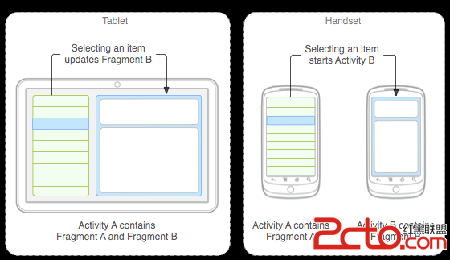
Fragment 是什麼Fragment 代表 Activity 中的一部分行為或介面。它能被嵌入 Activity,擁有自己的生命週期與輸入事件,也能在執行時被新增、移
 開發隨筆:會議室推薦邏輯與介面優化
前言這篇開發隨筆整理一個會議室預訂專案在優化過程中的幾個重點,包括介面間距微調、雙 Cursor 查詢、推薦邏輯簡化,以及 Android Studio 外掛安裝。雖然都