

編輯:關於 Android 程式設計
先上效果圖:
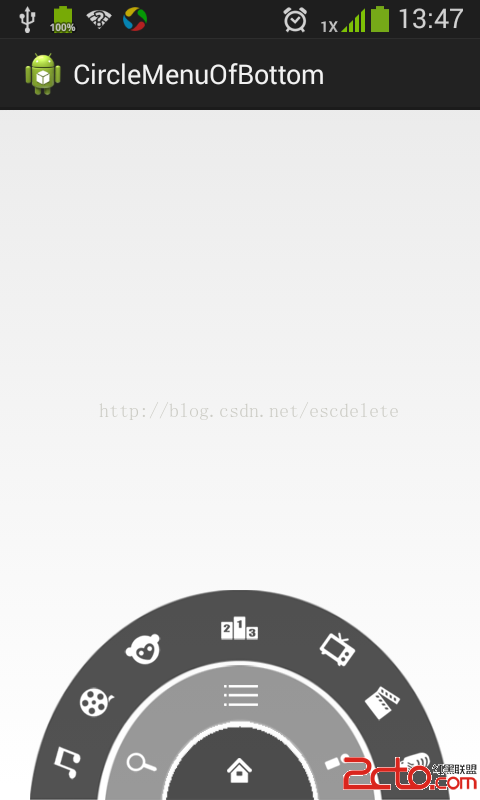
最外層佈局很樸素,就是一個撐滿父容器的 RelativeLayout:
<RelativeLayout
    xmlns:android="https://schemas.android.com/apk/res/android"
    xmlns:tools="https://schemas.android.com/tools"
    android:layout_width="match_parent"
    android:layout_height="match_parent">
</RelativeLayout>
環形菜單的進場與退場本質上是旋轉,因此封裝成一個工具類,並預留延時參數,方便多層菜單錯開播放:
package com.example.circlemenuofbottom.anim;

import android.view.animation.RotateAnimation;
import android.widget.RelativeLayout;

/**
 * 環形菜單動畫工具
 */
public class MyAnimationUtils {

    /** 退場動畫:順時針轉出 */
    public static void animaOut(RelativeLayout view) {
        animaOut(view, 0);
    }

    /** 進場動畫:逆時針轉入 */
    public static void animaIn(RelativeLayout view) {
        animaIn(view, 0);
    }

    /** 退場動畫:順時針轉出,可指定延時 */
    public static void animaOut(RelativeLayout view, int offSetTime) {
        RotateAnimation animation = new RotateAnimation(
                0, 180, view.getWidth() / 2, view.getHeight());
        animation.setDuration(500);
        animation.setStartOffset(offSetTime);
        animation.setFillAfter(true);
        view.startAnimation(animation);
    }

    /** 進場動畫:逆時針轉入,可指定延時 */
    public static void animaIn(RelativeLayout view, int offSetTime) {
        RotateAnimation animation = new RotateAnimation(
                -180, -360, view.getWidth() / 2, view.getHeight());
        animation.setDuration(500);
        animation.setStartOffset(offSetTime);
        animation.setFillAfter(true);
        view.startAnimation(animation);
    }
}
這裡有個細節值得留意:旋轉的軸心取 view.getWidth() / 2 與 view.getHeight(),也就是把菜單擺在底部扇形展開的效果來源。
菜單鍵負責一級、二級菜單的顯示與隱藏;返回鍵則做成「再按一次退出」,避免誤觸:
/** 監聽菜單鍵:切換一級、二級菜單的顯示與隱藏 */
/** 監聽返回鍵:再按一次退出程式 */
private long exitTime = 0;

@Override
public boolean onKeyDown(int keyCode, KeyEvent event) {
    // 菜單鍵處理
    if (event.getAction() == KeyEvent.ACTION_DOWN
            && keyCode == KeyEvent.KEYCODE_MENU) {

        if (isShowLevel1) {
            // 一級菜單已顯示,全部收起
            MyAnimationUtils.animaOut(level);
            isShowLevel1 = false;

            if (isShowLevel2) {
                MyAnimationUtils.animaOut(level2, 120);
                isShowLevel2 = false;

                if (isShowLevel3) {
                    MyAnimationUtils.animaOut(level3, 120);
                    isShowLevel3 = false;
                }
            }
        } else {
            // 一級菜單隱藏中,展開一、二級菜單
            MyAnimationUtils.animaIn(level);
            MyAnimationUtils.animaIn(level2, 120);
            isShowLevel1 = true;
            isShowLevel2 = true;
        }
    }

    // 返回鍵:兩秒內再按一次才退出
    if (event.getAction() == KeyEvent.ACTION_DOWN
            && keyCode == KeyEvent.KEYCODE_BACK) {
        if (System.currentTimeMillis() - exitTime > 2000) {
            Toast.makeText(this, "再按一次返回鍵退出", Toast.LENGTH_SHORT).show();
            exitTime = System.currentTimeMillis();
        } else {
            finish();
            System.exit(0);
        }
        return true;
    }

    return super.onKeyDown(keyCode, event);
}
三個要點:一是用 120 毫秒的 startOffset 讓二、三級菜單依次錯開出現,視覺上更有層次;二是每層菜單用獨立的狀態標誌記錄開合,避免狀態錯亂;三是返回鍵攔截後返回 true,並以兩秒時間窗判斷是否真的退出。
 Android Fragment 嵌套報錯解析
在 Fragment 中嵌套另一個 Fragment 時,若在構造函數中取得 getChildFragmentManager,常會引發錯誤。原因在於此時 Fragment
 Android Touch 事件傳遞解析:三個方法與回傳值
事件傳遞的核心方法在 Android 中,與 TouchEvent 最相關的方法有三個:dispatchTouchEvent、onInterceptTouchEvent
 Android 4.4.2 KK 豎屏強制更改為橫屏的初步簡略方案
解決方案: 當前方案是針對「豎屏強制更改為橫屏」這一具體問題場景所做的改動,本質上屬於 hardcode 定義的狀態,總共修改有效代碼 5 行。如果後續有其他需求,或需要
 Android Studio 如何修改快捷鍵
在 Android Studio 中,如果你嫌某個快捷鍵太複雜、想改一改,該怎麼辦呢?第一步得先找到它——但偏偏 Android Studio 搜索快捷鍵有個 bug:你