

編輯:關於 Android 程式設計
Android 的動畫體系有三套並存:View 動畫(Tween)、Drawable 動畫(逐幀)與屬性動畫(Property Animation)。它們的適用場景完全不同,選錯了會很痛苦。本文把三者的 XML 屬性與程式碼用法整理成速查筆記。
View 動畫只改變「繪製時的變換矩陣」,並不改變 View 本身的屬性,所以點擊事件區域不會跟著動——這是最容易踩的坑。
常用屬性:
<!--
android:duration     執行時間(毫秒)
android:fillAfter    動畫結束後停留在結束位置
android:repeatCount  重複次數,-1 表示無限
android:startOffset  延遲多久開始
-->如果 set 是父標籤,子標籤上設的 android:fillAfter="true" 是無效的。同理,與 set 組合動畫一起使用時,translate 上的 fillAfter 也不會生效。
<set xmlns:android="https://schemas.android.com/apk/res/android">
    <rotate android:duration="1000"
        android:fromDegrees="0"
        android:toDegrees="+360"
        android:interpolator="@android:anim/linear_interpolator"
        android:pivotX="50%"
        android:pivotY="50%"
        android:repeatCount="-1"
        android:repeatMode="restart"
        android:startOffset="-1" />
    <scale android:duration="1000"
        android:fromXScale="1.0"
        android:fromYScale="1.0"
        android:toXScale="0.5"
        android:toYScale="0.5"
        android:pivotX="50%"
        android:pivotY="50%" />
</set>fromDegrees 與 toDegrees 為負數代表逆時針,正數代表順時針。
pivotX / pivotY 決定旋轉中心,支援三種寫法:純數值(如 50,表示左上角加 50px)、百分比(50% 表示自身寬高的 50%)、百分比 p(50%p 表示父容器寬高的 50%)。
比例值 0.0 表示縮到看不見,1.0 表示正常大小,小於 1 是縮小,大於 1 是放大。
若沒有指定 fromXType / toXType / fromYType / toYType,預設以自己為相對參照物。
定義動畫的變化率,直接決定手感:
restart 表示每次都從頭重放,reverse 表示來回反覆。
程式碼中載入並啟動:
Animation anim = AnimationUtils.loadAnimation(this, R.anim.list1);
setBtn.startAnimation(anim);本質是把一系列圖片按時間順序播放,適合做 loading 這類簡單序列。
<animation-list xmlns:android="https://schemas.android.com/apk/res/android">
    <item android:drawable="@drawable/amp1" android:duration="200" />
    <item android:drawable="@drawable/amp2" android:duration="200" />
    <item android:drawable="@drawable/amp3" android:duration="200" />
</animation-list>

// 使用
drawableAnimBtn.setBackgroundResource(R.anim.drawable_anim);
AnimationDrawable drawableAnimation = (AnimationDrawable) drawableAnimBtn.getBackground();
drawableAnimation.start();關鍵注意:AnimationDrawable 的 start() 不能寫在 onCreate 裡,因為此時它還沒完全 attach 到 window 上,會沒有反應。最合適的時機是 onWindowFocusChanged()。
屬性動畫真正改變物件的屬性值,能解決 View 動畫「事件區域不跟著動」的根本問題,也是官方推薦的方向。
<set xmlns:android="https://schemas.android.com/apk/res/android"
    android:ordering="together">
    <objectAnimator android:propertyName="scaleX"
        android:valueFrom="1.0" android:valueTo="2.0"
        android:duration="1000" />
</set>

// 載入
Animator anim = AnimatorInflater.loadAnimator(this, R.animator.scaleX_Y);
anim.setTarget(mMv);
anim.start();
set 的 ordering 決定子動畫的執行順序:together(預設,同時執行)或 sequentially(依序執行)。注意 valueFrom 與 valueTo 是倍率關係而非絕對值。
// propertyName 常用值:
// translationX/Y  相對自身位移
// x / y           相對螢幕左上角位移
// alpha           透明度
// rotation        相對中心旋轉
// rotationX / Y   相對 X / Y 軸旋轉
// scaleX / Y      相對 X / Y 軸縮放
ObjectAnimator anim = ObjectAnimator.ofFloat(view, "rotation", 1.0F, 360F)
        .setDuration(1000);
anim.setRepeatCount(-1);
anim.start();

// ofFloat 是可變參數,可以塞更多關鍵幀
ObjectAnimator.ofFloat(view, "alpha", 1.0f, 0.85f, 0.65f, 0.45f, 0.35f, 0.15f);
也可以不指定屬性名,改在 addUpdateListener 中自行取值套用:
ObjectAnimator animator = ObjectAnimator.ofInt(mView, "lxcay", 800);
animator.addUpdateListener(new AnimatorUpdateListener() {
    @Override public void onAnimationUpdate(ValueAnimator animation) {
        Integer value = (Integer) animation.getAnimatedValue();
        mView.setAlpha(value);
        mView.setScaleX(value);
        mView.setScaleY(value);
        mView.setTranslationX(value);
        mView.setTranslationY(value);
    }
});
animator.setInterpolator(new BounceInterpolator());
animator.setDuration(3000);
animator.start();不指定 propertyName,必須搭配 addUpdateListener 才有意義。
int startColor = 0xffff0000;
int endColor = 0xff00ff00;
ValueAnimator animator = ValueAnimator.ofArgb(startColor, endColor);
animator.setTarget(mTextView);
animator.addUpdateListener(new AnimatorUpdateListener() {
    @Override public void onAnimationUpdate(ValueAnimator animation) {
        mTextView.setBackgroundColor((Integer) animation.getAnimatedValue());
    }
});
animator.setDuration(3000);
animator.start();
搭配螢幕尺寸做位移:
DisplayMetrics outMetrics = new DisplayMetrics();
getWindowManager().getDefaultDisplay().getMetrics(outMetrics);
int mScreenHeight = outMetrics.heightPixels;

ValueAnimator animator = ValueAnimator.ofFloat(0, mScreenHeight - mView.getHeight() * 4);
animator.setTarget(mBlueBall);
animator.setDuration(1000);
animator.setInterpolator(new OvershootInterpolator());
animator.addUpdateListener(new AnimatorUpdateListener() {
    @Override public void onAnimationUpdate(ValueAnimator animation) {
        mBlueBall.setTranslationY((Float) animation.getAnimatedValue());
    }
});
animator.start();ObjectAnimator anim1 = ObjectAnimator.ofFloat(mViwe, "scaleX", 1.0f, 2f);
ObjectAnimator anim2 = ObjectAnimator.ofFloat(mViwe, "scaleY", 1.0f, 2f);
ObjectAnimator anim3 = ObjectAnimator.ofFloat(mViwe, "x", cx, 0f);
ObjectAnimator anim4 = ObjectAnimator.ofFloat(mViwe, "x", cx);
ObjectAnimator anim5 = ObjectAnimator.ofFloat(mViwe, "scaleX", 2f, 1.0f);
ObjectAnimator anim6 = ObjectAnimator.ofFloat(mViwe, "scaleY", 2f, 1.0f);
AnimatorSet animSet = new AnimatorSet();
animSet.play(anim1).with(anim2);
animSet.play(anim2).with(anim3);
animSet.play(anim4).after(anim3);
animSet.play(anim5).with(anim6);
animSet.play(anim6).after(anim4);
animSet.setDuration(100);
animSet.start();PropertyValuesHolder pvhAlpha = PropertyValuesHolder.ofFloat("alpha", 1f, 0f, 1f);
PropertyValuesHolder pvhScaleX = PropertyValuesHolder.ofFloat("scaleX", 1f, 0, 1f);
PropertyValuesHolder pvhScaleY = PropertyValuesHolder.ofFloat("scaleY", 1f, 0, 1f);
ObjectAnimator animator = ObjectAnimator
.ofPropertyValuesHolder(mView, pvhAlpha, pvhScaleX, pvhScaleY)
.setDuration(2000);
animator.start();ObjectAnimator animation = ObjectAnimator.ofFloat(mBlueBall, "alpha", 0.5f);
animation.addListener(new AnimatorListenerAdapter() {
@Override public void onAnimationEnd(Animator animation) {
ViewGroup parent = (ViewGroup) mView.getParent();
if (parent != null) {
parent.removeView(mView);
}
}
});
animation.start();Android 3.1 以上提供了更簡潔的鏈式 API:
mTextView.animate()
        .x(500).y(500)
        .setDuration(5000)
        .setInterpolator(new BounceInterpolator());
雖然程式碼裡沒寫 start(),但它會在內部隱式啟動。如果只是做簡單的位移、縮放、透明度變化,這個寫法最俐落。
 無線點餐系統資料庫設計:MySQL 表結構規劃
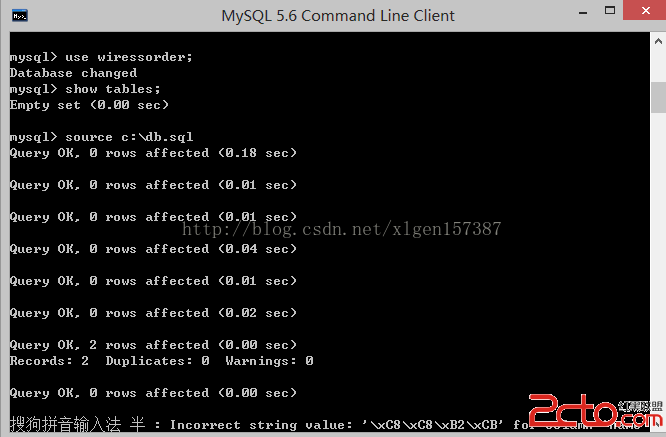
無線點餐系統的資料庫設計,需要涵蓋使用者、餐桌、菜單分類、菜單、訂單與訂單明細。 主要資料表 usertbl 保存帳號、密碼與權限;tabletbl 記錄餐桌狀態;men
 Android 用戶頭像更換功能的完整實現流程
你可能覺得更換頭像很簡單——對使用者而言,在微信上換個頭像不過是點擊頭像、選擇拍照或相冊、裁剪返回而已。但對程序員來說,要完整實現這套流程其實頗費功夫。本文就來梳理一下頭
 Android SurfaceView 抽獎轉盤全流程實作
SurfaceView 與一般 View 的差異 SurfaceView 適合需要高頻率重繪的場景,例如遊戲或動畫。它與一般 View 最大的不同在於繪製可發生在獨立執行
 Dagger2 入門:從零理解 Android 依賴注入
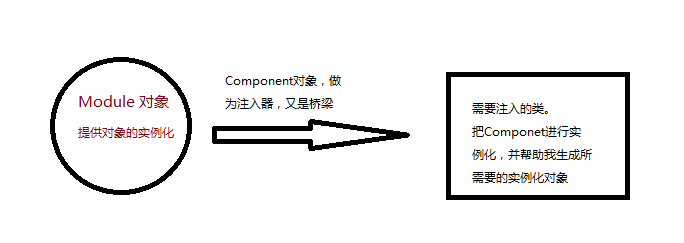
依賴注入(Dependency Injection)的意思其實很朴素:調用者需要的另一個物件,不在自己內部 new 出來,而是由外部傳進來,如此一來各類別之間的耦合就降低