

編輯:關於 Android 程式設計

自定義 Toast 的原理與自定義其他控件類似:先搞清楚系統默認是怎麼做的,再從中找切入點。本文先拆源碼,再封裝一個實用工具類。
Toast 有兩種顯示方式。最常見的是 Toast.makeText(),源碼如下:
public static Toast makeText(Context context, CharSequence text, @Duration int duration) {
    Toast result = new Toast(context);
    LayoutInflater inflate = (LayoutInflater)
            context.getSystemService(Context.LAYOUT_INFLATER_SERVICE);
    View v = inflate.inflate(com.android.internal.R.layout.transient_notification, null);
    TextView tv = (TextView) v.findViewById(com.android.internal.R.id.message);
    tv.setText(text);
    result.mNextView = v;
    result.mDuration = duration;
    return result;
}
關鍵在 transient_notification 這個系統布局:
<LinearLayout xmlns:android="https://schemas.android.com/apk/res/android"
    android:background="?android:attr/toastFrameBackground"
    android:layout_width="match_parent"
    android:layout_height="match_parent"
    android:orientation="vertical">

    <TextView
        android:id="@android:id/message"
        android:layout_gravity="center_horizontal"
        android:layout_width="wrap_content"
        android:layout_height="wrap_content"
        android:layout_weight="1"
        android:shadowColor="#BB000000"
        android:shadowRadius="2.75"
        android:textAppearance="@style/TextAppearance.Toast"
        android:textColor="@color/bright_foreground_dark" />
</LinearLayout>
所以想改文字樣式,本質上就是改這個根布局的背景和 message 這個 TextView。
第二種方式是完全自定義:new 一個 Toast 物件,然後呼叫 setView(),此時不會載入 transient_notification。
思路是保留默認布局的情況下盡量覆用同一個 Toast 物件,避免連續呼叫 show() 時排隊顯示。
public class ToastUtil {

    private Toast toast;
    private LinearLayout toastView;

    /** 修改原布局的 Toast */
    public ToastUtil() { }

    /** 完全自定義布局 */
    public ToastUtil(Context context, View view, int duration) {
        toast = new Toast(context);
        toast.setView(view);
        toast.setDuration(duration);
    }

    /** 向 Toast 中添加自定義 view */
    public ToastUtil addView(View view, int postion) {
        toastView = (LinearLayout) toast.getView();
        toastView.addView(view, postion);
        return this;
    }

    /** 設置字體及背景顏色 */
    public ToastUtil setToastColor(int messageColor, int backgroundColor) {
        View view = toast.getView();
        if (view != null) {
            TextView message = (TextView) view.findViewById(android.R.id.message);
            message.setBackgroundColor(backgroundColor);
            message.setTextColor(messageColor);
        }
        return this;
    }

    /** 設置字體顏色及背景 Drawable */
    public ToastUtil setToastBackground(int messageColor, int background) {
        View view = toast.getView();
        if (view != null) {
            TextView message = (TextView) view.findViewById(android.R.id.message);
            message.setBackgroundResource(background);
            message.setTextColor(messageColor);
        }
        return this;
    }

    /** 短時間顯示 */
    public ToastUtil Short(Context context, CharSequence message) {
        if (toast == null || (toastView != null && toastView.getChildCount() > 1)) {
            toast = Toast.makeText(context, message, Toast.LENGTH_SHORT);
            toastView = null;
        } else {
            toast.setText(message);
            toast.setDuration(Toast.LENGTH_SHORT);
        }
        return this;
    }

    /** 短時間顯示(資源 ID 版本) */
    public ToastUtil Short(Context context, int message) {
        if (toast == null || (toastView != null && toastView.getChildCount() > 1)) {
            toast = Toast.makeText(context, message, Toast.LENGTH_SHORT);
            toastView = null;
        } else {
            toast.setText(message);
            toast.setDuration(Toast.LENGTH_SHORT);
        }
        return this;
    }

    /** 長時間顯示 */
    public ToastUtil Long(Context context, CharSequence message) {
        if (toast == null || (toastView != null && toastView.getChildCount() > 1)) {
            toast = Toast.makeText(context, message, Toast.LENGTH_LONG);
            toastView = null;
        } else {
            toast.setText(message);
            toast.setDuration(Toast.LENGTH_LONG);
        }
        return this;
    }

    /** 自定義顯示時間 */
    public ToastUtil Indefinite(Context context, CharSequence message, int duration) {
        if (toast == null || (toastView != null && toastView.getChildCount() > 1)) {
            toast = Toast.makeText(context, message, duration);
            toastView = null;
        } else {
            toast.setText(message);
            toast.setDuration(duration);
        }
        return this;
    }

    public ToastUtil show() {
        toast.show();
        return this;
    }

    public Toast getToast() {
        return toast;
    }
}ToastUtil toastUtil = new ToastUtil();
toastUtil.Short(MainActivity.this, "自定義 message 字體、背景色")
.setToastColor(Color.WHITE, getResources().getColor(R.color.colorAccent))
.show();
方形 Toast 看起來有點呆板,自定義一個 shape 就圓潤多了:
<shape xmlns:android="https://schemas.android.com/apk/res/android"
    android:shape="rectangle">
    <solid android:color="#ffc107" />
    <corners android:radius="20dip" />
</shape>
toastUtil.Short(MainActivity.this, "自定義 message 字體顏色和背景")
.setToastBackground(Color.WHITE, R.drawable.toast_radius)
.show();
官方認為 Toast 與 Snackbar 都應該是純文字,不該包含圖標。不過實務上加個小圖示視覺效果確實更活潑:
ImageView toastImage = new ImageView(getApplicationContext());
toastImage.setImageResource(R.mipmap.ic_launcher);
toastUtil.Short(MainActivity.this, "向 Toast 添加了一個 ImageView")
        .setToastBackground(Color.WHITE, R.drawable.toast_radius)
        .addView(toastImage, 0)
.show();View view = LayoutInflater.from(MainActivity.this).inflate(R.layout.image, null);
new ToastUtil(MainActivity.this, view, Toast.LENGTH_SHORT).show();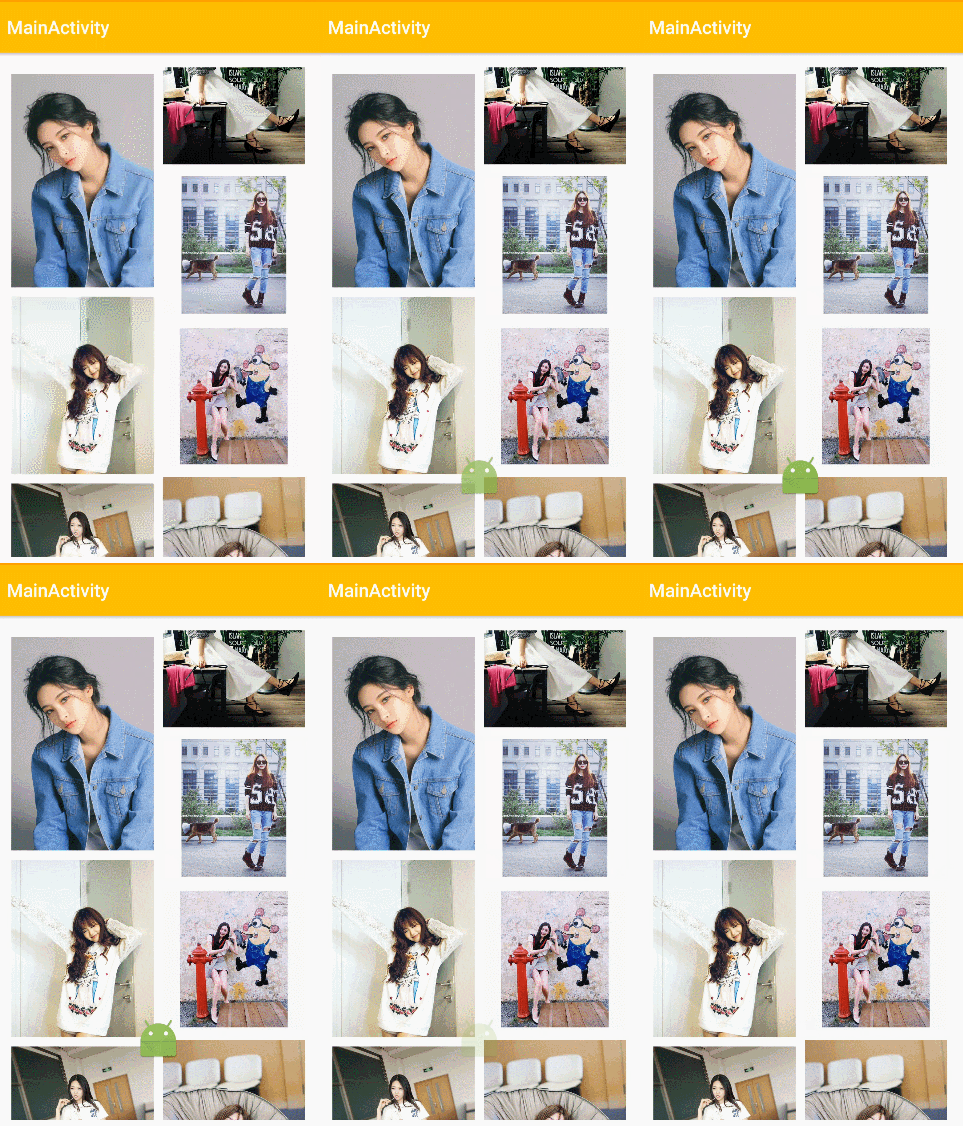
連續呼叫 show() 時,Toast 會一個接一個排隊展示,體驗不佳。工具類中的判斷邏輯就是為了解決這件事:若 toast 尚未建立,或已被加進額外的 view,就重新 new 一個;否則只更新文字與顯示時長,讓它原地刷新。

這個工具類並非完美終稿,實際接入時還要依專案需求微調——例如加上全局的黑暗模式適配、或針對 Android 高版本的 Toast 限制做相容處理。核心思路不變:先看源碼確認可操作的入口,再從最小改動開始擴展。
 ToggleButton 開關按鈕控件的使用方法
ToggleButton 是一個帶有開/關狀態切換的按鈕控件,本文整理它的基本用法。 一、簡介 從類結構來看,ToggleButton 的父類是 CompoundBut
 ViewPager 引導頁最後一頁左滑跳轉主頁面的完整實現
引導頁的收尾交互通常是這樣:滑到最後一頁,再往左一推,就進入主界面。實現它需要兩個監聽配合。 addOnPageChangeListener:用來實時掌握當前頁序(pos
 Universal-Image-Loader 完全解析:從使用到源碼的圖片加載框架全攻略
做 Android 的過程中,幾乎每個人都要面對異步加載圖片這件事,尤其是列表裡一次性載入幾十上百張圖的時候。圖片加載從來不是「new 一個 Bitmap 塞進 Imag
 Android FakeID 簽名漏洞原理與防禦解析
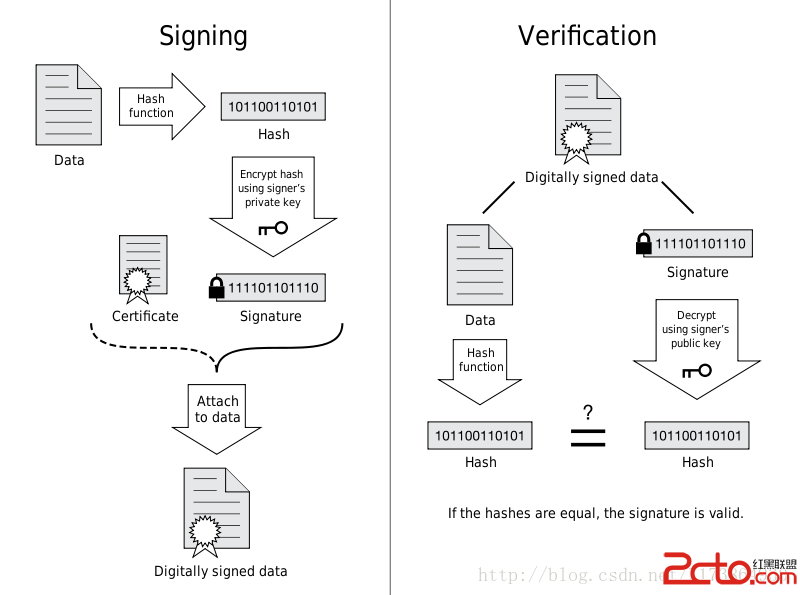
FakeID 是 Android 早期簽名驗證機制中的一個重要安全議題。它與 APK 簽名、證書鏈以及系統如何判斷應用身份有關。理解這個漏洞,有助於開發者建立更安全的簽名