

編輯:關於 Android 程式設計
透明狀態欄是 API 19(Android 4.4)之後才有的能力,低版本並不支援。實作上大致分成兩條路:直接在程式碼裡加旗標,或是在主題樣式中宣告。
if (Build.VERSION.SDK_INT >= Build.VERSION_CODES.KITKAT) {
    // 透明狀態欄
    getWindow().addFlags(WindowManager.LayoutParams.FLAG_TRANSLUCENT_STATUS);
    // 透明導覽欄
    getWindow().addFlags(WindowManager.LayoutParams.FLAG_TRANSLUCENT_NAVIGATION);
}
這樣寫的副作用是:視圖會被系統狀態欄的高度往上推,導致版面被遮掉一塊。解法是在配置檔中補上兩個屬性:
<RelativeLayout
    xmlns:android="https://schemas.android.com/apk/res/android"
    xmlns:tools="https://schemas.android.com/tools"
    android:layout_width="match_parent"
    android:layout_height="match_parent"
    android:fitsSystemWindows="true"
    android:clipToPadding="true"
    android:paddingLeft="@dimen/activity_horizontal_margin"
    android:paddingRight="@dimen/activity_horizontal_margin"
    android:paddingTop="@dimen/activity_vertical_margin"
    android:paddingBottom="@dimen/activity_vertical_margin"
    tools:context=".MainActivity">
</RelativeLayout>android:fitsSystemWindows:決定配置時是否要把系統視窗(例如狀態欄)的高度計算進去。設為 true 時,系統會自動調整可用區域,讓自訂版面避開狀態欄——這正是自訂標題欄時常見的需求。
android:clipToPadding:控制 ViewGroup 是否允許在 padding 區域內繪製子檢視,預設為 true(不允許)。
系統內建了三組現成的半透明裝飾主題,任選其一即可:
android:theme="@android:style/Theme.DeviceDefault.Light.NoActionBar.TranslucentDecor"
android:theme="@android:style/Theme.Holo.Light.NoActionBar.TranslucentDecor"
android:theme="@android:style/Theme.Holo.NoActionBar.TranslucentDecor"
若你使用自訂主題,則在 values-19 目錄下的樣式中補上兩個項目,讓它只在 API 19 以上生效:
<style name="AppBaseTheme" parent="android:Theme.Holo.Light.DarkActionBar">
    <!-- API 19 的主題客製化 -->
    <item name="android:windowTranslucentStatus">true</item>
    <item name="android:windowTranslucentNavigation">true</item>
</style>
兩種做法效果相近,差別在於彈性:旗標方式可以對單一 Activity 動態開關,主題方式則一次套用到整個視窗,較為省事。
 Android 透明狀態欄與導航欄設計:4.4 到 5.0 實作解析
自 Android 4.4 與 5.0 之後,越來越多應用會把狀態欄或導航欄設計成透明、半透明,或讓其顏色與 App 主題一致。這類效果能提升視覺完整性,但需要理解 An
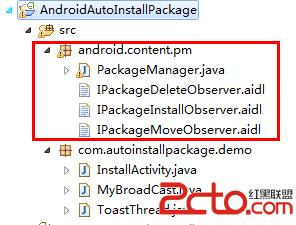 在 Android 中實現靜默安裝與卸載應用的兩種方案
不知不覺又一段時間沒更新部落格了,一方面是工作比較繁忙,另一方面是前陣子一直在折騰 Android 源碼的下載(這段經歷後續會專門写一篇記錄,確實挺有收穫)。那麼今天聊點
 Android 流量監測的實作原理解析
要在 Android 上做流量統計,理解底層原理比直接呼叫 API 更有幫助——因為 API 只給了你數字,原理才能告訴你數字為什麼會「歸零」。 核心前提:一切資訊都是
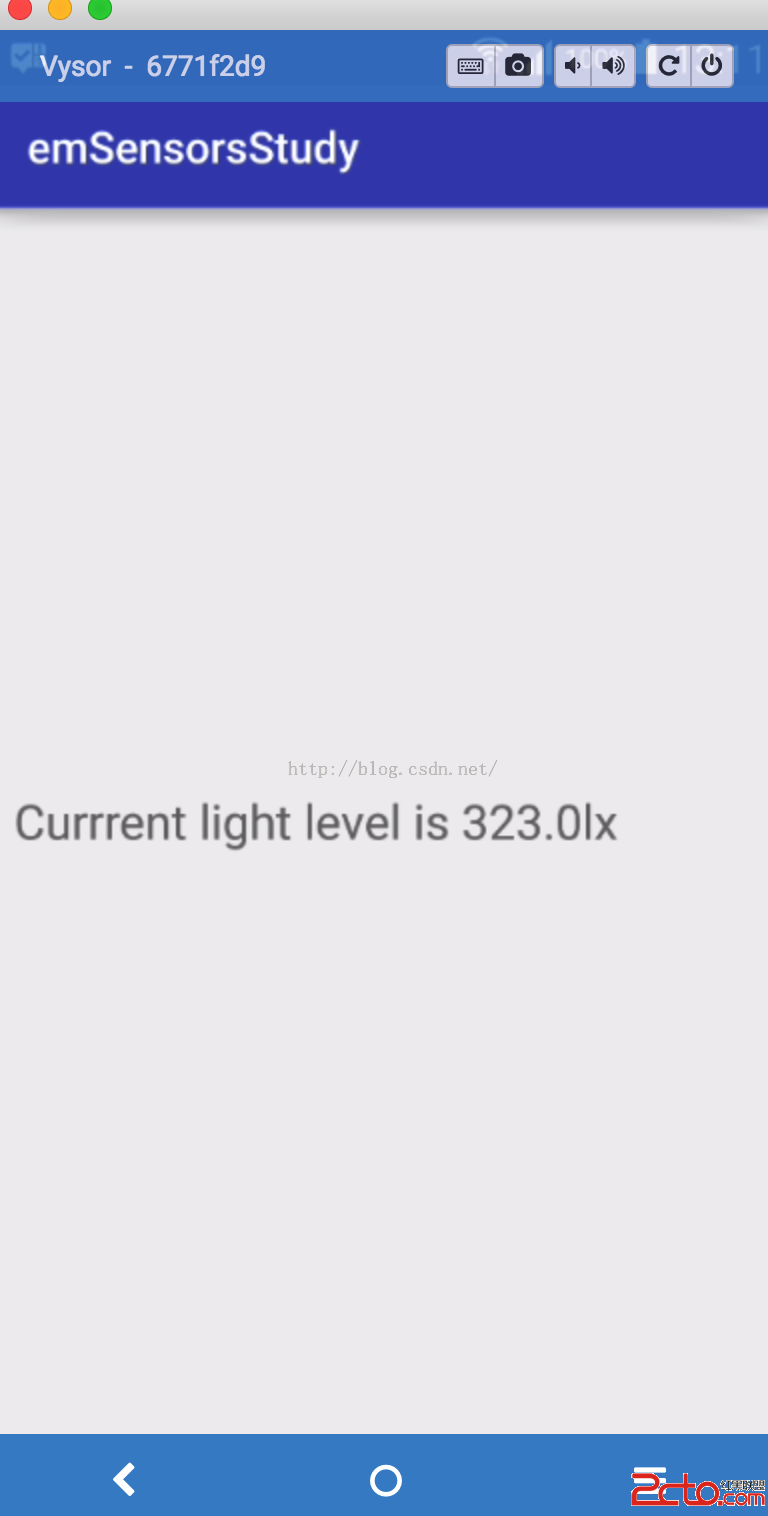 Android 開發學習之路——傳感器初體驗
說到傳感器,種類可謂繁多,加速度、光照、磁傳感器等等不一而足。智能手機之所以「智能」,這些傳感器功不可沒。本文將帶大家動手體驗光照、加速度與磁傳感器這三種常見傳感器。 新