

編輯:關於 Android 程式設計
佈局是 Android UI 的地基。五種傳統佈局各有擅長的場景,選錯了不僅代碼醜,性能也會跟著遭殃。下面逐一梳理它們的常用屬性與適用場合。
最直觀的一種:子控件沿單一方向排成一條線。
常用屬性:
android:orientation:排列方向。horizontal 水平、vertical 垂直。默認是 horizontal,寫佈局時最好顯式聲明。android:gravity:控制佈局自身內容在佔據區域內的對齊方式。android:layout_gravity:控制當前控件在父佈局中的對齊位置。這兩者區別是新手最容易混的地方——gravity 管內部,layout_gravity 管自己在父容器裡的位置。android:layout_weight:剩餘空間的分配權重,是線性佈局最有價值的屬性。android:visibility:可見性。可選值:visible 顯示;invisible 不顯示但仍佔據佈局空間;gone 不顯示且不佔空間。示例:
<LinearLayout xmlns:android="https://schemas.android.com/apk/res/android"
    android:layout_width="fill_parent"
    android:layout_height="match_parent"
    android:orientation="vertical">

    <Button
        android:layout_width="wrap_content"
        android:layout_height="wrap_content"
        android:layout_gravity="right"
        android:text="按鈕1" />

    <Button
        android:layout_width="fill_parent"
        android:layout_height="wrap_content"
        android:gravity="right|center_vertical"
        android:text="按鈕2" />

    <Button
        android:layout_width="wrap_content"
        android:layout_height="wrap_content"
        android:text="按鈕3" />

    <!-- 三個按鈕等分剩餘空間 -->
    <Button
        android:layout_width="wrap_content"
        android:layout_height="wrap_content"
        android:layout_weight="1"
        android:text="按鈕1" />

    <Button
        android:layout_width="wrap_content"
        android:layout_height="wrap_content"
        android:layout_weight="1"
        android:text="按鈕2" />

    <Button
        android:layout_width="wrap_content"
        android:layout_height="wrap_content"
        android:layout_weight="1"
        android:text="按鈕3"
        android:visibility="visible" />

</LinearLayout>
關於 weight 有個細節:權重分配的是「剩餘空間」。當所有子元素權重相同且都是 wrap_content 時,它們會均分剩餘部分;如果某個元素是 match_parent,權重的計算方式會變得微妙,實踐中常見的等分寫法是寬高設為 0dp 加 layout_weight="1"。
性能最好的傳統佈局,通過控件之間的相對位置描述界面,層級淺、測量開銷小。
常用屬性:
layout_toRightOf、layout_toLeftOf、layout_above、layout_belowlayout_alignBaseline、layout_alignLeft、layout_alignRight、layout_alignTop、layout_alignBottomlayout_alignParentLeft、layout_alignParentTop、layout_alignParentRight、layout_alignParentBottomlayout_centerVertical、layout_centerHorizontal、layout_centerInParent示例:
<RelativeLayout xmlns:android="https://schemas.android.com/apk/res/android"
    android:layout_width="match_parent"
    android:layout_height="match_parent">

    <Button
        android:layout_width="wrap_content"
        android:layout_height="wrap_content"
        android:layout_centerHorizontal="true"
        android:text="進攻" />

    <Button
        android:layout_width="wrap_content"
        android:layout_height="wrap_content"
        android:layout_centerVertical="true"
        android:text="左勾拳" />

    <Button
        android:layout_width="wrap_content"
        android:layout_height="wrap_content"
        android:layout_alignParentRight="true"
        android:layout_centerVertical="true"
        android:text="右勾拳" />

    <Button
        android:layout_width="wrap_content"
        android:layout_height="wrap_content"
        android:layout_alignParentBottom="true"
        android:layout_centerHorizontal="true"
        android:text="逃跑" />

    <Button
        android:id="@+id/btn_bisha"
        android:layout_width="wrap_content"
        android:layout_height="wrap_content"
        android:layout_centerInParent="true"
        android:text="大絕招" />

    <Button
        android:layout_width="wrap_content"
        android:layout_height="wrap_content"
        android:layout_alignTop="@id/btn_bisha"
        android:layout_toLeftOf="@id/btn_bisha"
        android:text="左" />

    <Button
        android:layout_width="wrap_content"
        android:layout_height="wrap_content"
        android:layout_above="@id/btn_bisha"
        android:layout_centerHorizontal="true"
        android:text="上" />

    <Button
        android:layout_width="wrap_content"
        android:layout_height="wrap_content"
        android:layout_alignBaseline="@id/btn_bisha"
        android:layout_toRightOf="@id/btn_bisha"
        android:text="右" />

    <Button
        android:layout_width="wrap_content"
        android:layout_height="wrap_content"
        android:layout_below="@id/btn_bisha"
        android:layout_centerHorizontal="true"
        android:text="下" />

</RelativeLayout>
使用 RelativeLayout 有一條硬性規則:被引用的控件必須先給出 id,且必須在 XML 中出現於引用者之前(或者至少 id 已定義),否則會報 "No resource found"。另外,循環依賴(A 依賴 B、B 又依賴 A)會導致佈局無法計算,編譯期就會報錯。
屬性:
android:layout_x:指定控件在父佈局中的 x 軸坐標。android:layout_y:指定控件在父佈局中的 y 軸坐標。<Button
android:layout_width="wrap_content"
android:layout_height="wrap_content"
android:layout_x="1dp"
android:layout_y="253dp"
android:text="按鈕" />
這個佈局從 API 3 起就已被標記為 deprecated,原因很直白:寫死坐標意味著換一種屏幕分辨率就全亂了。現實項目中應該完全避免使用,改成 RelativeLayout、ConstraintLayout 或 FrameLayout 加 margin 來描述位置。
屬性:
android:shrinkColumns:可收縮的列(空間不足時壓縮該列)。列號從 0 開始,多列用逗號分隔。android:stretchColumns:可拉伸的列(有剩餘空間時填滿該列)。android:collapseColumns:隱藏的列。android:layout_column:指定當前控件所在的列(作用在子元素上)。android:layout_span:合併列數(作用在子元素上)。示例:
<TableLayout xmlns:android="https://schemas.android.com/apk/res/android"
    android:layout_width="match_parent"
    android:layout_height="match_parent"
    android:stretchColumns="0,1,2,3">

    <TableRow>
        <Button android:layout_width="wrap_content" android:layout_height="wrap_content" android:text="第一行," />
        <Button android:layout_width="wrap_content" android:layout_height="wrap_content" android:text="第一行," />
        <Button android:layout_width="wrap_content" android:layout_height="wrap_content" android:text="第一行," />
        <Button android:layout_width="wrap_content" android:layout_height="wrap_content" android:text="第一行," />
    </TableRow>

    <TableRow>
        <Button android:layout_width="wrap_content" android:layout_height="wrap_content" android:text="第二行," />
        <Button
            android:layout_width="wrap_content"
            android:layout_height="wrap_content"
            android:layout_column="2"
            android:layout_span="2"
            android:text="第二行,佔兩列" />
    </TableRow>

</TableLayout>
使用 TableLayout 要注意:每一行都必須是 TableRow,直接往 TableLayout 裡放 Button 是不會按表格排列的;另外 TableLayout 默認會隱藏「不含任何可見內容的列」,這也是原稿示例中第一列不顯示的原因——需要靠 stretchColumns 或 collapseColumns 顯式控制。
最簡單的一種,所有子控件都堆在左上角,後添加的會蓋在先前添加的上面,像一疊照片。
特點:層次結構最淺、性能最好,但布局能力最弱。實踐中它並不常用來「排版」,而是用來做層疊——比如在圖片上疊一層文字、在列表項上疊一個浮層、或者作為 Fragment 的容器、SlidingDrawer 的載體。
子元素通過 android:layout_gravity 可以實現各自對齊,配合 layout_margin 就能做出簡單的層疊效果。
五種佈局裡,AbsoluteLayout 已廢棄不要用;TableLayout 適用場景很窄,現在多用 RecyclerView 或 ConstraintLayout 替代;LinearLayout 適合簡單的線性排列;RelativeLayout 性能不錯但表達能力有限。
新項目裡的首選是 ConstraintLayout。它層級扁平、支持百分比、比例、鏈式、屏障等豐富約束,能在一層之內描述絕大多數界面,避免了多層嵌套帶來的測量開銷。同時記得遵循「減少層級、避免多層 RelativeLayout/LinearLayout 嵌套」的原則——佈局層數直接影響 measure 與 layout 的調用次數,是列表滾動卡頓的常見元兇。
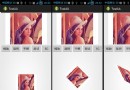 Android 使用 Matrix 處理 Bitmap:縮放、旋轉、平移與斜切
Matrix 是 Android 中對圖形做變換的核心工具,縮放、旋轉、平移、斜切都靠它。以下整理它的數學結構與常用 API,並附完整示範。 Matrix 的結構 Ma
 Android ListView 封裝實戰:抽取 BaseAdapter 與 ViewHolder 的程式碼複用之道
大多數 App 都會用到的基礎控制項——ListView,無論是新聞瀏覽類的應用,還是匯集手機軟體的應用商店,幾乎無處不在。眾所周知,我們需要為每一個獨立的 List
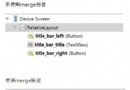 Android 自定義組合控件(三):用自定義標題欄提升布局復用
前言:前兩篇我們介紹了自定義控件的基礎原理與自定義屬性。今天要重點說明的是,如何透過自定義組合控件來提高版面配置的复用性,从而降低开发與維護成本。使用自定義組合控件有什麼
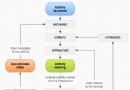 Android Activity 生命週期全總結:七大函數與四大狀態
概述 有圖有真相,所以先上圖: 上圖是從 Android 官網截下的 Activity 生命週期流程圖,結構非常清晰,描述了 Activity 在其生命週期內所有可能發