

編輯:關於 Android 程式設計
專案裡難免要落檔到外部儲存空間。整理一份可重複參考的讀寫模板,同時把幾個容易忽略的環節標出來。
把讀寫細節收攏到一個獨立類別,對外只暴露「存」與「讀」兩個方法。幾個關鍵動作:先確認 SD 卡已掛載、資料夾不存在則建立、檔案不存在則建立,然後才是寫入。
package com.example.storagemanagedemo;

import java.io.File;
import java.io.FileInputStream;
import java.io.FileOutputStream;
import java.io.IOException;

import android.os.Environment;
import android.util.Log;

public class DataManage {

    /** 判斷外部儲存是否可用 */
    private boolean sdCardAvailable() {
        return Environment.getExternalStorageState().equals(
                android.os.Environment.MEDIA_MOUNTED);
    }

    /** 讀取 txt 檔 */
    public String OpenTxtFile(String strPathFileName) {
        String strTxtData = "";
        File pathFile = Environment.getExternalStorageDirectory();

        if (!sdCardAvailable()) return strTxtData;

        String strpathFileName = pathFile.toString() + strPathFileName;
        File absolutPathFileName = new File(strpathFileName);
        if (absolutPathFileName.exists()) {
            strTxtData = ReadTxtDataSDFile(strpathFileName);
        }
        return strTxtData;
    }

    /** 儲存 txt 檔 */
    public boolean SaveTxtFile(String strPath, String strFileName, String strSaveTxtData) {
        if (!sdCardAvailable()) return false;

        File pathFile = Environment.getExternalStorageDirectory();

        // 建立指定路徑的資料夾
        File absolutPathFile = new File(pathFile.toString() + strPath);
        if (!absolutPathFile.exists()) {
            absolutPathFile.mkdirs();
        }

        // 在資料夾中建立檔案
        String strPathFileName = pathFile.toString() + strPath + strFileName;
        File nameFile = new File(strPathFileName);
        if (!nameFile.exists()) {
            try {
                nameFile.createNewFile();
            } catch (IOException e) {
                e.printStackTrace();
                Log.i("Show", e.toString());
                return false;
            }
        }

        try {
            WiteTxtDataSDFile(strPathFileName, strSaveTxtData);
            return true;
        } catch (IOException e) {
            e.printStackTrace();
            return false;
        }
    }

    private String ReadTxtDataSDFile(String strpathFileName) {
        String strTxtData = "";
        FileInputStream fileInputStream = null;
        try {
            fileInputStream = new FileInputStream(strpathFileName);
            int length = fileInputStream.available();
            byte[] buffer = new byte[length];
            fileInputStream.read(buffer);
            strTxtData = new String(buffer);
        } catch (Exception e) {
            e.printStackTrace();
        } finally {
            if (fileInputStream != null) {
                try { fileInputStream.close(); } catch (IOException e) { }
            }
        }
        return strTxtData;
    }

    private void WiteTxtDataSDFile(String strPathFileName, String strSaveTxtData)
            throws IOException {
        File writefile = new File(strPathFileName);
        FileOutputStream fileOutputStream = new FileOutputStream(writefile);
        try {
            byte[] buffer = strSaveTxtData.getBytes();
            fileOutputStream.write(buffer);
        } finally {
            fileOutputStream.close();
        }
    }
}public class MainActivity extends Activity {
private DataManage mDataManage = new DataManage();
private TextView showTextView;
private TextView storageTextView;
private EditText inputEditText;
@Override
protected void onCreate(Bundle savedInstanceState) {
super.onCreate(savedInstanceState);
setContentView(R.layout.activity_main);
showTextView = (TextView) findViewById(R.id.textView3);
storageTextView = (TextView) findViewById(R.id.textView1);
inputEditText = (EditText) findViewById(R.id.editText1);
File pathFile = Environment.getExternalStorageDirectory();
String strpath = "儲存位置以及文件名: " + pathFile.toString() + "/txt/result.txt";
storageTextView.setText(strpath);
}
/** 按下儲存 */
public void SavePraseData(View v) {
mDataManage.SaveTxtFile("/txt", "/result.txt",
inputEditText.getText().toString());
}
/** 按下讀取 */
public void OpenPraseData(View v) {
String strShowDataString = mDataManage.OpenTxtFile("/txt/result.txt");
showTextView.setText(strShowDataString);
}
}<uses-permission android:name="android.permission.WRITE_EXTERNAL_STORAGE" />
這個範例寫於 runtime 權限機制問世之前,直接搬到今天會遇到幾個障礙,值得逐一說明。
權限不再自動授予。從 Android 6.0(API 23)開始,WRITE_EXTERNAL_STORAGE 屬於危險權限,必須在執行期以 requestPermissions() 向使用者動態申請,只在 Manifest 宣告是不夠的。
直接寫根目錄已不被允許。Environment.getExternalStorageDirectory() 拿到的共用根目錄,從 Android 10 起在 Scoped Storage 下已無法自由寫入。若檔案只給自己的 App 使用,應該改用 getExternalFilesDir(),完全不需要任何權限;若要让其他 App 也能讀取,則應透過 MediaStore 寫入對應的媒體集合。
讀檔方式不建議用 available()。這個方法回傳的是「估計可讀位元組數」,官方文件明確表示它不保證等於檔案總長度。實務上應該用迴圈讀到 -1,或直接改用 Files.readAllBytes()。
字元編碼要明確指定。new String(buffer) 與 getBytes() 都使用平台預設編碼,跨裝置時可能產生亂碼。應明確帶上 StandardCharsets.UTF_8。
回傳值原本是错的。原始程式的 SaveTxtFile() 無論成功失敗都回傳 false,呼叫方無從判斷結果,上面已修正為依實際狀況回傳布林值。
把這幾點補上之後,這個讀寫模板就能在當前的 Android 版本上正常工作了。
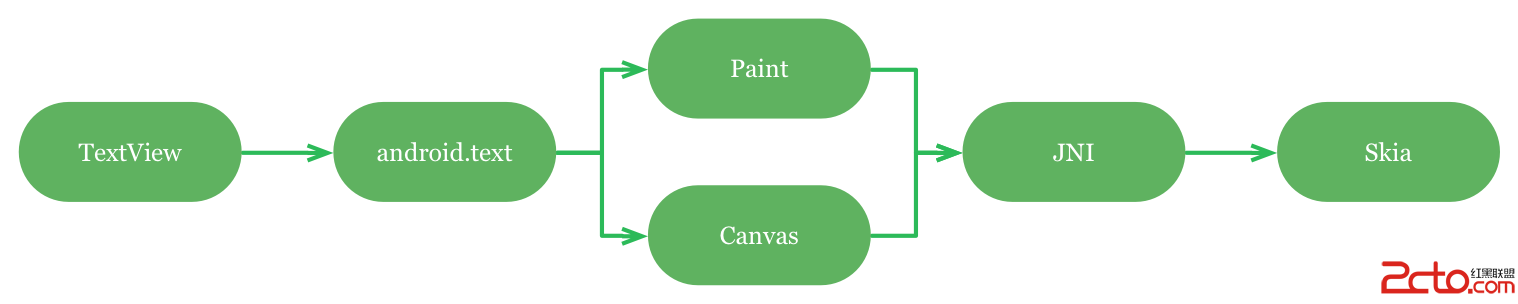 Android 文字渲染深度解析:從 Canvas API 到 OpenGL 字體緩存
用 OpenGL 渲染文字,一種常見做法是把要顯示的文字先生成為紋理圖片,通常還需要相當複雜的打包算法來減少紋理中的冗餘空間。但這套思路在 Android 上並行不通——
 Android 屬性動畫進階:補充說明與實用技巧
目錄 本文概述、動畫補充說明、屬性動畫的 View 加載方式、TypeEvaluator 的使用、TimeInterpolator、LayoutTransition、Ot
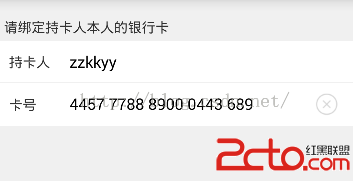 Android 自定義控件案例:銀行卡號分隔與清空圖標
案例效果 本案例實作一個自定義 EditText,支援銀行卡號每四位自動以空格分隔,並在輸入框右側顯示清空圖標。 需求分析 銀行卡號需要即時格式化,方便使用者核對。清
 打造不一樣的走馬燈:自定義 MarqueeManualView
眾所周知,要讓文字進入走馬燈滾動狀態,需要設置一個屬性: android:ellipsize=marquee 但有時候即使寫了這行,走馬燈就是不動。原因通常是控件失去了焦