

編輯:關於 Android 程式設計
Android SDK 提供了兩種動畫模式:
Tween Animation(補間動畫):對場景中的物件持續做圖形變換(平移、縮放、旋轉)來產生動畫效果。
Frame Animation(逐幀動畫):依序播放事先準備好的圖片,屬於畫面轉換型動畫。
在 XML 中的對應標籤:
· alpha:漸變透明度
· scale:漸變尺寸伸縮
· translate:位置移動
· rotate:旋轉
在 Java 程式碼中則對應四個類別:AlphaAnimation、ScaleAnimation、TranslateAnimation、RotateAnimation。
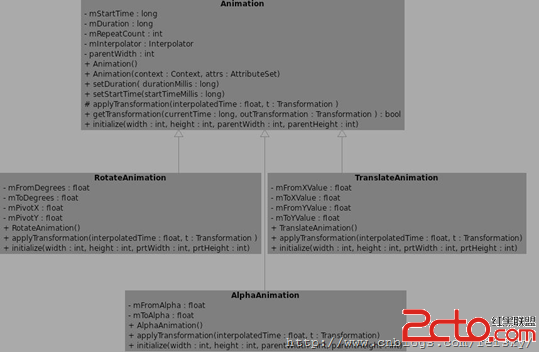
一個補間動畫會對 View 的內容做一系列簡單轉換:位置、大小、旋轉、透明度。如果對象是一個文字 View,你可以移動它、旋轉它、放大縮小它;若文字底下還有背景圖,背景也會一起轉換。
動畫 XML 放在專案的 res/anim 目錄,必須有一個根元素,可以是 <scale>、<rotate> 等單一元素,也可以全部放進 <set> 容器中。
預設情況下所有動畫指令同時發生;若要讓它們依序執行,需設定 android:startOffset。每個轉換都要設定自己的參數(起始與結束尺寸、起始與結束角度等)與通用參數(持續時間等)。若要同時發生就給相同的 startOffset,若要序列執行則把前一個動畫的 startOffset 加上它的 duration。
duration(long):動畫持續時間,單位毫秒。
fillAfter(boolean):為 true 時,動畫結束後仍套用轉換結果。
fillBefore(boolean):為 true 時,動畫開始前就套用轉換結果。
interpolator:指定插值器,常見的有 accelerate_decelerate_interpolator(先加速後減速)、accelerate_interpolator(加速)、decelerate_interpolator(減速)。
repeatCount(int):重複次數。
repeatMode(int):重複行為,1 為重新開始,2 為反向播放。
startOffset(long):與上一個動畫的時間間隔。
zAdjustment(int):Z 軸順序的改變,0 保持不變,1 保持最上層,-1 保持最下層。
<alpha
    android:fromAlpha="0.1"
    android:toAlpha="1.0"
    android:duration="3000" />
fromAlpha 為起始透明度,toAlpha 為結束透明度,0.0 代表全透明、1.0 代表全不透明。
<scale
    android:interpolator="@android:anim/accelerate_decelerate_interpolator"
    android:fromXScale="0.0"
    android:toXScale="1.4"
    android:fromYScale="0.0"
    android:toYScale="1.4"
    android:pivotX="50%"
    android:pivotY="50%"
    android:fillAfter="false"
    android:startOffset="700"
    android:duration="700"
    android:repeatCount="10" />
fromXScale/fromYScale 為起始縮放比例,0.0 表示收縮到無、1.0 表示正常大小,小於 1.0 為縮小、大於 1.0 為放大;toXScale/toYScale 為結束比例。pivotX/pivotY 是縮放的軸心位置,取值 0%~100%,50% 即為物件的中心點。
<translate
    android:fromXDelta="30"
    android:toXDelta="-80"
    android:fromYDelta="30"
    android:toYDelta="300"
    android:duration="2000" />
fromXDelta/toXDelta 為 X 軸的起訖位置,fromYDelta/toYDelta 為 Y 軸的起訖位置。
<rotate
    android:interpolator="@android:anim/accelerate_decelerate_interpolator"
    android:fromDegrees="0"
    android:toDegrees="+350"
    android:pivotX="50%"
    android:pivotY="50%"
    android:duration="3000" />
fromDegrees 為起始角度,負值表示逆時針、正值表示順時針;toDegrees 為結束角度,可以大於 360 度。pivotX/pivotY 為旋轉軸心,同樣以百分比表示。
<set android:shareInterpolator="false"
    xmlns:android="https://schemas.android.com/apk/res/android">
    <scale
        android:interpolator="@android:anim/accelerate_decelerate_interpolator"
        android:fromXScale="1.0" android:toXScale="1.4"
        android:fromYScale="1.0" android:toYScale="0.6"
        android:pivotX="50%" android:pivotY="50%"
        android:fillAfter="false" android:duration="700" />
    <set android:interpolator="@android:anim/decelerate_interpolator">
        <scale
            android:fromXScale="1.4" android:toXScale="0.0"
            android:fromYScale="0.6" android:toYScale="0.0"
            android:pivotX="50%" android:pivotY="50%"
            android:startOffset="700" android:duration="400"
            android:fillBefore="false" />
        <rotate
            android:fromDegrees="0" android:toDegrees="-45"
            android:pivotX="50%" android:pivotY="50%"
            android:startOffset="700" android:duration="400" />
    </set>
</set>
用 AnimationUtils.loadAnimation() 載入 XML 動畫,再呼叫 View 的 startAnimation():
// main.xml 中的 ImageView
ImageView spaceshipImage = (ImageView) findViewById(R.id.spaceshipImage);
// 載入動畫
Animation hyperspaceJumpAnimation = AnimationUtils.loadAnimation(this, R.anim.hyperspace_jump);
// 播放動畫
spaceshipImage.startAnimation(hyperspaceJumpAnimation);
// 各自透過建構子初始化
private Animation myAnimation_Alpha;
private Animation myAnimation_Scale;
private Animation myAnimation_Translate;
private Animation myAnimation_Rotate;

myAnimation_Alpha = new AlphaAnimation(0.1f, 1.0f);
myAnimation_Scale = new ScaleAnimation(0.0f, 1.4f, 0.0f, 1.4f,
        Animation.RELATIVE_TO_SELF, 0.5f, Animation.RELATIVE_TO_SELF, 0.5f);
myAnimation_Translate = new TranslateAnimation(30.0f, -80.0f, 30.0f, 300.0f);
myAnimation_Rotate = new RotateAnimation(0.0f, +350.0f,
        Animation.RELATIVE_TO_SELF, 0.5f, Animation.RELATIVE_TO_SELF, 0.5f);
若要讓多個動畫組合成序列,可以用 AnimationSet 加入各子動畫,並為每個子動畫設定 startOffset。這就回答了「同一個物件要套用多個動畫」該怎麼寫的問題:XML 用 <set>,程式碼用 AnimationSet.addAnimation()。
插值器定義動畫的變化率,讓基本的 alpha、scale、translate、rotate 得以加速、減速或循環。Interpolator 是基類,只有一個方法 getInterpolation(float input),負責把時間軸上的點映射成套用於變換的倍率。Android 提供的常見子類:
· AccelerateDecelerateInterpolator:開始與結束時較慢,中段加速。
· AccelerateInterpolator:起步較慢,之後持續加速。
· CycleInterpolator:循環播放特定次數,變化率沿正弦曲線。
· DecelerateInterpolator:起步較快,之後逐漸減速。
· LinearInterpolator:等速變化。
逐幀動畫就像電影膠卷,順序播放事先做好的圖片。Android 另外提供了 AnimationDrawable 類別來定義與使用它。
XML 的格式與補間動畫完全不同:根節點是 <animation-list>,內部包含多個 <item> 子節點,每個 item 定義一幀的 drawable 資源與持續時間。
item 的屬性:
· drawable:該幀引用的 drawable 資源。
· duration:該幀顯示的時間(毫秒)。
· oneshot:為 true 時只播放一次並停在最後一幀,false 則循環播放。
· visible:drawable 的初始可見性,預設 false。
範例:
<animation-list xmlns:android="https://schemas.android.com/apk/res/android"
    android:oneshot="false">
    <item android:drawable="@drawable/rocket_thrust1" android:duration="200" />
    <item android:drawable="@drawable/rocket_thrust2" android:duration="200" />
    <item android:drawable="@drawable/rocket_thrust3" android:duration="200" />
</animation-list>
這段 XML 定義了三幀動畫,每幀 200 毫秒。將檔案存為 res/anim/rocket_thrust.xml,播放的程式碼如下:
AnimationDrawable rocketAnimation;

public void onCreate(Bundle savedInstanceState) {
    super.onCreate(savedInstanceState);
    setContentView(R.layout.main);
    ImageView rocketImage = (ImageView) findViewById(R.id.rocket_image);
    rocketImage.setBackgroundResource(R.anim.rocket_thrust);
    rocketAnimation = (AnimationDrawable) rocketImage.getBackground();
}

public boolean onTouchEvent(MotionEvent event) {
    if (event.getAction() == MotionEvent.ACTION_DOWN) {
        rocketAnimation.start();
        return true;
    }
    return super.onTouchEvent(event);
}
這裡有一個容易踩的坑:rocketAnimation.start() 不能寫在 onCreate() 裡,因為此時 AnimationDrawable 尚未完全與 ImageView 綁定,啟動後只會看到第一張圖。要放在觸碰事件等後續時機執行。
取得與設定屬性:
· int getDuration():動畫總時長。
· int getNumberOfFrames():幀數。
· boolean isOneShot() / void setOneShot(boolean oneshot):是否只播放一次。
· Drawable getFrame(int index):取得某幀的 Drawable。
· void addFrame(Drawable frame, int duration):動態增加一幀。
動畫控制:
· void start():開始動畫。
· boolean isRunning():是否正在播放。
· void stop():停止動畫。
補間動畫只是對畫面做變換,並不改變 View 本身的屬性,也不節省記憶體,適合簡單的進場動畫與提示效果。逐幀動畫需要把每一幀圖片打包進記憶體,幀數與圖片尺寸稍大就容易 OOM,適合小尺寸、幀數少的 loading 動畫。若要做複雜的交互動畫,API 11 之後的屬性動畫(Property Animation)才是更合適的選擇。
 以 XListView 打造類手機 QQ 好友動態的 ListView
本文示範如何以開源的 XListView 元件,還原 Android 版手機 QQ「好友動態」的列表視覺效果。 整個效果的關鍵在於 Item 的版面配置,先來看項目配置
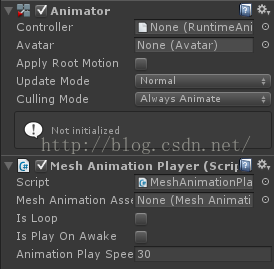 Unity 插件 MeshEditor(五):不用 3D 軟件也能 K 出網格頂點動畫
這次加入的功能實用性比之前幾個明顯高一些。像破碎、融化那類效果,仔細想想其實沒什麼實際用處——模型的頂點數據本來就該交給 GPU 去繪製,用 CPU 逐幀刷新頂點始終是吃
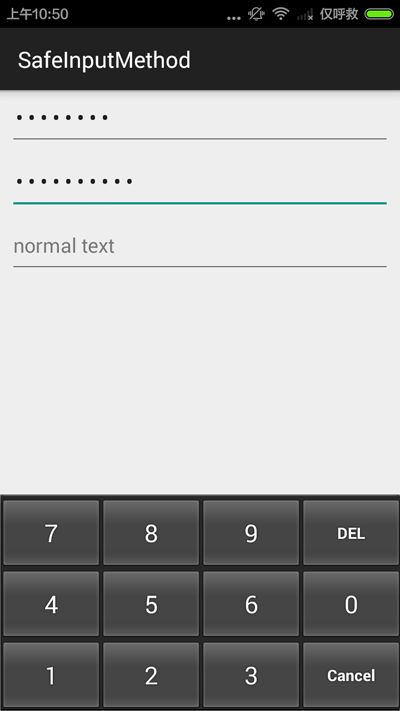 Android自定義安全輸入法:防止密碼被第三方竊取
本文為大家分享一個自定義輸入法的實現示例,供感興趣的讀者參考。 對於Android用戶來說,大多數人都習慣使用第三方輸入法。然而在輸入密碼(尤其是支付相關的密碼)時,第三
 安卓手機怎麼重裝系統?兩種刷機方式圖文完整教學
我們常聽說電腦要重裝系統,那智慧型手機呢?其實手機也可以,只是我們通常稱之為「刷機」。本文以刷機工具「卓大師」為例,示範兩種最常見的做法。 先說明一個關鍵差異:與電腦不同