

編輯:關於 Android 程式設計
進度條能讓使用者知道目前任務的執行進度。特別是執行時間較長的操作,若沒有任何回饋,使用者會以為程式當機而直接關閉。
常見的進度條可以分成三類:
1. 有明確進度資訊的,用帶刻度的水平條表示。
2. 沒有明確進度資訊的,例如持續旋轉的圓圈。
3. 自訂樣式的,可以自行定義顯示的圖片、旋轉方向等。
package com.example.progressbar;

import android.os.Bundle;
import android.app.Activity;
import android.app.ProgressDialog;
import android.view.Menu;
import android.view.View;
import android.view.View.OnClickListener;
import android.view.Window;
import android.widget.Button;
import android.widget.ProgressBar;

public class MainActivity extends Activity implements OnClickListener {

    private Button btnIncrement, btnDecrement;
    private ProgressBar pb;

    protected void onCreate(Bundle savedInstanceState) {
        super.onCreate(savedInstanceState);
        // 標題進度條必須在 setContentView 之前設定
        requestWindowFeature(Window.FEATURE_INDETERMINATE_PROGRESS);
        setContentView(R.layout.activity_main);
        // 設為可見
        setProgressBarIndeterminateVisibility(true);

        btnIncrement = (Button) findViewById(R.id.increment);
        btnDecrement = (Button) findViewById(R.id.decrement);
        btnIncrement.setOnClickListener(this);
        btnDecrement.setOnClickListener(this);

        pb = (ProgressBar) findViewById(R.id.progressBar4);
    }

    public boolean onCreateOptionsMenu(Menu menu) {
        getMenuInflater().inflate(R.menu.main, menu);
        return true;
    }

    // 按鈕較多時,讓 Activity 直接實作 OnClickListener 是最簡潔的寫法
    public void onClick(View v) {
        switch (v.getId()) {
            case R.id.increment:
                pb.incrementProgressBy(5);
                break;
            case R.id.decrement:
                pb.incrementProgressBy(-5);
                break;
            default:
                break;
        }
    }

    public void show(View v) {
        // 建立進度條對話框
        ProgressDialog pd = new ProgressDialog(this);
        pd.setTitle("對話框");
        pd.setMessage("下載中。。。");
        // 設為水平樣式
        pd.setProgressStyle(ProgressDialog.STYLE_HORIZONTAL);
        pd.show();
    }
}
<LinearLayout xmlns:android="https://schemas.android.com/apk/res/android"
    xmlns:tools="https://schemas.android.com/tools"
    android:layout_width="match_parent"
    android:layout_height="match_parent"
    android:orientation="vertical">

    <ProgressBar
        android:id="@+id/progressBar1"
        android:layout_width="wrap_content"
        android:layout_height="wrap_content" />

    <ProgressBar
        android:id="@+id/progressBar2"
        android:layout_width="wrap_content"
        android:layout_height="wrap_content" />

    <ProgressBar
        android:id="@+id/progressBar3"
        android:layout_width="wrap_content"
        android:layout_height="wrap_content" />

    <!-- 水平進度條:max 為總量,progress 為目前進度,secondaryProgress 為次要進度 -->
    <ProgressBar
        android:id="@+id/progressBar4"
        style="?android:attr/progressBarStyleHorizontal"
        android:layout_width="match_parent"
        android:layout_height="wrap_content"
        android:max="100"
        android:progress="50"
        android:secondaryProgress="70" />

    <Button
        android:id="@+id/increment"
        android:layout_width="wrap_content"
        android:layout_height="wrap_content"
        android:text="增加" />

    <Button
        android:id="@+id/decrement"
        android:layout_width="wrap_content"
        android:layout_height="wrap_content"
        android:text="減少" />

    <Button
        android:id="@+id/button_show"
        android:layout_width="wrap_content"
        android:layout_height="wrap_content"
        android:text="顯示對話框進度條"
        android:onClick="show" />

    <!-- 自訂的轉圈進度條 -->
    <ProgressBar
        android:id="@+id/progressBar5"
        android:layout_width="wrap_content"
        android:layout_height="wrap_content"
        android:indeterminateDrawable="@drawable/pb_custom" />

</LinearLayout>
自訂一個從 0 度旋轉到 360 度、以圖片中心為軸的轉圈動畫:
<?xml version="1.0" encoding="utf-8"?>
<layer-list xmlns:android="https://schemas.android.com/apk/res/android">
    <item>
        <rotate
            android:drawable="@drawable/ic_launcher"
            android:fromDegrees="0"
            android:toDegrees="360"
            android:pivotX="50%"
            android:pivotY="50%" />
    </item>
</layer-list>
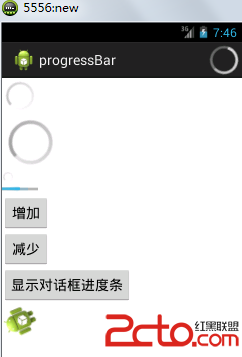
畫面上前三個圓圈是不確定的進度條,會持續轉動;接著是水平進度條,用兩個按鈕增減其進度;最後一個是自訂的轉圈樣式,因為沒有合適的圖片,這裡暫用系統預設圖示,原理與替換成自家素材完全相同。
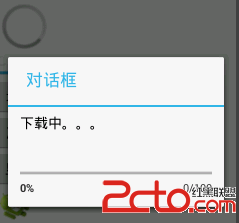
對話框進度條的效果:
· 水平進度條一定要加上 style="?android:attr/progressBarStyleHorizontal",否則預設會顯示成轉圈樣式。
· secondaryProgress 常用於緩衝場景,例如線上影片播放時,第一層表示已緩衝量、第二層表示已播放量,可以做成雙層視覺。
· ProgressDialog 在 API 26 已被標示為廢棄,官方建議改用 Toolbar 內建的進度指示,或直接在頁面中放一個 ProgressBar。若要顯示阻塞式操作流程,应考虑 ProgressBar 搭配 View.GONE 的切換,或使用 Material 元件庫的 CircularProgressIndicator。
· 進度的更新若來自背景執行緒,記得用 runOnUiThread() 或 Handler 切回主執行緒,否則會拋出 CalledFromWrongThreadException。
 Android 自定義通用 LoadingView 完整實作解析
功能概述 這個自定義 LoadingView 主要實現了幾件事: 1、載入時顯示加載視圖,失敗時顯示加載失敗視圖,數據為空時顯示空數據視圖,並支持為失敗視圖設置點擊事件以
 從 PNG 到 IconFont 再到 SVG:Android 圖標資源優化完整指南
一、為什麼要折騰圖標資源 做 App 的日子久了,幾乎每個人都被圖標折磨過:一堆小圖標散落在各個 drawable 目錄裡,佔著包體積不說,還要為不同分辨率各出一套;同一
 Android 自定義 View 實戰:打造水波紋進度球
在日常 Android 開發中,自定義控件的出鏡率其實相當高。設計與產品為了讓畫面更精緻、互動更有意思,往往會畫出各種炫目的效果圖,而最終把它落地成可運行代碼的,永遠是我
 Android Messenger 與 AIDL 進程通信實戰解析
在 Android 中,Service 與客戶端元件若要跨進程溝通,常見方案有 Messenger 與 AIDL。兩者都基於 Binder 機制,但使用方式與適用情境不同