

編輯:關於 Android 程式設計
功能概述
這個自定義 LoadingView 主要實現了幾件事:
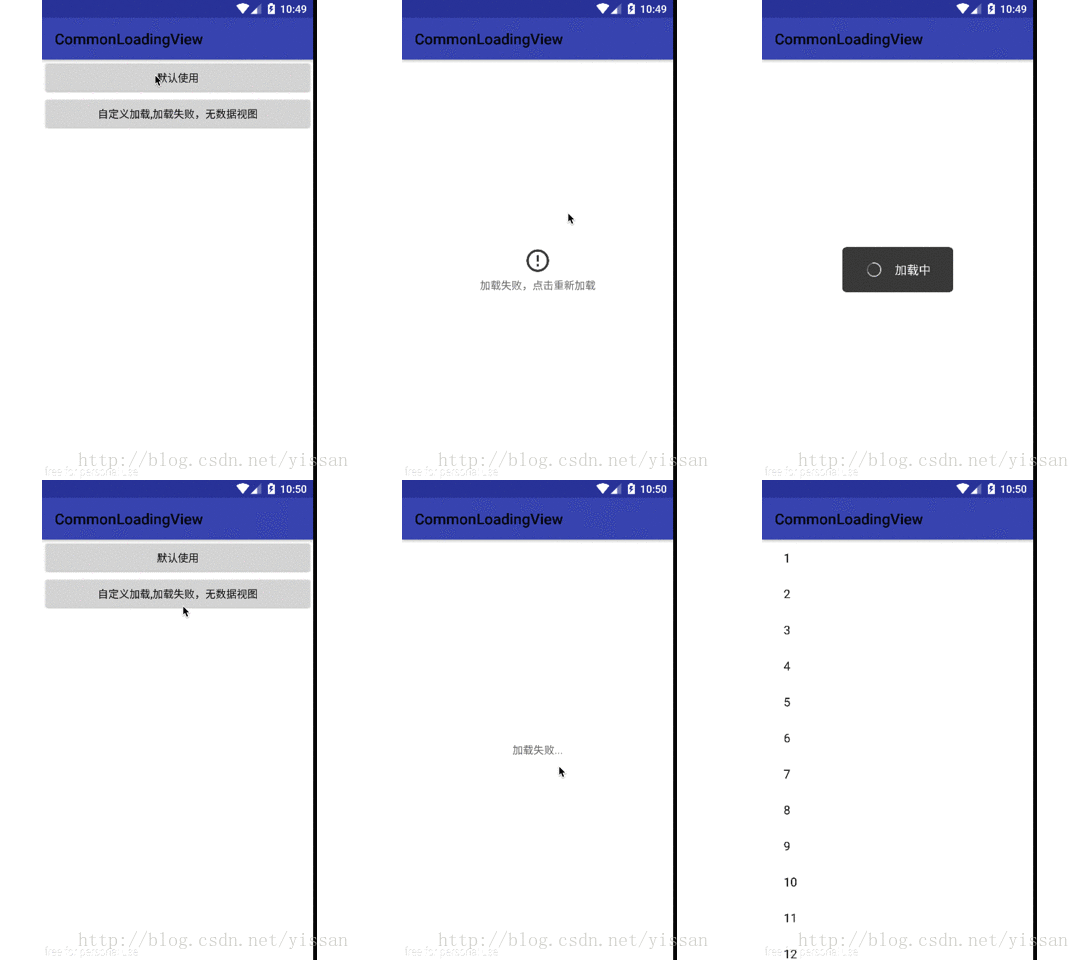
1、載入時顯示加載視圖,失敗時顯示加載失敗視圖,數據為空時顯示空數據視圖,並支持為失敗視圖設置點擊事件以重新加載數據。
2、支持個性化定製,可自定義加載、失敗、空數據三種視圖。
先放一張效果圖壓壓驚:
實現思路
本質上就是在 FrameLayout 裡放三個子布局,通過顯示/隱藏的切換來處理不同狀態;而「自定義視圖」不過是替換掉其中的某個 view 而已。原理很簡單,只要對自定義 View 有基本了解,看起來毫不費力,所以直接上代碼。
核心代碼
 public class CommonLoadingView extends FrameLayout {
 //加載時顯示文字
 protected TextView mLoadingTextTv;
 public Context mContext;
 //加載錯誤視圖
 protected LinearLayout mLoadErrorLl;
 //加載錯誤點擊事件處理
 private LoadingHandler mLoadingHandler;
 //加載 view
 private View loadingView;
 //加載失敗 view
 private View loadingErrorView;
 //數據為空
 private View emptyView;
 public CommonLoadingView(Context context, AttributeSet attrs) {
 this(context, attrs, 0);
 }
 public CommonLoadingView(Context context, AttributeSet attrs, int defStyleAttr) {
 super(context, attrs, defStyleAttr);
 mContext = context;
 }
 public void setLoadingHandler(LoadingHandler loadingHandler) {
 mLoadingHandler = loadingHandler;
 }
 public void setLoadingErrorView(View loadingErrorView) {
 this.removeViewAt(1);
 this.loadingErrorView = loadingErrorView;
 this.loadingErrorView.setOnClickListener(new OnClickListener() {
 @Override
 public void onClick(View v) {
 if (mLoadingHandler != null) {
 mLoadingHandler.doRequestData();
 CommonLoadingView.this.load();
 }
 }
 });
 this.addView(loadingErrorView,1);
 }
 public void setLoadingView(View loadingView) {
 this.removeViewAt(0);
 this.loadingView = loadingView;
 this.addView(loadingView,0);
 }
 @Override
 protected void onFinishInflate() {
 super.onFinishInflate();
 loadingView = inflate(mContext, R.layout.common_loading_view, null);
 loadingErrorView = inflate(mContext, R.layout.network_layout, null);
 emptyView = inflate(mContext, R.layout.empty_layout, null);
 this.addView(loadingView);
 this.addView(loadingErrorView);
 this.addView(emptyView);
 loadingErrorView.setVisibility(GONE);
 emptyView.setVisibility(GONE);
 initView(this);
 }
 public void setMessage(String message) {
 mLoadingTextTv.setText(message);
 }
 private void initView(View rootView) {
 mLoadingTextTv = (TextView) rootView.findViewById(R.id.loading_text_tv);
 mLoadErrorLl = (LinearLayout) rootView.findViewById(R.id.load_error_ll);
 mLoadErrorLl.setOnClickListener(new OnClickListener() {
 @Override
 public void onClick(View v) {
 if (mLoadingHandler != null) {
 CommonLoadingView.this.load();
 mLoadingHandler.doRequestData();
 }
 }
 });
 }
 public void load(){
 loadingView.setVisibility(VISIBLE);
 loadingErrorView.setVisibility(GONE);
 emptyView.setVisibility(GONE);
 }
 public void load(String message){
 mLoadingTextTv.setText(message);
 loadingView.setVisibility(VISIBLE);
 loadingErrorView.setVisibility(GONE);
 emptyView.setVisibility(GONE);
 }
 public void loadSuccess(){
 this.loadSuccess(false);
 }
 public void loadSuccess(boolean isEmpty){
 loadingView.setVisibility(GONE);
 loadingErrorView.setVisibility(GONE);
 if (isEmpty) {
 emptyView.setVisibility(VISIBLE);
 }else{
 emptyView.setVisibility(GONE);
 }
 }
 public void loadError(){
 loadingView.setVisibility(GONE);
 loadingErrorView.setVisibility(VISIBLE);
 }
 public interface LoadingHandler{
 void doRequestData();
 }
 }
基本用法
最核心的就是 load、loadError、loadSuccess 這幾個方法:
 public class DefaultViewActivity extends AppCompatActivity {
 protected ListView mListView;
 protected CommonLoadingView mLoadingView;
 private List<String> mList = new ArrayList<>();
 ArrayAdapter adapter;
 @Override
 protected void onCreate(Bundle savedInstanceState) {
 super.onCreate(savedInstanceState);
 super.setContentView(R.layout.activity_default_view);
 initView();
 }
 private void initView() {
 mListView = (ListView) findViewById(R.id.listView);
 mLoadingView = (CommonLoadingView) findViewById(R.id.loadingView);
 mLoadingView.load();
 //設置點擊錯誤視圖重新加載事件
 mLoadingView.setLoadingHandler(new CommonLoadingView.LoadingHandler() {
 @Override
 public void doRequestData() {
 mLoadingView.postDelayed(new Runnable() {
 @Override
 public void run() {
 for (int i = 1; i <=20 ; i++) {
 mList.add(i+"");
 }
 adapter = new ArrayAdapter(DefaultViewActivity.this, android.R.layout.simple_list_item_1, android.R.id.text1, mList);
 mListView.setAdapter(adapter);
 mLoadingView.loadSuccess(false);
 }
 },2500);
 }
 });
 //模擬網絡錯誤,加載失敗
 mLoadingView.postDelayed(new Runnable() {
 @Override
 public void run() {
 mLoadingView.loadError();
 }
 },2500);
 }
 }
自定義視圖用法
只要把自己寫好的 view 通過 set 方法塞進去即可:
 this.mLoadingView.setLoadingView(loadingView);
 this.mLoadingView.setLoadingErrorView(loadingErrorView);
 public class CustomViewActivity extends AppCompatActivity {
 protected ListView mListView;
 protected CommonLoadingView mLoadingView;
 private List<String> mList = new ArrayList<>();
 ArrayAdapter adapter;
 @Override
 protected void onCreate(Bundle savedInstanceState) {
 super.onCreate(savedInstanceState);
 super.setContentView(R.layout.activity_default_view);
 initView();
 }
 private void initView() {
 mListView = (ListView) findViewById(R.id.listView);
 mLoadingView = (CommonLoadingView) findViewById(R.id.loadingView);
 //設置自定義視圖
 ProgressBar progressBar = new ProgressBar(this);
 this.mLoadingView.setLoadingView(progressBar);
 TextView textView = new TextView(this);
 textView.setText("加載失敗...");
 this.mLoadingView.setLoadingErrorView(textView);
 mLoadingView.load();
 //設置點擊錯誤視圖重新加載事件
 mLoadingView.setLoadingHandler(new CommonLoadingView.LoadingHandler() {
 @Override
 public void doRequestData() {
 mLoadingView.postDelayed(new Runnable() {
 @Override
 public void run() {
 for (int i = 1; i <=20 ; i++) {
 mList.add(i+"");
 }
 adapter = new ArrayAdapter(CustomViewActivity.this, android.R.layout.simple_list_item_1, android.R.id.text1, mList);
 mListView.setAdapter(adapter);
 mLoadingView.loadSuccess(false);
 }
 },2500);
 }
 });
 //模擬網絡錯誤,加載失敗
 mLoadingView.postDelayed(new Runnable() {
 @Override
 public void run() {
 mLoadingView.loadError();
 }
 },2500);
 }
 }
具體的布局與樣式文件這裡就不一一貼出了,重點在於實現思路與核心代碼。
希望本文能對大家的學習有所幫助。
 ViewPager 擴展詳解:打造帶導航的 ViewPagerIndicator(含圖片快取與非同步載入)
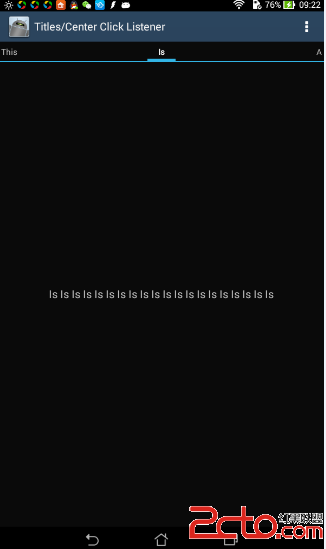
用過 ViewPager 的人都知道,它在「橫向切換頁面」這件事上表現很好,但導航樣式的部分預設值相當陽春。GitHub 上有個很不錯的開源專案 ViewPagerInd
 自定義 Dialog:一套元件搞定單按鈕、雙按鈕、三按鈕風格對話框
Android 提供的元件不少,但直接用系統預設樣式,總覺得和自家 App 的調性對不上。專案裡最常見的莫過於彈出對話框,按按鈕數量大致可分為一顆、兩顆、三顆三類(當然你
 用百度手機助手連 Chinanet 免費無線上網,不用帳密
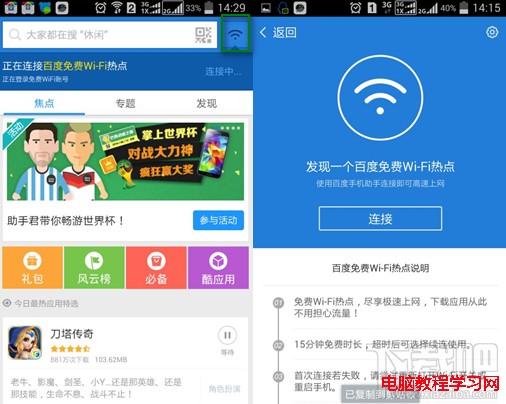
百度手機助手已與中國電信達成深度合作,在全國範圍內推出免費 WiFi 服務。只要所在位置有中國電信的 Chinanet 熱點,百度手機助手的使用者就能直接連上,不需要 C
 Android Drawable 資源完整指南:位圖、九宮格、形狀與狀態列表
Drawable 資源總覽 Drawable 是可繪製到畫面的資源,可透過 getDrawable 或 XML 屬性引用。Android 支援多種類型,包括位圖、九宮格、