

編輯:關於 Android 程式設計
「滑動解鎖」「滑動掛斷」這類控件在通話界面裡非常常見。它的好處是防誤觸——相比一個大號的紅色掛斷按鈕,需要滑動到底才能確認的操作,能有效避免通話中臉頰誤觸。
實現它只需要兩個要點:
circleOffset);drawText 時計算起始 X 坐標,讓文字居中。package net.mobctrl.callendview;
import android.annotation.SuppressLint;
import android.content.Context;
import android.content.res.TypedArray;
import android.graphics.Canvas;
import android.graphics.Color;
import android.graphics.Paint;
import android.graphics.Paint.Style;
import android.graphics.RectF;
import android.util.AttributeSet;
import android.view.MotionEvent;
import android.view.View;
/**
* 滑動掛斷的自定義控件
*/
@SuppressLint({"DrawAllocation", "ClickableViewAccessibility"})
public class CallSliderEndView extends View {
public interface SliderEndListener {
void onSliderEnd();
}
private SliderEndListener sliderEndListener;
public void setSliderEndListener(SliderEndListener l) {
this.sliderEndListener = l;
}
private int height;
private int width;
private int circleOffset = 0; // 當前水平偏移量
private int prevX = 0; // 手指按下時的 X
private int maxOffset; // 最大可滑動距離
private String sliderText;
private float textSize;
private int progressBackgroundColor;
private int backgroundColor;
private int redReginWidth;
public CallSliderEndView(Context context) {
super(context);
init(context, null);
}
public CallSliderEndView(Context context, AttributeSet attrs) {
super(context, attrs);
init(context, attrs);
}
public CallSliderEndView(Context context, AttributeSet attrs, int defStyleAttr) {
super(context, attrs, defStyleAttr);
init(context, attrs);
}
private void init(Context context, AttributeSet attrs) {
if (null == attrs) {
return;
}
TypedArray typedArray = context.obtainStyledAttributes(attrs, R.styleable.CallSliderEndView);
textSize = typedArray.getDimensionPixelSize(
R.styleable.CallSliderEndView_textSize, 40);
sliderText = typedArray.getString(R.styleable.CallSliderEndView_text);
progressBackgroundColor = typedArray.getColor(
R.styleable.CallSliderEndView_progressBackgroundColor, Color.GREEN);
backgroundColor = typedArray.getColor(
R.styleable.CallSliderEndView_backgroundColor, 0x0fffffff);
typedArray.recycle();
}
@Override
protected void onDraw(Canvas canvas) {
super.onDraw(canvas);
height = getHeight();
width = getWidth();
Paint paint = new Paint();
paint.setStyle(Style.FILL);
paint.setAntiAlias(true);
// 1. 繪製圓角背景
paint.setColor(backgroundColor);
drawBackground(canvas, paint);
// 2. 繪製可滑動的按鈕 + 文字
drawRoundButton(canvas, paint);
}
/** 繪製背景 */
private void drawBackground(Canvas canvas, Paint paint) {
canvas.drawRoundRect(new RectF(0, 0, width, height),
height / 2, height / 2, paint);
}
/** 繪製滑塊(圓形版本,已棄用,保留作對照) */
@Deprecated
private void drawCircleButton(Canvas canvas, Paint paint) {
int circleMargin = height / 10;
paint.setColor(Color.RED);
canvas.drawCircle(height / 2 + circleOffset, height / 2,
height / 2 - circleMargin, paint);
}
/** 繪製滑塊(圓角矩形版本) */
private void drawRoundButton(Canvas canvas, Paint paint) {
redReginWidth = width / 2;
// 進度背景(滑塊掠過的區域)
paint.setColor(progressBackgroundColor);
canvas.drawRoundRect(
new RectF(circleOffset, 0, circleOffset + redReginWidth, height),
height / 2, height / 2, paint);
// 文字居中
paint.setTextSize(textSize);
paint.setColor(Color.WHITE);
// Y 軸居中:用 descent + ascent 修正基線偏移
int yCenterPos = (int) ((canvas.getHeight() / 2)
- ((paint.descent() + paint.ascent()) / 2));
// X 軸居中:減去文字寬度的一半
int startX = circleOffset + (redReginWidth
- (int) paint.measureText(sliderText, 0, sliderText.length())) / 2;
canvas.drawText(sliderText, startX, yCenterPos, paint);
}
@Override
public boolean onTouchEvent(MotionEvent event) {
switch (event.getAction()) {
case MotionEvent.ACTION_DOWN:
actionDown(event);
break;
case MotionEvent.ACTION_MOVE:
actionMove(event);
break;
case MotionEvent.ACTION_UP:
actionUp(event);
break;
}
return true;
}
private void actionDown(MotionEvent e) {
this.prevX = (int) e.getX();
}
private void actionMove(MotionEvent event) {
int tempOffset = (int) (event.getX() - this.prevX);
this.maxOffset = width - redReginWidth;
if (tempOffset >= maxOffset && this.circleOffset == maxOffset) {
return;
}
this.circleOffset = tempOffset;
if (this.circleOffset > maxOffset) {
this.circleOffset = maxOffset; // 已到邊緣
if (sliderEndListener != null) {
sliderEndListener.onSliderEnd(); // 觸發回調
}
}
if (this.circleOffset <= 0) {
this.circleOffset = 0;
}
postInvalidate();
}
private void actionUp(MotionEvent event) {
// 未滑到底則回彈
if (this.circleOffset != maxOffset) {
this.circleOffset = 0;
}
postInvalidate();
}
}這裡有兩個細節值得說明:
Y 軸居中的計算。canvas.drawText() 的第二個參數是基線(baseline),不是文字中心。直接傳 height / 2 會讓文字整體偏上。正確做法是用 (descent() + ascent()) / 2 修正——ascent() 是負值,兩者相加再除以二,正好是基線到文字垂直中線的距離。
回彈邏輯。actionUp 中判斷 circleOffset != maxOffset 就重置為 0,這保證了「沒滑到底就松手」時按鈕會退回原位,不會卡在中間。
<RelativeLayout xmlns:android="https://schemas.android.com/apk/res/android"
    xmlns:app="https://schemas.android.com/apk/res/net.mobctrl.callendview"
    android:id="@+id/rl_root"
    android:layout_width="match_parent"
    android:layout_height="match_parent"
    android:background="@android:color/background_dark">

    <net.mobctrl.callendview.CallSliderEndView
        android:id="@+id/csev_slider_view"
        android:layout_width="match_parent"
        android:layout_height="60dp"
        android:layout_centerInParent="true"
        android:layout_margin="30dp"
        app:backgroundColor="#ffffff"
        app:progressBackgroundColor="#ffff1221"
        app:text="滑動掛斷"
        app:textSize="24sp" />

</RelativeLayout>public class MainActivity extends Activity {
private CallSliderEndView callSliderEndView;
@Override
protected void onCreate(Bundle savedInstanceState) {
super.onCreate(savedInstanceState);
setContentView(R.layout.main);
callSliderEndView = (CallSliderEndView) findViewById(R.id.csev_slider_view);
callSliderEndView.setSliderEndListener(new SliderEndListener() {
@Override
public void onSliderEnd() {
Toast.makeText(getApplicationContext(),
"Slider To End", Toast.LENGTH_SHORT).show();
}
});
}
}<?xml version="1.0" encoding="utf-8"?>
<resources>
<declare-styleable name="CallSliderEndView">
<attr name="text" format="string" />
<attr name="textSize" format="dimension" />
<attr name="backgroundColor" format="color" />
<attr name="progressBackgroundColor" format="color" />
</declare-styleable>
</resources>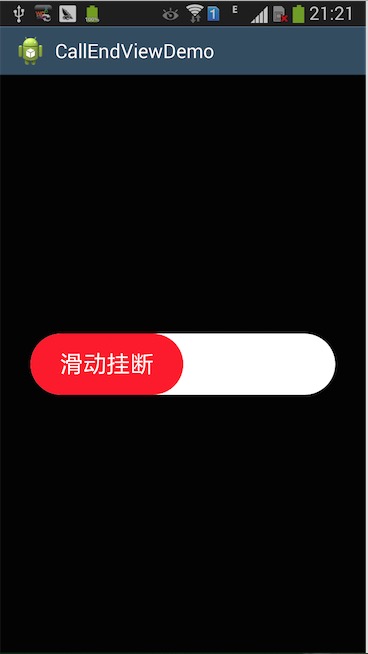
用戶可以用手指滑動按鈕,滑到底端觸發回調。
Scroller 或 ValueAnimator 做插值,讓按鈕平滑滑回。onDraw 中每次 new Paint() 是不好的習慣,應把 Paint 提為成員變量復用,避免 GC 抖動。contentDescription,並考慮為 TalkBack 用戶提供替代操作方式。onTouchEvent 始終返回 true,會吞掉所有點擊。如果需要同時支持點擊,要在 actionUp 中判斷位移是否小於 touchSlop。項目 GitHub 地址可在原文中查找。整體來說,這個控件代碼量不到 200 行,但把「自定義屬性、onDraw 繪製、文字居中、手勢處理、回調通知」這五個自定義 View 的核心技能都覆蓋到了,是很適合練習的範例。
 Android 事件分發機制探析與攔截實作
做過自訂 ViewGroup 的人遲早會碰到事件分發的問題:明明在自己的 View 上實作了觸控處理,事件卻被上層或其他子 View 搶走了。要解決這類問題,必須先理解
 [Android] 開心消消樂入門實作(簡易版)
緣起與成品定位 這篇文章記錄的是一個 Android 初學者以「開心消消樂」為主題所做的練習作品。作者在開始實作前,並沒有完整學習過 Java 物件導向,也缺乏 Andr
 Android 軟鍵盤彈起與隱藏監聽實戰
問題背景在 Android 開發中,只要畫面包含 EditText,就很常需要處理軟鍵盤。開發者通常會在 AndroidManifest 中設定 windowSoftIn
 Android SQLite 實戰:從建表到 CRUD 的完整流程
在 Android 開發中,資料持久化是不可忽略的一環。相較於輕量級的 SharedPreferences,SQLite 更適合儲存結構化資料,例如使用者清單、商品資訊、