

編輯:關於 Android 程式設計
ProgressBar 是回饋「事情正在進行中」最直接的控件。它既可以當作不確定進度的轉圈提示,也可以當作有明確百分比的橫向進度條。本文用一個可重複播放的範例,把水平進度條、次要進度、可見性切換這幾個常用 API 一次講清楚。
布局裡放了兩個 ProgressBar:一個使用 progressBarStyleHorizontal 樣式(橫向長條),一個使用預設樣式(圓形轉圈)。兩者初始都設為 gone,等使用者按下按鈕才顯示,這樣可以觀察 setVisibility 的效果。
<LinearLayout xmlns:android="https://schemas.android.com/apk/res/android"
    android:id="@+id/LinearLayout1"
    android:layout_width="match_parent"
    android:layout_height="match_parent"
    android:orientation="vertical"
    android:paddingBottom="@dimen/activity_vertical_margin"
    android:paddingLeft="@dimen/activity_horizontal_margin"
    android:paddingRight="@dimen/activity_horizontal_margin"
    android:paddingTop="@dimen/activity_vertical_margin">

    <TextView
        android:layout_width="wrap_content"
        android:layout_height="wrap_content"
        android:text="@string/hello_world" />

    <ProgressBar
        android:id="@+id/firstBar"
        style="?android:attr/progressBarStyleHorizontal"
        android:layout_width="fill_parent"
        android:layout_height="wrap_content"
        android:max="200"
        android:visibility="gone" />

    <ProgressBar
        android:id="@+id/secendBar"
        style="?android:attr/progressBarStyle"
        android:layout_width="wrap_content"
        android:layout_height="wrap_content"
        android:visibility="gone" />

    <Button
        android:id="@+id/myButton"
        android:layout_width="wrap_content"
        android:layout_height="wrap_content"
        android:text="button" />
</LinearLayout>
package com.example.progress;

import android.app.Activity;
import android.os.Bundle;
import android.view.Menu;
import android.view.View;
import android.view.View.OnClickListener;
import android.widget.Button;
import android.widget.ProgressBar;

public class MainActivity extends Activity {

    private ProgressBar firstBar = null;
    private ProgressBar secendBar = null;
    private Button myButton = null;
    private int i = 0; // 記錄目前進度

    @Override
    protected void onCreate(Bundle savedInstanceState) {
        super.onCreate(savedInstanceState);
        setContentView(R.layout.main);

        firstBar = (ProgressBar) findViewById(R.id.firstBar);
        secendBar = (ProgressBar) findViewById(R.id.secendBar);
        myButton = (ProgressBar & View) findViewById(R.id.myButton);
        myButton = (Button) findViewById(R.id.myButton);

        myButton.setOnClickListener(new myButtonClickListener());
    }

    class myButtonClickListener implements OnClickListener {
        @Override
        public void onClick(View v) {
            if (i == 0) {
                // 第一次點擊:讓兩個進度條顯示出來
                firstBar.setVisibility(View.VISIBLE);
                secendBar.setVisibility(View.VISIBLE);
            } else if (i > 0 && i < firstBar.getMax()) {
                // 主進度與次要進度同步推進
                firstBar.setProgress(i);
                firstBar.setSecondaryProgress(i + 10);
            } else {
                // 走完一輪:隱藏並歸零,i 設為 -10 讓下一輪從 0 重新開始
                firstBar.setVisibility(View.GONE);
                secendBar.setVisibility(View.GONE);
                firstBar.setProgress(0);
                firstBar.setSecondaryProgress(0);
                i = -10;
            }
            i += 10;
        }
    }

    @Override
    public boolean onCreateOptionsMenu(Menu menu) {
        getMenuInflater().inflate(R.menu.main, menu);
        return true;
    }
}
setMax / getMax:決定進度的上限。布局中的 android:max="200" 等同於 setMax(200),預設值是 100。
setProgress:設定主要進度,值必須落在 0 到 max 之間。
setSecondaryProgress:設定次要進度,常用於「緩存進度」這種場景——例如線上影片播放時,一條淺色條表示已緩衝多少,一條深色條表示已播放到哪裡。
setVisibility:注意 View.GONE 不佔排版空間,View.INVISIBLE 佔位但不可見。進度條通常用 GONE,避免畫面留下空白。
如果只是要「不知道還要多久」的提示,直接用預設的圓形樣式並讓它持續轉就好,不必自己開 Timer。若是有明確進度(下載、安裝、上傳),則改用水平樣式並搭配百分比文字,使用者體驗會好很多。另外,長時間的耗時任務建議放在服務或背景執行緒中推進度,避免只靠按鈕點擊這種教學式寫法。
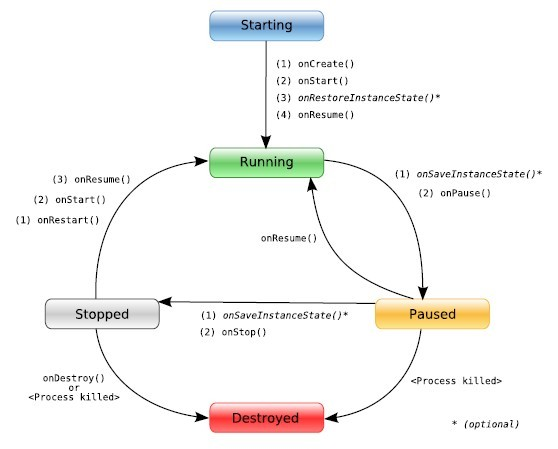 Android 新手必修:Activity 四大狀態與生命週期一次講透
前陣子一直在啃 Android 的基礎知識,興趣班的課程講得太抽象,聽到後面實在跟不上,乾脆自己找資料把 Activity 這個最核心的元件整理成一篇筆記,於是有了下面這
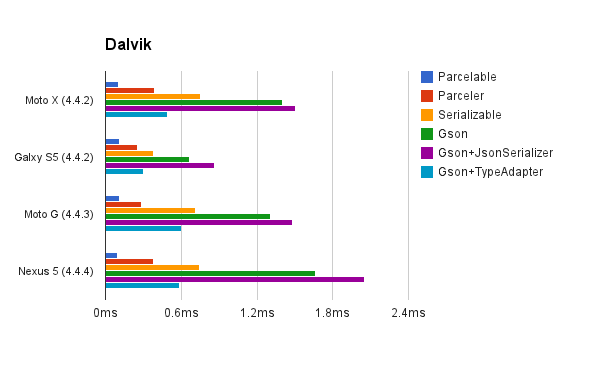 Android 中傳遞物件的五種做法與效能比較
在 Android 中,Activity 與 Fragment 之間傳遞物件,可以把物件序列化後存入 Bundle 或 Intent,也可以轉成 JSON 字串再傳。序列
 Android 開源 UI 特效分享:常用元件與動畫庫
開源 UI 元件的價值在 Android 開發中,重複實作常見互動會消耗大量時間。開源 UI 元件能快速提供列表、動畫、選單、進度條與圖片效果,讓開發者把力氣放在產品邏輯
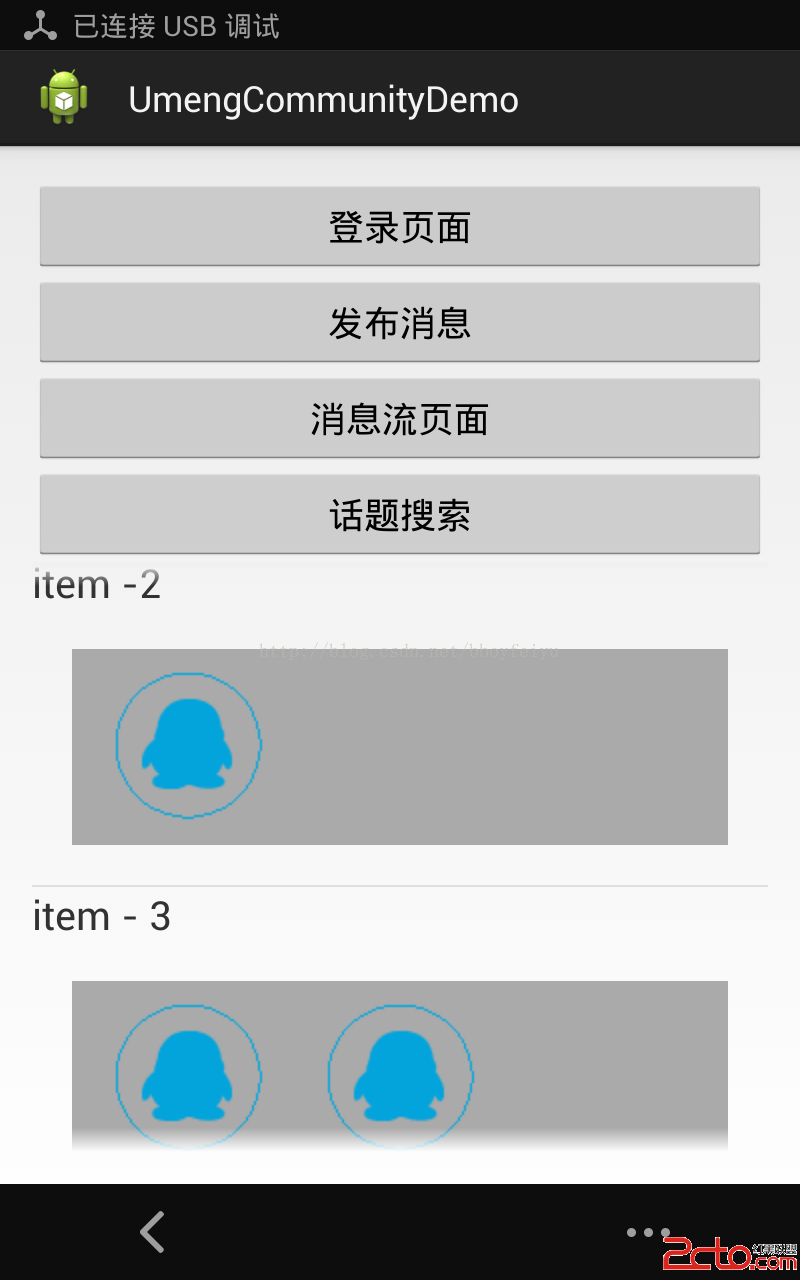 Android 中 ListView 嵌套 GridView 實現簡單消息流 UI(附寬高問題解決方案)
最近在做一个專案,需要用到類似新浪微博那樣的消息流,也就是每一項都包含文字與九宮格圖片,於是就牽扯到 ListView 或 ScrollView 嵌套 GridView