

編輯:關於 Android 程式設計
做浮動提示、氣泡定位、動畫位移這類功能時,一定會遇到「這個 View 到底在螢幕的哪個位置」的問題。Android 提供了好幾組方法,但它們的參考原點各不相同,用錯就會出現莫名其妙的偏移。
package xiaosi.location;

import android.app.Activity;
import android.os.Bundle;
import android.view.View;
import android.view.View.OnClickListener;
import android.widget.Button;
import android.widget.ImageView;

public class LocationActivity extends Activity {

    private ImageView img = null;
    private Button button = null;

    @Override
    public void onCreate(Bundle savedInstanceState) {
        super.onCreate(savedInstanceState);
        setContentView(R.layout.main);

        img = (ImageView) findViewById(R.id.image);
        button = (Button) findViewById(R.id.button);
        button.setOnClickListener(new ButtonListener());
    }

    public class ButtonListener implements OnClickListener {
        public void onClick(View v) {
            int[] location = new int[2];
            img.getLocationOnScreen(location);
            int x = location[0];
            int y = location[1];

            System.out.println("x: " + x + "  y: " + y);
            System.out.println("Left:   " + img.getLeft());
            System.out.println("Right:  " + img.getRight());
            System.out.println("Top:    " + img.getTop());
            System.out.println("Bottom: " + img.getBottom());
        }
    }
}
<?xml version="1.0" encoding="utf-8"?>
<LinearLayout xmlns:android="https://schemas.android.com/apk/res/android"
    android:layout_width="fill_parent"
    android:layout_height="fill_parent"
    android:orientation="vertical">

    <Button
        android:id="@+id/button"
        android:layout_width="fill_parent"
        android:layout_height="wrap_content"
        android:text="button" />

    <ImageView
        android:id="@+id/image"
        android:layout_width="wrap_content"
        android:layout_height="wrap_content"
        android:layout_gravity="center"
        android:src="@drawable/a" />

</LinearLayout>

getLocationOnScreen(int[] outLocation):回傳該 View 相對於整個螢幕左上角的座標。注意這個值包含了狀態列(通知列)的高度,也就是說它是從實體螢幕的最頂端算起。
getLocationInWindow(int[] outLocation):回傳該 View 相對於所處 Window 的座標。在多視窗或自訂 Dialog 情境下,這個值會與螢幕座標不同。
getLeft() / getTop() / getRight() / getBottom():這是一組相對於「直接父容器」的座標,回傳的是整數像素。它們在 onCreate() 階段全為 0,因為此時版面尚未配置。
還有一個容易混淆的 getGlobalVisibleRect() 與 getLocalVisibleRect(),前者算的是相對於螢幕的可見範圍,後者算的是相對於自身父容器的可見範圍,常用來判斷一個 View 是否真的被使用者看到。
座標取得必須在版面配置完成後進行。在 onCreate() 裡直接呼叫,幾乎都會拿到 0。可靠的做法有三種:把邏輯放進 View.post(Runnable)、註冊 ViewTreeObserver.OnGlobalLayoutListener,或等到使用者互動時才取(就像範例中的按鈕點擊)。
另外要留意螢幕旋轉與狀態列隱藏。旋轉後座標會全部改變,若你把座標快取下來 reuse,就會出現位置錯亂;而狀態列隱藏(全螢幕模式)會讓 getLocationOnScreen 的 y 值直接少掉一段,這也是很多「全螢幕後浮動元件跑位」問題的根源。
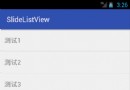 仿微信/QQ 左滑顯示刪除與置頂的 ListView 實作
聊天列表往左滑會浮出「刪除」「置頂」按鈕,這是高頻互動。原理不複雜:把每個 item 的內容區塊透過 margin 平移開來,藏在下面的操作區自然露出。 效果預覽:
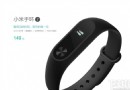 小米手環 2 支援哪些手機?iPhone 與 Android 適配機型總整理
小米手環 2 即將開放購買。相比第一代,新版多了螢幕與心率功能,確實更值得入手。但在下單之前,最好先確認自己的手機能不能搭配使用——這裡把支援清單整理好了。 小米手環 2
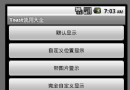 Android 提示信息的利器:Toast 的五種用法
Toast 是一個特殊的 View,用來快速向用戶傳達少量信息。它以浮層形式短暫出現,永遠不會獲取焦點,因此不會打斷用戶正在進行的輸入或操作,非常適合做操作結果提示與引導
 Android BottomNavigationBar 底部導航實現
用底部導航提升 App 操作一致性 底部導航適合放置 3 到 5 個主要功能入口,讓使用者在主要頁面之間快速切換。Material Design 中的 Bottom Na