

編輯:關於 Android 程式設計
系統自帶的 ProgressBar 樣式有限,想要一個圓環狀、中央顯示百分比的進度條,最直接的辦法就是自己畫。核心只需要繼承 View 並改寫 onDraw,用 Canvas.drawArc 分別畫出背景圓環與進度弧線。
public class CircleView extends View {

    private int maxProgress = 100;
    private int progress = 30;
    private int progressStrokeWidth = 4;

    // 畫圓所在的矩形區域
    RectF oval;
    Paint paint;

    public CircleView(Context context, AttributeSet attrs) {
        super(context, attrs);
        oval = new RectF();
        paint = new Paint();
    }

    @Override
    protected void onDraw(Canvas canvas) {
        super.onDraw(canvas);

        int width = this.getWidth() / 2;
        int height = this.getHeight() / 2;
        int len = this.getWidth() / 4;

        paint.setAntiAlias(true);              // 設置畫筆為抗鋸齒
        paint.setColor(Color.WHITE);
        canvas.drawColor(Color.TRANSPARENT);   // 背景
        paint.setStrokeWidth(progressStrokeWidth);
        paint.setStyle(Style.STROKE);

        oval.left   = width  - len;            // 左上角 x
        oval.top    = height - len;            // 左上角 y
        oval.right  = width  + len;            // 右下角 x
        oval.bottom = height + len;            // 右下角 y

        paint.setColor(Color.RED);
        canvas.drawArc(oval, -90, 360, false, paint);   // 進度條背景圓圈

        paint.setColor(Color.BLUE);
        // 進度圓弧,起點固定在 12 點鐘方向
        canvas.drawArc(oval, -90, ((float) progress / maxProgress) * 360, false, paint);

        paint.setStrokeWidth(1);
        String text = progress + "%";
        int textHeight = height / 10;          // 設置字體高度
        paint.setTextSize(textHeight);
        int textWidth = (int) paint.measureText(text, 0, text.length());
        paint.setStyle(Style.FILL);
        canvas.drawText(text,
                this.getWidth() / 2 - textWidth / 2,
                this.getHeight() / 2 + textHeight / 2, paint);
    }

    public int getMaxProgress() {
        return maxProgress;
    }

    public void setMaxProgress(int maxProgress) {
        this.maxProgress = maxProgress;
    }

    public void setProgress(int progress) {
        this.progress = progress;
        this.invalidate();
    }

    /**
     * 非 UI 線程調用
     */
    public void setProgressNotInUiThread(int progress) {
        this.progress = progress;
        this.postInvalidate();
    }
}這裡有個容易踩到的細節:進度更新的方法提供了兩個版本。invalidate() 只能在 UI 線程呼叫,而 postInvalidate() 可以從背景線程安全觸發重繪。混用會直接拋出 CalledFromWrongThreadException。
package com.example.customview;

import android.app.Activity;
import android.os.Bundle;
import android.view.Menu;

public class MainActivity extends Activity {

    private CircleView circleView;

    @Override
    protected void onCreate(Bundle savedInstanceState) {
        super.onCreate(savedInstanceState);
        setContentView(R.layout.activity_main);

        circleView = (CircleView) findViewById(R.id.progressbar);

        new Thread() {
            public void run() {
                int i = 0;
                while (i <= 100) {
                    circleView.setProgressNotInUiThread(i);
                    i++;
                    try {
                        sleep(100);
                        if (i == 100) {
                            i = 0;   // 循環演示
                        }
                    } catch (InterruptedException e) {
                        e.printStackTrace();
                    }
                }
            }
        }.start();
    }

    @Override
    public boolean onCreateOptionsMenu(Menu menu) {
        getMenuInflater().inflate(R.menu.main, menu);
        return true;
    }
}<RelativeLayout xmlns:android="https://schemas.android.com/apk/res/android"
xmlns:tools="https://schemas.android.com/tools"
android:layout_width="match_parent"
android:layout_height="match_parent" >
<com.example.customview.CircleView
android:id="@+id/progressbar"
android:layout_width="wrap_content"
android:layout_height="wrap_content" />
</RelativeLayout>由於 CircleView 沒有覆寫 onMeasure,寬高設為 wrap_content 時可能測得不合理尺寸。若實測顯示為零或偏小,建議改成明確的 dp 數值,或在 onMeasure 中依 getSuggestedMinimumSize() 回報一個正方形邊長。
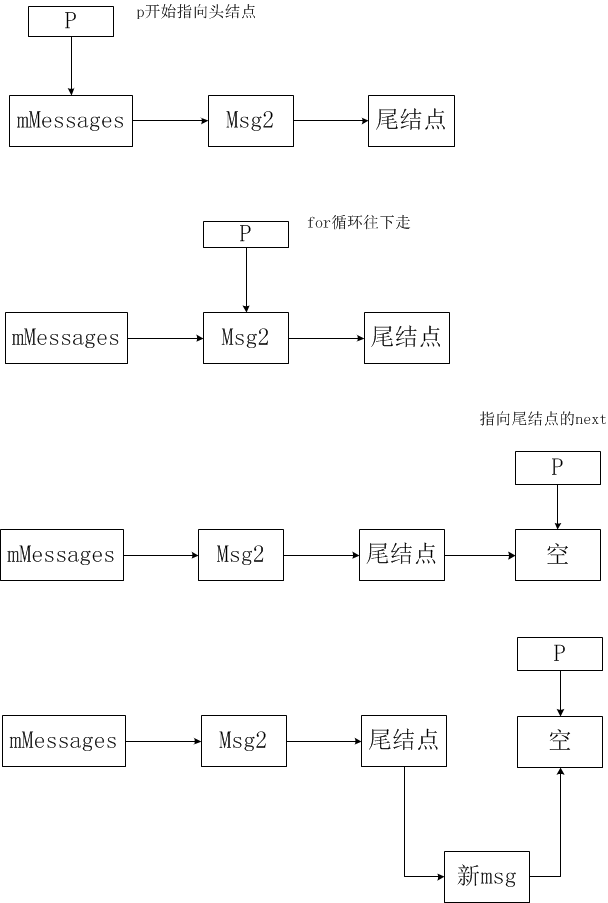 Android Handler 機制解析
Handler 是 Android 中負責訊息傳遞與處理的重要機制,常用於延遲執行、排程任務以及從子執行緒更新 UI。由於 Android 規定 UI 操作必須在主執行緒
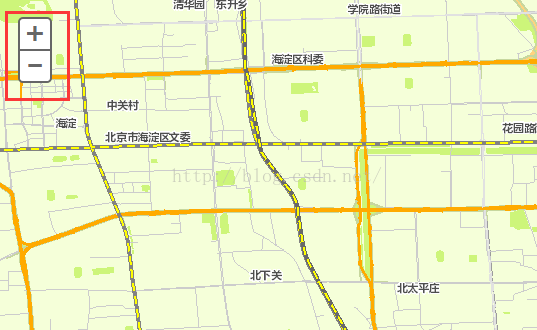 arcgis api for js 共享干貨系列之二:自定義 Navigation 控件樣式風格
arcgis api for js 默認的 Navigation 控件樣式風格如下圖: 這樣的風格不能說不好,各有各的愛好與審美觀,這裡也不是重點。本節的重點是如何自定
 Android 監聽 Home 鍵的兩種做法
以下兩種方式都能勝任返回鍵、Home 鍵與多任務鍵的監聽,但能力範圍不同,依需求挑一種即可。 做法一:註冊廣播監聽 Home 鍵與多任務鍵 效果示意: 建立一個廣播接收
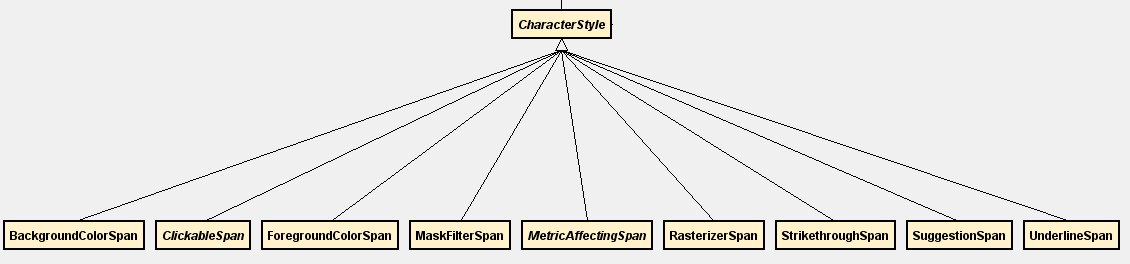 Android Span 機制入門:框架分類與內建 Span 全解
前幾天在微博上看到有人評論 Android 的 Span 機制相當強大,值得細細研究,於是查了一些資料,找到一篇寫得很透徹的文章 Spans, a Powerful Co