

編輯:關於 Android 程式設計
要讓使用者能用雙指縮放、單指拖曳一張圖片,關鍵是把 ImageView 的 scaleType 設為 MATRIX,然後自己維護一個 Matrix 來追蹤縮放比例與平移量。以下是一個可直接使用的 TouchImageView 實作,並附上 Activity 的呼叫方式。
public class TouchImageViewActivity extends Activity {

    @Override
    public void onCreate(Bundle savedInstanceState) {
        super.onCreate(savedInstanceState);
        setContentView(R.layout.main);

        TouchImageView img = (TouchImageView) findViewById(R.id.snoop);
        img.setImageResource(R.drawable.snoopy);
        img.setMaxZoom(4f);   // 最大放大倍率
    }
}
public class TouchImageView extends ImageView {

    Matrix matrix;

    // 三種狀態:無動作、拖曳、縮放
    static final int NONE = 0;
    static final int DRAG = 1;
    static final int ZOOM = 2;
    static final int CLICK = 3;

    int mode = NONE;

    PointF last = new PointF();   // 上一次觸點座標
    PointF start = new PointF();  // 按下時的座標,用來判斷是否為點擊

    float minScale = 1f;
    float maxScale = 3f;
    float saveScale = 1f;         // 目前累積的縮放倍率
    float[] m = new float[9];

    int viewWidth, viewHeight;
    int oldMeasuredWidth, oldMeasuredHeight;

    protected float origWidth, origHeight;

    ScaleGestureDetector mScaleDetector;
    Context context;

    public TouchImageView(Context context) {
        super(context);
        sharedConstructing(context);
    }

    public TouchImageView(Context context, AttributeSet attrs) {
        super(context, attrs);
        sharedConstructing(context);
    }

    /** 設定最大放大倍率 */
    public void setMaxZoom(float x) {
        maxScale = x;
    }

    private void sharedConstructing(Context context) {
        super.setClickable(true);
        this.context = context;
        mScaleDetector = new ScaleGestureDetector(context, new ScaleListener());
        matrix = new Matrix();
        setImageMatrix(matrix);
        setScaleType(ScaleType.MATRIX);

        setOnTouchListener(new OnTouchListener() {
            @Override
            public boolean onTouch(View v, MotionEvent event) {
                // 先交給手勢偵測器處理多點縮放
                mScaleDetector.onTouchEvent(event);

                PointF curr = new PointF(event.getX(), event.getY());

                switch (event.getAction()) {
                    case MotionEvent.ACTION_DOWN:
                        last.set(curr);
                        start.set(last);
                        mode = DRAG;
                        break;

                    case MotionEvent.ACTION_MOVE:
                        if (mode == DRAG) {
                            float deltaX = curr.x - last.x;
                            float deltaY = curr.y - last.y;
                            float fixTransX = getFixDragTrans(deltaX, viewWidth, origWidth * saveScale);
                            float fixTransY = getFixDragTrans(deltaY, viewHeight, origHeight * saveScale);
                            matrix.postTranslate(fixTransX, fixTransY);
                            fixTrans();          // 邊界修正,避免拖出畫面
                            last.set(curr.x, curr.y);
                        }
                        break;

                    case MotionEvent.ACTION_UP:
                        mode = NONE;
                        int xDiff = (int) Math.abs(curr.x - start.x);
                        int yDiff = (int) Math.abs(curr.y - start.y);
                        // 位移極小視為點擊,而非拖曳
                        if (xDiff < CLICK && yDiff < CLICK) {
                            performClick();
                        }
                        break;

                    case MotionEvent.ACTION_POINTER_UP:
                        mode = NONE;
                        break;
                }

                setImageMatrix(matrix);
                invalidate();
                return true;   // 表示事件已處理
            }
        });
    }
}
private class ScaleListener extends ScaleGestureDetector.SimpleOnScaleGestureListener {

    @Override
    public boolean onScaleBegin(ScaleGestureDetector detector) {
        mode = ZOOM;
        return true;
    }

    @Override
    public boolean onScale(ScaleGestureDetector detector) {
        float mScaleFactor = detector.getScaleFactor();
        float origScale = saveScale;
        saveScale *= mScaleFactor;

        // 上下限夾住,避免放大過頭或縮小到看不見
        if (saveScale > maxScale) {
            saveScale = maxScale;
            mScaleFactor = maxScale / origScale;
        } else if (saveScale < minScale) {
            saveScale = minScale;
            mScaleFactor = minScale / origScale;
        }

        // 圖片比視窗小時以視窗中心為軸,較大時以雙指中心為軸
        if (origWidth * saveScale <= viewWidth || origHeight * saveScale <= viewHeight) {
            matrix.postScale(mScaleFactor, mScaleFactor, viewWidth / 2, viewHeight / 2);
        } else {
            matrix.postScale(mScaleFactor, mScaleFactor,
                    detector.getFocusX(), detector.getFocusY());
        }

        fixTrans();
        return true;
    }
}
void fixTrans() {
    matrix.getValues(m);
    float transX = m[Matrix.MTRANS_X];
    float transY = m[Matrix.MTRANS_Y];

    float fixTransX = getFixTrans(transX, viewWidth, origWidth * saveScale);
    float fixTransY = getFixTrans(transY, viewHeight, origHeight * saveScale);

    if (fixTransX != 0 || fixTransY != 0) {
        matrix.postTranslate(fixTransX, fixTransY);
    }
}

float getFixTrans(float trans, float viewSize, float contentSize) {
    float minTrans, maxTrans;
    if (contentSize <= viewSize) {
        minTrans = 0;
        maxTrans = viewSize - contentSize;
    } else {
        minTrans = viewSize - contentSize;
        maxTrans = 0;
    }
    if (trans < minTrans) return -trans + minTrans;
    if (trans > maxTrans) return -trans + maxTrans;
    return 0;
}

/** 內容比視窗小時,該方向不允許拖動 */
float getFixDragTrans(float delta, float viewSize, float contentSize) {
    if (contentSize <= viewSize) {
        return 0;
    }
    return delta;
}

@Override
protected void onMeasure(int widthMeasureSpec, int heightMeasureSpec) {
    super.onMeasure(widthMeasureSpec, heightMeasureSpec);
    viewWidth = MeasureSpec.getSize(widthMeasureSpec);
    viewHeight = MeasureSpec.getSize(heightMeasureSpec);

    // 尺寸未變(例如單純重繪)時直接返回
    if (oldMeasuredHeight == viewWidth && oldMeasuredHeight == viewHeight
            || viewWidth == 0 || viewHeight == 0) {
        return;
    }
    oldMeasuredHeight = viewHeight;
    oldMeasuredWidth = viewWidth;

    if (saveScale == 1) {
        // 首次載入:等比縮放貼合視窗並置中
        Drawable drawable = getDrawable();
        if (drawable == null || drawable.getIntrinsicWidth() == 0
                || drawable.getIntrinsicHeight() == 0) {
            return;
        }
        int bmWidth = drawable.getIntrinsicWidth();
        int bmHeight = drawable.getIntrinsicHeight();

        float scaleX = (float) viewWidth / (float) bmWidth;
        float scaleY = (float) viewHeight / (float) bmHeight;
        float scale = Math.min(scaleX, scaleY);
        matrix.setScale(scale, scale);

        float redundantYSpace = (float) viewHeight - (scale * (float) bmHeight);
        float redundantXSpace = (float) viewWidth - (scale * (float) bmWidth);
        redundantYSpace /= 2;
        redundantXSpace /= 2;
        matrix.postTranslate(redundantXSpace, redundantYSpace);

        origWidth = viewWidth - 2 * redundantXSpace;
        origHeight = viewHeight - 2 * redundantYSpace;
        setImageMatrix(matrix);
    }
    fixTrans();
}
這份實作有幾個值得學習的設計決策:
狀態機而非事件堆疊。用 mode 變數明確區分「拖曳」與「縮放」,並在 ACTION_POINTER_UP(其中一指離開)時把狀態重設為 NONE,避免縮放結束後突然被誤判為拖曳而跳動。
縮放中心會依情況切換。圖片小於視窗時以視窗中心為軸,較大時以雙指中心(focusX/focusY)為軸。這個判斷讓放大體感自然得多,也避免圖片被推向角落。
邊界修正分兩層。fixTrans() 負責在縮放後把圖片拉回可視範圍,getFixDragTrans() 則在該方向內容小於視窗時直接吃掉位移,讓圖片不會被拖離畫面。
首次載入才做貼合縮放。以 saveScale == 1 為判斷條件,避免每次 onMeasure(例如旋轉螢幕)都重設縮放狀態,使用者好不容易放大的視圖不會被打回原點。
若要在正式專案中使用,建議再補上雙擊放大/還原、放大後的惯性滑動(可搭配 Scroller 或 OverScroller),以及旋轉螢幕時以 onSaveInstanceState 保存 matrix 數值,體驗會完整許多。
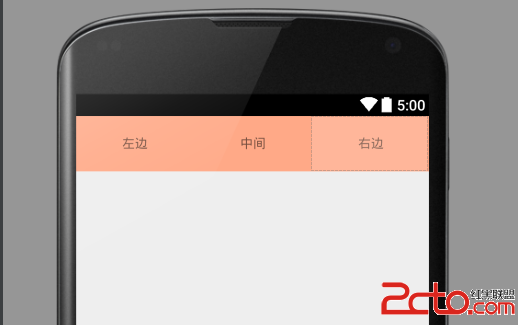 Android UI 優化(二):用 include 標簽復用布局
問題:重復的布局怎麼辦 假設下面這塊布局在很多界面都用到了,我該怎麼辦?每個頁面都寫一遍的話,代碼太冗余,並且後續維護難度成倍增加——改一處就得記着同步改十幾處,漏一處就
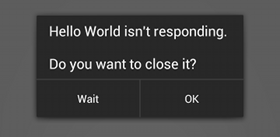 Android 效能優化:如何避免 ANR 並保持介面流暢
ANR 是什麼 ANR 是 Application Not Responding 的縮寫。當應用無法在時限內回應輸入或廣播時,系統會顯示對話框,讓使用者選擇等待或關閉。
 Android ListView 實作下拉刷新與上拉加載更多
本文為大家介紹 Android ListView 下拉刷新與上拉加載更多的實作方法,供大家參考。 一、ListView 優化方式 介面緩存:ViewHolder + co
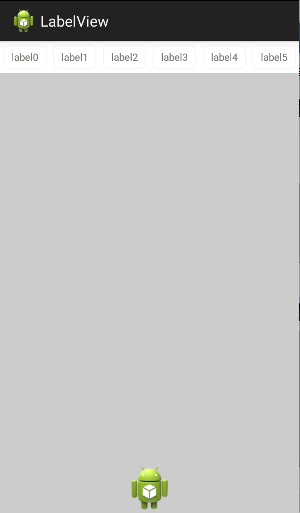 自訂標籤流式版面配置:單多行切換與單選互動實作
專案裡剛好需要這樣的標籤流式版面配置,做完就在這裡整理出來分享給大家。 效果預覽 要實現的功能 1、單行與多行之間切換顯示;2、單選與取消選擇。 完整源碼 /**