

編輯:關於 Android 程式設計
ProgressBar 是 Android 中常見的進度提示元件,用來告訴使用者某項任務正在進行,以及目前完成到什麼程度。它常用於資料下載、檔案讀取、網路請求等情境。除了主進度之外,ProgressBar 也能顯示次要進度,例如播放器載入或緩衝進度。
如果任務長度未知,也可以使用不確定模式,讓進度條以循環動畫表示「正在處理中」。
以下範例建立一個水平進度條,並透過按鈕增加或減少進度。
<?xml version="1.0" encoding="utf-8"?>
<LinearLayout xmlns:android="https://schemas.android.com/apk/res/android"
    android:orientation="vertical"
    android:layout_width="match_parent"
    android:layout_height="wrap_content">

    <ProgressBar
        android:id="@+id/progress_horizontal"
        style="?android:attr/progressBarStyleHorizontal"
        android:layout_width="200dip"
        android:layout_height="wrap_content"
        android:max="100"
        android:progress="50"
        android:secondaryProgress="75" />

    <Button
        android:id="@+id/increase"
        android:layout_width="wrap_content"
        android:layout_height="wrap_content"
        android:text="增加" />

    <Button
        android:id="@+id/decrease"
        android:layout_width="wrap_content"
        android:layout_height="wrap_content"
        android:text="減少" />
</LinearLayout>
在 Activity 中,可以透過 incrementProgressBy 更新進度,也可以同步更新視窗標題的進度顯示。
ProgressBar progressHorizontal = findViewById(R.id.progress_horizontal);

findViewById(R.id.increase).setOnClickListener(v ->
    progressHorizontal.incrementProgressBy(1)
);

findViewById(R.id.decrease).setOnClickListener(v ->
    progressHorizontal.incrementProgressBy(-1)
);ProgressBar 的關鍵在於正確設定 max、progress 與 secondaryProgress,並依需求選擇確定或不確定模式。掌握這些屬性與方法,就能在多數場景中呈現清楚的任務進度。
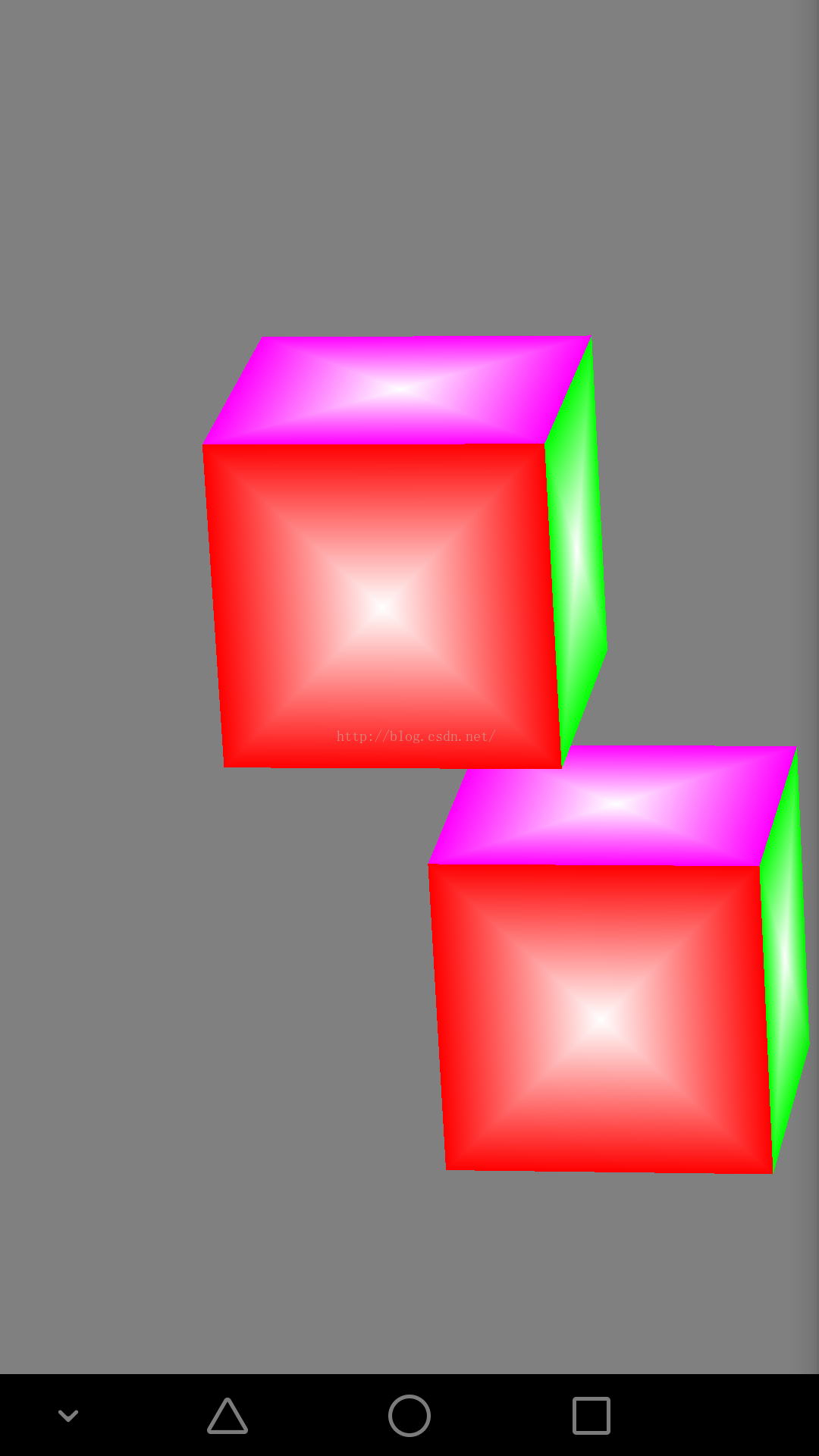 OpenGL ES 實作:在 Android 上繪製彩色立方體
直接進主題,先看核心代碼,後面再拆解各個部件的職責。 一、Cube:立方體本體 OpenGL ES 只能畫三角形,因此立方體的每個面都被拆成 4 個三角形,並以立方體中心
 Android View 系統解析(上):從 View 樹到測量、佈局、繪製三大流程
寫 Android 介面久了,難免會遇到一些「表面寫得出來、深究卻說不清」的問題:為什麼自訂 View 的 onMeasure 不寫就顯示不出來?requestLayou
 理解並善用 adb:Android 調試橋接器完全指南
Android Debug Bridge(Android 調試橋接器),簡稱 adb,是一款用於管理模擬器或真機狀態的萬能工具。 平時開發 Android 應用時,你可能
 Android 實用圖文教學:程式碼混淆、第三方加固與多渠道分發
本文以圖文並茂的方式,帶你走完 Android 應用發布前的關鍵流程:程式碼混淆、第三方平台加固加密與多渠道分發。 第一步:程式碼混淆(留意引入的第三方 jar) 在新版