

編輯:關於 Android 程式設計
Android 的 CountDownTimer 很適合實作按鈕倒計時,例如驗證碼發送後的 60 秒倒數。倒數期間可停用按鈕,結束後再恢復原本文字與樣式。
public class CountDownButton extends CountDownTimer {

    private Button mButton;
    private String mOriginalText;
    private Drawable mOriginalBackground;
    private int mOriginalTextColor;

    public CountDownButton(long millisInFuture, long countDownInterval) {
        super(millisInFuture, countDownInterval);
    }

    public void init(Button button) {
        mButton = button;
        mOriginalText = mButton.getText().toString();
        mOriginalBackground = mButton.getBackground();
        mOriginalTextColor = mButton.getCurrentTextColor();
    }

    @Override
    public void onTick(long millisUntilFinished) {
        if (mButton == null) {
            return;
        }

        mButton.setClickable(false);
        mButton.setText(mOriginalText + "(" + millisUntilFinished / 1000 + " 秒)");
    }

    @Override
    public void onFinish() {
        if (mButton == null) {
            return;
        }

        mButton.setText(mOriginalText);
        mButton.setTextColor(mOriginalTextColor);
        mButton.setBackgroundDrawable(mOriginalBackground);
        mButton.setClickable(true);
    }
}在 Activity 中建立 CountDownButton,傳入按鈕並啟動即可。
CountDownButton countDownButton = new CountDownButton(60000, 1000);
countDownButton.init(button);
countDownButton.start();透過 CountDownTimer,可以很輕鬆地做出按鈕倒數效果。重點是保存按鈕原始文字、背景與文字顏色,倒數結束後再還原。
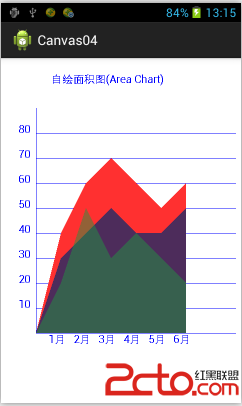 Android Canvas 練習(5):用 Path 與透明度手繪面積圖
原本只打算畫兩張圖練練手就快速跳過 Canvas 這塊,畢竟我對它一向興趣缺缺。不過最近畫了兩個圖表之後忽然發現,那些以前覺得很常見的統計圖表,仔細想想,如果不追求通用性
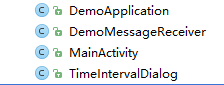 小米推送接入實戰:從 Demo 解析到移植上線的完整路線圖
前陣子忙著找工作,積累了不少收穫,卻一直沒空整理筆記。最近終於騰出手來,把小米推送的學習心得寫成這篇文章,希望能給需要接入 Android 消息推送的朋友一點參考。 為
 Android 百日程序:Fragment 動態管理與生命週期
之前寫過 Fragment 的使用,Fragment 可以靜態聲明,也可以在運行時動態載入。這一章進一步看看如何動態更換 Fragment,以及 Fragment 生命週
 用 RecyclerView 打造新聞列表頁:輪播頭部、雙 Item 樣式、下拉刷新與上拉加載
效果圖: 本文將逐步實作一個功能完整的新聞列表頁,涵蓋頭部圖片輪播、兩種 Item 顯示方式、下拉刷新、上拉加載,以及限制列表的最大加載條目數。 一、為 Recycl