

編輯:關於 Android 程式設計
Android 內建的 ImageButton 只能放圖片,但很多時候我們會想在一顆圖形按鈕上再疊一些文字,例如圖示加上「確認」「取消」字樣。實作方式有很多種,本文示範其中一種:自訂一個繼承自 ImageButton 的類別,並覆寫它的 onDraw(Canvas canvas),在圖畫面之上再把文字畫上去。
重點在 onDraw:先呼叫 super.onDraw(canvas) 把原本的圖畫好,再用 Paint 設定文字顏色與對齊方式,最後用 canvas.drawText() 把文字疊上去。同時我們也提供 setText() 與 setColor() 兩個方法,方便外部設定要顯示的文字與顏色:
public class MyImageButton extends ImageButton {
    private String text = null; // 要顯示的文字
    private int color;          // 文字的顏色

    public MyImageButton(Context context, AttributeSet attrs) {
        super(context, attrs);
    }

    public void setText(String text) {
        this.text = text; // 設置文字
    }

    public void setColor(int color) {
        this.color = color; // 設置文字顏色
    }

    @Override
    protected void onDraw(Canvas canvas) {
        super.onDraw(canvas);
        Paint paint = new Paint();
        paint.setTextAlign(Paint.Align.CENTER);
        paint.setColor(color);
        canvas.drawText(text, 15, 20, paint); // 繪製文字
    }
}
因為是自訂 View,在 XML 裡要使用完整類別路徑(含套件名稱)當作標籤。這裡放了兩顆 MyImageButton,並共用同一張背景圖:
<?xml version="1.0" encoding="utf-8"?>
<LinearLayout
    xmlns:android="https://schemas.android.com/apk/res/android"
    android:orientation="horizontal"
    android:layout_width="fill_parent"
    android:layout_height="wrap_content">
    <com.alex.layout.MyImageButton
        android:id="@+id/button01"
        android:layout_width="wrap_content"
        android:layout_height="wrap_content"
        android:background="@drawable/button_bg" />
    <com.alex.layout.MyImageButton
        android:id="@+id/button02"
        android:layout_width="wrap_content"
        android:layout_height="wrap_content"
        android:background="@drawable/button_bg" />
</LinearLayout>
最後,在 Activity 中取得這兩顆按鈕,分別設定要顯示的文字與顏色:
button01 = (MyImageButton) findViewById(R.id.button01);
button01.setText("呵呵");
button01.setColor(Color.RED);

button02 = (MyImageButton) findViewById(R.id.button02);
button02.setColor(Color.BLUE);
button02.setText("哈哈");
這個範例把文字座標寫死成 (15, 20),實務上你可能會想把它改成依按鈕寬高自動置中,讓不同尺寸的按鈕都能對齊得漂亮;也可以再補上 paint.setTextSize() 控制字級,並在 onMeasure 或屬性設定時一併處理。但核心概念不變:繼承 ImageButton、覆寫 onDraw、在 super 之後疊上文字,就能得到一顆「圖文並茂」的按鈕。
 Android 定位實戰:用 GPS 取得用戶位置並即時監聽位置變化
本文以實例講解 Android 如何透過 GPS 取得用戶的地理位置,並即時監聽位置的變化。以下內容供大家參考。首先是 LocationActivity.java 的完整
 Android 短信加密實戰:發送加密短信與解密本地短信
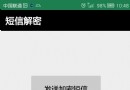
短信加密這類功能由於初學者的學習需求相對較少,網上簡單的 Demo 參考並不多。本文分享一個完整的短信加密範例,涵蓋發送加密短信與解密本地短信兩大功能,並附上全部程式碼。
 AS + Appium + Java 自動化測試之八:PageObject 模式與重封裝實踐
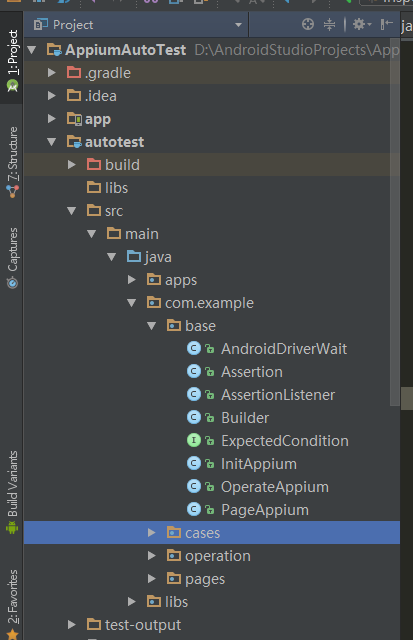
一、什麼是 PageObject? PageObject 簡稱 PO,本質上是一種設計模式。設計模式說白了就是程式碼的整體架構——比如 MVC 是「模型-視圖-控制器」,
 打造浪漫的 Android 表白動畫:心形線與花朵繪製實作
程式也可以很浪漫。本文會參考常見的 HTML5 愛心動畫概念,在 Android 中用 Canvas 繪製心形線,再把一朵朵小花沿著心形排列,最後搭配 SurfaceVi