

編輯:關於 Android 程式設計
「上方內容可以捲,下方按鈕永遠在」是極常見的版面需求——設定頁、表單頁、詳情頁幾乎都會用到。用 RelativeLayout 就能乾淨地做到,關鍵在於兩個對齊屬性。
做法是把 ScrollView 放在自己的內容,另外用 LinearLayout 裝按鈕,兩者都掛在 RelativeLayout 之下。
<RelativeLayout xmlns:android="https://schemas.android.com/apk/res/android"
    android:layout_width="fill_parent"
    android:layout_height="fill_parent">

    <LinearLayout
        android:id="@+id/buttonLayout"
        android:layout_alignParentBottom="true"
        android:layout_height="wrap_content"
        android:layout_width="fill_parent"
        android:orientation="horizontal">

        <Button
            android:text="AAAA"
            android:layout_height="wrap_content"
            android:layout_width="fill_parent"
            android:layout_weight="1" />

        <Button
            android:text="BBBB"
            android:layout_height="wrap_content"
            android:layout_width="fill_parent"
            android:layout_weight="1" />
    </LinearLayout>

    <ScrollView
        android:layout_above="@id/buttonLayout"
        android:layout_width="fill_parent"
        android:layout_height="fill_parent">
    </ScrollView>

</RelativeLayout>
android:layout_alignParentBottom="true" 讓按鈕列無論內容多長,都牢牢貼在父容器的下緣。這是「固定」效果的來源。
android:layout_above="@id/buttonLayout" 讓 ScrollView 的底邊停在按鈕列的上方,而不是佔滿整個父容器。少了這行,ScrollView 會一路延伸到最底部,把按鈕蓋住——這是最常見的失敗寫法。
這裡也說明了為什麼按鈕列必須要有 id:ScrollView 要靠它來定位。
兩個 Button 都設 layout_width="fill_parent" 再加上 layout_weight="1",在水平的 LinearLayout 裡就會等分寬度。只寫 fill_parent 而不給 weight,第二顆按鈕會被擠到看不見的地方。
如果按鈕數量不固定,或想讓它們依內容自動換行,把 LinearLayout 替換成其他容器也無妨,只要維持「alignParentBottom 加上 layout_above」這組關係即可。
這次寫完也讓我意識到,幾個常用 Layout 各自的特性還是要好好下一番功夫研究——真正熟練之後,很多需要嵌套三四層才能湊出的效果,其實一個屬性就能解決。
 版本控制入門實戰:SVN 與 Git 的安裝、操作與衝突處理
版本控制這件事,一個人寫玩具專案時感覺不出價值,團隊協作第一天就會明白它為什麼不能少。這篇把 SVN 與 Git 兩套工具從安裝到實戰走一遍,當成課堂筆記的整理。 一、
 Android 彈幕效果實作:從自定義 BarrageView 出發
很多專案都需要彈幕功能,最典型的就是影片播放時把其他使用者發送的評論飄過畫面。本文示範一個可運作的最小實作。 整體思路並不複雜:把「由右向左的平移動畫、文字內容、字型大小
 Android 進程通信前的基本功:Serializable 與 Parcelable 兩種序列化方式對比
聊天提到 Messenger 之前,得先把 Android 的序列化機制說清楚——畢竟跨進程傳資料,靠的就是它。 兩種序列化方式 Android 裡有兩套:Serial
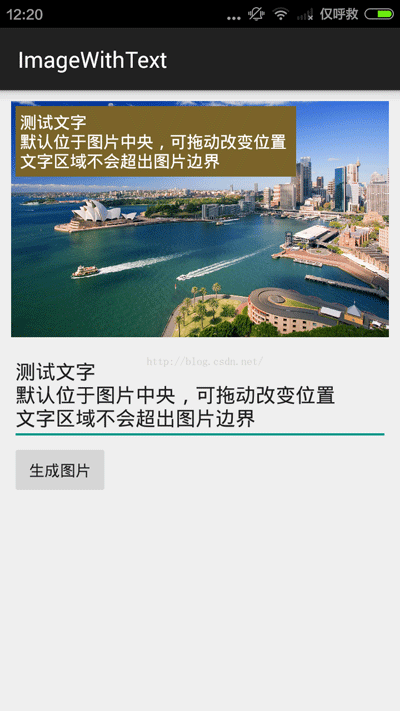 Android實現圖片中疊加可拖動文字功能
本文為大家分享一個在圖片中疊加文字、並支持拖動改變位置的實例,供感興趣的讀者參考。 之所以做這個Demo,是因為項目裡遇到一個頗為奇葩的需求:用戶拍照後分享到微信,同時希