

編輯:關於 Android 開發
狀態開關按鈕(ToggleButton)與開關(Switch)都是從 Button 派生出來的,因此 Button 支援的屬性與方法,它們也都能用。從功能上看,這兩者跟 CheckBox 復選框很相似,都提供「開」與「關」兩種狀態;差別主要在語意——ToggleButton 與 Switch 更適合表達「切換某個狀態」,而 CheckBox 偏向「多選當中的一項」。
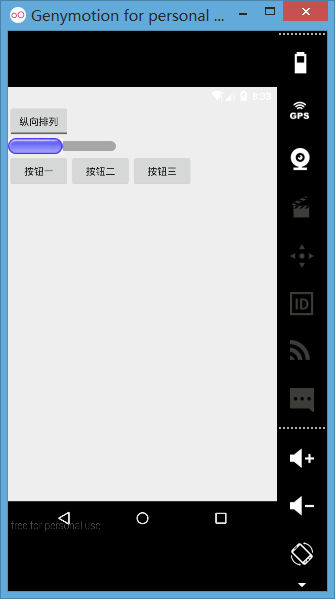
下面用一個實作把兩者串起來:切換開關時,頁面上的 LinearLayout 在水平與垂直排列之間即時切換。
Switch 支援的 XML 屬性與相關方法:
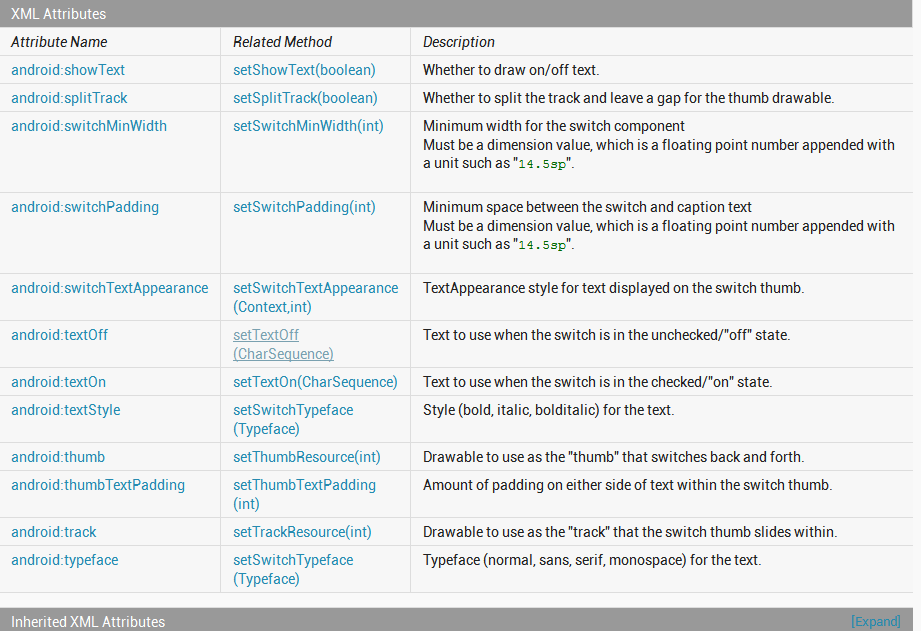
ToggleButton 支援的 XML 屬性與相關方法:

其中 ToggleButton 最有特色的兩個屬性是 android:textOn 與 android:textOff——開啟與關閉時顯示不同文字;而 Switch 則常用 android:thumb 自訂滑塊圖形,視覺表現更接近 iOS 風格的實體滑動開關。
<?xml version="1.0" encoding="utf-8"?>
<LinearLayout xmlns:android="https://schemas.android.com/apk/res/android"
    android:orientation="vertical"
    android:layout_width="match_parent"
    android:layout_height="match_parent">

    <!-- 切換按鈕 -->
    <ToggleButton
        android:layout_width="wrap_content"
        android:layout_height="wrap_content"
        android:textOff="縱向排列"
        android:textOn="橫向排列"
        android:id="@+id/toggleButton"
        android:checked="false" />

    <Switch
        android:layout_width="wrap_content"
        android:layout_height="wrap_content"
        android:textOff="縱向排列"
        android:textOn="橫向排列"
        android:thumb="@drawable/check"
        android:id="@+id/switch1"
        android:checked="true" />

    <!-- 方向會被切換的容器 -->
    <LinearLayout
        android:layout_width="match_parent"
        android:layout_height="match_parent"
        android:id="@+id/test"
        android:orientation="vertical">

        <Button android:layout_width="wrap_content" android:layout_height="wrap_content"
            android:text="按鈕一" android:id="@+id/button" />
        <Button android:layout_width="wrap_content" android:layout_height="wrap_content"
            android:text="按鈕二" android:id="@+id/button2" />
        <Button android:layout_width="wrap_content" android:layout_height="wrap_content"
            android:text="按鈕三" android:id="@+id/button3" />
    </LinearLayout>
</LinearLayout>兩個開關共用同一個 OnCheckedChangeListener,狀態改變時同步更新容器方向,並把另一個開關的狀態也對齊,避免兩者顯示不一致。
package happy.togglebutton;

import android.os.Bundle;
import android.support.v7.app.AppCompatActivity;
import android.widget.CompoundButton;
import android.widget.LinearLayout;
import android.widget.Switch;
import android.widget.ToggleButton;

public class MainActivity extends AppCompatActivity {

    ToggleButton toggle;
    Switch switcher;

    @Override
    protected void onCreate(Bundle savedInstanceState) {
        super.onCreate(savedInstanceState);
        setContentView(R.layout.test);

        toggle   = (ToggleButton) findViewById(R.id.toggleButton);
        switcher = (Switch) findViewById(R.id.switch1);
        final LinearLayout test = (LinearLayout) findViewById(R.id.test);

        CompoundButton.OnCheckedChangeListener listener =
                new CompoundButton.OnCheckedChangeListener() {
            @Override
            public void onCheckedChanged(CompoundButton buttonView, boolean isChecked) {
                if (isChecked) {
                    test.setOrientation(LinearLayout.VERTICAL);   // 1
                    toggle.setChecked(true);
                    switcher.setChecked(true);
                } else {
                    test.setOrientation(LinearLayout.HORIZONTAL); // 0
                    toggle.setChecked(false);
                    switcher.setChecked(false);
                }
            }
        };

        toggle.setOnCheckedChangeListener(listener);
        switcher.setOnCheckedChangeListener(listener);
    }
}切換前:
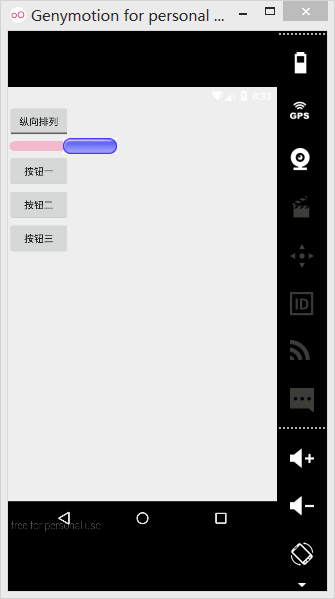
切換後:
setOrientation 傳的是整數常數,原範例直接寫 0 和 1 雖然能跑,但建議改用 LinearLayout.HORIZONTAL 與 LinearLayout.VERTICAL,可讀性高得多。
另外,在 onCheckedChanged 裡呼叫 setChecked 會再次觸發監聽器。這個範例因為設定的值與目前值相同、不會形成迴圈,所以沒問題;但邏輯一複雜就該加上判斷,例如「若 buttonView != 對方 才同步」,避免無限觸發或效能浪費。
 使用 RecyclerView 與 CardView 建立現代化列表與卡片
在 Material Design 風格中,RecyclerView 與 CardView 是常
 Android AnimationDrawable 入門:用 XML 播放逐幀動畫
什麼是 Drawable Animation Drawable animation 是 Android 最直觀的逐幀動畫方案:把一連串 Drawable 資源(通常是一張
 ListView 完全解析:三種 Adapter 與自訂含按鈕的列表項
 在 Android 開發中,ListView 是最常用的元件之一。它以列表形式呈現資料,並能依資料
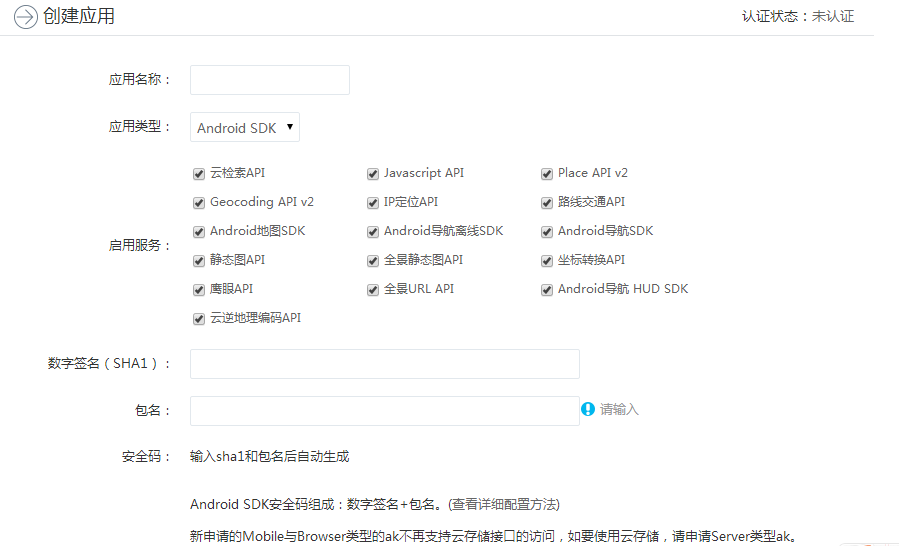 百度地圖開發學習(一):從 AK 申請到基礎地圖顯示
百度地圖開發學習(一) 因為專案需求,最近開始學習 Android 地圖開發,索性把過程記錄下來,後續會持續更新。目前採用百度地圖 API 的專案相當多,所以就以它為起點