

編輯:關於 Android 開發
要在 Android 裡播放一支影片,VideoView 是最快上手的选择:它已經把 MediaPlayer 與 SurfaceView 的組合包裝好了,你只要給它一個路徑,再呼叫 start()、pause()、seekTo() 三個方法,基本播放控制就完成了。

用 FrameLayout 當根容器,讓控制列以 layout_gravity="bottom" 疊在播放器下方。
<FrameLayout xmlns:android="https://schemas.android.com/apk/res/android"
    xmlns:tools="https://schemas.android.com/tools"
    android:layout_width="match_parent"
    android:layout_height="match_parent"
    tools:context="com.example.videoview.MainActivity">

    <VideoView
        android:id="@+id/videoView"
        android:layout_width="match_parent"
        android:layout_height="416dp" />

    <LinearLayout
        android:id="@+id/linearLayout"
        android:layout_width="match_parent"
        android:layout_height="wrap_content"
        android:layout_gravity="bottom"
        android:orientation="horizontal">

        <Button android:id="@+id/start"
            android:layout_width="wrap_content" android:layout_height="wrap_content"
            android:text="開始" />
        <Button android:id="@+id/pause"
            android:layout_width="wrap_content" android:layout_height="wrap_content"
            android:text="暫停" />
        <Button android:id="@+id/seekto"
            android:layout_width="wrap_content" android:layout_height="wrap_content"
            android:text="3秒處" />
    </LinearLayout>
</FrameLayout>package com.example.videotest;
import java.io.File;
import android.app.Activity;
import android.os.Bundle;
import android.os.Environment;
import android.view.View;
import android.view.View.OnClickListener;
import android.widget.Button;
import android.widget.VideoView;
public class MainActivity extends Activity implements OnClickListener {
private VideoView videoView;
@Override
protected void onCreate(Bundle savedInstanceState) {
super.onCreate(savedInstanceState);
setContentView(R.layout.activity_main);
videoView = (VideoView) findViewById(R.id.videoView);
// 從外部儲存空間的 DCIM 目錄取影片
File path = Environment.getExternalStoragePublicDirectory(Environment.DIRECTORY_DCIM);
File f = new File(path, "/Camera/test.mp4");
videoView.setVideoPath(f.getAbsolutePath());
Button start = (Button) findViewById(R.id.start);
start.setOnClickListener(this);
Button pause = (Button) findViewById(R.id.pause);
pause.setOnClickListener(this);
Button seekto = (Button) findViewById(R.id.seekto);
seekto.setOnClickListener(this);
}
@Override
public void onClick(View v) {
switch (v.getId()) {
case R.id.start:
videoView.start();
break;
case R.id.pause:
videoView.pause();
break;
case R.id.seekto:
videoView.seekTo(3 * 1000); // 單位是毫秒
break;
}
}
}seekTo 的單位是毫秒。seekTo(3 * 1000) 代表跳到第 3 秒,寫成 seekTo(3) 幾乎感覺不到變化,這是新手最常踩的坑。
setVideoPath 之後不能直接 seekTo。VideoView 在載入媒體過程中還不知道總長度,過早呼叫 seekTo 可能無效。正確做法是在 OnPreparedListener 的 onPrepared 回呼中再處理跳轉與初始位置。
記得補上 MediaController。若不想自己做控制列,一行就能拿到系統內建的播放/拖曳進度條介面:
videoView.setMediaController(new MediaController(this));播放完成後不會自動重播。需要的話設 setOnCompletionListener,在其中呼叫 videoView.start() 即可迴圈播放。
權限與生命週期。讀取外部儲存空間需要在 manifest 宣告 READ_EXTERNAL_STORAGE,在 Android 6.0 以上還必須執行期動態申請。另外建議在 onPause 中呼叫 videoView.pause(),避免離開頁面後影片還在背景出聲。
 Android 開發實戰(十):應用程式間的四種溝通方式——Handler、通知欄、廣播與 Intent
Android 在程式之間通訊這件事上,介面設計得相當豐富。這一節把最常打交道的四種溝通方式一次講清楚:各自解決什麼問題、怎麼實作、又有哪些容易忽略的細節。 一、用 Ha
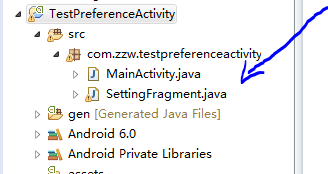 Settings 選單頁優化版:改用 PreferenceFragment 與 switch 分流
上一版的三個痛點 第一版(原文連結)能跑,但有幾處該改:直接繼承 PreferenceActivity 已非官方建議做法;onSharedPreferenceChange
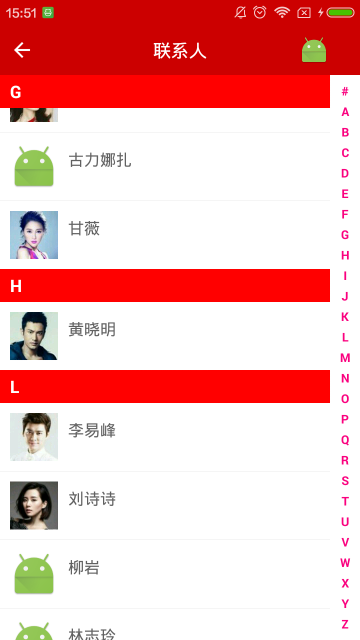 Android 自定義聯繫人列表組件
 聯繫人頁面是許多 App 常見的功能之一。本篇範例使用 StickyListHeaders 與 Sidebar 組件,實作一個可快速
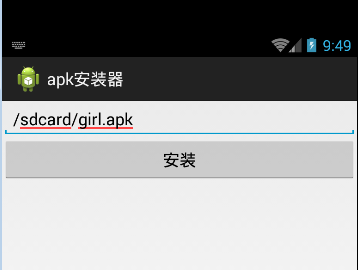 Android APK 的安裝:用 Intent 拉起系統安裝器
要讓使用者點一下就裝 apk,最省事的方式是發一個 VIEW Intent,把檔案與 MIME 型別交給系統的 PackageInstaller 處理。先看它的清單檔: