

編輯:關於 Android 開發
這次的新題目是側滑導航欄。這個效果大家應該都不陌生,QQ 裡就有;我自己做的是一個員工系統的菜單抽屜,功能當然沒法和 QQ 相提並論,畢竟人家那套東西實在太龐大了。先看我做出來的樣子。

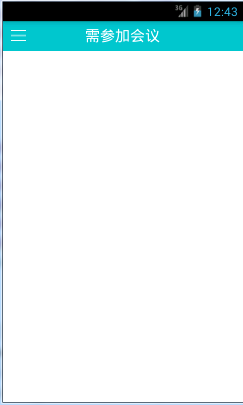
介面確實有點樸素,但對比之前的版本已經是很大的進步了。想做得更好看,用 PS 換幾張順眼的背景圖與圖示就能立刻提質感。
接著就是程式碼。核心思路是自訂一個 DragLayout,用官方 support-v4 的 ViewDragHelper 處理拖曳,再搭配 GestureDetector 判斷手勢方向;右側內容區包成 MyRelativeLayout,負責在抽屜打開時攔截觸控、點擊空白處收起。
activity_main.xml
<cn.edu.rjxy.activity.DragLayout xmlns:android="https://schemas.android.com/apk/res/android" xmlns:tools="https://schemas.android.com/tools" android:id="@+id/dl" android:layout_width="fill_parent" android:layout_height="fill_parent" android:background="@drawable/bg1" android:clickable="true" android:orientation="vertical" > <!-- 左側菜單頁面 --> <include layout="@layout/leftmenu" /> <cn.edu.rjxy.activity.MyRelativeLayout android:layout_width="fill_parent" android:layout_height="fill_parent" android:background="#eeeeee" android:orientation="vertical" > <!-- headbanner --> <include layout="@layout/middleview" /> </cn.edu.rjxy.activity.MyRelativeLayout> </cn.edu.rjxy.activity.DragLayout>
leftmenu.xml
<?xml version="1.0" encoding="utf-8"?> <RelativeLayout xmlns:android="https://schemas.android.com/apk/res/android" android:layout_width="match_parent" android:layout_height="match_parent" android:paddingBottom="30dp" android:paddingLeft="30dp" android:paddingTop="10dp" > <LinearLayout android:id="@+id/menu_header" android:layout_width="match_parent" android:layout_height="wrap_content" android:gravity="left|center" android:orientation="horizontal" android:padding="5dp" > <ImageView android:id="@+id/iv_headimage" android:layout_width="55dp" android:layout_height="55dp" android:src="@drawable/ic_launcher" /> <LinearLayout android:layout_width="match_parent" android:layout_height="wrap_content" android:gravity="center|left" android:layout_marginLeft="6dp" android:orientation="vertical" > <TextView android:id="@+id/tv_sname" android:layout_width="match_parent" android:layout_height="wrap_content" android:layout_gravity="center_vertical" android:text="員工名" android:textColor="#ffffff" android:textSize="15sp" /> <TextView android:id="@+id/tv_message" android:layout_width="match_parent" android:layout_height="wrap_content" android:layout_marginTop="2dp" android:textColor="#ffffff" android:text="蝴蝶為花醉,花卻隨風飛,花舞花落淚,花哭花瓣飛" android:textSize="12sp" /> </LinearLayout> </LinearLayout> <TextView android:id="@+id/tv_setting" android:layout_width="wrap_content" android:layout_height="wrap_content" android:layout_alignParentBottom="true" android:text="設置" android:drawablePadding="5dp" android:gravity="center" android:drawableLeft="@drawable/ic_launcher" android:textColor="#ffffff" android:textSize="15sp" /> <ListView android:id="@+id/lv" android:layout_width="match_parent" android:layout_height="wrap_content" android:layout_above="@id/tv_setting" android:layout_below="@id/menu_header" android:layout_marginBottom="30dp" android:layout_marginTop="20dp" android:cacheColorHint="#00000000" android:divider="@null" android:scrollbars="none" android:textColor="#ffffff" /> </RelativeLayout>
menulist_item_text.xml
<LinearLayout xmlns:android="https://schemas.android.com/apk/res/android" android:layout_width="match_parent" android:layout_height="wrap_content" android:orientation="horizontal" > <LinearLayout android:layout_width="match_parent" android:layout_height="wrap_content" android:gravity="center" android:padding="10dp" android:orientation="horizontal" > <ImageView android:id="@+id/menu_imageView1" android:layout_width="40dp" android:layout_height="40dp" android:src="@drawable/ic_launcher" /> <TextView android:id="@+id/menu_text" android:layout_width="match_parent" android:layout_height="wrap_content" android:layout_marginLeft="5dp" android:gravity="center_vertical" android:text="菜單1" android:textColor="#ffffff" android:textSize="20sp" /> </LinearLayout> </LinearLayout>
middleview.xml
<?xml version="1.0" encoding="utf-8"?> <LinearLayout xmlns:android="https://schemas.android.com/apk/res/android" android:layout_width="fill_parent" android:layout_height="fill_parent" android:background="@android:color/white" android:orientation="vertical" > <RelativeLayout android:layout_width="fill_parent" android:layout_height="40dp" android:background="#00C5CD" android:orientation="horizontal" > <ImageButton android:id="@+id/menu_imgbtn" android:layout_width="20dp" android:layout_height="15dp" android:layout_centerVertical="true" android:layout_marginLeft="10dp" android:layout_marginTop="1dp" android:background="@drawable/leftmenu_btn_selector" /> <TextView android:layout_width="wrap_content" android:layout_height="wrap_content" android:layout_centerInParent="true" android:text="@string/app_name" android:textColor="@android:color/white" android:textSize="20dp" /> </RelativeLayout> </LinearLayout>
leftmenu_btn_selector.xml
<?xml version="1.0" encoding="utf-8"?> <selector xmlns:android="https://schemas.android.com/apk/res/android"> <item android:drawable="@drawable/leftmenu_btn_press" android:state_pressed="true"/> <item android:drawable="@drawable/leftmenu_btn" android:state_pressed="false"/> </selector>
MyRelativeLayout.java(抽屜打開時攔截觸控,點擊內容區即關閉)
package cn.edu.rjxy.activity;

import cn.edu.rjxy.activity.DragLayout.Status;
import android.content.Context;
import android.util.AttributeSet;
import android.view.MotionEvent;
import android.widget.LinearLayout;

public class MyRelativeLayout extends LinearLayout {
    private DragLayout dl;

    public MyRelativeLayout(Context context) { super(context); }
    public MyRelativeLayout(Context context, AttributeSet attrs) { super(context, attrs); }

    public void setDragLayout(DragLayout dl) { this.dl = dl; }

    @Override
    public boolean onInterceptTouchEvent(MotionEvent event) {
        if (dl.getStatus() != Status.Close) { return true; }
        return super.onInterceptTouchEvent(event);
    }

    @Override
    public boolean onTouchEvent(MotionEvent event) {
        if (dl.getStatus() != Status.Close) {
            if (event.getAction() == MotionEvent.ACTION_UP) { dl.close(); }
            return true;
        }
        return super.onTouchEvent(event);
    }
}
DragLayout.java(側滑骨架:拖曳範圍、翻轉動畫、陰影與狀態回呼)
package cn.edu.rjxy.activity;

import com.nineoldandroids.view.ViewHelper;
import android.content.Context;
import android.graphics.Color;
import android.graphics.PorterDuff.Mode;
import android.support.v4.view.GestureDetectorCompat;
import android.support.v4.view.ViewCompat;
import android.support.v4.widget.ViewDragHelper;
import android.util.AttributeSet;
import android.view.GestureDetector.SimpleOnGestureListener;
import android.view.MotionEvent;
import android.view.View;
import android.view.ViewGroup;
import android.widget.FrameLayout;
import android.widget.ImageView;
import android.widget.RelativeLayout;

public class DragLayout extends FrameLayout {
    private boolean isShowShadow = true;
    private GestureDetectorCompat gestureDetector;
    private ViewDragHelper dragHelper;
    private DragListener dragListener;
    private int range;      // 抽屜可拉開的距離
    private int width;
    private int height;
    private int mainLeft;
    private Context context;
    private ImageView iv_shadow;
    private RelativeLayout vg_left;
    private MyRelativeLayout vg_main;
    private Status status = Status.Close;

    public DragLayout(Context context) { this(context, null); }
    public DragLayout(Context context, AttributeSet attrs) { this(context, attrs, 0); this.context = context; }
    public DragLayout(Context context, AttributeSet attrs, int defStyle) {
        super(context, attrs, defStyle);
        gestureDetector = new GestureDetectorCompat(context, new YScrollDetector());
        dragHelper = ViewDragHelper.create(this, dragHelperCallback);
    }

    /** 只接受「水平位移大於垂直位移」的手勢 */
    class YScrollDetector extends SimpleOnGestureListener {
        @Override
        public boolean onScroll(MotionEvent e1, MotionEvent e2, float dx, float dy) {
            return Math.abs(dy) <= Math.abs(dx);
        }
    }

    private ViewDragHelper.Callback dragHelperCallback = new ViewDragHelper.Callback() {
        @Override
        public int clampViewPositionHorizontal(View child, int left, int dx) {
            if (mainLeft + dx < 0) { return 0; }
            else if (mainLeft + dx > range) { return range; }
            else { return left; }
        }

        @Override
        public boolean tryCaptureView(View child, int pointerId) { return true; }

        @Override
        public int getViewHorizontalDragRange(View child) { return width; }

        @Override
        public void onViewReleased(View releasedChild, float xvel, float yvel) {
            super.onViewReleased(releasedChild, xvel, yvel);
            if (xvel > 0) { open(); }
            else if (xvel < 0) { close(); }
            else if (releasedChild == vg_main && mainLeft > range * 0.3) { open(); }
            else if (releasedChild == vg_left && mainLeft > range * 0.7) { open(); }
            else { close(); }
        }

        @Override
        public void onViewPositionChanged(View changedView, int left, int top, int dx, int dy) {
            if (changedView == vg_main) { mainLeft = left; }
            else { mainLeft = mainLeft + left; }
            if (mainLeft < 0) { mainLeft = 0; }
            else if (mainLeft > range) { mainLeft = range; }
            if (isShowShadow) { iv_shadow.layout(mainLeft, 0, mainLeft + width, height); }
            if (changedView == vg_left) {
                vg_left.layout(0, 0, width, height);
                vg_main.layout(mainLeft, 0, mainLeft + width, height);
            }
            dispatchDragEvent(mainLeft);
        }
    };

    public interface DragListener {
        public void onOpen();
        public void onClose();
        public void onDrag(float percent);
    }

    public void setDragListener(DragListener dragListener) { this.dragListener = dragListener; }

    @Override
    protected void onFinishInflate() {
        super.onFinishInflate();
        if (isShowShadow) {
            iv_shadow = new ImageView(context);
            iv_shadow.setImageResource(R.drawable.shadow);
            LayoutParams lp = new LayoutParams(LayoutParams.MATCH_PARENT, LayoutParams.MATCH_PARENT);
            addView(iv_shadow, 1, lp);
        }
        vg_left = (RelativeLayout) getChildAt(0);
        vg_main = (MyRelativeLayout) getChildAt(isShowShadow ? 2 : 1);
        vg_main.setDragLayout(this);
        vg_left.setClickable(true);
        vg_main.setClickable(true);
    }

    public ViewGroup getVg_main() { return vg_main; }
    public ViewGroup getVg_left() { return vg_left; }

    @Override
    protected void onSizeChanged(int w, int h, int oldw, int oldh) {
        super.onSizeChanged(w, h, oldw, oldh);
        width = vg_left.getMeasuredWidth();
        height = vg_left.getMeasuredHeight();
        range = (int) (width * 0.6f);   // 拉開 60% 寬度
    }

    @Override
    protected void onLayout(boolean changed, int left, int top, int right, int bottom) {
        vg_left.layout(0, 0, width, height);
        vg_main.layout(mainLeft, 0, mainLeft + width, height);
    }

    @Override
    public boolean onInterceptTouchEvent(MotionEvent ev) {
        return dragHelper.shouldInterceptTouchEvent(ev) && gestureDetector.onTouchEvent(ev);
    }

    @Override
    public boolean onTouchEvent(MotionEvent e) {
        try {
            dragHelper.processTouchEvent(e);
        } catch (Exception ex) {
            ex.printStackTrace();
        }
        return false;
    }

    private void dispatchDragEvent(int mainLeft) {
        if (dragListener == null) { return; }
        float percent = mainLeft / (float) range;
        animateView(percent);
        dragListener.onDrag(percent);
        Status lastStatus = status;
        if (lastStatus != getStatus() && status == Status.Close) { dragListener.onClose(); }
        else if (lastStatus != getStatus() && status == Status.Open) { dragListener.onOpen(); }
    }

    /** 依拖曳百分比做縮放、位移與透明度變化 */
    private void animateView(float percent) {
        float f1 = 1 - percent * 0.3f;
        ViewHelper.setScaleX(vg_main, f1);
        ViewHelper.setScaleY(vg_main, f1);
        ViewHelper.setTranslationX(vg_left, -vg_left.getWidth() / 2.3f + vg_left.getWidth() / 2.3f * percent);
        ViewHelper.setScaleX(vg_left, 0.5f + 0.5f * percent);
        ViewHelper.setScaleY(vg_left, 0.5f + 0.5f * percent);
        ViewHelper.setAlpha(vg_left, percent);
        if (isShowShadow) {
            ViewHelper.setScaleX(iv_shadow, f1 * 1.4f * (1 - percent * 0.12f));
            ViewHelper.setScaleY(iv_shadow, f1 * 1.85f * (1 - percent * 0.12f));
        }
        getBackground().setColorFilter(evaluate(percent, Color.BLACK, Color.TRANSPARENT), Mode.SRC_OVER);
    }

    /** 背景色隨拖曳在黑色與透明之間插值 */
    private Integer evaluate(float fraction, Object startValue, Integer endValue) {
        int startInt = (Integer) startValue;
        int startA = (startInt >> 24) & 0xff;
        int startR = (startInt >> 16) & 0xff;
        int startG = (startInt >> 8) & 0xff;
        int startB = startInt & 0xff;
        int endInt = (Integer) endValue;
        int endA = (endInt >> 24) & 0xff;
        int endR = (endInt >> 16) & 0xff;
        int endG = (endInt >> 8) & 0xff;
        int endB = endInt & 0xff;
        return (int) ((startA + (int) (fraction * (endA - startA))) << 24)
             | (int) ((startR + (int) (fraction * (endR - startR))) << 16)
             | (int) ((startG + (int) (fraction * (endG - startG))) << 8)
             | (int) ((startB + (int) (fraction * (endB - startB))));
    }

    @Override
    public void computeScroll() {
        if (dragHelper.continueSettling(true)) { ViewCompat.postInvalidateOnAnimation(this); }
    }

    public enum Status { Drag, Open, Close }

    public Status getStatus() {
        if (mainLeft == 0) { status = Status.Close; }
        else if (mainLeft == range) { status = Status.Open; }
        else { status = Status.Drag; }
        return status;
    }

    public void open() { open(true); }

    public void open(boolean animate) {
        if (animate) {
            if (dragHelper.smoothSlideViewTo(vg_main, range, 0)) {
                ViewCompat.postInvalidateOnAnimation(this);
            }
        } else {
            vg_main.layout(range, 0, range * 2, height);
            dispatchDragEvent(range);
        }
    }

    public void close() { close(true); }

    public void close(boolean animate) {
        if (animate) {
            if (dragHelper.smoothSlideViewTo(vg_main, 0, 0)) {
                ViewCompat.postInvalidateOnAnimation(this);
            }
        } else {
            vg_main.layout(0, 0, width, height);
            dispatchDragEvent(0);
        }
    }
}
MainActivity.java(掛上監聽、餵菜單資料)
package cn.edu.rjxy.activity;

import java.util.ArrayList;
import java.util.HashMap;
import java.util.List;
import java.util.Map;

import android.app.Activity;
import android.os.Bundle;
import android.view.View;
import android.view.View.OnClickListener;
import android.widget.AdapterView;
import android.widget.AdapterView.OnItemClickListener;
import android.widget.ImageButton;
import android.widget.LinearLayout;
import android.widget.ListView;
import android.widget.SimpleAdapter;
import android.widget.TextView;
import android.widget.Toast;

public class MainActivity extends Activity {
    /** 左邊側滑菜單 */
    private DragLayout mDragLayout;
    private ListView menuListView;      // 菜單列表
    private ImageButton menuSettingBtn; // 菜單呼出按鈕
    private LinearLayout menu_header;
    private TextView menu_setting;

    @Override
    protected void onCreate(Bundle savedInstanceState) {
        super.onCreate(savedInstanceState);
        setContentView(R.layout.activity_main);
        menu_setting = (TextView) this.findViewById(R.id.tv_setting);
        menu_header = (LinearLayout) this.findViewById(R.id.menu_header);

        /**
         * 若要在其他 Activity 也實現側滑菜單,需在佈局中同樣引入 DragLayout,
         * 並在 onCreate 中宣告使用;Activity 的內容部分需包裹在 MyRelativeLayout 中。
         */
        mDragLayout = (DragLayout) findViewById(R.id.dl);
        mDragLayout.setDragListener(new DragLayout.DragListener() {
            @Override public void onOpen() { }
            @Override public void onClose() { }
            @Override public void onDrag(float percent) { }
        });

        // 菜單資料
        List<Map<String, Object>> data = getMenuData();
        menuListView = (ListView) findViewById(R.id.lv);
        menuListView.setAdapter(new SimpleAdapter(this, data, R.layout.menulist_item_text,
                new String[] { "item", "image" },
                new int[] { R.id.menu_text, R.id.menu_imageView1 }));

        // 點擊按鈕呼出菜單
        menuSettingBtn = (ImageButton) findViewById(R.id.menu_imgbtn);
        menuSettingBtn.setOnClickListener(new OnClickListener() {
            @Override public void onClick(View v) { mDragLayout.open(); }
        });

        initResideListener();
    }

    private void initResideListener() {
        // 個人中心
        menu_header.setOnClickListener(new OnClickListener() {
            @Override public void onClick(View v) {
                Toast.makeText(MainActivity.this, "進入個人中心界面", Toast.LENGTH_LONG).show();
            }
        });
        // 子菜單選項
        menuListView.setOnItemClickListener(new OnItemClickListener() {
            @Override public void onItemClick(AdapterView<?> parent, View view, int position, long id) {
                Toast.makeText(MainActivity.this, String.valueOf(position), Toast.LENGTH_LONG).show();
            }
        });
        // 設置
        menu_setting.setOnClickListener(new OnClickListener() {
            @Override public void onClick(View v) {
                Toast.makeText(MainActivity.this, "進入設置界面", Toast.LENGTH_LONG).show();
            }
        });
    }

    private List<Map<String, Object>> getMenuData() {
        List<Map<String, Object>> data = new ArrayList<Map<String, Object>>();
        String[] items = { "需參加會議", "已參加會議", "個人信息完善", "密碼修改" };
        for (String item : items) {
            Map<String, Object> m = new HashMap<String, Object>();
            m.put("item", item);
            m.put("image", R.drawable.ic_launcher);
            data.add(m);
        }
        return data;
    }
}
幾個可以自行調整的參數:range 決定抽屜拉開的比例(這裡是寬度的 0.6 倍),onViewReleased 裡的 0.3 與 0.7 是放開手指後「自動全開/全關」的臨界值,animateView 則控制主內容縮放與菜單淡入的幅度。把玩這幾個數字,手感就有明顯差別。
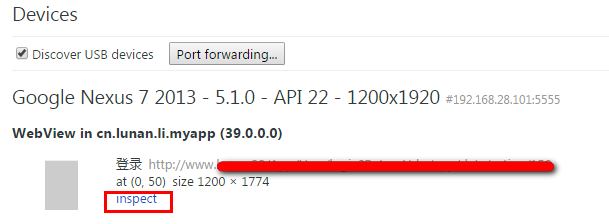 用 Chrome 遠端除錯 Genymotion 模擬器上的 WebView 程式
 WebView 讓我們能用熟悉的 HTML/JS/CSS 快速開發 App,但一旦出問
 初探 Android RecyclerView:靈活的列表控件完全指南
為什麼 RecyclerView 值得一學 RecyclerView 是 Android 5.0 推出的強大控件,導入 support-v7 包即可使用。相比 ListV
 Android 手機衛士實作(十三):系統進程顯示開關與鎖屏一鍵清理
進程列表頁通常有兩個實用設定:一是讓使用者自行決定要不要看到龐雜的系統進程,二是在鎖屏時自動釋放內存。本篇分別說明這兩個功能的實作。 一、顯示/隱藏系統進程 做法是讓
 Android 自定義控件實戰——打造側滑菜單(Scroller)
 先來看看效果圖: 實現方法為繼承 ViewGroup,需要我們自己來測量、布局,實現滑動效果並處理滑