

編輯:關於 Android 開發
本篇延續手機衛士的開發進度,示範如何以 PopupWindow 在指定 View 下方彈出一個浮動視窗,並為它加上透明與縮放的組合動畫,讓彈出效果更自然。
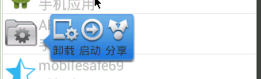
整個實作可以拆成五個步驟:準備自訂布局並取得子 View、綁定點擊事件、定義動畫、建立 PopupWindow 物件、決定顯示位置並啟動動畫。
protected void showPopupWindow(View view) {
    // 1. 加载自定义布局,并取出内部控件
    View popupView = View.inflate(this, R.layout.popupwindow_layout, null);
    TextView tv_uninstall = (TextView) popupView.findViewById(R.id.tv_uninstall);
    TextView tv_start = (TextView) popupView.findViewById(R.id.tv_start);
    TextView tv_share = (TextView) popupView.findViewById(R.id.tv_share);
    tv_uninstall.setOnClickListener(this);
    tv_start.setOnClickListener(this);
    tv_share.setOnClickListener(this);

    // 2. 透明动画:由全透明渐变到不透明
    AlphaAnimation alphaAnimation = new AlphaAnimation(0, 1);
    alphaAnimation.setDuration(1000);
    alphaAnimation.setFillAfter(true);

    // 3. 缩放动画:以自身中心点为基准,从 0 倍放大到 1 倍
    ScaleAnimation scaleAnimation = new ScaleAnimation(
            0, 1, 0, 1,
            Animation.RELATIVE_TO_SELF, 0.5f,
            Animation.RELATIVE_TO_SELF, 0.5f);
    scaleAnimation.setDuration(1000);
    scaleAnimation.setFillAfter(true);

    // 4. 用动画集合把两个动画打包一起播放
    AnimationSet animationSet = new AnimationSet(true);
    animationSet.addAnimation(alphaAnimation);
    animationSet.addAnimation(scaleAnimation);

    // 5. 创建窗体对象并指定宽高
    mPopupWindow = new PopupWindow(popupView,
            LinearLayout.LayoutParams.WRAP_CONTENT,
            LinearLayout.LayoutParams.WRAP_CONTENT, true);
    // 6. 设置透明背景,否则默认背景会遮挡动画效果
    mPopupWindow.setBackgroundDrawable(new ColorDrawable());
    // 7. 指定窗体显示位置
    mPopupWindow.showAsDropDown(view, 50, -view.getHeight());
    // 8. 让内容视图执行动画
    popupView.startAnimation(animationSet);
}
幾個實作時值得留意的關鍵點:
ColorDrawable 看起來是「什麼都沒畫」,但這層透明背景並不能省。PopupWindow 若沒有背景,彈出動畫容易出現殘影或位置錯亂。showAsDropDown(view, x, y) 的第二、三個參數是相對於錨點 View 的偏移量。這裡把 y 設為 -view.getHeight(),等於把浮窗往上挪一個 View 的高度,讓它貼齊目標位置。true 表示 PopupWindow 取得焦點,點擊外部區域時可以自動消失(需搭配 setFocusable(true) 的行為)。ScaleAnimation 搭配 RELATIVE_TO_SELF 與 0.5f,代表以自身寬高的中點作為縮放中心,視覺上就是從中心向外展開。完成後,點擊觸發位置即可看到帶有淡入放大效果的浮動選單,這也是市面上許多安全類應用的常見互動模式。
 Android Activity 跳轉與系統應用啟動方式整理
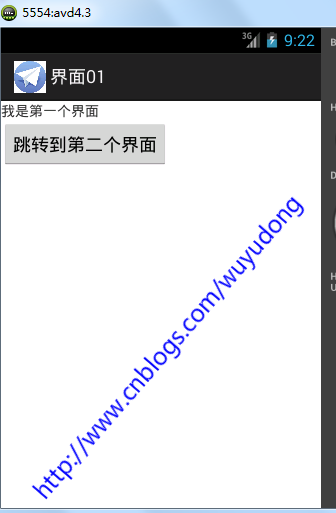
切換到新的 Activity 建立新的 Activity 時,除了撰寫 Java 類別與版面檔,也必須在 AndroidManifest.xml 中註冊。按下按鈕後,可用
 Android HTTP 通訊入門:用 GET 請求串接開放平台接口
用一個小 Demo 講透 Android 的 GET 請求 只要做過真實項目,幾乎不可能不跟伺服器打交道。本篇我用一個麻雀雖小五臟俱全的例子,把 HTTP 請求在 And
 美圖濾鏡原理之對比度:GPUImageContrastFilter 解析
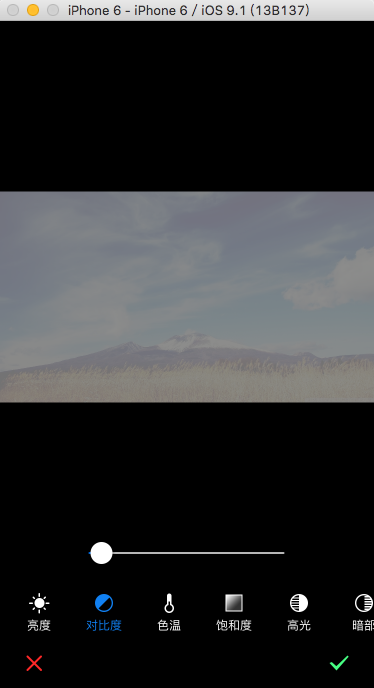
 對比度指的是一幅圖像中明暗區域最亮的白與最暗的黑之間不同亮度層級的測量結果,通俗地說,就是圖像灰
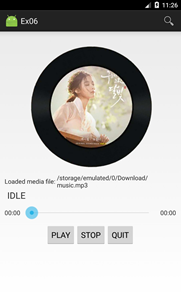 Android 開發實戰:Service 詳解與後台音樂播放器的完整實現
Android 開發實戰:Service 詳解與後台音樂播放器 這一篇我們把 Service 這個組件徹底講透,並用它做一個能後台播放的音樂播放器,順手把 MediaPl