

編輯:關於 Android 開發
Android 提供的本機儲存方式大致可以分成三類:輕量鍵值對的 SharedPreferences、App 私有的內部檔案,以及人人可讀的 SDCard。三者的適用情境與存取權限差異不小,這篇把它們整理在一起。
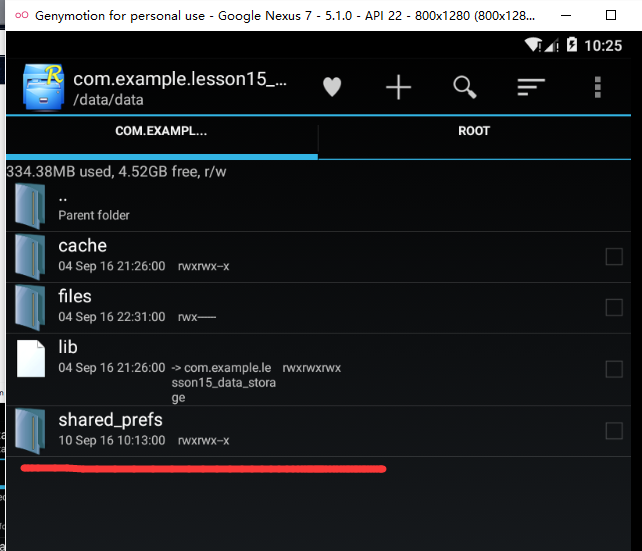
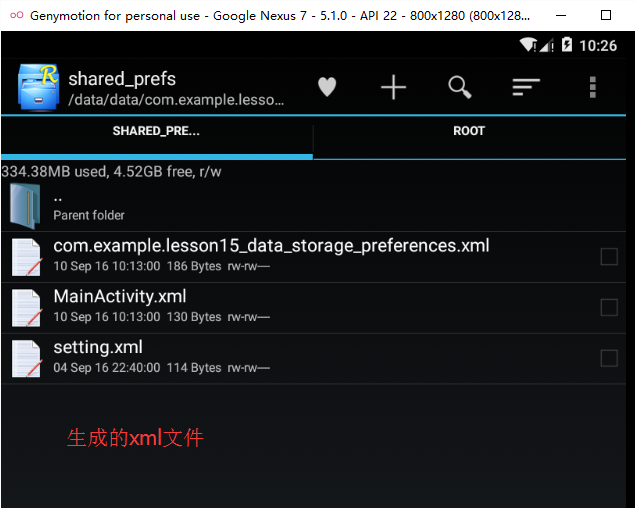
以 XML 結構儲存簡單的鍵值資料,實際檔案位於 /data/data/專案包名/shared_prefs 目錄下。適合存設定值、是否首次啟動、使用者偏好這類小量資料,不適合存大量結構化資料。
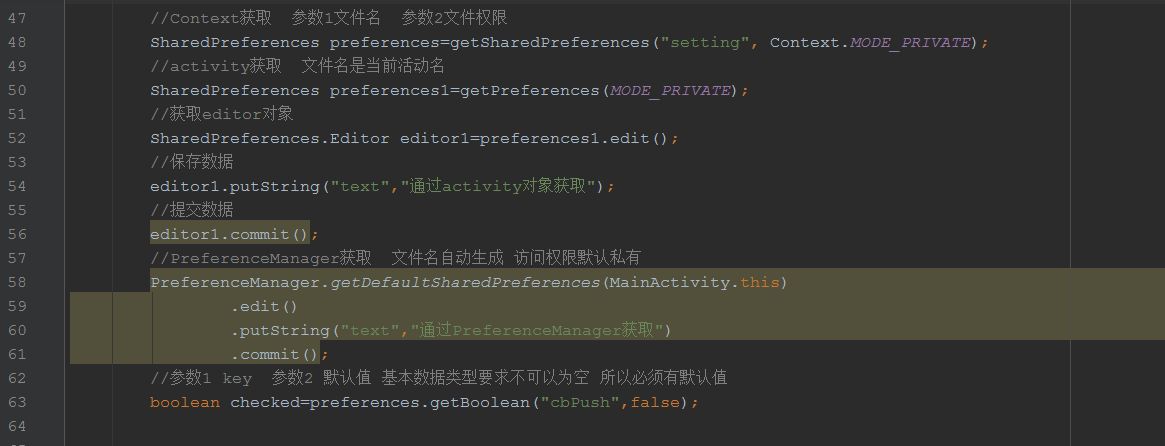
取得物件有三種方式:
Context 的 getSharedPreferences()
Activity 的 getPreferences()
PreferenceManager 的 getDefaultSharedPreferences()
讀取資料:sharedPrefs.getInt()、getString() 等,第二個參數是預設值。
寫入資料:先取得 Editor(sharedPrefs.edit()),再用 putInt()、putString() 存入,最後呼叫 commit() 提交。
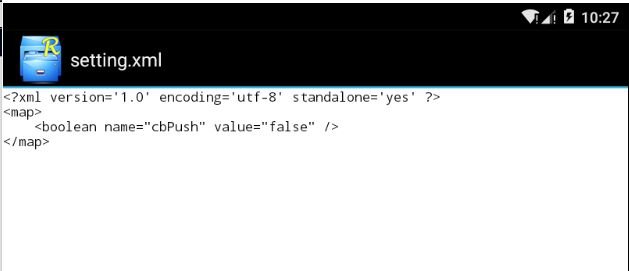
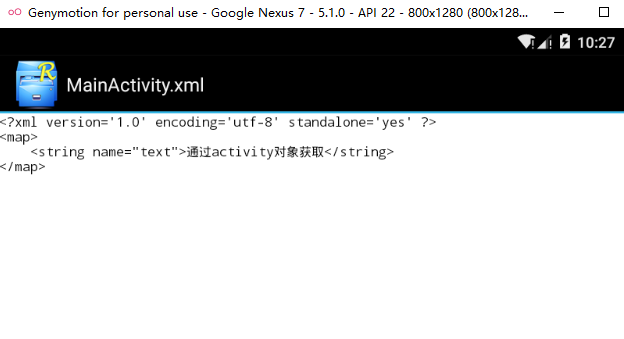
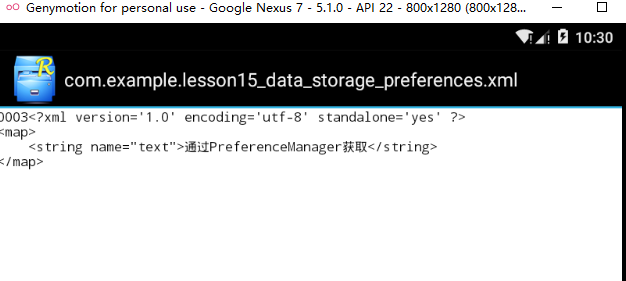
照上面的路徑去找檔案就能看到實際內容。以下使用 Genymotion 測試,要瀏覽手機內部儲存需要 root 權限。
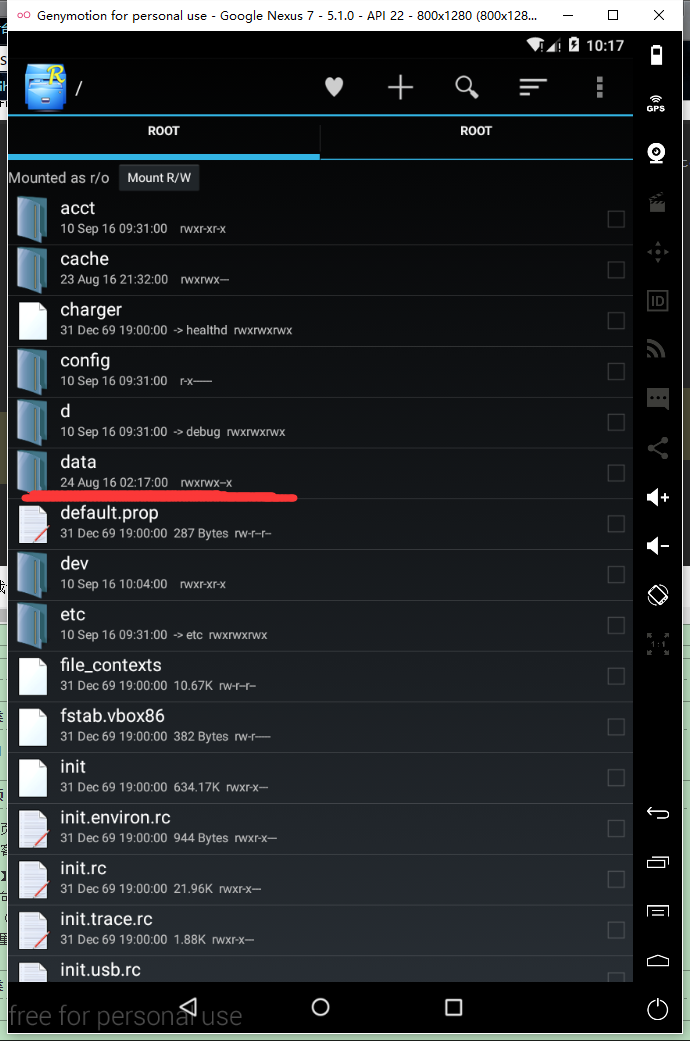
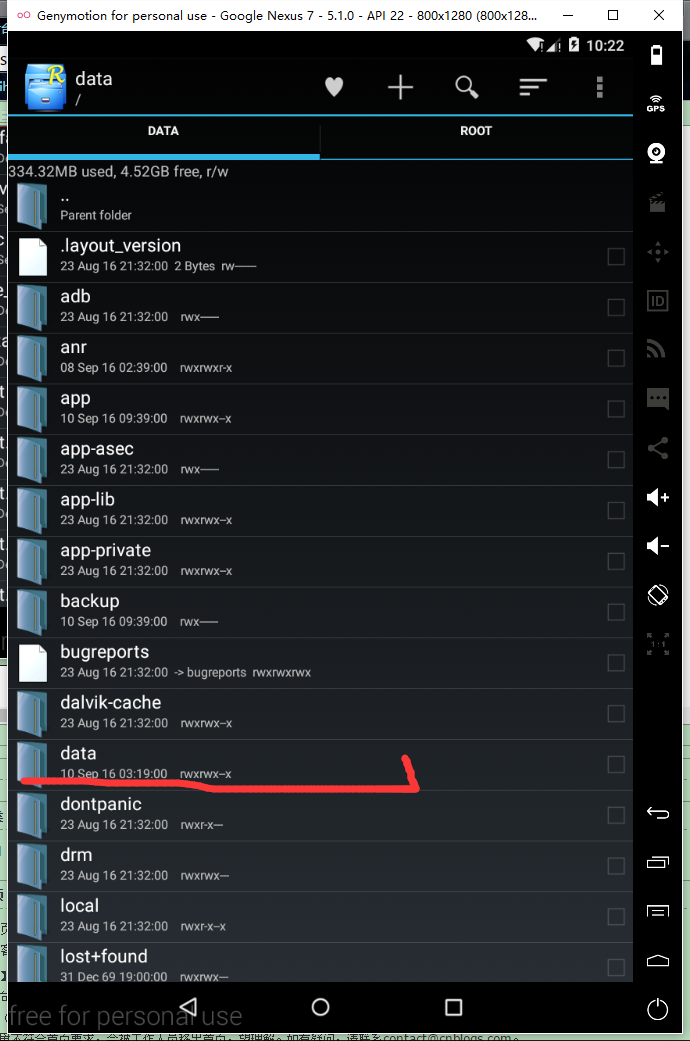
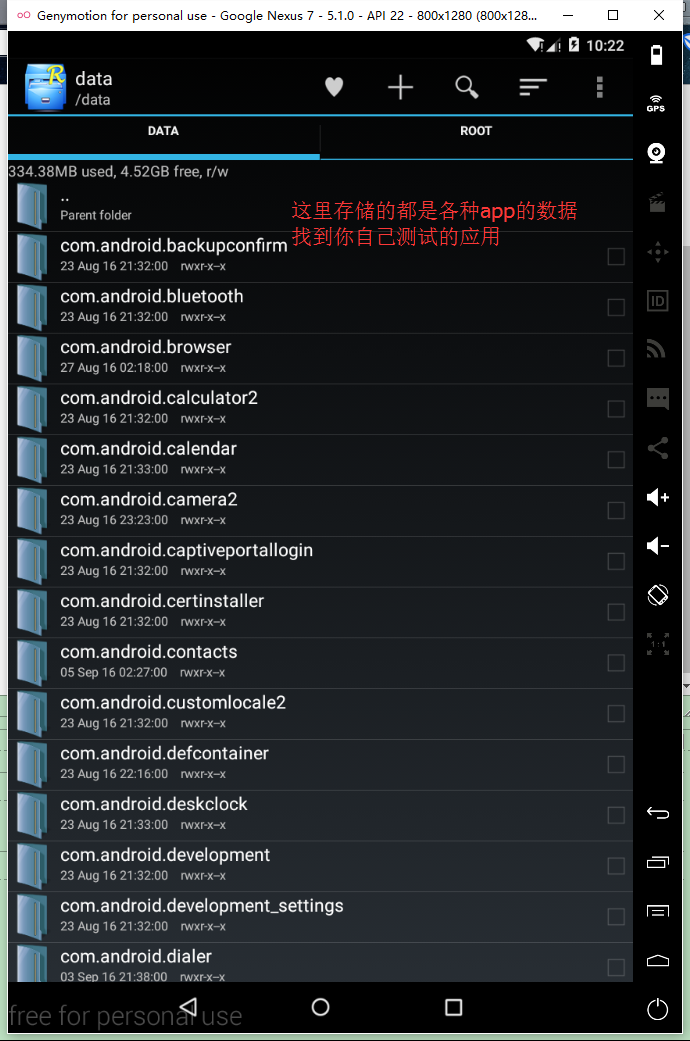
資料存在 App 私有的記憶體空間,其他 App 無法隨意存取,要查看需要 root 權限。檔案位置在 /data/data/專案包名/files。
操作方式仍然是 FileInputStream 與 FileOutputStream,差別在於不透過建構子建立,而是用 Activity 提供的方法:
// 讀取,檔案不存在時會出 FileNotFoundException
FileInputStream fis = openFileInput("text.txt");

// 寫入,檔案會自動建立
FileOutputStream fos = openFileOutput("text.txt", mode);
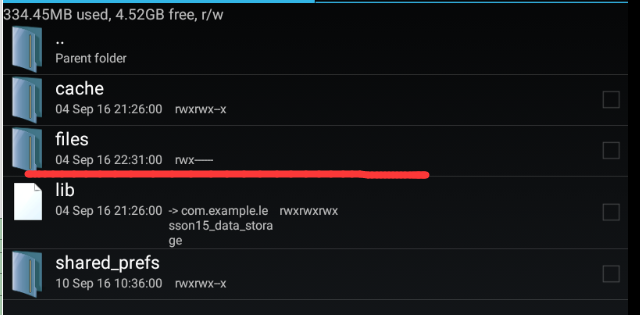
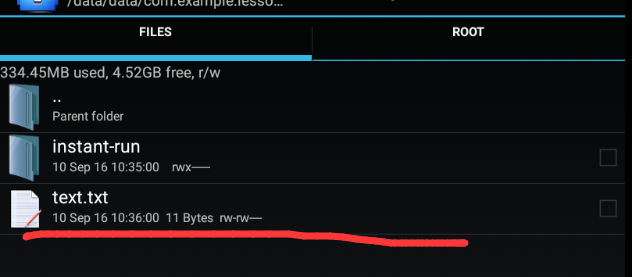
寫入模式有兩種常見選擇:MODE_PRIVATE 為覆寫原檔,MODE_APPEND 為附加到原檔末尾。
先在清單檔中加上權限:

<uses-permission android:name="android.permission.WRITE_EXTERNAL_STORAGE"/>
存在 SDCard 的資料任何 App 都能存取,使用者也很容易直接查看或修改,因此適合放媒體檔、可公開分享或較大宗的資料,不適合放機敏資訊。
狀態與路徑都由 Environment 類別提供:
// 取得擴充卡狀態
Environment.getExternalStorageState();

// MEDIA_MOUNTED:已掛載且可讀寫
// MEDIA_MOUNTED_READ_ONLY:已掛載但唯讀
// MEDIA_REMOVED:已移除

// 取得擴充卡根目錄
Environment.getExternalStorageDirectory();
操作時一樣透過 FileInputStream 與 FileOutputStream。中間層的目錄要自己建立,若父層不存在記得先 mkdirs()。
執行效果:在輸入框打字後按寫入,再按讀取就會把內容顯示到 TextView。要說三次的是——記得加權限。
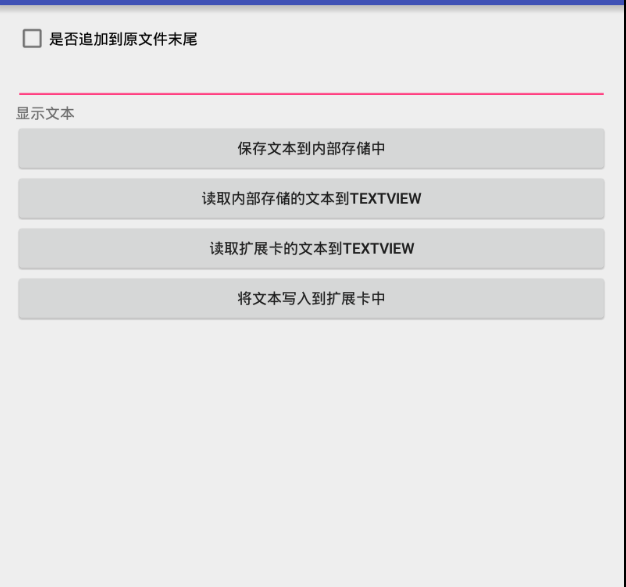
<?xml version="1.0" encoding="utf-8"?>
<LinearLayout xmlns:android="https://schemas.android.com/apk/res/android"
    xmlns:tools="https://schemas.android.com/tools"
    android:layout_width="match_parent"
    android:layout_height="match_parent"
    android:paddingBottom="@dimen/activity_vertical_margin"
    android:paddingLeft="@dimen/activity_horizontal_margin"
    android:paddingRight="@dimen/activity_horizontal_margin"
    android:paddingTop="@dimen/activity_vertical_margin"
    android:orientation="vertical"
    tools:context="com.example.lesson15_data_storage.MainActivity">

    <CheckBox
        android:id="@+id/push"
        android:layout_width="wrap_content"
        android:layout_height="wrap_content"
        android:text="是否附加到原檔末尾" />

    <EditText
        android:id="@+id/edit"
        android:layout_width="match_parent"
        android:layout_height="wrap_content" />

    <TextView
        android:id="@+id/text_view"
        android:layout_width="match_parent"
        android:layout_height="wrap_content"
        android:text="顯示文字" />

    <Button
        android:id="@+id/inner_storage"
        android:layout_width="match_parent"
        android:layout_height="wrap_content"
        android:text="儲存文字到內部儲存"
        android:onClick="onClick" />

    <Button
        android:id="@+id/inner_read"
        android:layout_width="match_parent"
        android:layout_height="wrap_content"
        android:text="讀取內部儲存的文字"
        android:onClick="onClick" />

    <Button
        android:id="@+id/outter_read"
        android:layout_width="match_parent"
        android:layout_height="wrap_content"
        android:text="讀取擴充卡的文字"
        android:onClick="onClick" />

    <Button
        android:id="@+id/outter_write"
        android:layout_width="match_parent"
        android:layout_height="wrap_content"
        android:text="將文字寫入擴充卡"
        android:onClick="onClick" />
</LinearLayout>
public class MainActivity extends AppCompatActivity implements View.OnClickListener {

    private CheckBox cbPush;
    private TextView textView;
    private EditText edit;

    @Override
    protected void onCreate(Bundle savedInstanceState) {
        super.onCreate(savedInstanceState);
        setContentView(R.layout.activity_main);
        cbPush = (CheckBox) findViewById(R.id.push);
        textView = (TextView) findViewById(R.id.text_view);
        edit = (EditText) findViewById(R.id.edit);
        getSharedPreferences();
    }

    /** 示範 SharedPreferences 的三種取得方式與 CheckBox 狀態保存 */
    private void getSharedPreferences() {
        // 以 Context 取得,參數1為檔名,參數2為存取權限
        SharedPreferences preferences = getSharedPreferences("setting", Context.MODE_PRIVATE);

        // 以 Activity 取得,檔名即為目前的 Activity 名稱
        SharedPreferences preferences1 = getPreferences(MODE_PRIVATE);
        SharedPreferences.Editor editor1 = preferences1.edit();
        editor1.putString("text", "透過 activity 物件取得");
        editor1.commit();

        // 以 PreferenceManager 取得,檔名自動產生,權限預設私有
        PreferenceManager.getDefaultSharedPreferences(MainActivity.this)
                .edit()
                .putString("text", "透過 PreferenceManager 取得")
                .commit();

        // 參數1為 key,參數2為預設值(基本型別不可為空,因此必須給預設值)
        boolean checked = preferences.getBoolean("cbPush", false);
        cbPush.setChecked(checked);

        cbPush.setOnCheckedChangeListener(new CompoundButton.OnCheckedChangeListener() {
            @Override
            public void onCheckedChanged(CompoundButton buttonView, boolean isChecked) {
                SharedPreferences sp = getSharedPreferences("setting", Context.MODE_PRIVATE);
                sp.edit().putBoolean("cbPush", isChecked).commit();
            }
        });
    }

    @Override
    public void onClick(View v) {
        switch (v.getId()) {
            case R.id.inner_storage:
                write();
                Toast.makeText(MainActivity.this, "寫入成功", Toast.LENGTH_SHORT).show();
                break;
            case R.id.inner_read:
                read();
                Toast.makeText(MainActivity.this, "讀取成功", Toast.LENGTH_SHORT).show();
                break;
            case R.id.outter_read:
                oread();
                Toast.makeText(MainActivity.this, "讀取成功", Toast.LENGTH_SHORT).show();
                break;
            case R.id.outter_write:
                owrite();
                Toast.makeText(MainActivity.this, "寫入成功", Toast.LENGTH_SHORT).show();
                break;
        }
    }

    // 讀取 SDCard
    private void oread() {
        String state = Environment.getExternalStorageState();
        try {
            // 判斷是可讀寫或唯讀
            if (state.equals(Environment.MEDIA_MOUNTED)
                    || state.equals(Environment.MEDIA_MOUNTED_READ_ONLY)) {
                File sdcardRoot = Environment.getExternalStorageDirectory();
                File read = new File(sdcardRoot, "my/text.txt");
                if (read.exists()) {
                    FileInputStream fis = new FileInputStream(read);
                    // 位元組轉字元會進行編碼轉換,Android 預設 UTF-8
                    BufferedReader reader = new BufferedReader(new InputStreamReader(fis));
                    String str = reader.readLine();
                    textView.setText(str);
                    reader.close();
                    fis.close();
                }
            }
        } catch (FileNotFoundException e) {
            e.printStackTrace();
        } catch (IOException e) {
            e.printStackTrace();
        }
    }

    // 寫入 SDCard
    private void owrite() {
        try {
            String state = Environment.getExternalStorageState();
            if (state.equals(Environment.MEDIA_MOUNTED)) {
                File sdcardRoot = Environment.getExternalStorageDirectory();
                File save = new File(sdcardRoot, "my/text.txt");
                if (!save.exists()) {
                    // 父層目錄不存在時先建立
                    if (!save.getParentFile().exists()) {
                        save.getParentFile().mkdirs();
                    }
                    save.createNewFile();
                }
                String text = edit.getText().toString();
                // 第二個參數決定是附加或覆寫
                FileOutputStream fos = new FileOutputStream(save, cbPush.isChecked());
                fos.write(text.getBytes("utf-8"));
                fos.flush();
                fos.close();

                // File 其他常用判斷
                // save.isDirectory(); 是否為目錄
                // save.isFile();      是否為檔案
                // save.isHidden();    是否為隱藏檔(檔名以 . 開頭)
                // save.list();        取得子檔案名稱陣列
                // save.listFiles();   取得子檔案陣列
            }
        } catch (IOException e) {
            e.printStackTrace();
        }
    }

    // 讀取內部檔案
    private void read() {
        try {
            FileInputStream fis = openFileInput("text.txt");
            int len = -1;
            byte[] b = new byte[1024];
            ByteArrayOutputStream bos = new ByteArrayOutputStream();
            while ((len = fis.read(b)) != -1) {
                bos.write(b, 0, len);
            }
            textView.setText(bos.toString("utf-8"));
            bos.close();
            fis.close();
        } catch (FileNotFoundException e) {
            e.printStackTrace();
        } catch (IOException e) {
            e.printStackTrace();
        }
    }

    // 寫入內部檔案
    private void write() {
        try {
            String text = edit.getText().toString();
            if (TextUtils.isEmpty(text)) return;

            // 勾選則附加,否則覆寫
            int mode = cbPush.isChecked() ? MODE_APPEND : MODE_PRIVATE;
            FileOutputStream fos = openFileOutput("text.txt", mode);
            fos.write(text.getBytes("utf-8"));
            fos.flush();
            fos.close();
        } catch (FileNotFoundException e) {
            e.printStackTrace();
        } catch (IOException e) {
            e.printStackTrace();
        }
    }
}
SharedPreferences 用於少量鍵值設定,程式碼最短;內部檔案適合 App 私有、不想被外部存取的檔案;SDCard 適合較大或需要對外分享的檔案,但從 Android 6.0 起讀寫外部儲存屬於危險權限,必須執行期動態申請,Android 10 之後更進一步導入分割式儲存,寫入路徑的限制比以前嚴格許多,新專案建議優先使用 Context.getExternalFilesDir() 提供的 App 專用外部目錄,可以免去權限申請的麻煩。
 單機搭建 Android 開發環境(四):從 JDK 到首次編譯成功
 前三篇屬於磨刀,這一篇終於要動真格的:安裝 JDK、repo、git 以及各類編譯依賴,然後拉代碼、
 仿有道詞典 Android 項目源碼分享
 這個範例主要用於練習常見 Android 功能整合,包括 ViewPager 自動切換、語音輸入、翻譯 API、下拉刷新與上拉加
 在 Android Studio 中使用 Git 與 GitHub 管理專案
轉載請註明出處:https://shenshanlaoyuan.com 本文以 Windows 系統為例,Mac 系統可參考類似做法。 要在 Android Studio
 Android 音頻開發(5):一幀音頻數據的編碼與解碼
 本系列前四篇分別介紹了音頻開發的基礎知識、如何採集一幀音頻、如何播放一幀音頻,以及如何存儲與解析 WAV 格式文