

編輯:關於 Android 開發
Android 3.0 之前,系統只提供兩種動畫模式:補間動畫(Tween Animation)與幀動畫(Frame Animation);3.0 之後又加入了屬性動畫(Property Animation)。在 SDK 中它們分別被歸類為 View Animation、Drawable Animation 與 Property Animation。
三者最關鍵的差異在於「改了什麼」:
補間動畫改的是 View 的繪製效果——看起來移動、縮放、旋轉、變透明了,但 View 自身的屬性完全沒變。
屬性動畫改的是物件的實際屬性值,是真的變了。
幀動畫則像播放 GIF,靠連續切換 Drawable 來製造動態。
補間動畫的四種基本效果:
Alpha:漸變透明度。
Scale:漸變尺寸伸縮。
Translate:位置移動。
Rotate:旋轉。
補間動畫本質上是一系列 View 形狀的變換。定義方式有 Java 程式碼與 XML 兩種,官方建議用 XML——放在 res/anim 目錄下,根元素為 <set>,二級元素可以是 <scale>、<alpha>、<translate>、<rotate>。
duration:動畫持續時間,單位毫秒。
fillAfter:為 true 時,動畫結束後保留轉換效果。
fillBefore:為 true 時,動畫開始前就套用轉換。
interpolator:指定插值器,控制速度變化節奏。
repeatCount:重複次數。
repeatMode:重複行為,可為 restart(重頭開始)或 reverse(來回反覆)。
<alpha
    android:duration="1000"
    android:fromAlpha="1.0"
    android:toAlpha="0.0" />
fromAlpha 是起始透明度、toAlpha 是結束透明度,取值 0.0 到 1.0:0.0 代表全透明,1.0 代表完全不透明。
<scale
    android:duration="700"
    android:fillAfter="false"
    android:fromXScale="0.0"
    android:fromYScale="0.0"
    android:toXScale="1.4"
    android:toYScale="1.4"
    android:pivotX="50%"
    android:pivotY="50%"
    android:startOffset="700"
    android:repeatCount="10"
    android:interpolator="@android:anim/accelerate_decelerate_interpolator" />
fromXScale/fromYScale 是起始縮放比例:0.0 表示收縮到看不見,1.0 表示原始大小,小於 1.0 是縮小,大於 1.0 是放大;toXScale/toYScale 同理但代表結束狀態。
pivotX/pivotY 是縮放的基準點,取值 0%–100%,50% 就是元件寬/高的中點。這個屬性決定了「往哪個方向縮」的視覺感受,實務上很容易忽略而導致動畫跑位。
<translate
    android:duration="1000"
    android:fromXDelta="0"
    android:fromYDelta="0"
    android:toXDelta="200"
    android:toYDelta="200" />
fromXDelta/toXDelta、fromYDelta/toYDelta 分別是 X、Y 軸的起點與終點位移。
<rotate
    android:duration="2000"
    android:fromDegrees="0"
    android:toDegrees="+250"
    android:pivotX="50%"
    android:pivotY="50%"
    android:interpolator="@android:anim/accelerate_decelerate_interpolator" />
fromDegrees 是起始角度、toDegrees 是結束角度,可以超過 360。角度正負與方向有關:負值代表逆時針、正值代表順時針,但最終旋轉方向取決於起訖值的相對關係——由負到正為順時針,由正到負為逆時針。pivotX/pivotY 則是旋轉圓心。
public class MainActivity extends AppCompatActivity {

    private ImageView iv;

    @Override
    protected void onCreate(Bundle savedInstanceState) {
        super.onCreate(savedInstanceState);
        setContentView(R.layout.activity_main);
        iv = findViewById(R.id.iv);
    }

    public void translateClick(View view) {
        // 參數依序為:起始 X、結束 X、起始 Y、結束 Y
        TranslateAnimation ta = new TranslateAnimation(0, 200, 0, 200);
        ta.setDuration(5000);
        ta.setFillAfter(true);   // 結束後保持最後狀態
        iv.startAnimation(ta);
    }

    public void alphaClick(View view) {
        // 1.0 為不透明,0.0 為全透明
        AlphaAnimation aa = new AlphaAnimation(1, 0);
        aa.setDuration(3000);
        iv.startAnimation(aa);
    }

    public void scaleClick(View view) {
        // 以自身中心點為基準縮放,0.5f 代表寬/高的 50%
        ScaleAnimation sa = new ScaleAnimation(0, 1, 0, 1,
                ScaleAnimation.RELATIVE_TO_SELF, 0.5f,
                ScaleAnimation.RELATIVE_TO_SELF, 0.5f);
        sa.setDuration(3000);
        iv.startAnimation(sa);
    }

    public void rotateClick(View view) {
        RotateAnimation ra = new RotateAnimation(0, 359,
                RotateAnimation.RELATIVE_TO_SELF, 0.5f,
                RotateAnimation.RELATIVE_TO_SELF, 0.5f);
        ra.setRepeatCount(RotateAnimation.INFINITE);
        ra.setRepeatMode(RotateAnimation.REVERSE);
        ra.setDuration(3000);
        iv.startAnimation(ra);
    }

    public void setClick(View view) {
        // 參數 true 表示所有子動畫共用 AnimationSet 的插值器
        AnimationSet set = new AnimationSet(true);

        TranslateAnimation ta = new TranslateAnimation(0, iv.getWidth(), 0, iv.getHeight());
        ta.setDuration(3000);
        set.addAnimation(ta);

        AlphaAnimation aa = new AlphaAnimation(0.2f, 0.8f);
        aa.setDuration(3000);
        set.addAnimation(aa);

        ScaleAnimation sa = new ScaleAnimation(1, 2, 1, 2,
                ScaleAnimation.RELATIVE_TO_SELF, 0.5f,
                ScaleAnimation.RELATIVE_TO_SELF, 0.5f);
        sa.setDuration(3000);
        set.addAnimation(sa);

        RotateAnimation ra = new RotateAnimation(0, -359,
                RotateAnimation.RELATIVE_TO_SELF, 0.5f,
                RotateAnimation.RELATIVE_TO_SELF, 0.5f);
        ra.setDuration(3000);
        set.addAnimation(ra);

        iv.startAnimation(set);
    }

    // 改用 XML 定義的動畫資源
    public void translateClick2(View view) {
        Animation animation = AnimationUtils.loadAnimation(this, R.anim.translate_anim);
        animation.setFillAfter(true);
        iv.startAnimation(animation);
    }
}插值器決定速度曲線,是讓動畫「看起來順不順」的關鍵:
AccelerateDecelerateInterpolator:頭尾慢、中段快。
AccelerateInterpolator:起步慢,之後逐漸加速。
DecelerateInterpolator:起步快,之後逐漸減速。
LinearInterpolator:等速。
BounceInterpolator:結束時像球落地般彈一下。
CycleInterpolator:沿正弦曲線反覆,可指定循環次數。
幀動畫對應 AnimationDrawable 物件,原理跟 GIF 一樣:把一系列 Drawable 依序顯示出來。根元素是 <animation-list>,每個 <item> 代表一幀。
<animation-list xmlns:android="https://schemas.android.com/apk/res/android"
    android:oneshot="true">
    <item android:drawable="@drawable/p0" android:duration="200" />
    <item android:drawable="@drawable/p1" android:duration="200" />
    <item android:drawable="@drawable/p2" android:duration="200" />
    <item android:drawable="@drawable/p3" android:duration="200" />
    <item android:drawable="@drawable/p4" android:duration="200" />
</animation-list>
item 的屬性:drawable 是該幀引用的圖片資源,duration 是該幀顯示時間(毫秒),oneshot 為 true 表示只播一次並停在最後一幀,為 false 則循環播放。
由於它本質上是 Drawable 資源,XML 檔要放在 res/drawable 目錄下(這是原文件名稱容易誤導的地方,放進 res/anim 反而會找不到資源)。
final AnimationDrawable ad = (AnimationDrawable) iv1.getDrawable();
iv1.setOnClickListener(new View.OnClickListener() {
    @Override
    public void onClick(View v) {
        // 若正在播放,先停止再重新開始
        if (ad.isRunning()) {
            ad.stop();
        }
        ad.start();
    }
});
一個實務陷阱:不要在 onCreate() 中直接呼叫 start(),因為此時 AnimationDrawable 尚未完全與 Window 關聯。若希望進入畫面就自動播放,請改在 onWindowFocusChanged() 中啟動。
屬性動畫在 Android 3.0 引入,顧名思義是透過動畫改變物件的屬性。它與補間動畫最大的差別可以用一個例子講清楚:
用補間動畫縮放一個 Button,畫面上它變大了,但實際可點擊的範圍仍然是原來的位置與大小——因為真實屬性沒變。改用屬性動畫縮放,Button 的位置與大小屬性真的改變了,點擊範圍也跟著變。
更強的是,屬性動畫不只可用於 View,任何物件都可以。它做的事只是「讓某個值在一段時間內變化」,至於值變了之後要做什麼,完全由你自己決定。
Duration:持續時間,預設約 300ms,對應 android:duration。
Time interpolation:時間插值,決定變化率,對應 android:interpolator。
Repeat count and behavior:重複次數與模式(重頭開始或反向),對應 android:repeatCount。
Animator sets:動畫集合,可一起執行或依序執行,由 android:ordering 指定。
Frame refresh delay:幀刷新延遲,預設約 10ms,實際仍取決於系統當前負載。
ObjectAnimator:最常用,透過「目標物件 + 屬性名稱 + 一組值」直接驅動,是 ValueAnimator 的子類。
ValueAnimator:更底層,只負責產生數值變化,適合需要在數值改變時自訂行為的場景。
AnimatorSet:控制一組動畫的執行方式,可同時、可序列。
public class MainActivity extends AppCompatActivity {

    private ImageView iv1;

    @Override
    protected void onCreate(Bundle savedInstanceState) {
        super.onCreate(savedInstanceState);
        setContentView(R.layout.activity_main);
        iv1 = findViewById(R.id.iv1);

        // 版面元素的入場動畫
        LinearLayout linearLayout = findViewById(R.id.ll);
        ScaleAnimation sa = new ScaleAnimation(0, 1, 0, 1);
        sa.setDuration(500);
        // 0.5f 表示每個子元件延遲 0.5 秒
        LayoutAnimationController lac = new LayoutAnimationController(sa, 0.5f);
        lac.setOrder(LayoutAnimationController.ORDER_RANDOM);
        linearLayout.setLayoutAnimation(lac);
    }

    public void translateClick(View view) {
        ObjectAnimator oa = ObjectAnimator.ofFloat(iv1, "translationX", 0, 200, 0);
        oa.setDuration(5000);
        oa.start();
    }

    public void alphaClick(View view) {
        ObjectAnimator oa = ObjectAnimator.ofFloat(iv1, "alpha", 0f, 0.5f, 0f, 1f);
        oa.setDuration(5000);
        oa.start();
    }

    public void scaleClick(View view) {
        ObjectAnimator oa = ObjectAnimator.ofFloat(iv1, "scaleX", 0, 1, 0.5f, 1);
        oa.setDuration(5000);
        oa.start();
    }

    public void rotateClick(View view) {
        // rotation 繞中心點旋轉,rotateX/rotateY 分別繞 X/Y 軸
        ObjectAnimator oa = ObjectAnimator.ofFloat(iv1, "rotation", 0, 359);
        oa.setRepeatCount(ObjectAnimator.INFINITE);
        oa.setRepeatMode(ObjectAnimator.RESTART);
        oa.setInterpolator(new LinearInterpolator());
        oa.setDuration(5000);
        oa.start();
    }

    public void animClick1(View view) {
        // 用 PropertyValuesHolder 組合多個屬性動畫
        PropertyValuesHolder pv1 = PropertyValuesHolder.ofFloat("rotation", 0, 359);
        PropertyValuesHolder pv2 = PropertyValuesHolder.ofFloat("scaleX", 1, 2);
        PropertyValuesHolder pv3 = PropertyValuesHolder.ofFloat("translationX", 0, 200);
        PropertyValuesHolder pv4 = PropertyValuesHolder.ofFloat("alpha", 0.5f, 1f);

        ObjectAnimator oa = ObjectAnimator.ofPropertyValuesHolder(iv1, pv1, pv2, pv3, pv4);
        oa.setDuration(5000);
        oa.start();
    }

    public void animClick2(View view) {
        // 屬性動畫的真正威力:改變自訂物件的屬性
        MyImageView miv = new MyImageView(iv1);
        ObjectAnimator oa = ObjectAnimator.ofInt(miv, "height", 0, 200);
        oa.setDuration(5000);
        oa.start();
    }
}如果只是要讓畫面「看起來動一下」,且不影響互動邏輯,補間動畫最省事;播放序列圖幀用幀動畫;但只要動畫會改變點擊範圍、需要驅動自訂物件的屬性,或要做複合、可中斷的動態效果,就該直接用屬性動畫。由於補間動畫存在「視覺變了、實際屬性沒變」 this 特性導致的各種互動 bug,新專案中屬性動畫應該是首選。
 Android 訪問 SD 卡路徑的幾種方式:兼顧兼容與健壯性
Android 中訪問 sdcard 路徑的幾種方式 在早期 Android(4.1 之前)中,SD 卡路徑通常以「/sdcard」或「/mnt/sdcard」表示;而從
 Android 對話框實戰:通知、單選、多選與進度框一次搞懂
 在實際開發中,當應用需要向使用者確認某項操作、展示一段提示資訊,或是回報「正在處理中」的狀態時,對話框(Di
 Android 動畫切換元件:ViewAnimator 與子類解析
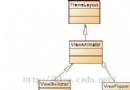
Android 動畫切換元件:ViewAnimator 與子類ViewAnimator 主要用於在同一位置切換多個子檢視,並可套用進出動畫。其 XML 屬性包含 anim
 Android 項目實戰(二十八):Zxing 二維碼實現與優化
前言:多年之前接觸過 zxing 實現二維碼,沒想到今日項目中再次使用依然離不開它。項目裡我們通常只會用到