

編輯:關於 Android 開發
本文示範如何從接口拉取資料,並用 universal-image-loader 把商品圖片呈現在自訂的 GridView 上。下圖為效果參考:
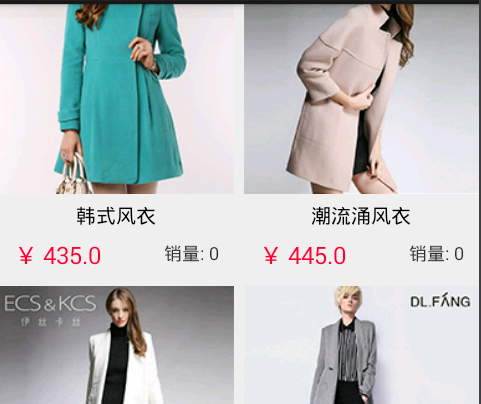
實作步驟如下:
1、先定義版面配置,這裡用自訂的 MyGridView 來展示商品。
2、匯入 jar 套件 universal-image-loader-1.8.6-with-sources。使用 ImageLoader 前務必先初始化:
ImageLoader.getInstance().init(ImageLoaderConfiguration.createDefault(this));
否則會拋出 java.lang.IllegalStateException: ImageLoader must be init with configuration before using,意思就是使用前必須先初始化。
3、定義 Adapter 在 getView 中展示商品。作者實作時發現第一筆資料總會重複請求,加載慢又耗伺服器資源,於是定義一個 View 陣列暫存已建立的 View,有資料時就不再重複請求(這種做法局限性較大,僅供參考)。
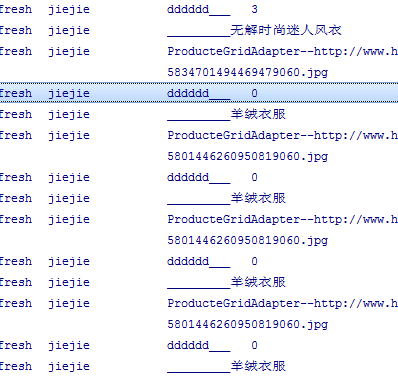
4、開啟子執行緒在背景加載資料,於 Handler 中解析資料並更新界面。
主要程式碼如下。
自訂 GridView(重寫 onMeasure 讓它能完整顯示於 ScrollView 中):
package com.demo.content;
import android.content.Context;
import android.util.AttributeSet;
import android.widget.GridView;

public class MyGridView extends GridView {
    public MyGridView(Context context, AttributeSet attrs) { super(context, attrs); }
    public MyGridView(Context context) { super(context); }
    public MyGridView(Context context, AttributeSet attrs, int defStyle) { super(context, attrs, defStyle); }
    @Override
    public void onMeasure(int widthMeasureSpec, int heightMeasureSpec) {
        int expandSpec = MeasureSpec.makeMeasureSpec(Integer.MAX_VALUE >> 2, MeasureSpec.AT_MOST);
        super.onMeasure(widthMeasureSpec, expandSpec);
    }
}
版面配置:
<?xml version="1.0" encoding="utf-8"?>
<LinearLayout xmlns:android="https://schemas.android.com/apk/res/android"
    android:layout_width="match_parent"
    android:layout_height="match_parent"
    android:orientation="vertical" >
    <ScrollView
        android:layout_width="match_parent"
        android:layout_height="match_parent" >
        <LinearLayout
            android:layout_width="match_parent"
            android:layout_height="wrap_content"
            android:background="#eee"
            android:orientation="vertical" >
            <Button
                android:layout_width="match_parent"
                android:layout_height="wrap_content"
                android:text="@string/app_name"
                android:textColor="#000" />
            <View
                android:layout_width="match_parent"
                android:layout_height="5dp"
                android:background="@drawable/btn_normal" />
            <com.demo.content.MyGridView
                android:id="@+id/gg_mygridview"
                android:layout_width="match_parent"
                android:layout_height="match_parent"
                android:horizontalSpacing="7dp"
                android:numColumns="2"
                android:verticalSpacing="7dp" />
        </LinearLayout>
    </ScrollView>
</LinearLayout>
主 Activity:
public class MyMainActivity extends Activity {
    private MyGridView myGridView;
    private DisplayImageOptions options;
    private List<Product> products;
    private String url = "" + "Product/GetProductsByProType/12000000/20";

    @Override
    protected void onCreate(Bundle arg0) {
        super.onCreate(arg0);
        setContentView(R.layout.mymainactivity);
        options = new DisplayImageOptions.Builder()
                .showImageForEmptyUri(R.drawable.ic_empty)   // 連結為空時
                .showImageOnFail(R.drawable.ic_error)        // 加載失敗
                .resetViewBeforeLoading(true).cacheOnDisc(true)
                .imageScaleType(ImageScaleType.EXACTLY)
                .bitmapConfig(Bitmap.Config.RGB_565)
                .displayer(new FadeInBitmapDisplayer(300))   // 漸現效果
                .build();
        // 建立預設的 ImageLoader 參數,不加會報 IllegalStateException
        ImageLoader.getInstance().init(ImageLoaderConfiguration.createDefault(this));
        myGridView = (MyGridView) findViewById(R.id.gg_mygridview);
        // 開啟子執行緒
        new GetThread(url, handler).start();
    }

    @SuppressLint("HandlerLeak")
    private Handler handler = new Handler() {
        public void handleMessage(android.os.Message msg) {
            switch (msg.what) {
                case GetThread.SUCCESS:
                    String jsonString = (String) msg.obj;
                    products = getJsonProducts(jsonString);
                    Adapter adapter = new Adapter();
                    myGridView.setAdapter(adapter);
                    break;
            }
        }
    };
}
Adapter 中的 getView 透過 ViewHolder 提升效能,並用 ImageLoader 載入網路圖片:
ImageLoader.getInstance().displayImage(urlString, holder.product_img, options);
背景執行緒 GetThread 用 HttpClient 發送 GET 請求,成功後透過 Handler 把 JSON 字串送回主執行緒解析。
public class GetThread extends Thread {
    public static final int SUCCESS = 10, FAIL = -11;
    private String url;
    private Handler handler;
    public GetThread(String url, Handler handler) {
        this.url = url;
        this.handler = handler;
    }
    @Override
    public void run() {
        super.run();
        HttpClient httpClient = new DefaultHttpClient();
        HttpGet httpGet = new HttpGet(url);
        try {
            HttpResponse httpResponse = httpClient.execute(httpGet);
            Message msg = Message.obtain();
            if (httpResponse.getStatusLine().getStatusCode() == HttpStatus.SC_OK) {
                String jsonString = EntityUtils.toString(httpResponse.getEntity());
                msg.what = SUCCESS;
                msg.obj = jsonString;
                handler.sendMessage(msg);
            } else {
                msg.what = FAIL;
                handler.sendMessage(msg);
            }
        } catch (Exception e) {
            e.printStackTrace();
        }
    }
}
整體流程是:子執行緒拉取 JSON → Handler 解析為 Product 清單 → Adapter 綁定到自訂 GridView → ImageLoader 異步載入並快取圖片,搭配漸現動畫呈現流暢的商品列表。實務上新專案建議改用 Glide 或 Picasso 等維護中的圖片庫,universal-image-loader 已停止更新。
 Android 菜單基本知識:選項菜單、子菜單與上下文菜單
選項菜單選項菜單通常通過 onCreateOptionsMenu 創建。開發者可以在其中添加多個菜單項,並指定組
 Android 基礎入門教程——9.4 使用 MediaRecord 錄音
 標簽(空格分隔):Android 基礎入門教程 本節引言 本節是 Android 多媒體基
 深入理解 RCU 實現機制:以 2.6.21 核心為例的原始碼剖析
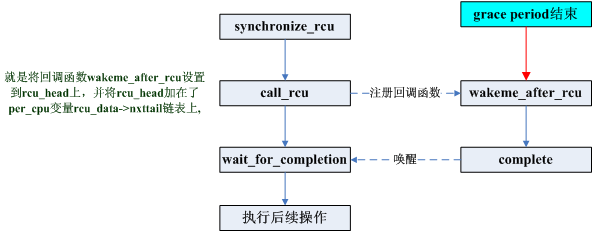
深入理解 RCU 實現 ——基於 2.6.21 核心的 RCU 實現(lvyilong316) RCU(Read-Copy Update),顧名思義就是讀—拷貝—修改,名
 Android 無線開發常用技術綜述
 完整開發一款 Android 移動 App,需要經過需求拆解、架構設計、開發調試、測試、上線發布等多個階段,上線後還會有功能上的迭代