編輯:關於android開發
第一篇原創,其實自己就是一菜鳥,簡單分享點基本知識吧。希望能有所幫助吧。
TextView EditText Button ImageView 這幾個控件可能是Android開發中最常用、最基本的幾個控件
本篇文章就從最簡單的角度介紹下這幾個控件的用法(默認您已經掌握了開發環境的搭建,本吊還在用eclipse ,准備月底換電腦用 as;建議用as進行開發吧,好多開源資源只提供了as版本 )
MainActivity.java
 1 public class MainActivity extends Activity {
 2
 3     private TextView tv;
 4     private EditText et;
 5     private Button btn;
 6     private ImageView iv;
 7
 8     @Override
 9     protected void onCreate(Bundle savedInstanceState) {
10         super.onCreate(savedInstanceState);
11         // 加載布局文件
12         setContentView(R.layout.activity_main);
13         // 初始化控件
14         init();
15         // 設置Button的OnClickListener監聽器
16         btn.setOnClickListener(new OnClickListener() {
17             @Override
18             public void onClick(View v) {
19                 // 將et中輸入的內容通過Toast顯示出來
20                 Toast.makeText(MainActivity.this,
21                         "et的輸入為:" + et.getText().toString(), Toast.LENGTH_SHORT)
22                         .show();
23             }
24         });
25         // 設置ImageView的OnClickListener監聽器
26         iv.setOnClickListener(new OnClickListener() {
27             @Override
28             public void onClick(View v) {
29                 // 當點擊btn的時候就讓iv的圖片變成另一張圖片
30                 iv.setBackgroundResource(R.drawable.animal);
31             }
32         });
33     }
34
35     private void init() {
36         tv = (TextView) this.findViewById(R.id.acMain_tv_username);
37         et = (EditText) this.findViewById(R.id.acMain_et_password);
38         btn = (Button) this.findViewById(R.id.acMain_btn_login);
39         iv = (ImageView) this.findViewById(R.id.acMain_iv_show);
40         tv.setText("Hello , this is gh");
41     }
activity_main.xml
 1 <RelativeLayout xmlns:android="http://schemas.android.com/apk/res/android"
 2     xmlns:tools="http://schemas.android.com/tools"
 3     android:layout_width="match_parent"
 4     android:layout_height="match_parent"
 5     android:paddingBottom="@dimen/activity_vertical_margin"
 6     android:paddingLeft="@dimen/activity_horizontal_margin"
 7     android:paddingRight="@dimen/activity_horizontal_margin"
 8     android:paddingTop="@dimen/activity_vertical_margin"
 9     tools:context="com.example.cnblogs001.MainActivity" >
10
11     <TextView
12         android:id="@+id/acMain_tv_username"
13         android:layout_width="match_parent"
14         android:layout_height="wrap_content"
15         android:gravity="center_horizontal"
16         android:padding="10dp"
17         android:text="@string/hello_world"
18         android:textColor="@android:color/holo_blue_dark"
19         android:textSize="20sp" />
20
21     <EditText
22         android:id="@+id/acMain_et_password"
23         android:layout_width="match_parent"
24         android:layout_height="wrap_content"
25         android:layout_below="@id/acMain_tv_username"
26         android:layout_marginTop="10dp"
27         android:ellipsize="end"
28         android:gravity="center_horizontal"
29         android:hint="@string/hint_et_password"
30         android:inputType="textPassword"
31         android:maxLines="1" />
32
33     <Button
34         android:id="@+id/acMain_btn_login"
35         android:layout_width="match_parent"
36         android:layout_height="wrap_content"
37         android:layout_below="@id/acMain_et_password"
38         android:layout_marginTop="10dp"
39         android:alpha="0.5"
40         android:background="@android:color/holo_blue_dark"
41         android:gravity="center"
42         android:text="@string/text_btn_login"
43         android:textColor="#000000"
44         android:textSize="20sp" />
45
46     <ImageView
47         android:id="@+id/acMain_iv_show"
48         android:layout_width="150dp"
49         android:layout_height="150dp"
50         android:layout_below="@id/acMain_btn_login"
51         android:layout_centerHorizontal="true"
52         android:layout_marginTop="10dp"
53         android:background="@drawable/logo"
54         android:scaleType="fitCenter" />
55
56 </RelativeLayout>
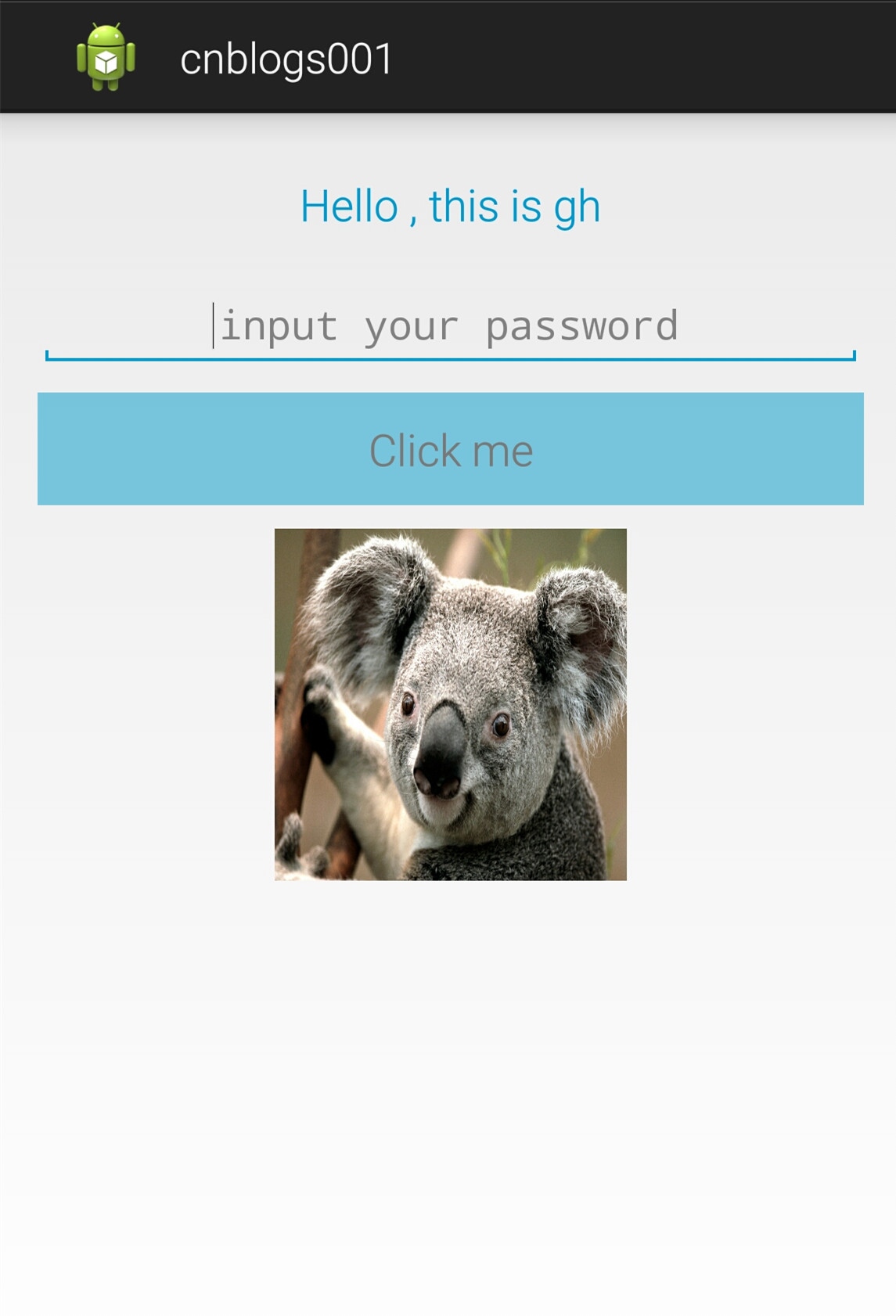
效果圖:
總結:
xml布局文件中只用了這幾個控件的部分屬性,都是最基本的屬性;詳細屬性可以查閱官方文檔
同時在Activity中只 監聽了 Button 和 ImageView 的OnClickListener ,還可以監聽其他事件,大家可以自行嘗試一下
 全新的手勢,側滑返回、全局右滑返回都OUT啦!,全局out
全新的手勢,側滑返回、全局右滑返回都OUT啦!,全局out前言 Android快速開發框架-ZBLibrary 最近將以前的 全局右滑返回 手勢功能改成了 底部左右滑動手
 Android Material Design之 NavigationView側滑界面自定義 隨筆,android側滑菜單
Android Material Design之 NavigationView側滑界面自定義 隨筆,android側滑菜單一、側滑界面Menu自定義: 在menu文件夾下
 Android開發之初識MVP模式
Android開發之初識MVP模式 各位親愛的小伙伴,有沒有想我啊,我胡漢wing又回來了。 很長一段時間沒有更新博客。。原因是。。從離職回到學校以後,一直在享受最
 模擬QQ側滑控件 實現三種界面切換效果(知識點:回調機制,解析網絡json數據,fragment用法等)。,jsonfragment
模擬QQ側滑控件 實現三種界面切換效果(知識點:回調機制,解析網絡json數據,fragment用法等)。,jsonfragment需要用到的lib包 :解析json&n