編輯:關於android開發
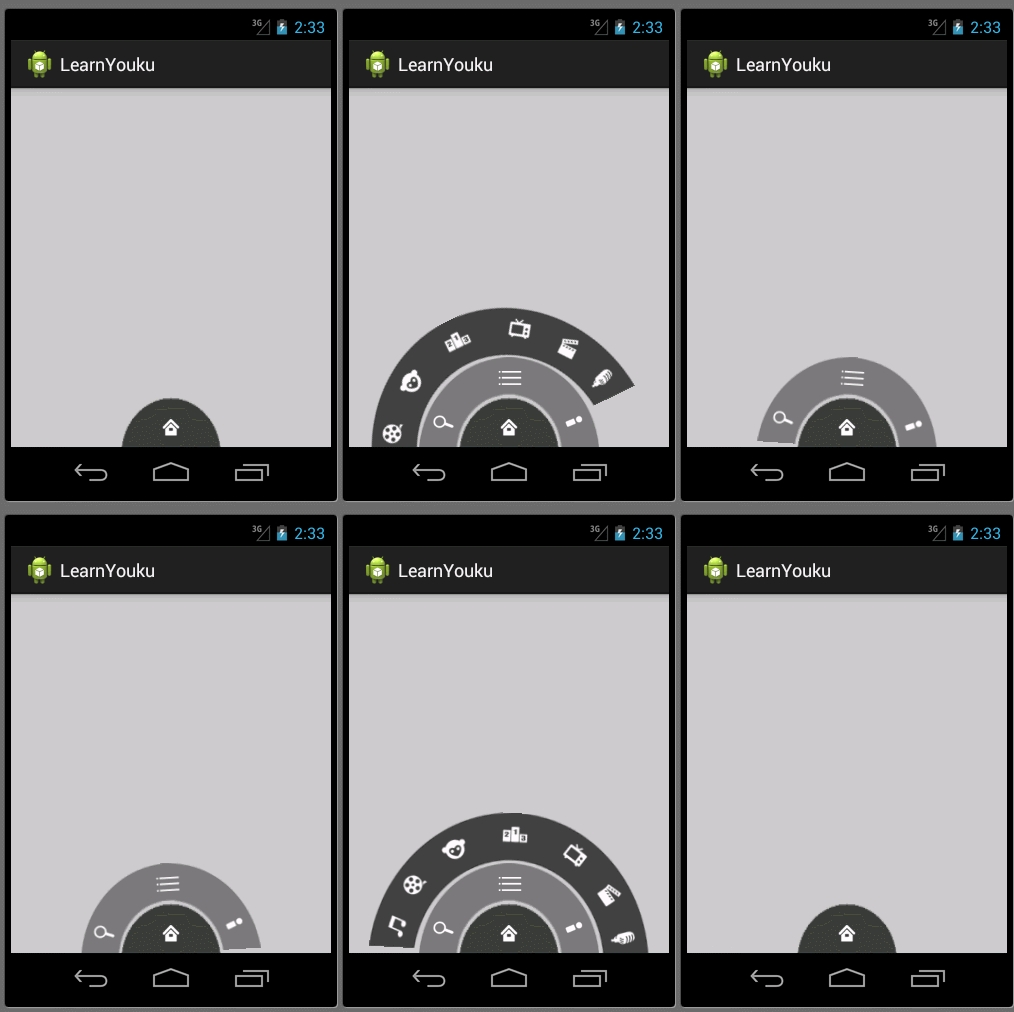
本文開始將逐步去實現下面優酷菜單的效果:
本文地址:http://www.cnblogs.com/wuyudong/p/5912538.html,轉載請注明源地址。
本文首先來實現優酷菜單界面初始化工作
首先使用相對布局
<RelativeLayout xmlns:android="http://schemas.android.com/apk/res/android"
    xmlns:tools="http://schemas.android.com/tools"
    android:layout_width="match_parent"
    android:layout_height="match_parent"
    tools:context=".MainActivity" >

    <RelativeLayout
        android:layout_width="100dp"
        android:layout_height="50dp"
        android:background="@drawable/level1"
        android:layout_alignParentBottom="true"
        android:layout_centerHorizontal="true"
        ></RelativeLayout>

    <RelativeLayout
        android:layout_width="180dp"
        android:layout_height="90dp"
        android:background="@drawable/level2"
        android:layout_alignParentBottom="true"
        android:layout_centerHorizontal="true"
        ></RelativeLayout>
    <RelativeLayout
        android:layout_width="280dp"
        android:layout_height="140dp"
        android:background="@drawable/level3"
        android:layout_alignParentBottom="true"
        android:layout_centerHorizontal="true"
        ></RelativeLayout>
</RelativeLayout>
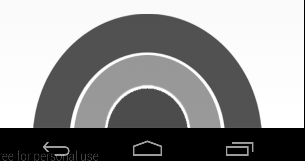
實現下面的效果
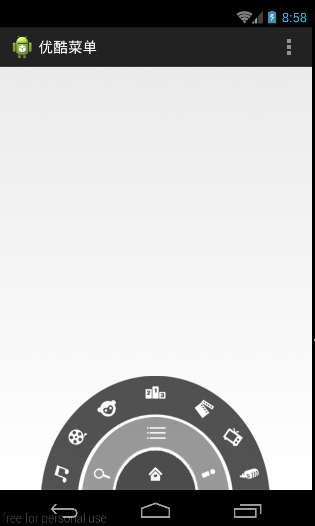
接著將一些小圖標嵌入裡面,布局比較簡單有規律
<RelativeLayout xmlns:android="http://schemas.android.com/apk/res/android"
    xmlns:tools="http://schemas.android.com/tools"
    android:layout_width="match_parent"
    android:layout_height="match_parent"
    tools:context=".MainActivity" >

    <RelativeLayout
        android:layout_width="100dp"
        android:layout_height="50dp"
        android:layout_alignParentBottom="true"
        android:layout_centerHorizontal="true"
        android:background="@drawable/level1" >

        <ImageButton
            android:layout_width="wrap_content"
            android:layout_height="wrap_content"
            android:layout_centerInParent="true"
            android:background="@null"
            android:src="@drawable/icon_home" />
    </RelativeLayout>

    <RelativeLayout
        android:layout_width="180dp"
        android:layout_height="90dp"
        android:layout_alignParentBottom="true"
        android:layout_centerHorizontal="true"
        android:background="@drawable/level2" >
          <ImageButton
            android:layout_width="wrap_content"
            android:layout_height="wrap_content"
            android:layout_alignParentBottom="true"
            android:layout_alignParentLeft="true"
            android:layout_marginBottom="5dp"
            android:layout_marginLeft="10dp"
            android:background="@null"
            android:src="@drawable/icon_search" />

        <ImageButton
            android:layout_width="wrap_content"
            android:layout_height="wrap_content"
            android:layout_centerHorizontal="true"
            android:layout_marginTop="5dp"
            android:background="@null"
            android:src="@drawable/icon_menu" />
         <ImageButton
            android:layout_width="wrap_content"
            android:layout_height="wrap_content"
            android:layout_alignParentBottom="true"
            android:layout_alignParentRight="true"
            android:layout_marginBottom="5dp"
            android:layout_marginRight="10dp"
            android:background="@null"
            android:src="@drawable/icon_myyouku" />
    </RelativeLayout>

    <RelativeLayout
        android:layout_width="280dp"
        android:layout_height="140dp"
        android:layout_alignParentBottom="true"
        android:layout_centerHorizontal="true"
        android:background="@drawable/level3" >

        <ImageButton
            android:layout_width="wrap_content"
            android:layout_height="wrap_content"
            android:layout_alignParentBottom="true"
            android:layout_alignParentLeft="true"
            android:layout_marginBottom="5dp"
            android:layout_marginLeft="10dp"
            android:background="@null"
            android:src="@drawable/channel1" />

        <ImageButton
            android:layout_width="wrap_content"
            android:layout_height="wrap_content"
            android:layout_marginLeft="30dp"
            android:layout_marginTop="60dp"
            android:background="@null"
            android:src="@drawable/channel2" />

        <ImageButton
            android:layout_width="wrap_content"
            android:layout_height="wrap_content"
            android:layout_marginLeft="65dp"
            android:layout_marginTop="25dp"
            android:background="@null"
            android:src="@drawable/channel3" />

        <ImageButton
            android:layout_width="wrap_content"
            android:layout_height="wrap_content"
            android:layout_centerHorizontal="true"
            android:layout_marginTop="5dp"
            android:background="@null"
            android:src="@drawable/channel4" />

        <ImageButton
            android:layout_width="wrap_content"
            android:layout_height="wrap_content"
            android:layout_alignParentRight="true"
            android:layout_marginRight="30dp"
            android:layout_marginTop="60dp"
            android:background="@null"
            android:src="@drawable/channel5" />

        <ImageButton
            android:layout_width="wrap_content"
            android:layout_height="wrap_content"
            android:layout_alignParentRight="true"
            android:layout_marginRight="65dp"
            android:layout_marginTop="25dp"
            android:background="@null"
            android:src="@drawable/channel6" />

        <ImageButton
            android:layout_width="wrap_content"
            android:layout_height="wrap_content"
            android:layout_alignParentBottom="true"
            android:layout_alignParentRight="true"
            android:layout_marginBottom="5dp"
            android:layout_marginRight="10dp"
            android:background="@null"
            android:src="@drawable/channel7" />
    </RelativeLayout>

</RelativeLayout>
運行後的效果如下:
 安卓熱更新之Nuwa實現步驟,安卓nuwa實現步驟
安卓熱更新之Nuwa實現步驟,安卓nuwa實現步驟
 基於鴻洋博客自定於View實現的android音量調節控件,android音量調節
基於鴻洋博客自定於View實現的android音量調節控件,android音量調節 1.在values建立attrs.xml,寫出你需要的屬性:
 從源碼的角度理解四大組件的工作過程——Android開發藝術探索筆記
從源碼的角度理解四大組件的工作過程——Android開發藝術探索筆記 系統對四大組件的過程進行了很大程度的封裝,日常開發中並不需要了解底層的工作原理,那麼研究這些原理
 生動有趣的動畫Toast--第三方開源--NiftyNotification,開源微信第三方平台
生動有趣的動畫Toast--第三方開源--NiftyNotification,開源微信第三方平台 NiftyNotification在github上的項目主頁是:http