編輯:關於Android編程
要想實現的效果是如下:
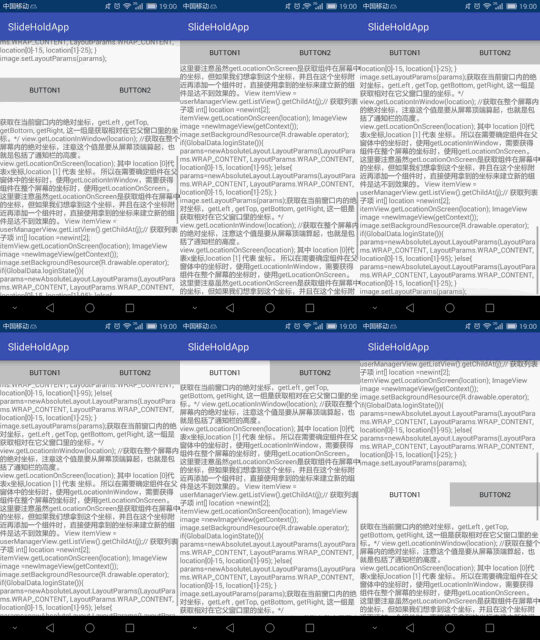
場景:有些時候是內容中間的組件當滑動至頂部的時候固定顯示在頂部。
實現的思路:
1.目標組件(button)有兩套,放在頂部和內容中間;
2.當內容中間的組件滑動至頂部欄位置時控制顯示/隱藏頂部和中間的組件(涉及到組件獲取在屏幕的位置知識點);
activity代碼:
public class MainActivity extends AppCompatActivity implements ObservableScrollView.ScrollViewListener {
  private ObservableScrollView scrollView;
  private Button topBtn1, topBtn2, middleBtn1, middleBtn2;
  private View topPanel, middlePanel;
  private int topHeight;

  @Override
  protected void onCreate(Bundle savedInstanceState) {
    super.onCreate(savedInstanceState);
    setContentView(R.layout.activity_main);
    initViews();
    initListeners();

  }

  @Override
  public void onWindowFocusChanged(boolean hasFocus) {
    super.onWindowFocusChanged(hasFocus);

    Rect frame = new Rect();
    getWindow().getDecorView().getWindowVisibleDisplayFrame(frame);
    int statusBarHeight = frame.top;//狀態欄高度

    int titleBarHeight = getWindow().findViewById(Window.ID_ANDROID_CONTENT).getTop();//標題欄高度
    topHeight = titleBarHeight + statusBarHeight;
  }


  private void initViews() {
    scrollView = (ObservableScrollView) findViewById(R.id.scrollView);
    topPanel = findViewById(R.id.topPanel);
    topBtn1 = (Button) topPanel.findViewById(R.id.button1);
    topBtn2 = (Button) topPanel.findViewById(R.id.button2);

    middlePanel = findViewById(R.id.middlePanel);
    middleBtn1 = (Button) middlePanel.findViewById(R.id.button1);
    middleBtn2 = (Button) middlePanel.findViewById(R.id.button2);

  }

  private void initListeners() {
    topBtn1.setOnClickListener(new View.OnClickListener() {
      @Override
      public void onClick(View view) {
        middleBtn1.setBackgroundColor(Color.WHITE);
        topBtn1.setBackgroundColor(Color.WHITE);
      }
    });

    middleBtn1.setOnClickListener(new View.OnClickListener() {
      @Override
      public void onClick(View view) {
        middleBtn1.setBackgroundColor(Color.BLUE);
        topBtn1.setBackgroundColor(Color.BLUE);
      }
    });

    scrollView.setScrollViewListener(this);


  }


  @Override
  public void onScrollChanged(ObservableScrollView scrollView, int x, int y, int oldx, int oldy) {
    int[] location = new int[2];
    middleBtn1.getLocationOnScreen(location);
    int locationY = location[1];
    Log.e("locationY", locationY + "  " + "topHeight的值是:" + topHeight);

    if (locationY <= topHeight && (topPanel.getVisibility() == View.GONE || topPanel.getVisibility() == View.INVISIBLE)) {
      topPanel.setVisibility(View.VISIBLE);
    }

    if (locationY > topHeight && topPanel.getVisibility() == View.VISIBLE) {
      topPanel.setVisibility(View.GONE);
    }

  }
}
要點解析:
1.在onWindowFocusChanged()方法中獲取屏幕狀態欄和標題欄的高度(在onCreate()方法中是獲取是0);
2.因為布局中的ScrollView的onScrollChangeListener()方法低版本API不支持——>所以activity實現了自定義ScrollView中的onScrollChanged()接口方法——>在此方法中實現組件的顯示/隱藏;
自定義ScrollView的代碼:
public class ObservableScrollView extends ScrollView {

  private ScrollViewListener scrollViewListener = null;

  public ObservableScrollView(Context context) {
    super(context);
  }

  public ObservableScrollView(Context context, AttributeSet attrs,
                int defStyle) {
    super(context, attrs, defStyle);
  }

  public ObservableScrollView(Context context, AttributeSet attrs) {
    super(context, attrs);
  }

  public void setScrollViewListener(ScrollViewListener scrollViewListener) {
    this.scrollViewListener = scrollViewListener;
  }

  @Override
  protected void onScrollChanged(int x, int y, int oldx, int oldy) {
    super.onScrollChanged(x, y, oldx, oldy);
    if (scrollViewListener != null) {
      scrollViewListener.onScrollChanged(this, x, y, oldx, oldy);
    }
  }

  public interface ScrollViewListener {

    void onScrollChanged(ObservableScrollView scrollView, int x, int y, int oldx, int oldy);

  }
}
然後是布局文件:
<?xml version="1.0" encoding="utf-8"?>
<FrameLayout xmlns:android="http://schemas.android.com/apk/res/android"
  xmlns:tools="http://schemas.android.com/tools"
  android:id="@+id/activity_main"
  android:layout_width="match_parent"
  android:layout_height="match_parent"
  tools:context="com.example.administrator.slideholdapp.MainActivity">

  <com.example.administrator.slideholdapp.ObservableScrollView
    android:layout_width="match_parent"
    android:layout_height="match_parent"
    android:id="@+id/scrollView">

    <LinearLayout
      android:layout_width="match_parent"
      android:layout_height="wrap_content"
      android:orientation="vertical">

      <TextView
        android:layout_width="match_parent"
        android:layout_height="wrap_content"
        android:layout_marginBottom="30dp"
        android:text="@string/content" />

      <include android:id="@+id/middlePanel" layout="@layout/middle_item_layout"></include>

      <TextView
        android:layout_width="match_parent"
        android:layout_height="wrap_content"
        android:layout_marginTop="30dp"
        android:text="@string/content" />


    </LinearLayout>

  </com.example.administrator.slideholdapp.ObservableScrollView>

  <include android:id="@+id/topPanel" layout="@layout/middle_item_layout" android:visibility="gone"/>
</FrameLayout>
以上就是本文的全部內容,希望對大家的學習有所幫助,也希望大家多多支持本站。
 (Android 基礎(六)) ActionBar
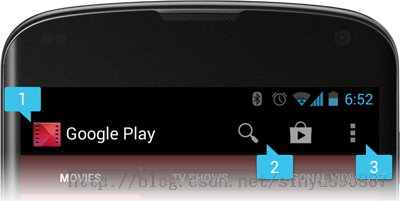
介紹Action Bar是一種新増的導航欄功能,在Android 3.0之後加入到系統的API當中,它標識了用戶當前操作界面的位置,並提供了額外的用戶動作、界面導航等功能
 Service 入門——service調用執行順序&利用service模擬完成一個後台服務
package com.example.xh.myapplication;import android.content.ComponentName;import andr
 Andriod下完全自定義控件和在自定義控件中使用自定義屬性
首先,自定義控件分為三類:自定義的組合控件繼承View的自定義控件繼承ViewGroup的自定義控件在這裡,我要寫的是第二種,也就是繼承自View的自定義控件,第一種自定
 Android學習教程之日歷控件使用(7)
本文實例為大家分享了Android日歷控件的使用方法,供大家參考,具體內容如下MainActivity.java代碼:package siso.timessquare;i